How to replace or retire a supplier without losing catalog coverage
Replace or retire a supplier safely by checking export dependencies, preparing the replacement in parallel, testing its mapped data, and reviewing which products will disappear when the old supplier is removed.
This guide explains how to change suppliers in B2BLIX Feed while reducing unexpected product losses in your generated XML exports.
When this guide is relevant
Use this guide when you are stopping work with an existing supplier and replacing it with a new supplier feed, a new supplier account, or an updated source.
The main risk is catalog coverage. Some products may be available from both suppliers, while other products may exist only in the supplier you are retiring. Removing the old supplier without checking this can reduce the number of products in your next export.
Short answer
Prepare and test the replacement supplier before removing the old supplier from your live exports.
The safest process is to:
- Check which exports and rules use the old supplier.
- Add and map the replacement supplier as a separate supplier.
- Test the replacement in a separate export containing only that supplier.
- Check several representative EANs and the generated XML.
- Add the replacement supplier to the required live exports.
- Remove the old supplier from those exports.
- Disable the old supplier only after the replacement result is confirmed.
Warning: Supplier selection affects generated export data. When the old supplier is removed or disabled, products available only from that supplier will not appear in the next generated XML file. The destination marketplace, website, or other system may then remove or stop updating those products according to its own import process.
How supplier replacement affects products
B2BLIX stores supplier products in a shared catalog and uses EAN as the primary identifier for grouping the same product across suppliers.
If the replacement supplier provides the same accepted EAN as the old supplier, that product may continue to be available from the replacement source. The final result still depends on the suppliers, filters, and transformation rules enabled for the export.
If an EAN exists only in the old supplier, the product will no longer participate in the export after that supplier is removed. When the supplier itself is disabled, its products are excluded from exports and scheduled for deletion from the stored catalog.
For this reason, product overlap should be assessed by EAN. Category and manufacturer coverage can also help you identify broader differences between the two catalogs, but they do not replace an EAN-level check.
1. Check where the old supplier is used
Start by reviewing every export that may depend on the old supplier. An export can have its own supplier selection, product filters, transformation rules, and XML template.
When you are logged in, open Exports. To understand the available export settings, read Create and configure XML export projections.
For each affected export, check:
- Whether the old supplier is enabled in the supplier selection.
- Whether the replacement supplier has already been selected.
- Whether any product filters contain the old supplier as a condition.
- Whether enabled transformation rules apply only to the old supplier.
- Whether the export contains category, manufacturer, stock, or price conditions that could affect the replacement products differently.
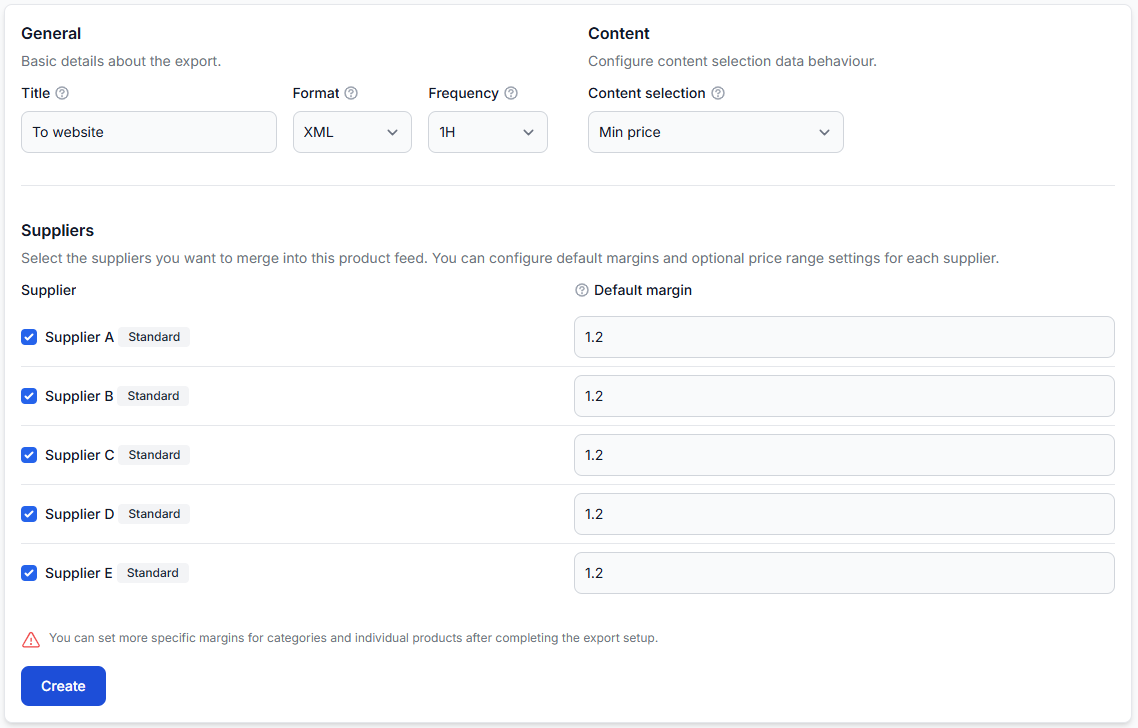
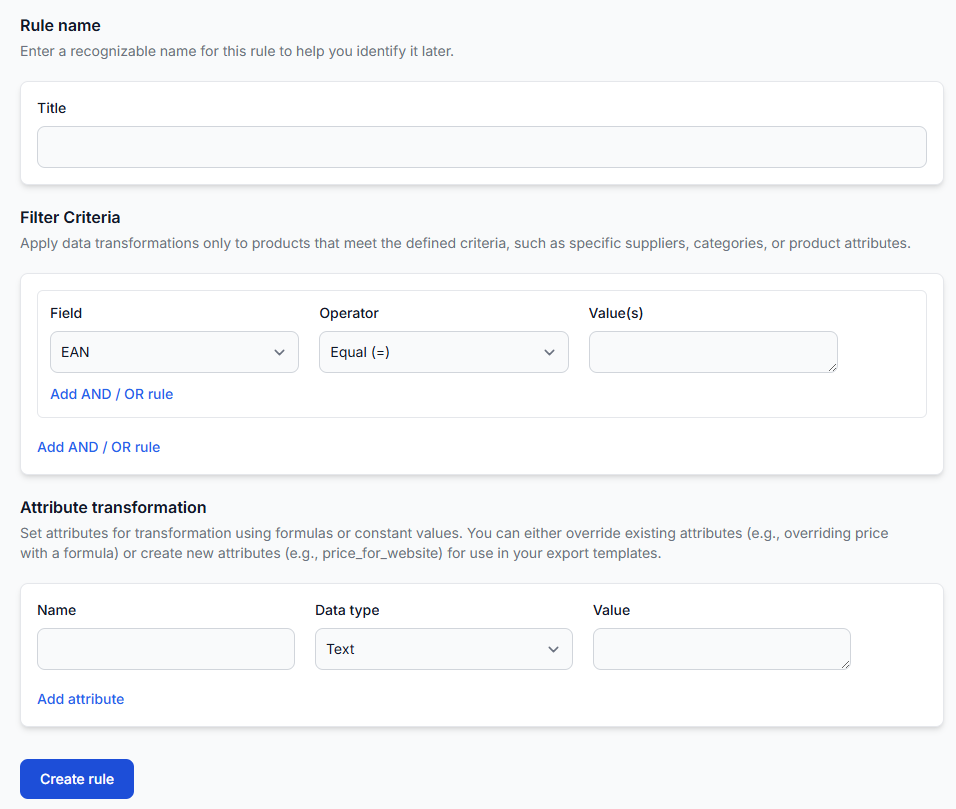
Transformation rules can also depend on a supplier value. Open Data transformation rules and check rules assigned to the affected exports. For details about rule filters and priorities, read Data transformation rules.
2. Add the replacement as a separate supplier
Do not overwrite or disable the existing supplier before the replacement has been configured and checked. Adding it as a separate supplier allows you to compare the two sources and test the new data without changing the live export immediately.
When you are logged in, open Add new supplier. For setup and mapping instructions, read Add and configure a supplier feed.
Before enabling the replacement for normal use, verify:
- The correct source URL and any required authentication settings.
- The supplier country, source currency, VAT treatment, and VAT rate.
- The content language and weight unit.
- The synchronization frequency.
- The freshness settings, including Force zero stock and Maximum last seen, where applicable.
Verify the supplier settings before changing a live export. Incorrect currency, VAT, stock, or freshness settings can affect exported prices, availability, and how long missing products remain in the catalog.
3. Map and review the replacement data
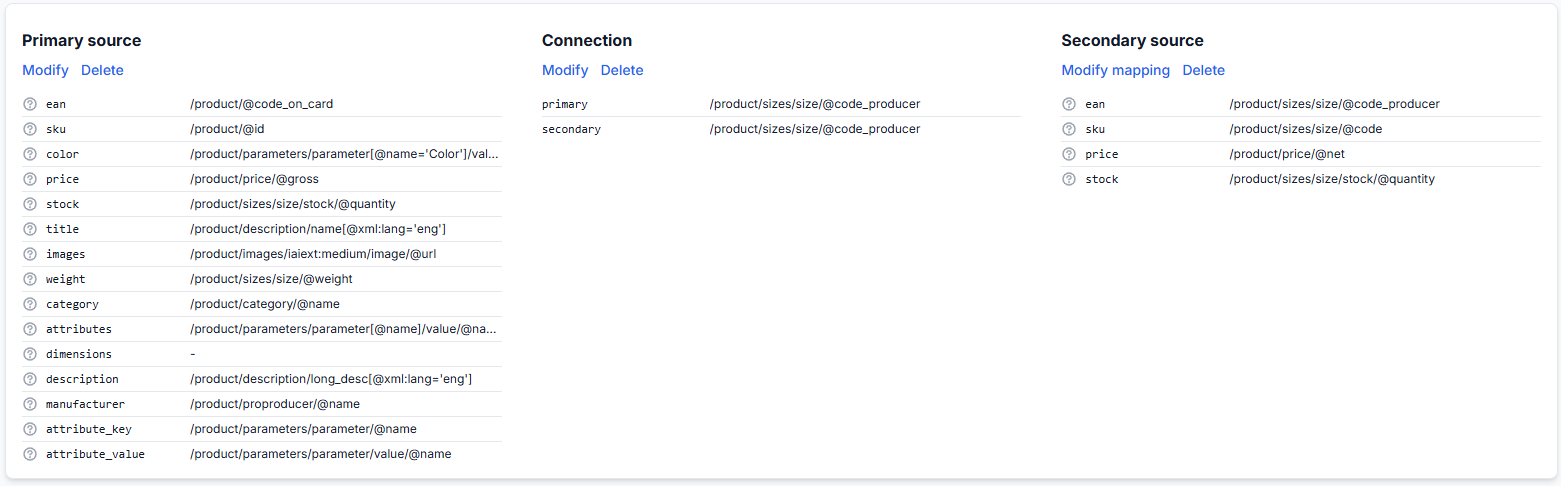
The replacement supplier may use different field names and structures. Its source fields must therefore be mapped to the B2BLIX product structure.
Pay particular attention to:
- EAN, because products without a usable EAN are ignored in the standard workflow.
- Price and stock, because these directly affect commercial export data.
- SKU, when it is needed as an exported attribute.
- Category and category ID.
- Manufacturer or brand.
- Title, description, and images.
Use the mapping previews to confirm that the selected source paths return the expected values. If the supplier has primary and secondary sources, also check that the connection between them uses appropriate identifiers.
4. Assess the replacement supplier's coverage
The replacement does not need to contain every product from the old supplier, but you should understand the expected differences before switching.
Review these areas:
Ean coverage
Check whether important products from the old supplier are also available from the replacement supplier under the same valid EAN.
When you are logged in, open All products. For details about inspecting imported product records, read All products interface.
Category coverage
Review whether the replacement supplier's categories have suitable relationships with the B2BLIX category tree. Category differences may affect category filters or destination-specific category output.
Open Category map. To understand the category relationships shown there, read Category map interface.
Manufacturer and brand coverage
Check whether the replacement source provides the manufacturer or brand values required by your filters, transformation rules, or export template.
Open Manufacturers. For details about the values displayed on that page, read Manufacturers interface.
5. Test the replacement in a separate export
A practical way to test the replacement is to create a separate export that contains only the new supplier. This allows you to review the result without changing the supplier selection in your live export.
When you are logged in, open Create new export.
In the test export:
- Select only the replacement supplier.
- Use filters and transformations that represent the intended live workflow.
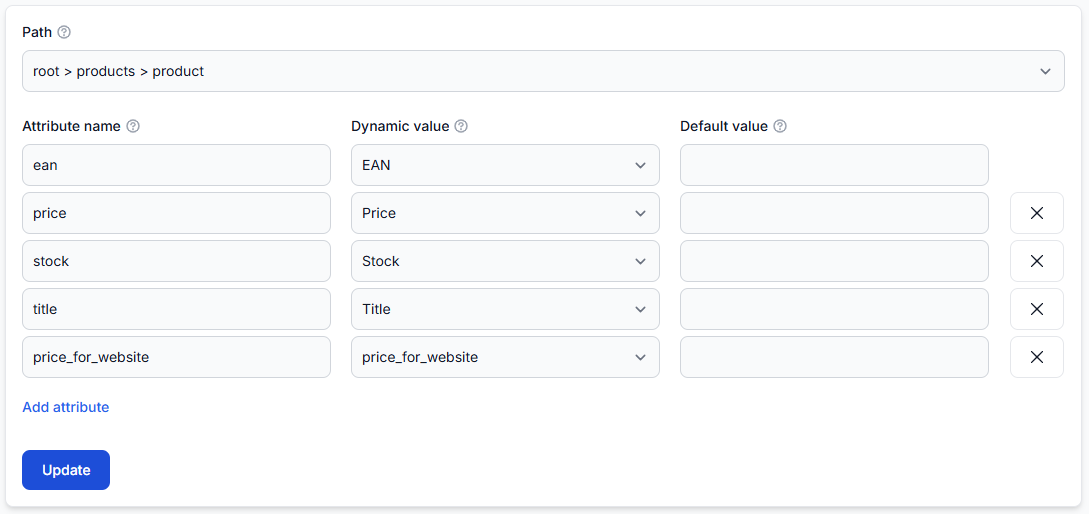
- Configure the required XML attributes and template.
- Generate the export.
- Review several important or representative EANs.
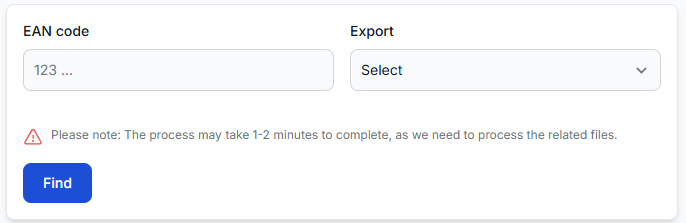
To inspect an EAN, open Exports checker. For details about the source data, processing result, and exported XML shown there, read Review product data and export results.
For each checked EAN, confirm:
- The replacement supplier product is present.
- The mapped EAN, price, stock, title, category, and manufacturer values are reasonable.
- The expected filters allow the product to pass.
- The expected transformation rules are applied.
- The final XML contains the required values.
6. Switch the live exports
After the replacement has been mapped, synchronized, and tested, update each affected live export.
- Add or enable the replacement supplier in the export.
- Save the export settings.
- Confirm that supplier-specific filters and rules also support the replacement.
- Remove the checkbox for the old supplier.
- Review the next generated export.
Removing the old supplier from one export affects only that export projection. Check every export separately because another website, marketplace, or price-comparison export may still depend on the old supplier.
7. Disable the old supplier
Disable the supplier only when you no longer need its data in any export.
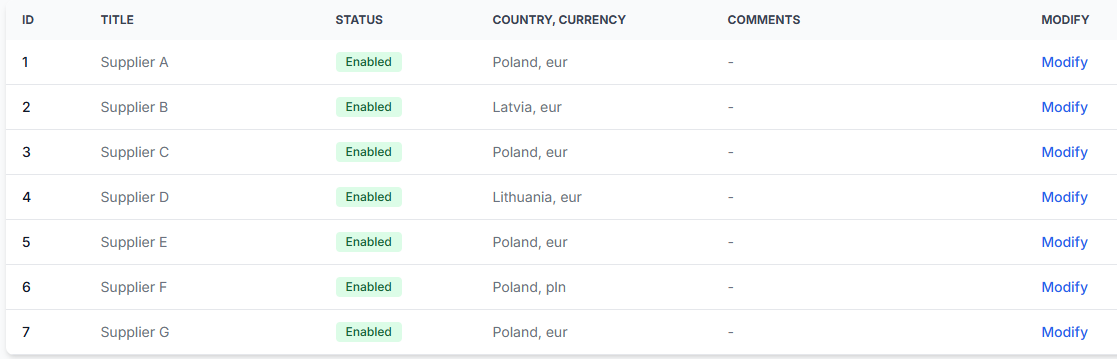
When you are logged in, open Suppliers and review the supplier's status.
After the supplier is disabled:
- Its products no longer participate in exports.
- Products available only from that supplier disappear from newly generated XML files.
- Those supplier products are scheduled for deletion from the stored catalog.
- Products also supplied by another selected supplier may remain available through that other source.
This behavior is different from a temporary supplier download problem. A single failed download does not automatically remove the previously stored supplier catalog.
Common causes of unexpected product losses
- The product is exclusive to the old supplier. The replacement does not provide the same EAN, so there is no replacement offer to export.
- The replacement supplier is not selected in the export. Its products may be imported into B2BLIX but still excluded from that export projection.
- The replacement EAN is missing or invalid. Products without a usable EAN are ignored in the standard processing workflow.
- A filter contains the old supplier. The filter may reject the replacement product even when the product data is otherwise valid.
- A transformation rule applies only to the old supplier. The replacement product may receive a different price, stock, title, or other output value.
- Category or manufacturer values are different. Category-based or brand-based filters may behave differently for the new source.
- The new source has not synchronized successfully. The export cannot use replacement products that have not yet been imported and stored.
Example
Supplier A provides 10,000 products and is currently selected in a website export. Supplier B is intended to replace it.
After Supplier B is added and mapped, a test export shows that 8,500 products have valid EANs and pass the required filters. Most important products are available from both suppliers, but several products exist only in Supplier A.
When Supplier A is removed from the live export, the overlapping products can continue through Supplier B. Products exclusive to Supplier A disappear from the next generated XML file. The seller can then decide whether that reduced coverage is acceptable before disabling Supplier A completely.
What to do next
- List every export that currently uses the old supplier.
- Review supplier-based filters and transformation rules.
- Add and fully map the replacement supplier.
- Create a test export containing only the replacement supplier.
- Check important EANs and the resulting XML in Exports Checker.
- Add the replacement to each required live export.
- Remove the old supplier and review the next generated XML.
- Disable the old supplier after confirming that no required export still depends on it.