Category map interface
The category map shows the predefined B2BLIX category tree and the supplier categories connected to it. Use this page to find category IDs, review category relationships, and understand how categories from different suppliers are standardized.
What the category map is used for
Suppliers often organize products into different category trees and use different names for similar product groups. B2BLIX Feed uses one predefined category tree to organize supplier data in a consistent structure.
The category map displays this shared category tree together with the supplier categories that have been classified and connected to it. Automated classification may be used to create these relationships, but category results should still be reviewed when preparing supplier data or exports.
This page is mainly informational. It does not provide controls for editing or saving category relationships directly.
When to open this page
Open the category map when you need to:
- Find the B2BLIX category ID for a filter or data transformation rule.
- Review where a supplier category has been placed in the predefined category tree.
- Compare category relationships from different suppliers.
- Check whether a standard category currently has any supplier categories connected to it.
- Understand the hierarchy of a category before using it in an export workflow.
What you can do on this page
- Select a department to limit the displayed part of the category tree.
- Apply the selected department by using the Filter button.
- Browse standard B2BLIX category names and their parent hierarchy.
- Copy or record category IDs for use in filters and data transformation settings.
- Review supplier categories associated with each standard category.
- Identify categories that currently show no supplier-category relationships.
The category map is read-only. Selecting a department or pressing Filter only changes the categories displayed on the page. It does not change product data, category mappings, exports, or live catalog content.
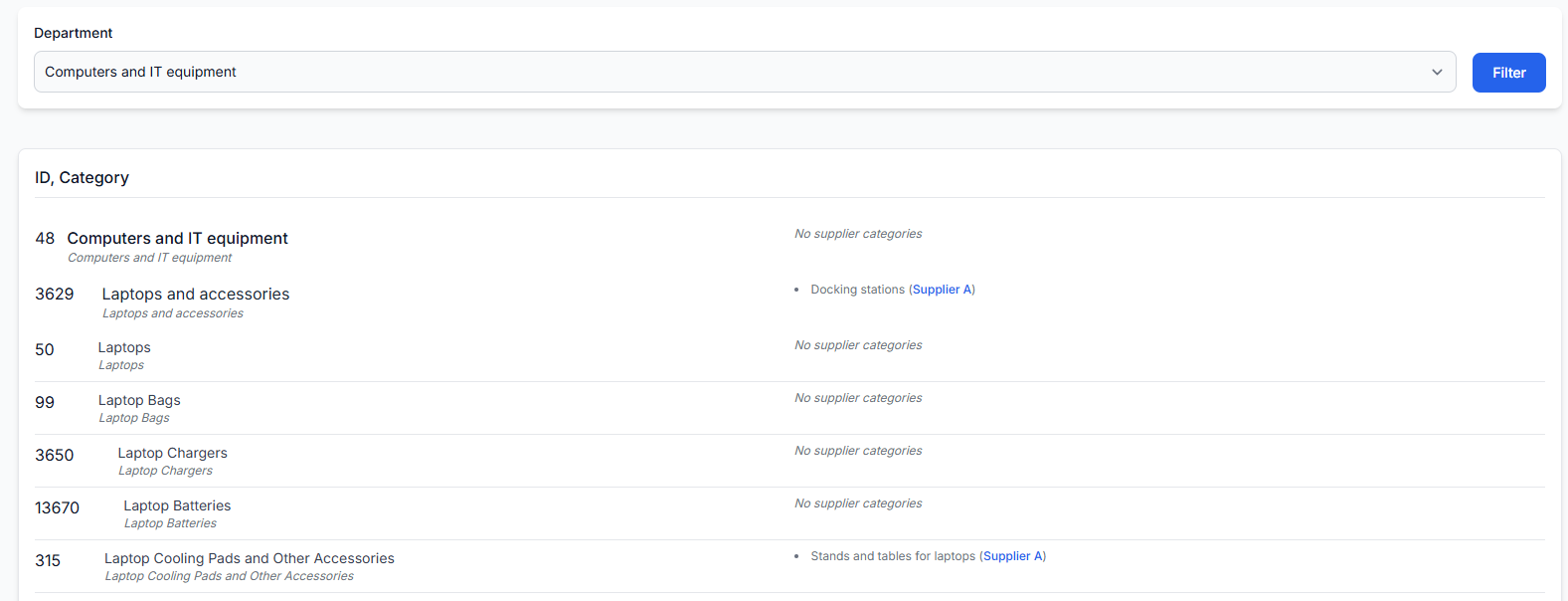
Main fields and controls
| Field or control | What it means | Effect |
|---|---|---|
| Department | Selects the main part of the predefined category tree that you want to view. | Changes which category group will be displayed after filtering. It does not modify mappings. |
| Filter | Loads the category list for the selected department. | Affects only the current page display. |
| ID | The unique identifier of a category in the B2BLIX category tree. | May be used in product filters, category conditions, and data transformation settings. |
| Category | The standard category name used in the predefined B2BLIX tree. | Helps users understand how supplier categories are standardized. |
| Category hierarchy | The smaller text below a category name shows its position or parent path in the category tree. | Helps distinguish categories with similar names and confirms their broader department. |
| Supplier category | A category received from a connected supplier that has been associated with the standard B2BLIX category. | Shows the current relationship for review. It does not change supplier data. |
| Supplier name | The supplier shown in parentheses next to a mapped supplier category. | Identifies which connected supplier provided that category. |
| No supplier categories | No supplier category is currently shown as connected to that standard category. | This is an informational status and not an editing control. |
Available departments
The complete category tree contains many individual categories and subcategories. The Department selector provides access to the following main sections:
- Computers and IT equipment
- Perfumes, cosmetics
- Toys and baby products
- TV and home appliances
- Mobile phones, tablets, photo and video
- Household goods and kitchen supplies
- Sports, tourism and leisure
- Home and repairs
- Furniture and interior
- Car products
- Garden products
- Gifts, party supplies
- Adult products
- Clothing, footwear, accessories
- Pet supplies
- Protection, disinfection, medical supplies
- Books
- Office, school, and creative supplies
- Groceries
- Smart home
- Uncategorized
The Uncategorized department is used for category data that does not currently have a resolved position in the standard tree, where the relevant supplier configuration permits uncategorized products.
How to interpret the category list
Category rows may represent different levels of the hierarchy. A department can contain broad categories, narrower product groups, and individual subcategories.
For example, the screenshot includes:
- Computers and IT equipment as the main department.
- Laptops and accessories as a category within that department.
- Laptops, laptop bags, laptop chargers, and other more specific categories below it.
A supplier category may be displayed beside the standard category to which it has been classified. In the screenshot, the supplier category Docking stations is shown under Laptops and accessories.
The supplier's wording does not need to match the B2BLIX category name exactly. The purpose of the relationship is to place different supplier category structures into one common category system.
How to use this page safely
- Select the department that is most likely to contain the required category.
- Press Filter to load that section of the tree.
- Find the required category by checking both its name and its hierarchy.
- Confirm that any displayed supplier category belongs in that part of the tree.
- Record the category ID when it is needed for a filter or transformation rule.
- Test any category-based filter or transformation on a controlled group of products before using it in a production export.
Do not select a category ID based only on a similar category name. Check the full hierarchy first. Using the wrong ID in a filter or transformation rule may select, exclude, or modify a different group of products than intended.
If a supplier category appears to be connected to the wrong standard category, review it through the relevant supplier-category mapping workflow. This overview page itself does not provide an editing or save action.
Common mistakes
- Expecting the filter button to save a setting. It only updates the list shown on the page.
- Confusing a supplier category with a B2BLIX category. Supplier categories come from external feeds, while B2BLIX categories belong to the shared predefined tree.
- Using a category name instead of its ID. Settings that expect a category ID should use the numeric value shown in the ID column.
- Ignoring the category hierarchy. Similar names may appear in different parts of a large catalog structure.
- Assuming automated classification is always correct. Review important supplier-category relationships before relying on them in export filters or transformations.
- Assuming “No supplier categories” is an error. It only means that no supplier relationship is currently displayed for that standard category.
Example use case
A seller receives a supplier feed containing a category named Docking stations. The supplier uses its own category structure, which may not match the structure used by other suppliers.
The seller opens the category map, selects Computers and IT equipment, and presses Filter. The list shows that Docking stations from the supplier is associated with the standard Laptops and accessories category.
The seller can then review the standard category and its ID before creating a category-based export filter or transformation rule. If the relationship does not match the seller's intended catalog structure, it should be reviewed in the relevant category-mapping workflow before the rule is used in production.