Suppliers: add and configure a supplier feed
The suppliers interface is the starting point for connecting supplier product data to B2BLIX. Use it to add source files, define how prices and content should be interpreted, map supplier fields, and enable scheduled synchronization.
What the Suppliers interface is used for
The Suppliers interface allows you to view and manage the external product-data sources connected to your B2BLIX account.
A supplier may be a wholesaler, distributor, manufacturer, or another company that provides a product catalog. The supplier normally gives you a URL from which B2BLIX can download an XML or JSON file containing products, prices, stock quantities, descriptions, images, categories, and other information.
You must configure at least one supplier before B2BLIX can collect product information and prepare it for later catalog processing or export.
A complete supplier setup normally includes the following stages:
- Add the supplier and enter the source URL.
- Complete the supplier’s financial, content, and synchronization settings.
- Select the product path inside the source file.
- Map the supplier’s fields to B2BLIX product fields.
- If two sources are used, connect the corresponding products between them.
- Enable the supplier and save the configuration.
Important: Supplier settings can affect the prices, stock quantities, product availability, and content later used in exports. Keep a new supplier disabled until its source settings and data mappings have been checked.
The supplier list
Open the Suppliers interface to see all supplier instances currently configured in your account.
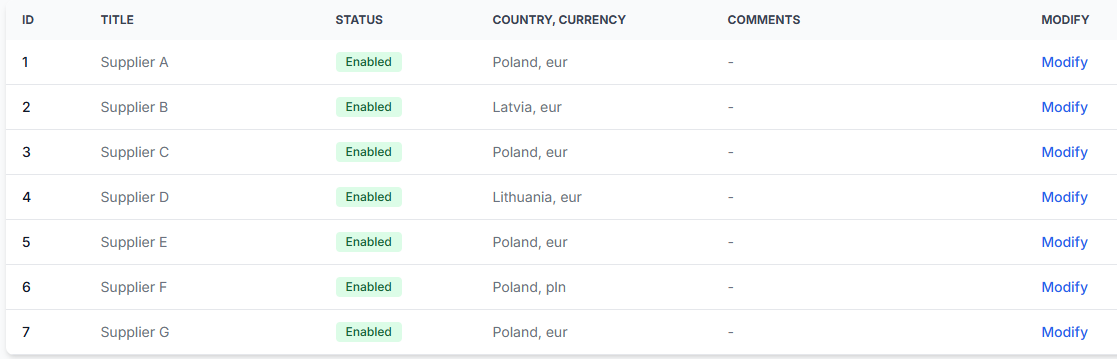
The table contains the main information needed to identify and manage each supplier.
| Column | Meaning |
|---|---|
| ID | The internal identifier of the supplier instance. |
| Title | The name used to identify the supplier in B2BLIX. |
| Status | Shows whether synchronization is enabled or disabled. |
| Country, currency | Shows the configured supplier country and the currency used by its source prices. |
| Comments | Displays internal notes when comments have been added to the supplier. |
| Modify | Opens the supplier configuration so that you can review or change its settings and mappings. |
To connect a new supplier, click Add New Supplier.
Before adding a supplier
Collect the required information from the supplier before starting the setup. This reduces the risk of entering an incorrect URL or interpreting prices incorrectly.
You should normally have:
- A complete, absolute source URL beginning with a supported protocol such as https://.
- Permission to download the supplier file.
- A basic-authentication login and password, when required.
- Any additional request headers required by the supplier.
- Confirmation of the source currency.
- Confirmation of whether source prices include VAT.
- The applicable VAT rate.
- The main language used for product content.
- The unit used for product weight.
- Information about how often the supplier updates the source and how often it may be downloaded.
It is strongly recommended to open or download the source URL manually before adding it. Confirm that the URL works and that it returns the expected supplier file rather than a login page, error page, or unrelated document.
Keep source details private: Supplier URLs may contain seller identifiers, access tokens, or other confidential information. Credentials, private URLs, and synchronization headers should not be shared publicly.
Using Helper Tools for complex supplier URLs
Some suppliers use a more complex authorization process. Their download URL may need to contain encoded values, a seller token, a signature, or other generated parameters.
When the supplier is supported in the Helper Tools section, use the appropriate helper before adding the supplier. Follow the displayed form and instructions to build the complete URL required for the request.
The final result must still be a complete URL that B2BLIX can use to request the supplier file.
Step 1: Add the supplier and source URLs
The first form asks for a supplier title and the download details for its data sources.
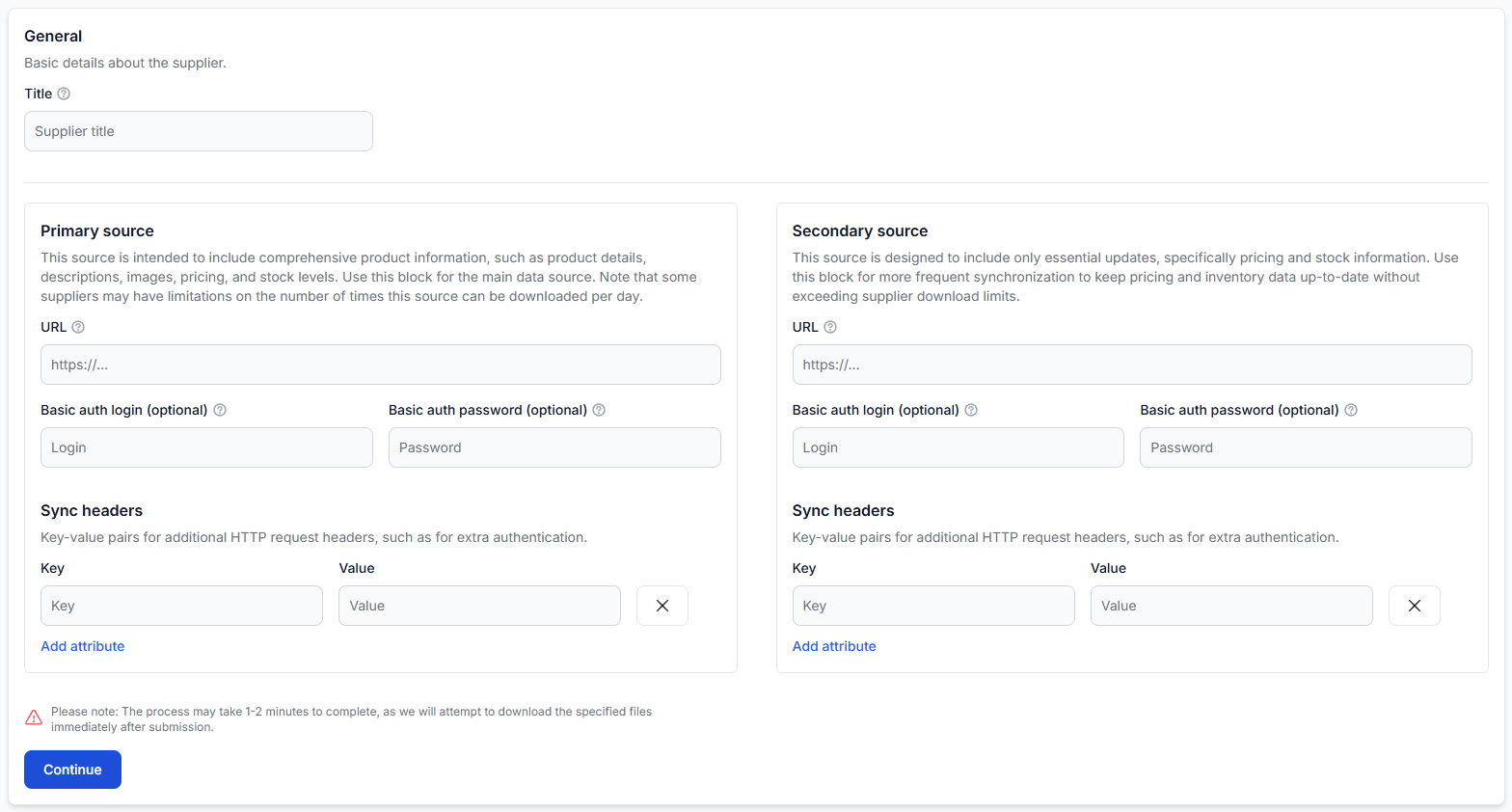
Supplier title
Enter a recognizable name in Title. This name identifies the supplier throughout B2BLIX and may also be available where supplier identity is used in later processing or exports.
Avoid unclear titles such as “New supplier” or “Feed 1.” If the same company provides several separate catalogs, include enough detail to distinguish them.
Primary source
The Primary source is the main supplier catalog. It is intended to contain comprehensive product information, for example:
- EAN and supplier SKU.
- Product titles and descriptions.
- Images.
- Categories and manufacturers.
- Prices.
- Stock quantities.
- Weight, dimensions, color, and additional attributes.
The primary source may be relatively large. Some suppliers limit how often it may be downloaded, so a complete content source should not automatically be assigned the shortest available synchronization interval.
Secondary source
The Secondary source is optional. It is intended for a smaller or more frequently updated file that contains essential changes such as:
- Current price.
- Current stock quantity.
- A stable product identifier used to connect the update to the corresponding primary-source product.
Using a secondary source allows B2BLIX to refresh commercial information more frequently without repeatedly downloading the complete product-content catalog.
If the supplier provides only one complete feed, configure the primary source and leave the secondary source empty.
Source fields
| Field or control | What it means | How to use it |
|---|---|---|
| URL | The address from which B2BLIX downloads the supplier data. | Enter a complete, working URL to the XML or JSON source. Check it manually before continuing. |
| Basic auth login | The username for HTTP basic authentication. | Enter it only when the supplier confirms that basic authentication is required. |
| Basic auth password | The password for HTTP basic authentication. | Enter it together with the corresponding login. Leave it empty when authentication is not required. |
| Sync headers | Additional key-value pairs sent with the download request. | Use these only when the supplier requires additional HTTP request headers. |
| Key | The name of the request header. | Enter the exact header name supplied by the supplier. |
| Value | The value sent for the corresponding header. | Enter the exact value supplied for that header. |
| Add attribute | Adds another synchronization-header row. | Use it when the request requires more than one additional header. |
| Remove | Removes a synchronization-header row. | Remove unused or incorrectly added rows before continuing. |
The authentication and header fields are optional. Do not enter values in them unless the supplier requires them.
Continue and initial source check
After entering the source details, click Continue.
B2BLIX will attempt to download the specified file immediately. The interface notes that this step may take approximately one to two minutes.
This initial request allows the system to inspect the source structure and discover possible product paths and fields for mapping.
If the URL is invalid, incomplete, unavailable, or missing required authorization, the system may be unable to prepare the next mapping steps correctly.
Step 2: Complete the supplier configuration
After the source has been downloaded and inspected, complete the supplier’s general, financial, content, and synchronization settings.
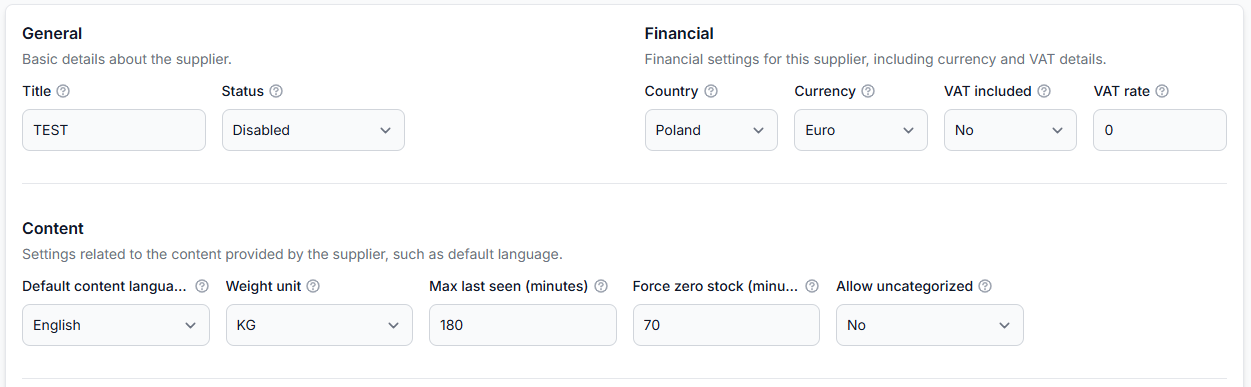
General settings
| Field | Meaning | Important considerations |
|---|---|---|
| Title | The name of the supplier. | This field is required. Keep the title clear and consistent. |
| Status | Controls whether the supplier synchronization process may run. | Keep the supplier Disabled until the settings and mappings have been reviewed. |
Financial settings
Financial settings tell B2BLIX how to interpret numeric prices received from this supplier.
| Field | Meaning | How to check it |
|---|---|---|
| Country | The country where the supplier is located. | Select the supplier’s actual location. This information may also provide context for content-related processing. |
| Currency | The default currency used for prices in the supplier feed. | Confirm it directly from the supplier or inspect the source file. For supported non-EUR currencies, currency conversion can be applied during export. |
| VAT included | Indicates whether the mapped source prices already contain VAT. | Select Yes only when the price you plan to map is VAT-inclusive. |
| VAT rate | The VAT factor used to interpret or calculate prices. | Use the format described by the interface tooltip. For example, 1.20 represents a 20% VAT rate. |
Pricing warning: An incorrect currency, VAT setting, VAT rate, or price mapping can produce incorrect net values and affect calculations used by later exports. Verify these settings from the actual supplier feed rather than relying only on the supplier’s country.
For example, a supplier located in Poland may provide prices in EUR rather than PLN. The Currency field must describe the prices in the file, not the currency you normally use in your own store.
Content settings
| Field | Meaning | How it affects processing |
|---|---|---|
| Default content language | The main language of titles, descriptions, and other text received from the supplier. | This identifies the source language for content processing and translation when translation rules are used. |
| Weight unit | The unit used for numeric product weight values. | Select grams or kilograms according to the supplier file. B2BLIX needs this setting to interpret and convert weight consistently. |
| Max last seen (minutes) | How long a previously synchronized product may remain absent from newer supplier data before it is removed. | Use a value that allows for the normal synchronization schedule and possible temporary omissions. |
| Force zero stock (minutes) | How long a product may remain unseen before its stock is automatically changed to zero. | Use a value longer than the normal update interval so products are not set to zero between expected synchronizations. |
| Allow uncategorized | Controls whether a product without a resolved category may be assigned to an uncategorized value. | Enable it only when you accept products remaining under an uncategorized group until their category relationship is resolved. |
Stock and retention warning: Do not set Force zero stock or Max last seen shorter than the synchronization interval. If stock is synchronized every 60 minutes, a 10-minute force-zero value would cause products to become unavailable before the next expected update.
As a practical starting point, configure freshness periods to cover at least approximately two expected synchronization cycles. The correct values still depend on how reliably and how often the supplier updates its source.
Max last seen will normally be later than Force zero stock. This gives the system time to mark an absent product out of stock before eventually removing it if it continues to be missing.
A single failed download does not automatically mean that the entire previously stored catalog is erased. The freshness settings describe how products should be treated when they remain absent from newer successfully received data.
Synchronization frequencies
Each configured source can have its own synchronization frequency. Available intervals may include:
- Every 30 minutes.
- Every hour.
- Every 2 hours.
- Every 3 hours.
- Every 6 hours.
- Every 12 hours.
- Every 24 hours.
Choose the frequency according to:
- How often the supplier updates the source.
- How quickly price and stock changes must be received.
- The size of the source file.
- Any download limits imposed by the supplier.
A common arrangement is to synchronize the complete primary source less frequently and the lightweight secondary price-and-stock source more frequently.
Running a synchronization more often than the supplier updates its file does not create newer data. It may also use unnecessary resources or exceed the supplier’s permitted download frequency.
Internal notes
Use Notes or Internal comments for administrative information that helps you manage the supplier.
Examples include:
- The supplier contact person.
- The agreed source update schedule.
- A reminder about the feed’s VAT treatment.
- The date of a recent source-format change.
Do not place passwords, access tokens, or other secrets in general comments.
Step 3: Complete the required data mapping
After a new supplier source is added, the data-mapping warnings are expected. They indicate that B2BLIX has downloaded the source but does not yet know how the supplier’s fields correspond to the standard product structure.

Depending on the configured sources, you may see:
- Primary source: Data mapping missing.
- Secondary source: Data mapping missing.
- Connection: Data connection missing.
This is a normal part of a new supplier setup. Complete each displayed task before enabling synchronization.
What data mapping means
Every supplier structures its file differently. One supplier may call a field barcode, another may use ean, and another may store the same value inside a nested product element.
Data mapping tells B2BLIX which supplier field should be treated as the standard B2BLIX field for EAN, price, stock, title, images, and other product information.
Do not copy mapping paths from another supplier unless both files are confirmed to use exactly the same structure.
Step 4: Select the product path
Click Build mapping for the primary source. The first mapping screen asks you to select the Product path.
The product path identifies the repeating part of the source file that represents one complete product. B2BLIX uses this path to move through the source and read every product instance.
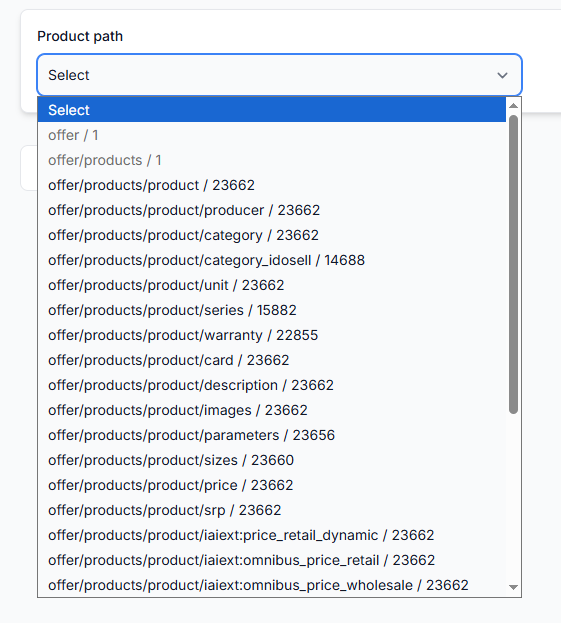
The discovered path list may show:
- The path name.
- The number of matching elements found at that path.
How to recognize the correct product path
Choose a path that represents one complete product, not the complete file wrapper and not a child field inside a product.
A suitable path will usually have:
- A meaningful name such as product, item, or offer.
- A large number of matches that is close to the expected number of products.
- A reasonably short path ending at the complete product entity.
- Child elements containing price, stock, title, images, category, and other product fields.
For example, if the list shows:
- offer / 1
- offer/products / 1
- offer/products/product / 23,662
- offer/products/product/producer / 23,662
offer/products/product is the most likely product path. It repeats once for every product and represents the complete product object.
offer/products is only a wrapper containing the product list. offer/products/product/producer is a child field inside each product, even though it may have the same number of matches.
Do not select a child path such as price, stock, producer, category, image, or size simply because it has a high count. The path must contain the complete product record.
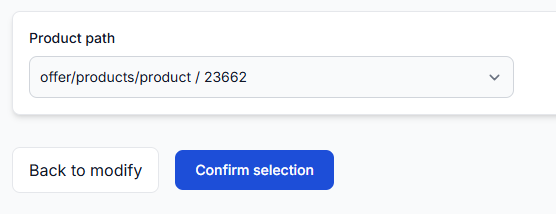
After selecting the path, review it once more and click Confirm selection.
Step 5: Map the primary-source fields
The field-mapping page normally contains three areas:
- Origin product data on the left.
- Field mapping in the middle.
- Validation and preview on the right.
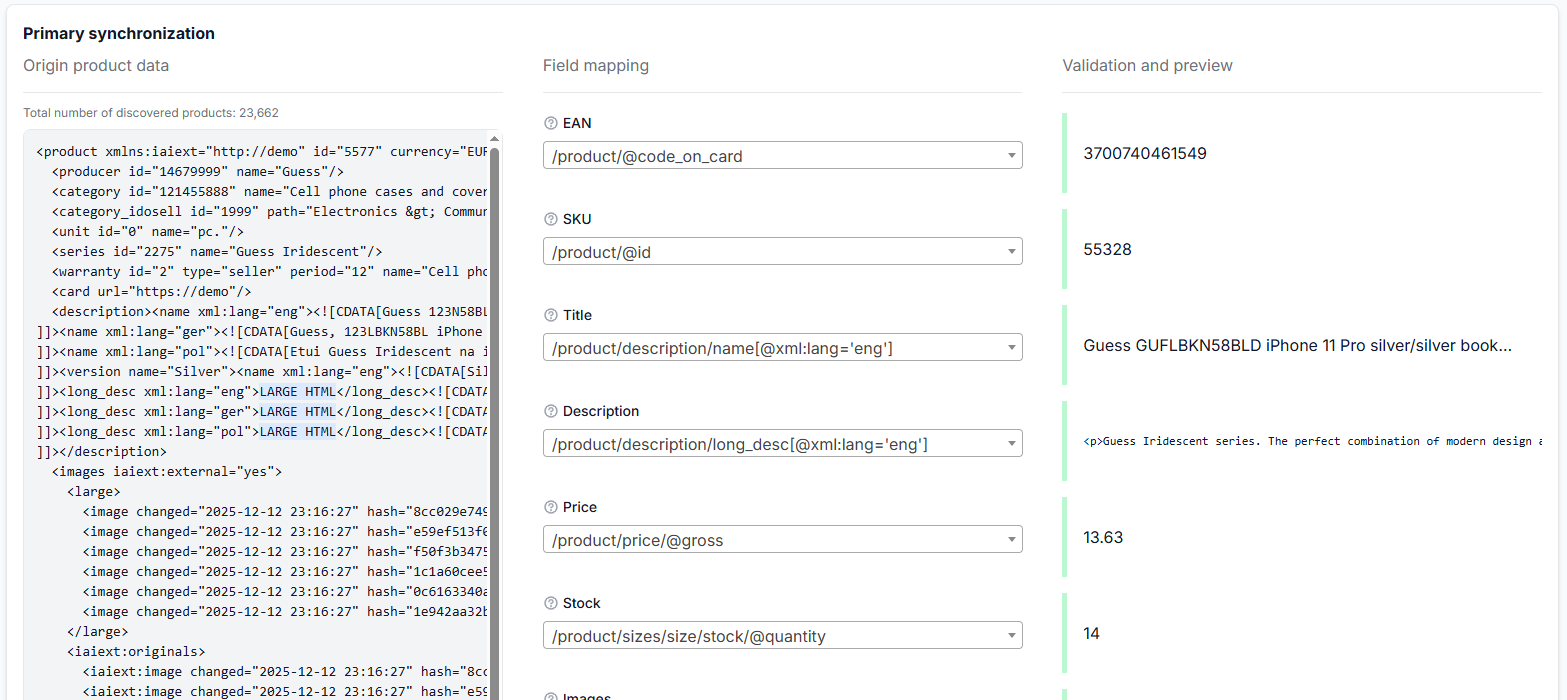
Origin product data
The left side displays one product selected from the supplier file. For an XML source, it may appear as an XML block. A JSON source will use its corresponding source structure.
The displayed product is selected as a sample. It may not contain every optional field used by other products in the feed.
If you need to inspect another sample product, reload the mapping page. The interface may then select a different product from the source.
Field mapping selections
For each standard B2BLIX field, select the source path that contains the matching value. Suggested selections may be provided, including automated suggestions, but they must still be reviewed by the user.
Select Ignore when the source does not provide a field or when the discovered value is not suitable.
Do not map a field merely to avoid leaving it empty. An incorrect value is normally more harmful than an intentionally ignored optional value.
Validation and preview
After choosing a path, check the value shown in Validation and preview.
The preview should look like the value expected for that field. For example:
- An EAN preview should contain a product barcode rather than a category ID.
- A price preview should be numeric.
- A stock preview should contain a quantity.
- An image preview should contain one or more image URLs.
- A title preview should contain a readable product name.
- A manufacturer preview should contain a brand or manufacturer name.
The preview is one of the most important checks on this page. Similar-looking source paths can produce very different values.
Standard product fields
| Mapping field | Expected value | What to check |
|---|---|---|
| EAN | The European Article Number or accepted product barcode. | Confirm that the preview contains the actual product EAN and not a supplier SKU, internal row ID, or product-group ID. |
| SKU | The supplier’s stock-keeping unit or product identifier. | Use the identifier the supplier uses to identify the item or variation in its own catalog. |
| Title | A readable product name. | Select the title in the required source language. Avoid selecting a language code or a container holding several translated titles. |
| Description | The detailed product description. | Check that the preview contains the description text or HTML, not the title or a language marker. |
| Price | The supplier’s numeric product price. | Choose the price that matches the configured VAT interpretation. Check whether the path contains a gross or net value. |
| Stock | The number of available units. | Select the available quantity rather than a warehouse ID, stock-status flag, or reserved quantity. |
| Images | One or more URLs pointing to product images. | Select the image URL field. When several image sizes are available, choose the appropriate image set rather than metadata such as width, hash, or priority. |
| Category | The supplier’s category name. | Select a readable category name or path. Do not confuse the category name with a category identifier. |
| Category ID | The supplier’s category identifier, when available. | Use the stable identifier corresponding to the mapped category. |
| Manufacturer or brand | The product’s manufacturer or brand name. | Do not use the supplier company name unless it is genuinely the product brand. |
| Weight | A numeric product weight. | Ensure the value uses the unit selected in the supplier’s Weight unit setting. |
| Dimensions | Product dimensions expressed as text. | Check that the selected value describes dimensions rather than one unrelated measurement. |
| Color | A readable product color. | Select the color value, not the name of the attribute or its internal ID. |
| Attributes | A repeating list of additional product attributes. | Select the repeating attribute container when the feed provides multiple parameter rows. |
| Attribute key | The name of each additional attribute. | Examples include material, screen size, capacity, or packaging width. |
| Attribute value | The value corresponding to each attribute key. | Confirm that the key and value paths belong to the same repeating attribute structure. |
EAN is critical: Products without a usable accepted EAN are ignored in the normal product-processing and cross-supplier grouping workflow. B2BLIX uses the received EAN as the catalog identity rule, but it does not independently guarantee that the supplier assigned the correct EAN.
Checking language-specific fields
Some supplier files contain titles and descriptions in several languages. The available mapping paths may include a language condition, for example a title where the language attribute equals English.
Select the path matching the language you intend to use as the supplier’s default content language. Do not select the language attribute itself; it would return a value such as “eng” instead of the product title.
Checking price and stock paths
Feeds may contain several price values, including gross price, net price, recommended retail price, historical price, or destination-specific prices.
Select the actual supplier price that should enter your B2BLIX processing workflow. Then make sure the VAT included setting correctly describes that selected value.
Feeds may also contain several stock values for different warehouses or stock types. Select the quantity that represents availability under your agreement with the supplier.
Saving the mapping
After reviewing every mapped value and selecting Ignore for fields that do not apply, save the mapping.
The selected paths are stored and used when B2BLIX processes later versions of the source.
Step 6: Map the secondary source
If a secondary source was configured, click Build mapping in the Secondary source block and repeat the product-path and field-mapping process.
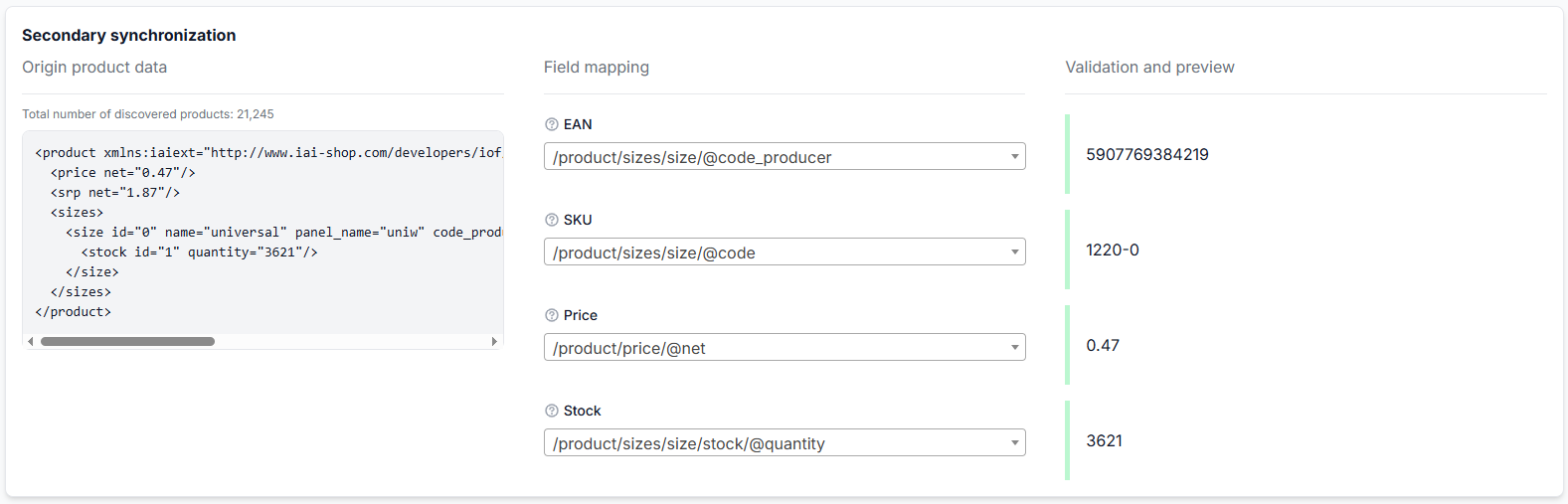
A typical lightweight source may contain only:
- A stable product identifier.
- EAN or supplier SKU.
- Price.
- Stock.
Map only the values that the secondary file is intended to update. Do not try to create content mappings for fields that are not present in that source.
The path names in the secondary source may differ completely from the primary source. Review its original data and previews independently.
Secondary-source checks
Pay particular attention to the following:
- The selected identifier must be stable and suitable for connecting the two sources.
- The price must be the intended update price, not a recommended or historical price.
- The stock value must be a quantity rather than a stock-status code.
- The secondary source may contain fewer products than the primary source, which can be normal.
Step 7: Connect the primary and secondary sources
When both sources have been mapped, click Set connection.
The connection tells B2BLIX which product in the secondary source belongs to which product in the primary source.
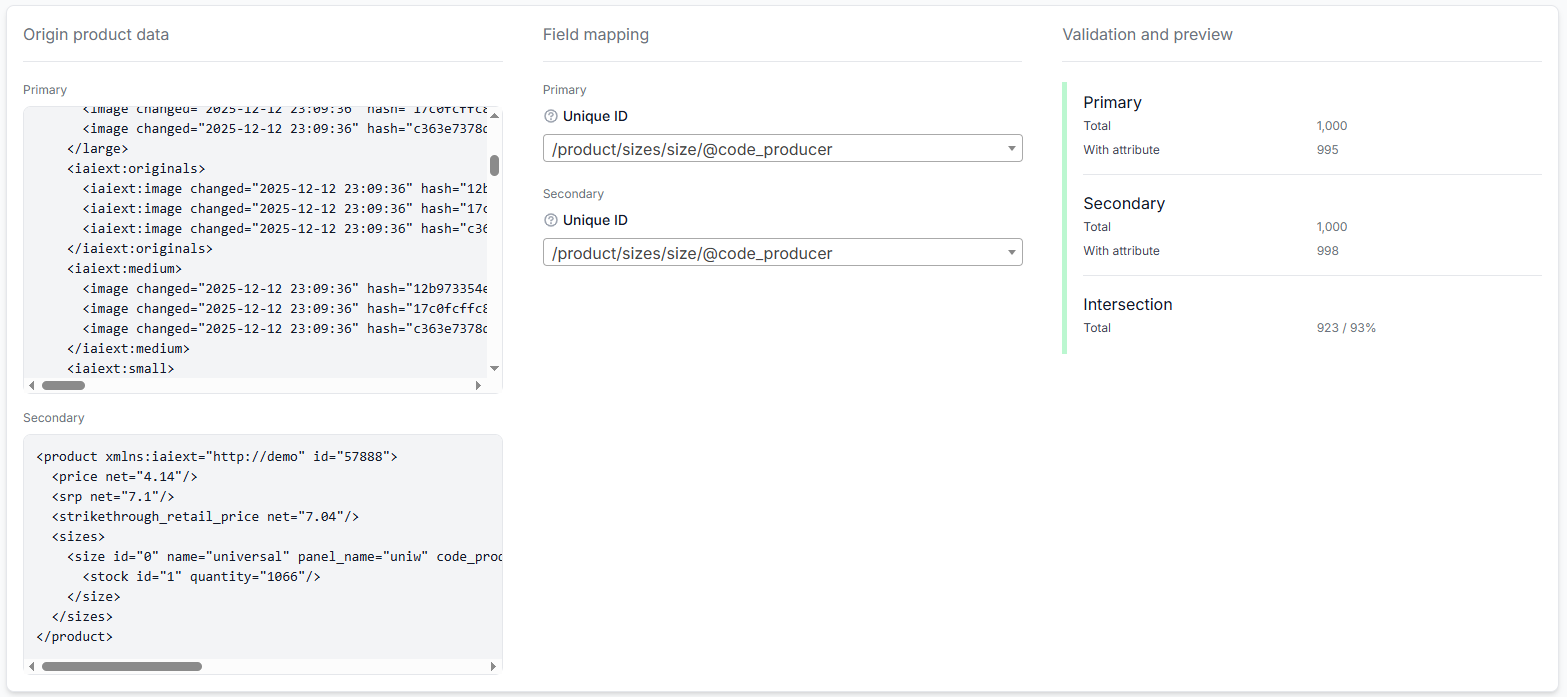
Select:
- A Unique ID from the primary source.
- The corresponding Unique ID from the secondary source.
The two selected fields do not need to have the same path name. They must contain the same stable value for the same product.
Depending on the supplier, the connection may use:
- EAN.
- A supplier product code.
- A supplier SKU.
- Another stable identifier present in both files.
Do not use product titles as the connection identifier. Titles can change, contain language differences, or be duplicated across product variations.
Understanding the connection preview
The validation area may show:
- The total number of sampled primary-source products.
- How many primary products contain the selected identifier.
- The total number of sampled secondary-source products.
- How many secondary products contain the selected identifier.
- The number and percentage of values found in both sources, shown as the Intersection.
A high intersection generally indicates that the selected fields can connect most corresponding products.
An intersection does not always need to be 100%. The secondary source may contain a different subset of products, or some records may not contain the selected field. However, an unexpectedly low result should be investigated before saving.
When the intersection is low, check whether:
- One source uses EAN while the other uses SKU.
- The selected values belong to a product group rather than an individual product.
- One value contains prefixes, suffixes, spaces, or variation codes not present in the other source.
- The selected path returns an internal element ID instead of the shared supplier identifier.
- The identifier is missing from many products.
Confirm the connection only after the primary and secondary preview values represent the same identifier type.
Reviewing completed mappings
After completing the setup, the data-mapping section shows the saved primary mapping, secondary mapping, and source connection.
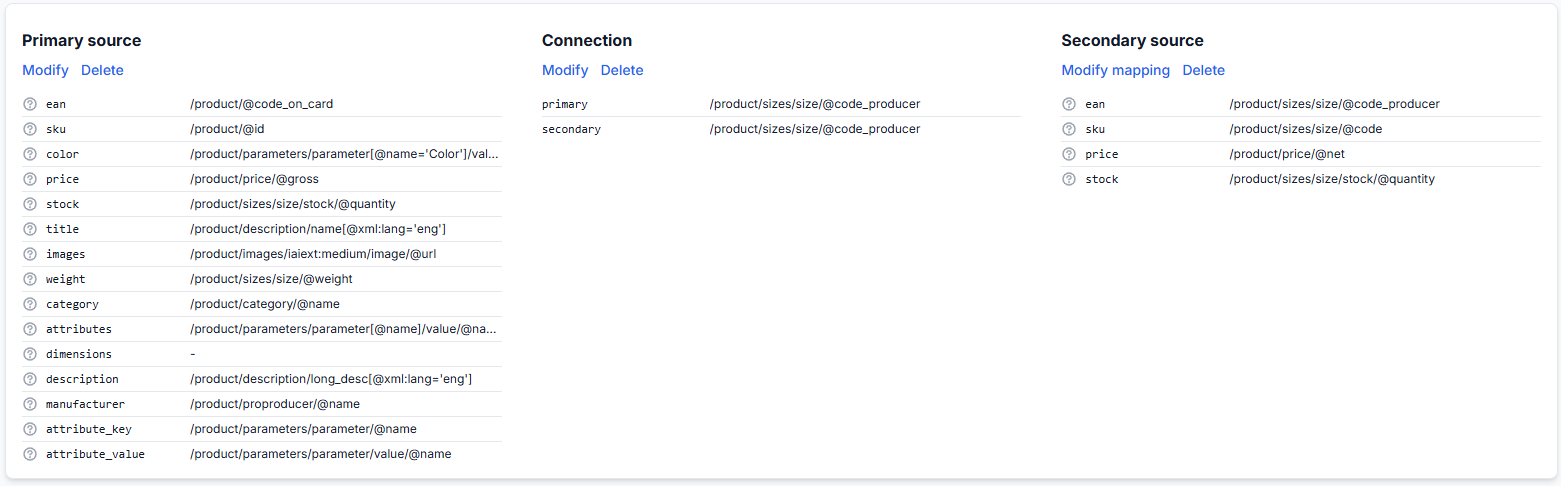
You can return to this section later to:
- Review the paths assigned to each standard field.
- Modify a primary or secondary mapping.
- Modify the connection between the sources.
- Delete an obsolete mapping or connection when rebuilding the setup.
Source URL warning: Updating a primary or secondary source URL automatically deletes the corresponding data mapping. After changing a URL, return to the mapping section and rebuild or confirm the mapping before enabling synchronization again.
This behavior is important because a new URL may return a file with a different structure. Reusing old paths without validation could map incorrect values.
Step 8: Enable and update the supplier
Once all required source mappings and the optional source connection have been completed:
- Review the supplier title and country.
- Confirm the currency, VAT setting, and VAT rate.
- Review the default content language and weight unit.
- Review the synchronization frequency for each source.
- Check that freshness periods are longer than the relevant synchronization interval.
- Confirm the primary mapping previews.
- Confirm the secondary mapping and source connection, when a secondary source is used.
- Change Status to Enabled.
- Click Update supplier.
When the supplier is enabled, B2BLIX can request and process its configured sources according to their synchronization schedules.
Received fields are interpreted using the supplier settings and saved mappings. Eligible product records can then be stored or updated in the B2BLIX catalog.
Supplier synchronization and export generation are separate operations. Enabling a supplier does not itself publish products directly to a marketplace. It updates the source data that configured exports may use during their own generation schedules.
How to use this page safely
The following workflow is recommended for a new supplier:
- Verify the source manually. Open or download the supplier file and confirm that it contains the expected catalog.
- Start with the supplier disabled. Do not start scheduled processing before configuration is complete.
- Add only the sources you need. Use a secondary source only when the supplier provides a suitable update feed.
- Confirm currency and VAT. Check the actual mapped price in the source file.
- Select realistic frequencies. Respect the supplier’s update schedule and download limits.
- Choose the complete product path. Avoid wrappers and child fields.
- Review every suggested mapping. Use the preview rather than trusting a suggestion automatically.
- Give special attention to EAN, price, and stock. These fields strongly affect product identity and commercial data.
- Validate the source connection. Confirm that the same identifier is used in both primary and secondary files.
- Enable only after review. Save the complete setup with Update supplier.
Common mistakes
Entering an incomplete or invalid URL
A relative path, copied browser address, expired token, or URL that returns a login page cannot be used as a normal supplier source. Enter the complete download URL and test it before continuing.
Forgetting required authentication
A URL may work for the supplier but fail for B2BLIX when it also requires basic authentication or special request headers. Enter only the authentication method confirmed by the supplier.
Using the wrong currency
The supplier’s country does not automatically determine its feed currency. Inspect the source prices and select the currency actually used in the file.
Entering VAT in the wrong format
Follow the format described in the field tooltip. For example, the displayed interface uses 1.20 to represent a 20% VAT rate.
Mapping the wrong price
A feed can contain gross, net, retail, recommended, or historical prices. Check the source label and preview before deciding which value represents the supplier price.
Setting freshness periods too short
If Force zero stock is shorter than the normal synchronization interval, products may be set to zero between expected updates. Configure sufficient time for at least the normal source cycle.
Selecting a wrapper as the product path
A path that occurs once normally represents the document or product-list container. Select the repeating complete product element instead.
Selecting a child field as the product path
A producer, category, image, price, or size path may repeat once per product, but it does not contain the complete product record.
Accepting suggested mappings without checking previews
Suggestions can help locate likely fields, but similar field names may represent different identifiers or price types. Always inspect the extracted value.
Mapping SKU as EAN
A supplier SKU may look like a barcode but serves a different purpose. Confirm which source field contains the accepted product EAN.
Using different identifiers for the source connection
The primary field and secondary field must contain matching values. Selecting primary EAN and secondary internal SKU will normally produce a poor intersection.
Enabling the supplier before mapping is complete
Keep the supplier disabled while mapping warnings remain. Finish the required primary mapping, secondary mapping, and connection first.
Changing the source URL without rebuilding the mapping
A URL change removes the existing mapping. Complete the new mapping before re-enabling the supplier.
Example supplier setup
A seller receives two files from one wholesaler:
- A full XML catalog containing product descriptions, images, categories, EANs, prices, and stock.
- A smaller XML file containing supplier product codes, current prices, and stock quantities.
The seller configures the full file as the Primary source and synchronizes it every six hours. The lighter update file is configured as the Secondary source and synchronized every hour.
The seller then:
- Confirms that the source prices are in EUR.
- Checks whether the selected price contains VAT and enters the corresponding VAT setting.
- Selects the source language and the correct weight unit.
- Sets Force zero stock to a value longer than the one-hour stock-update interval.
- Sets Max last seen long enough to cover more than one full-catalog synchronization cycle.
- Selects the repeating product element as the primary product path.
- Maps EAN, SKU, title, description, price, stock, images, category, manufacturer, weight, and attributes.
- Maps the product code, price, and stock from the secondary source.
- Connects both sources using the supplier product code that appears with the same value in both files.
- Reviews the preview and intersection results.
- Changes the supplier status to Enabled and clicks Update supplier.
From that point, B2BLIX can refresh the complete catalog on the primary schedule and receive more frequent price and stock updates from the secondary source. The collected data can later be used by independently configured export projections.