Exports checker: review product data and export results
Use this read-only page to investigate questions about a product’s price, stock, content, supplier selection, transformation rules, or inclusion in an XML export.
What the exports checker is for
The exports checker provides a detailed report for one product in one export projection. The product is identified by its exact EAN code.
Open this page when you need to understand why a product has a particular price, stock value, title, description, or other exported attribute. It is also useful when checking whether a product was included in the expected XML export and what information was written to the file.
The page is read-only. You can inspect the result, but you cannot edit product data, transformation rules, supplier settings, or export settings here.
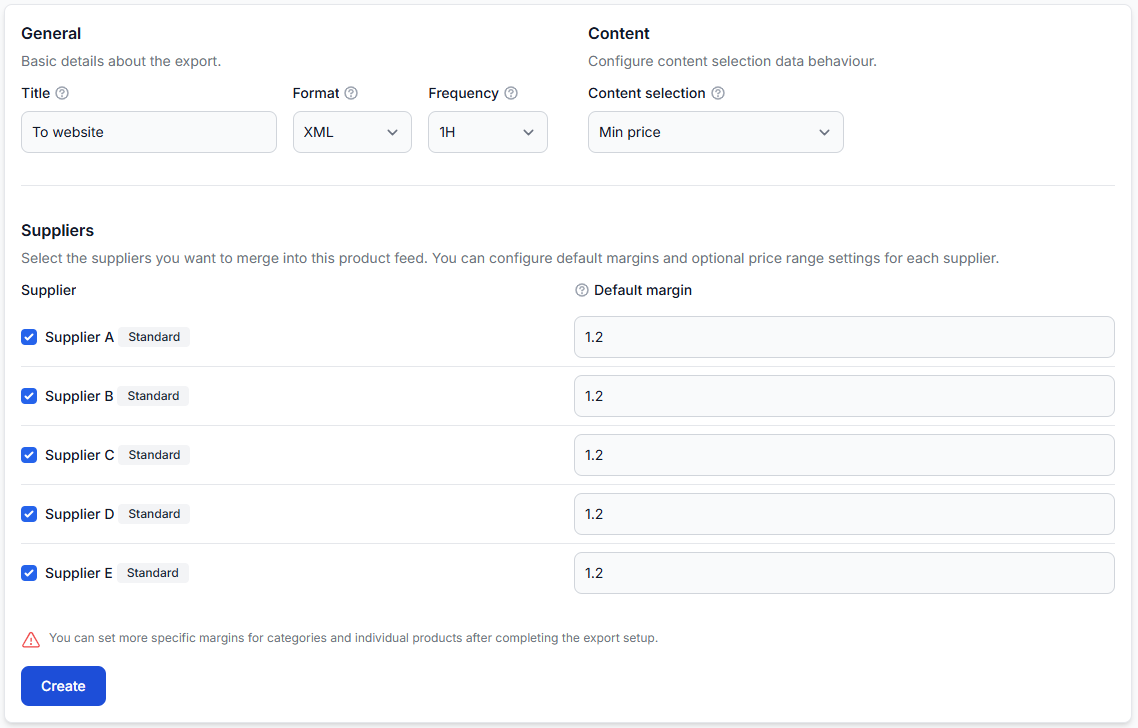
Important: The exports checker does not change live prices or export data. To change a result, update the relevant supplier, export, filter, margin, or transformation settings elsewhere in B2BLIX Feed and allow the export to be generated again.
How to find a product
Everything starts with the search form at the top of the page.
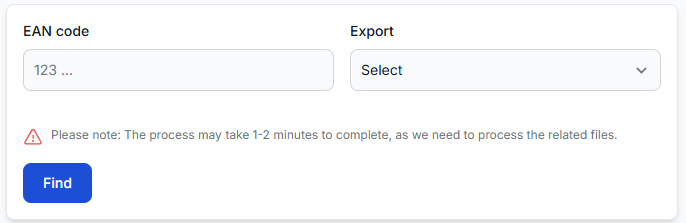
| Field or control | What it means | How to use it |
|---|---|---|
| EAN code | The primary product identifier used to find the same product across supplier data. | Enter the complete and exact EAN. An incomplete or incorrect value may return no useful result. |
| Export | The export projection whose rules and final XML output you want to inspect. | Select the export used for the relevant store, marketplace, or other destination. |
| Find | Starts the product lookup and prepares the detailed report. | Click after entering the EAN and selecting an export. |
The process may take approximately one to two minutes because the system needs to review the related product and export information.
What you can review on this page
After the product is found, the report is divided into four main blocks:
- Source data from all suppliers that provided the selected EAN.
- Winning supplier and the product attributes selected from that supplier.
- Exported XML showing how the product appears in the generated output.
- Data processing overview explaining the calculations and rules that produced the result.
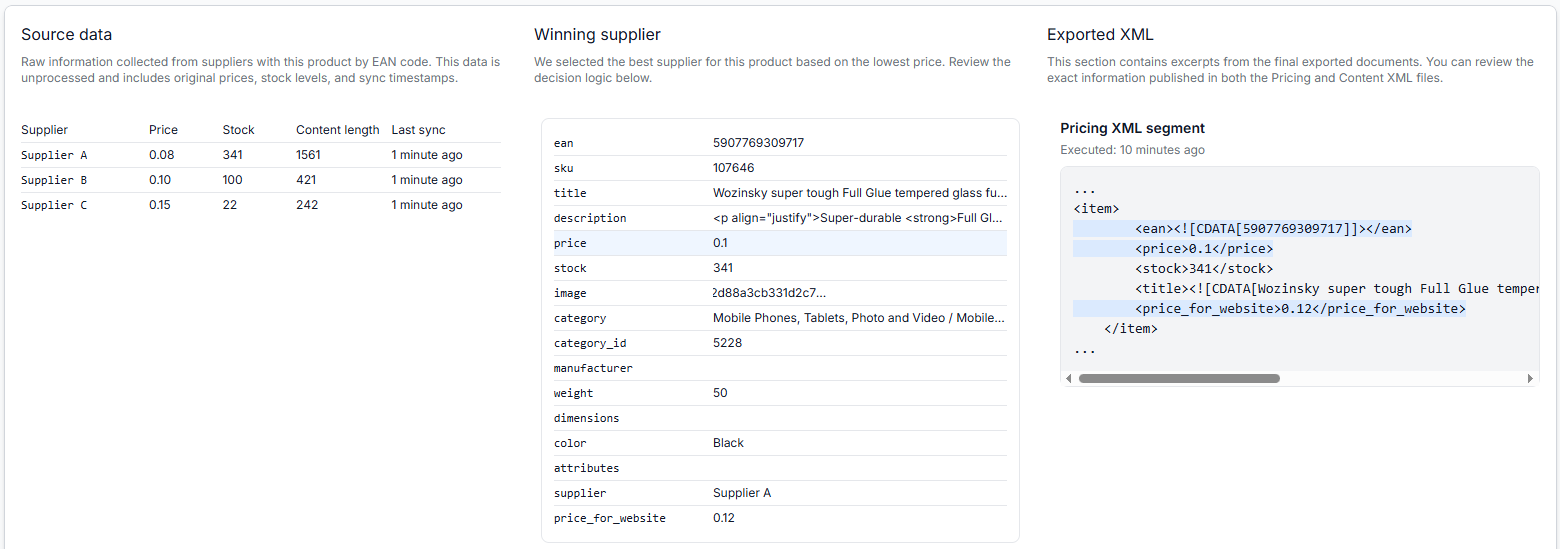
Source data
The source data block shows the original information collected from suppliers for the entered EAN. This information has not yet been changed by export-specific transformations.
Use this table to compare the offers that were available when the product was processed.
| Column | What it shows |
|---|---|
| Supplier | The supplier instance that provided the product. |
| Price | The original supplier price before export transformations are applied. |
| Stock | The original stock quantity received from the supplier. |
| Content length | An indicator of how much product content was received from the supplier. |
| Last sync | When the supplier information was most recently synchronized. |
Check the last sync value when comparing suppliers. Two suppliers may show different information because their source data was updated at different times.
Winning supplier
The winning supplier block shows the supplier selected for this product and the attributes available for further export processing.
The supplier is selected using the lowest eligible raw supplier price. Transformations that later change or create a price value do not determine which supplier wins.
For example, if one supplier provides a raw price of 0.08 and another provides 0.10, the supplier with 0.08 is selected before a margin or website-specific price transformation is applied.
The displayed attributes may include:
- EAN and SKU.
- Title and Description.
- Price and Stock.
- Images.
- Category and Category ID.
- Manufacturer.
- Weight, Dimensions, and Color.
- Additional product attributes.
- The selected supplier.
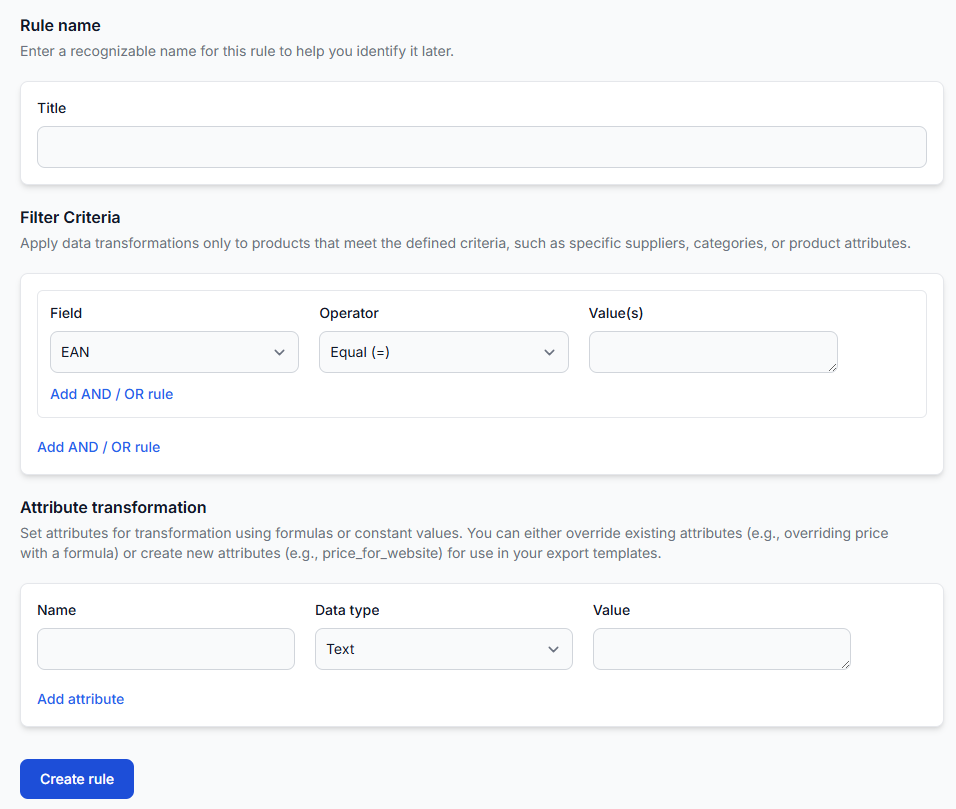
The block may also contain values created by transformation rules. For example, a rule can create a separate price_for_website attribute while keeping the original price available.
Do not assume that every value in the winning supplier block came directly from the supplier. Check the data processing overview to see whether a value was calculated, replaced, or created by a transformation rule.
Exported xml
The exported xml block displays a segment from the generated XML output for the selected product.
Use it to confirm:
- That the product was included in the export.
- Which attributes were written to the XML.
- Which final values were used for price, stock, title, and other fields.
- How the product information is structured in the selected export.
The execution timestamp indicates when the displayed export result was generated. This is important when supplier data or transformation rules have changed recently.
The XML block confirms what B2BLIX generated. Acceptance, import, or publication by an external marketplace or store is a separate step and is not confirmed by this page.
Data processing overview
The data processing overview is a step-by-step explanation of the decisions and calculations used for the product.
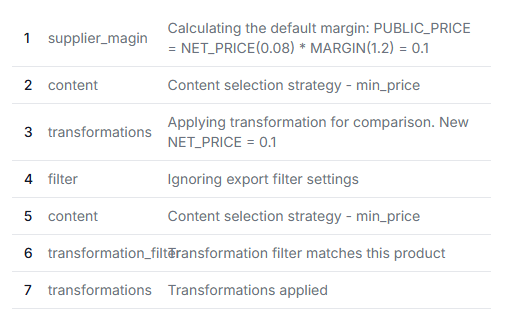
The steps shown depend on the selected export and its configuration. They may include:
| Step type | What it explains |
|---|---|
| Supplier margin | How the default public price was calculated from the selected supplier’s net price and the configured margin. |
| Content | Which content-selection strategy was used, such as selecting content associated with the minimum-price supplier. |
| Transformations | Whether product attributes were modified or new attributes were created. |
| Filter | Whether export-level filter settings affected the product. |
| Transformation filter | Whether the product matched the conditions required for a particular transformation rule. |
In the displayed example, the original raw price is multiplied by a default margin to produce a public price. A matching transformation then creates an additional price_for_website attribute.
How to use the exports checker safely
- Confirm that you have the exact product EAN.
- Select the export used by the destination you are investigating.
- Click Find and wait for the full report to load.
- Compare the raw prices, stock values, content lengths, and synchronization times in source data.
- Confirm which supplier was selected and remember that supplier selection uses the raw price.
- Review the winning supplier attributes and identify any additional transformed fields.
- Check the data processing overview for margins, filters, and transformation rules.
- Compare the final attributes with the exported xml segment.
If the result is not what you expected, note the exact step that produced the unexpected value. You can then review the corresponding export configuration or transformation rule in the appropriate interface.
Common mistakes
- Entering an incorrect EAN. Copy the full EAN and check for missing or extra digits.
- Selecting the wrong export. Different exports can use different margins, filters, transformations, and XML structures.
- Assuming the final transformed price selected the supplier. The winning supplier is selected using the raw supplier price before transformations.
- Ignoring synchronization timestamps. Older supplier data may explain differences in price, stock, or content.
- Looking only at the XML. Review the source data and processing overview to understand why each final value was produced.
- Overlooking transformation filters. A transformation may apply only to products that match specific conditions.
- Assuming generated XML means marketplace publication. The checker shows B2BLIX output, not whether an external destination accepted or published it.
Example use case
A seller notices that a product has an unexpected website price.
The seller enters the product’s EAN, selects the website export, and clicks Find. The source data shows three suppliers with raw prices of 0.08, 0.10, and 0.15. The supplier offering 0.08 is selected as the winner.
The processing overview shows that a default margin of 1.2 changes the working public price to 0.10. It also shows that the product matched a transformation rule that created a separate price_for_website value of 0.12.
The seller then checks the exported xml block and confirms that 0.12 was written to the website-specific price field. The seller now knows that the result came from the applied transformation rather than from the supplier’s original price.