Data transformation rules
Use data transformation rules to change supplier product data before it is written into an export. A rule can update an existing attribute, create a new export-specific attribute, and limit the change to products that match selected conditions.
What this page is for
The Data Transformation Rules page is used to prepare reusable rules for changing product data received from suppliers. Typical uses include adding a price margin, changing stock values, cleaning product descriptions, translating content, changing text capitalization, or creating destination-specific attributes.
B2BLIX Feed can collect the same product from several suppliers. Products are grouped using an accepted EAN, which is why correct EAN mapping is important. During export preparation, the system works with the product and supplier data selected according to the export configuration. A transformation rule can then change the selected product data before the XML output is generated.
Transformation rules are created at the account level. This page therefore acts as a catalog of rules that can later be assigned to one or more export projections.
Creating a rule does not activate it automatically. A newly created rule does not change supplier data or generated exports until it is assigned to an export projection. Once assigned, it can affect the next scheduled generation of that export.
When to open this page
Open this page when supplier data is correctly imported and mapped, but the values need to be adjusted for a particular export workflow.
For example, you may need to:
- Add a fixed amount or percentage margin to a supplier price.
- Create a separate price for a website or marketplace without replacing the original price.
- Set a different stock value for selected products.
- Remove HTML from descriptions.
- Translate selected product content.
- Convert titles to uppercase, lowercase, or title case.
- Combine several values into a new title or description.
- Apply different calculations to different suppliers, categories, brands, or price ranges.
What you can do on this page
- Create a recognizable transformation rule.
- Limit the rule to products that match selected filter criteria.
- Combine conditions with AND and OR logic.
- Override an existing product attribute, such as price.
- Create a new attribute, such as price_for_website.
- Choose whether the transformed result is text or a number.
- Use constants, product attributes, calculations, functions, and conditional logic.
- Add several attribute transformations to one rule.
- Save the rule in the account-level transformation catalog.
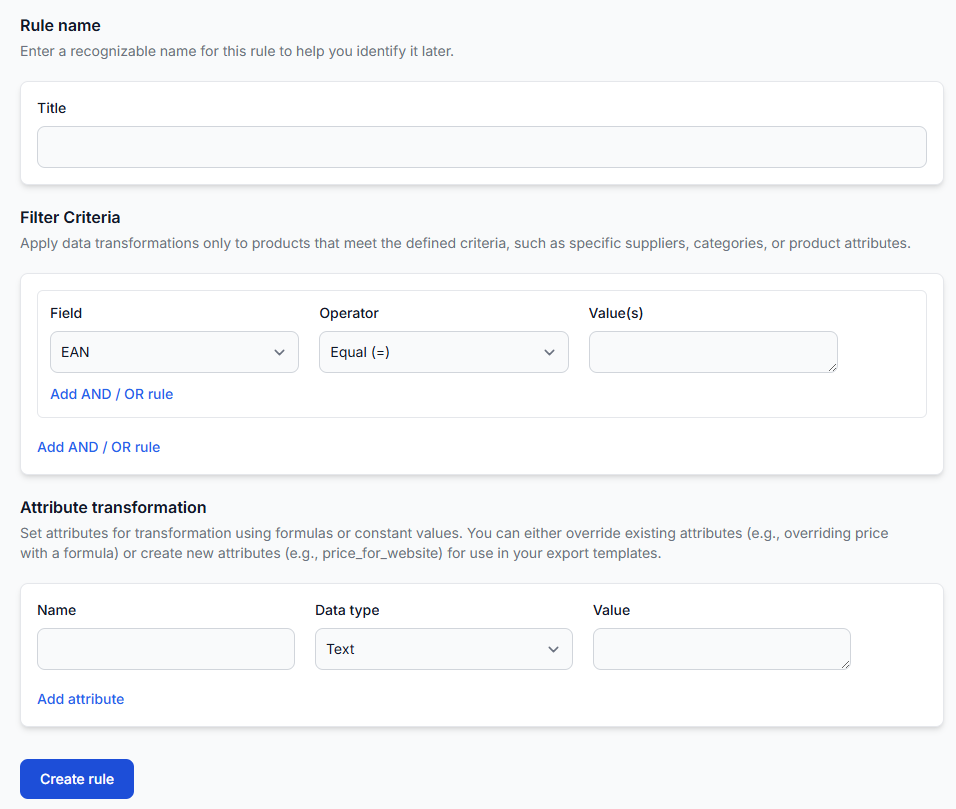
Main fields and controls
| Field or control | What it means | Effect |
|---|---|---|
| Title | A recognizable name for the rule. Use a name that explains the purpose and intended product group. | Used to identify the rule later. It does not change product data. |
| Filter Criteria | Conditions that determine which products receive the transformations. | Evaluated when the rule is used during export preparation. |
| Field | The product attribute that should be checked, such as supplier, category, price, stock, or EAN. | Defines which product value is used by the condition. |
| Operator | The comparison to perform, such as equal, contains, is empty, or greater than. | Controls how the selected field is compared with the entered value. |
| Value(s) | The value against which the product attribute is checked. | Used only for filter evaluation. Some operators, such as Is empty, do not require a comparison value. |
| Add AND / OR rule | Adds another condition or condition group. | Allows more precise product selection. |
| Name | The attribute that should receive the transformed result. | An existing name overrides that attribute. A new name creates a new attribute for use in an export template. |
| Data type | Select Text or Number according to the expected result. | Controls how the result is treated during transformation and export preparation. |
| Value | A constant, product attribute, formula, function, or logical expression. | Produces the value that will be written to the selected attribute. |
| Add attribute | Adds another transformation row to the same rule. | Allows one matching rule to create or change several attributes. |
| Create rule | Saves the completed rule. | Adds it to the account-level catalog. It does not affect an export until the rule is assigned there. |
Rule name
The Title field is required and should make the rule easy to recognize in the transformation catalog and export settings.
Useful names describe both the action and the affected products. Examples include:
- Add 20% margin for Supplier A
- Clean HTML from descriptions
- Create website price
- Translate selected titles to Finnish
Avoid names such as “Rule 1” or “New transformation,” especially when several rules will be used by the same export.
Filter criteria
Filter criteria determine whether the attribute transformations are applied to a product. When the conditions match, the transformation section is executed. When they do not match, that rule does not transform the product.
The filter on this page controls whether this transformation rule applies. It should not be confused with the main product-selection filters of an export projection.
Available filter fields
The visible field selector includes:
- EAN
- SKU
- Title
- Description
- Price
- Stock
- Images
- Category
- Manufacturer or brand
- Weight
- Dimensions
- Color
- Category ID
- Supplier (title)
Available filter operators
| Operator | Meaning |
|---|---|
| Equal (=) | The attribute must match the value exactly. Text comparison ignores letter case, so “Apple” and “apple” are treated as equal. |
| Not equal (!=) | The attribute must not match the value. Text comparison ignores letter case. |
| Contains | The entered value must appear somewhere inside the attribute. Text comparison ignores letter case. |
| Not contains | The entered value must not appear inside the attribute. Text comparison ignores letter case. |
| In | The attribute must match one item from a list of values. |
| Not in | The attribute must not match any item from a list of values. |
| Is empty | The attribute must contain no value. |
| Is not empty | The attribute must contain a value. |
| Greater than (>) | The attribute must be numerically greater than the entered value. |
| Greater than or equal to (>=) | The attribute must be numerically greater than or equal to the entered value. |
| Less than (<) | The attribute must be numerically less than the entered value. |
| Less than or equal to (<=) | The attribute must be numerically less than or equal to the entered value. |
Numeric filter warning: The interface states that non-numeric values are treated as
0in numeric comparisons. Confirm that the selected field contains reliable numeric data before using greater-than or less-than conditions.
For In and Not in, separate multiple values with semicolons. For example:
Brand A;Brand B;Brand C
Using AND and OR
AND means that all connected conditions must be true. For example:
- Supplier equals “Supplier A”
- AND Category equals “Electronics”
The transformation applies only when both conditions match.
OR means that at least one connected condition must be true. For example:
- Manufacturer equals “Brand A”
- OR Manufacturer equals “Brand B”
The interface supports groups of AND and OR conditions. With more complex groups, first describe the intended logic in a simple sentence and then reproduce that logic in the interface.
Check complex AND/OR filters carefully. A misplaced AND or OR can make the rule apply to too many products or prevent it from matching any products. Start with one or two conditions and expand the filter only after the basic result is understood. The internal AI support assistant can help review the intended logic.
Attribute transformation
The Attribute transformation section defines what should happen after a product matches the filter.
Name
Enter the attribute that should receive the result.
- Enter an existing attribute name, such as
price, to override that value for the export workflow. - Enter a new name, such as
price_for_website, to create a separate attribute while keeping the original value available.
Price and stock changes can affect exported commercial data. Prefer creating a separate test attribute first when you are not certain about a formula. Confirm the final value before replacing the standard
priceorstockattribute.
Data type
Select the type that matches the expected result:
- Text for titles, descriptions, labels, statuses, colors, or combined content.
- Number for prices, stock quantities, weights, margins, or other calculations.
A formula that produces a price should normally use Number. A formula that produces a label such as “In Stock” should use Text.
Value
The Value field defines the transformed result. It can contain a fixed value, an existing product attribute, a mathematical formula, or a supported function.
Constants
Constants are fixed values written directly in a transformation.
| Type | Example | Use |
|---|---|---|
| Numeric constant | 9.99 |
Use for fixed prices, margins, quantities, or calculation values. |
| Text constant | "SALE" or "In Stock" |
Use for fixed text. Text constants should be placed inside quotation marks. |
System attributes
System attributes represent values taken from the processed product data. They can be used as variables inside a transformation formula.
| Attribute | Description shown by the interface |
|---|---|
ean |
The product’s European Article Number. |
sku |
The supplier SKU or product identifier. |
title |
The product name. |
description |
The detailed product description. |
price |
The product price. |
stock |
The number of available units. |
images |
One or more product image URLs. |
category_id |
The product category ID. |
manufacturer |
The product manufacturer or brand value. |
weight |
The product weight as a numeric value. |
dimensions |
The product dimensions in text form. |
color |
The product color in text form. |
attributes |
The list of additional product attributes. |
Use attribute names exactly as displayed in the interface. The value comes from the product data available during export preparation, not directly from an unprocessed supplier file.
Math operations
| Operation | Purpose | Example |
|---|---|---|
+ |
Addition | price + 2.50 |
- |
Subtraction | price - 10 |
* |
Multiplication | price * 1.20 |
/ |
Division | price / 1.20 |
( ) |
Groups parts of a calculation. | (price + 2.50) * 1.20 |
Parentheses are useful when a formula has several steps. They make the intended calculation order clearer and reduce the risk of an unexpected result.
Math functions
| Function | Purpose | Example format |
|---|---|---|
ceil |
Rounds a number up to the nearest integer. | ceil(value) |
floor |
Rounds a number down to the nearest integer. | floor(value) |
round |
Rounds a numeric value. | round(value) |
min |
Returns the smallest value from the provided values. | min(value1, value2) |
max |
Returns the largest value from the provided values. | max(value1, value2) |
Custom functions
| Function | What it does | Example or usage |
|---|---|---|
translate |
Translates text into the specified destination language. | translate(es, text) |
html2text |
Converts HTML content into plain text. | html2text(description) |
uppercase |
Converts text to uppercase. | uppercase(title) |
lowercase |
Converts text to lowercase. | lowercase(title) |
headline |
Converts text to title-style capitalization. | Use the function format currently displayed in the interface. |
concat |
Combines several text values into one result. | concat(title, " - ", color) |
if |
Returns one result when a condition is true and another when it is false. | if(condition, value_if_true, value_if_false) |
Translation is usage-based. Rules that use the
translatefunction can create chargeable translation work. Review the current Feed pricing information before applying translation to a large catalog.
Logical operators inside formulas
Logical operators can be used inside an if expression to produce different values for different products.
| Operator or function | Purpose |
|---|---|
= |
Equal |
!= |
Not equal |
> |
Greater than |
>= |
Greater than or equal to |
< |
Less than |
<= |
Less than or equal to |
[...] |
A set or list of values, such as ["Brand A", "Brand B"]. |
and |
Requires both connected conditions to be true. |
or |
Requires at least one connected condition to be true. |
not |
Reverses a logical result. |
contains |
Checks whether text contains a selected value. |
not_contains |
Checks whether text does not contain a selected value. |
in |
Checks whether a value appears in a specified set. |
not_in |
Checks whether a value does not appear in a specified set. |
is_empty |
Checks whether an attribute has no value. |
is_not_empty |
Checks whether an attribute has a value. |
Example conditional expression:
if(price > 100, price * 1.15, price * 1.20)
This example applies one multiplier when the price is above 100 and another multiplier when it is not.
How to use this page safely
-
Define the intended result.
Write down which products should be changed, which attribute should be changed, and what the expected result should look like.
-
Use a clear rule name.
Include the action and product group so the rule can be identified later.
-
Start with a narrow filter.
For initial testing, limit the rule by a supplier, category, brand, or individual EAN instead of applying it to the full catalog.
-
Read the filter as a sentence.
Confirm that every AND and OR produces the intended product group.
-
Choose the output attribute carefully.
Use a new attribute when testing. Override a standard attribute only when you are confident that the formula is correct.
-
Select the correct data type.
Use Number for calculations and Text for content or labels.
-
Check constants and quotation marks.
Numbers are entered without quotation marks. Fixed text values should be placed inside quotation marks.
-
Create the rule.
The rule is added to the account-level catalog but remains inactive until assigned to an export projection.
-
Assign it to a test export.
When several rules are assigned, review their configured priority because priority determines the order in which they are processed.
-
Review the result before production use.
Use a controlled product group and inspect the transformed attributes and final XML in Export Checker before using the output in a live sales channel.
What happens after you create a rule
After you select Create rule, the rule is saved in the Data Transformation Rules catalog for the account.
At this stage:
- The original supplier file is not changed.
- The mapped catalog data is not automatically rewritten.
- No export is changed merely because the rule exists.
When the rule is assigned to an export projection, it is used during that export’s processing. The rule can then affect the data included in the next scheduled export generation.
For example, a rule that overrides price can change the price written into the generated XML. Whether that XML is later imported or published by an external marketplace or store is a separate workflow.
Common mistakes
-
Assuming that saving the rule activates it.
The rule must also be assigned to an export projection.
-
Using a filter that is too broad.
A price or stock transformation may affect every matching product in the assigned export.
-
Combining AND and OR incorrectly.
Read the complete filter as a sentence and test it with a small product group.
-
Entering comma-separated values for In or Not in.
The interface expects multiple filter values to be separated with semicolons.
-
Using numeric comparisons on text data.
Non-numeric values may be treated as zero.
-
Using the wrong data type.
A price formula should not be saved as Text, and a text label should not be saved as Number.
-
Forgetting quotation marks around fixed text.
Use values such as
"SALE", not an unquoted text constant. -
Overriding a standard attribute unintentionally.
Entering
pricechanges the export-stage price value. Use a new name such asprice_testwhen testing. -
Testing only one supplier representation.
Products can be grouped by EAN across suppliers. Confirm which supplier data is selected by the export workflow before judging the transformation result.
Example: create a separate website price
A seller wants to add a 20% margin to products from one supplier and round the result up. The original price should remain available.
Rule name
Create website price for Supplier A
Filter criteria
| Field | Operator | Value |
|---|---|---|
| Supplier (title) | Equal (=) | Supplier A |
| Price | Greater than (>) | 0 |
Connect the conditions with AND so that both must match.
Attribute transformation
| Name | Data type | Value |
|---|---|---|
price_for_website |
Number | ceil(price * 1.20) |
After the rule is created, assign it to a test export projection. Confirm in Export Checker that the original price remains unchanged and that price_for_website contains the expected calculated result. The export template can then use the new attribute where required.