Exports: create and configure xml export projections
The Exports section lets you create separate XML feeds from the same merged supplier catalog. Each export can use its own suppliers, margins, product filters, transformation rules, discounts, schedule, and XML structure.
What the Exports section is used for
B2BLIX stores processed product data from your connected suppliers in one catalog database. The Exports section lets you create independent views of that catalog for different destinations.
For example, you may create:
- An export for your website with website-specific margins.
- A separate export for a marketplace with different stock and pricing rules.
- An export containing only electronics for a price-comparison platform.
- Another export containing only fashion products and using a different XML structure.
Each export projection is configured independently. Changing one export does not require you to change the original supplier mappings or every other export.
Important: Export settings can change product prices, stock values, product selection, and the structure of the generated file. If an external system regularly reads the export URL, saved changes may affect the data it receives after the next export generation.
How export data is processed
The export configuration follows a general processing sequence:
- Select suppliers and apply default margins. Only the suppliers enabled for this export are included.
- Select products. The export filter determines which products continue to processing.
- Transform product data. Enabled transformation rules can modify prices, stock, titles, descriptions, or other attributes.
- Apply export discounts. Optional discounts can be applied to specific EAN codes.
- Build the XML structure. The export template determines the XML path, field names, and values.
- Generate the file. B2BLIX creates the XML file according to the configured schedule or when synchronization is executed manually.
When several selected suppliers provide the same accepted EAN, the configured selection logic is used to prepare the product for export. Supplier margins and applicable transformations affect the calculated values, while the Content selection setting controls which supplier provides product content.
What you can do in the Exports section
- Create several XML exports from the same product database.
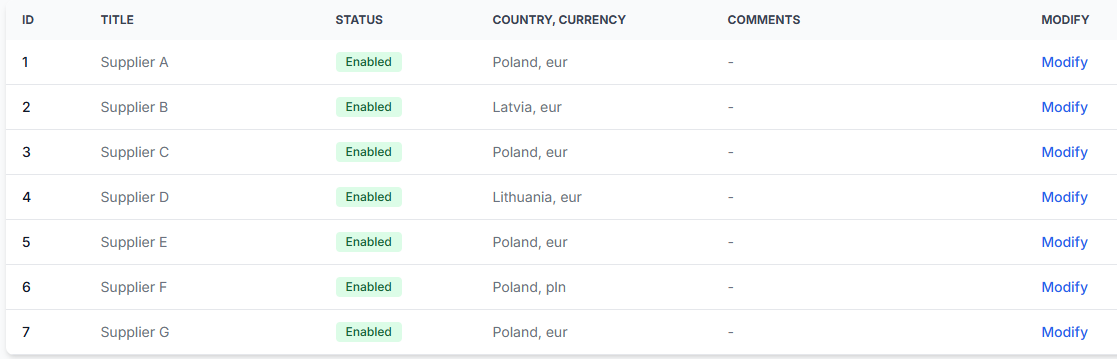
- Select which suppliers participate in each export.
- Set supplier-specific default margins.
- Choose how content is selected when the same EAN is available from several suppliers.
- Filter which products are included.
- Enable and prioritize data transformation rules.
- Add promotional discounts for selected products.
- Define the fields and structure of the XML file.
- Review the public export URL.
- Execute export synchronization manually.
- Review the last report information shown in the exports list.
Create a new export
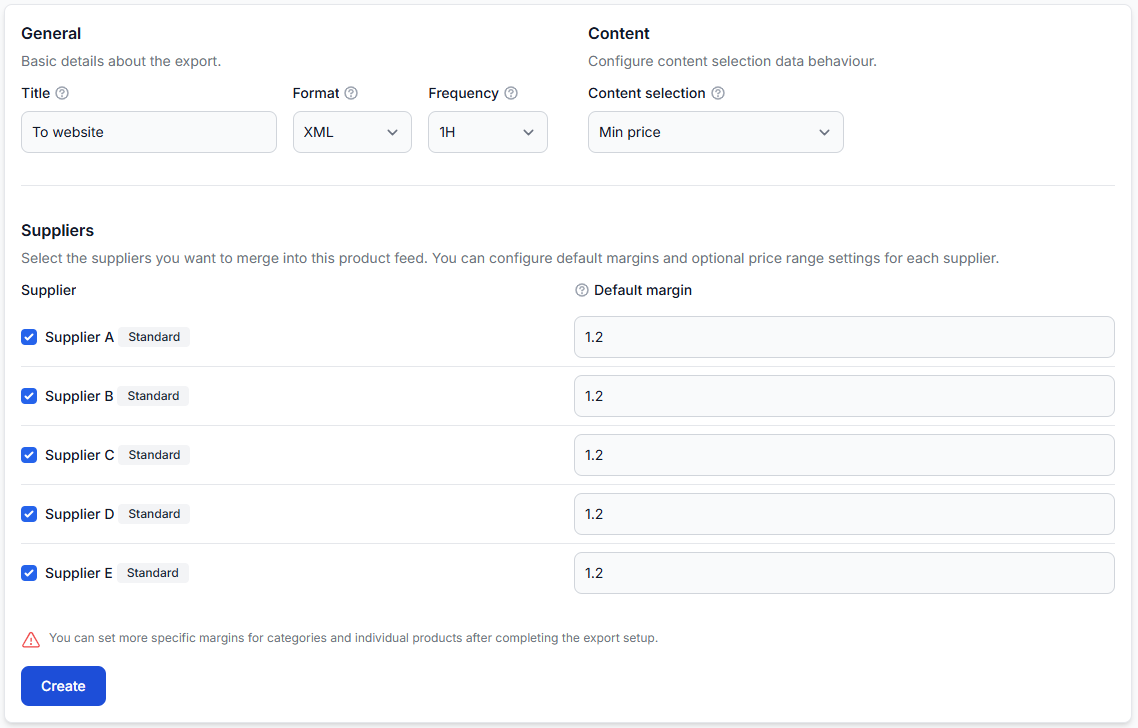
Open the Exports section and select Add New Export. Complete the general settings, select the required suppliers, and then click Create.
Initial export fields
| Field or control | What it means | What to check |
|---|---|---|
| Title | A recognizable name for the export. | Use a destination-based name such as “Website”, “Marketplace LT”, or “Electronics comparison feed”. |
| Format | The output file format. | Current exports use XML. |
| Frequency | How often B2BLIX merges the latest available catalog data and generates this export. | Available export intervals may include 30 minutes, 1 hour, 2 hours, and 3 hours. This schedule is independent from supplier synchronization schedules. |
| Content selection | Chooses the supplier from which product content is taken when several suppliers provide the same EAN. | Select the method that matches your content requirements. |
| Supplier checkbox | Includes or excludes that supplier from this export projection. | Confirm that only the intended suppliers are selected. |
| Default margin | A multiplier applied to the supplier’s original price. | For example, a price of 100 EUR with a margin of 1.2 becomes 120 EUR. |
| Create | Creates the export projection using the entered settings. | After creation, continue configuring the filter, transformations, discounts, and template. |
Content-selection options
- Min price: Selects content from the supplier offering the lowest price for that product.
- Max content length: Selects content from the supplier with the richest or longest available text. This is the recommended option when content completeness is more important than using content from the lowest-priced supplier.
Where an override supplier is used for a product, content for the overridden product is taken from that supplier.
Default margins
The Default margin is configured separately for each selected supplier. It is used as the supplier’s general markup for this export.
More specific margins for categories or individual products can be configured after the basic export setup is complete.
Pricing warning: A margin is a multiplier, not a percentage entered as a whole number. For example, use 1.2 to change 100 EUR to 120 EUR. Entering an incorrect value can significantly change all prices from that supplier.
The exports list
After the export is created, it appears in the main Exports list. The list can contain the following columns and actions:
| Column or action | Purpose |
|---|---|
| Title | The recognizable export name. |
| Format | The selected output format, currently XML. |
| Frequency | The automatic export-generation interval. |
| Suppliers | The number of suppliers selected for the export. |
| Modify | Reopens the general export settings. This page also provides the public XML URL and the manual synchronization action. |
| Edit filter | Controls which products are allowed into the export. |
| Transformations | Selects and prioritizes the transformation rules used by this export. |
| Discounts | Applies coefficient-based discounts to specified EAN codes. |
| Edit template | Defines the XML path, output attribute names, and mapped values. |
| Last report | Shows the latest available report information for the export. |
Public URL and manual synchronization
Open Modify for an existing export to find its public XML URL. The URL is constant for that particular export projection.
You can also execute synchronization manually from the export settings. This is useful after completing or changing the configuration and before giving the URL to another system.
The generated XML file is an output prepared by B2BLIX. Importing or publishing that file in an external marketplace, store, or other destination is a separate workflow.
Configure the export filter
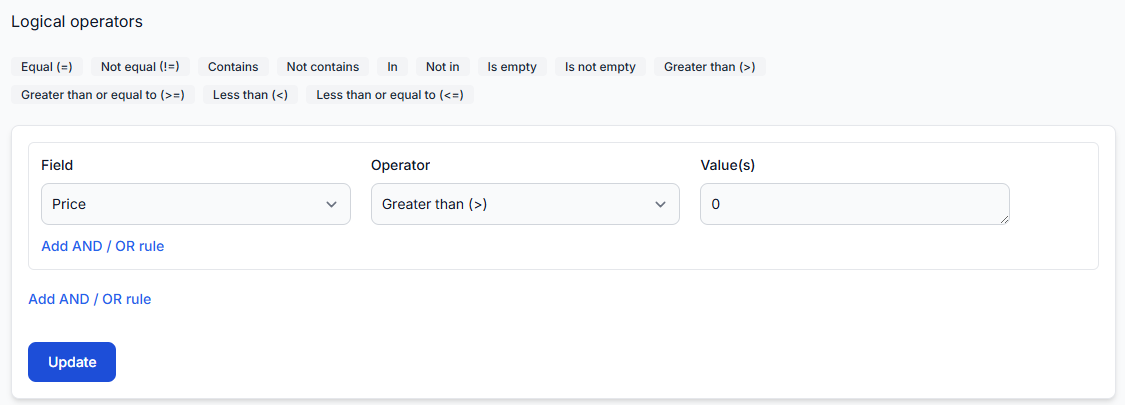
The export filter determines which products continue to transformation and XML generation. A product must match the configured filter logic to be included.
Filter fields
Depending on the available product data, filters can use fields such as:
- EAN and SKU.
- Title and description.
- Price and stock.
- Images.
- Category and category ID.
- Manufacturer or brand.
- Weight, dimensions, and color.
- Supplier title.
Filter operators
| Operator | Meaning |
|---|---|
| Equal (=) | The field must exactly match the entered value. Text comparison ignores letter case. |
| Not equal (!=) | The field must not match the entered value. Text comparison ignores letter case. |
| Contains | The entered text must appear somewhere inside the field. Text comparison ignores letter case. |
| Not contains | The entered text must not appear inside the field. |
| In | The field must match one value from a list. Separate list values with semicolons, such as 1;2;3. |
| Not in | The field must not match any value in the semicolon-separated list. |
| Is empty | The field must contain no value. |
| Is not empty | The field must contain a value. |
| Greater than (>) | The numeric field must be greater than the entered value. |
| Greater than or equal to (>=) | The numeric field must be equal to or greater than the entered value. |
| Less than (<) | The numeric field must be lower than the entered value. |
| Less than or equal to (<=) | The numeric field must be equal to or lower than the entered value. |
For numeric comparison operators, non-numeric values are treated as zero. Check that the selected field contains suitable numeric data before relying on this type of condition.
Understanding AND and OR
AND means that all connected conditions must be true.
For example:
- Category contains “Electronics”
- AND Price is greater than 10
- AND Stock is greater than 0
A product is included only when it meets all three conditions.
OR means that at least one connected condition can be true.
For example:
- Manufacturer equals “Brand A”
- OR Manufacturer equals “Brand B”
A product from either brand can be included.
Use additional groups when you need to combine several sets of conditions. Before saving, read the complete rule as a sentence and confirm that the AND and OR connections express the intended selection.
Product-visibility warning: An incorrect filter can remove most or all products from the export. A broad filter can also pass products that were not intended for the destination.
Including all valid products
If no restrictive filter is configured, products may continue to later processing and potentially appear in the final file.
For an explicit rule that matches products with an available EAN, use:
- Field: EAN
- Operator: Is not empty
Then click Update.
Select and prioritize transformation rules
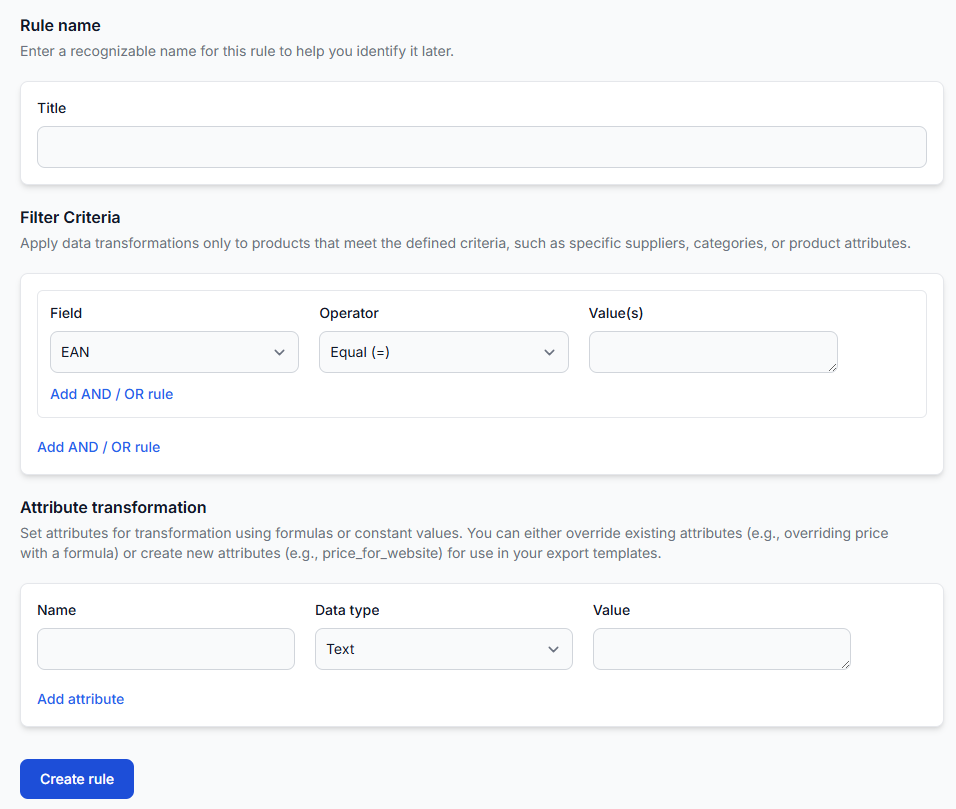
The Transformations interface shows transformation rules that already exist in your data transformation rules catalog. Here you choose which of those rules are active for this particular export.
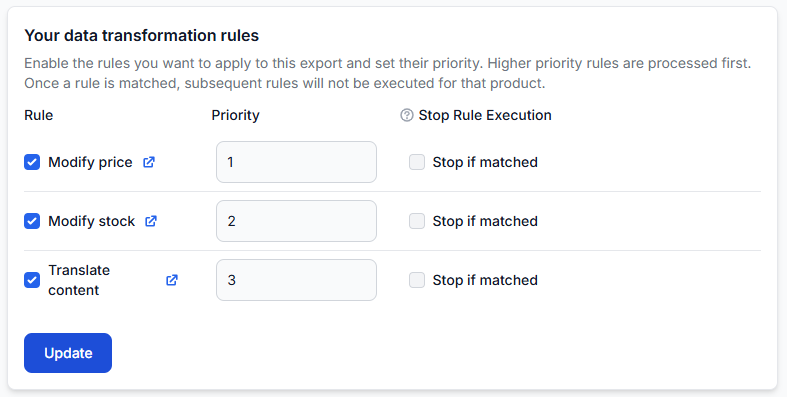
| Control | Purpose |
|---|---|
| Rule checkbox | Enables or disables the transformation rule for this export. Only enabled rules are executed. |
| Priority | Controls the order in which enabled rules are processed. Higher-priority rules are processed first. |
| Stop if matched | If enabled and the product matches this rule, later transformation rules are not processed for that product. |
| Rule link | Opens the transformation rule so its conditions and actions can be reviewed. |
| Update | Saves the enabled rules, priorities, and stop settings. |
If no enabled transformation rule matches a product, its normal system attributes continue without those transformations.
How several matching rules can affect one product
Suppose the export has these two enabled rules:
- If stock is greater than 10, increase the price by 10%.
- If stock is greater than 20, increase the price by 20%.
A product with stock greater than 20 matches both conditions.
If Stop if matched is not enabled, both rules can be applied in priority order. The second increase is then calculated from the result produced by the first rule.
If the first matching rule has Stop if matched enabled, later rules are skipped for that product.
Pricing warning: Several matching pricing rules can compound their effects. Review rule filters, priority, and Stop if matched settings together before updating the export.
Custom transformation attributes
A transformation rule can create a custom attribute, such as price_for_website. To use that attribute in the export template, first enable the relevant transformation rule for this export.
If the rule is not active in the export, the expected custom attribute may not be available in the template’s dynamic-value list.
Configure product discounts
The Discounts section applies a coefficient to selected product values based on a list of EAN codes. It is intended for specific promotional product groups after the earlier export calculations and transformations.
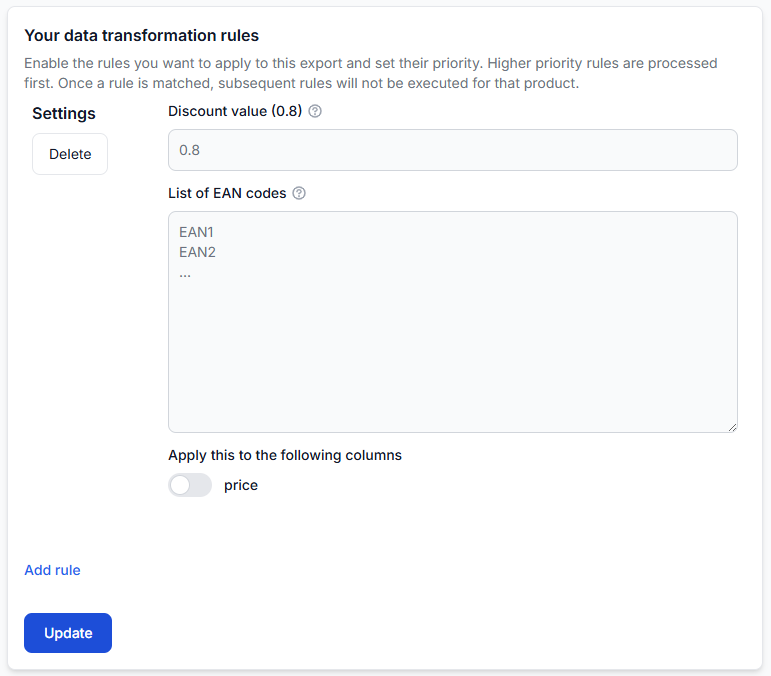
| Field or control | What it means |
|---|---|
| Discount value | A multiplier or coefficient applied to the selected value. For example, 0.8 changes a price to 80% of its calculated value, which represents a 20% reduction. |
| List of EAN codes | The products that receive this discount. Enter one EAN per line. |
| Apply this to the following columns | Selects the value affected by the coefficient. The shown interface provides a switch for price. |
| Add rule | Adds another discount group with its own coefficient and EAN list. |
| Delete | Removes that discount group. |
| Update | Saves the discount configuration. |
For example, you can create one rule with a value of 0.9 for products receiving a 10% discount and another rule with a value of 0.7 for a different group receiving a 30% discount.
Discount warning: A value of 0.8 does not mean an 80% discount. It means that 80% of the calculated value remains. Check both the coefficient and every pasted EAN before saving.
Define the export template
The export template controls the structure of the final XML document. It maps the names required by the destination to system attributes or custom values created by transformation rules.
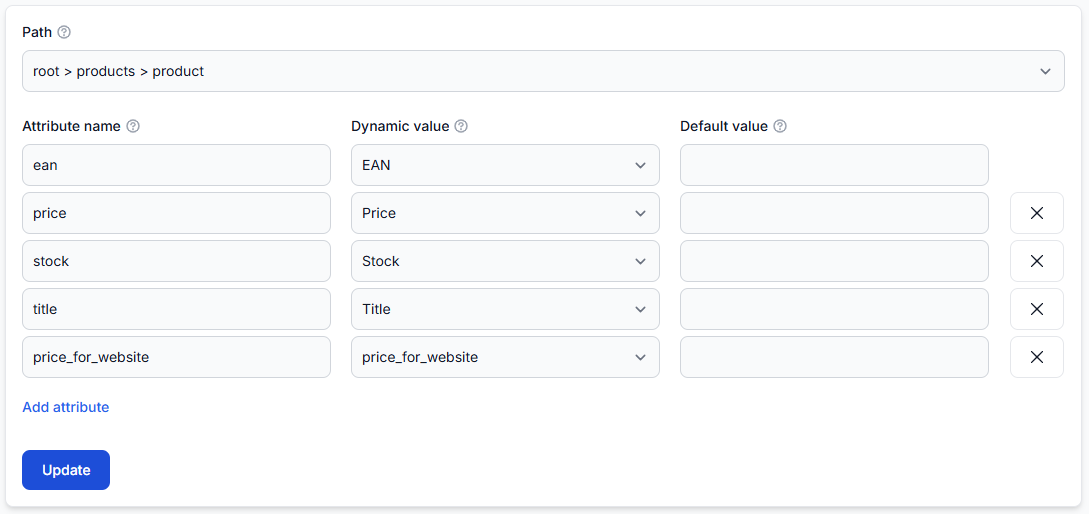
| Field or control | What it means | Example |
|---|---|---|
| Path | Organizes where each product item is placed in the XML hierarchy. | items > item or root > products > product |
| Attribute name | The field or element name that appears in the exported XML. | ean, price, stock, title |
| Dynamic value | The system-known attribute or custom transformation attribute used to populate the output field. | EAN, Price, Stock, Title, price_for_website |
| Default value | An optional fallback used when the selected dynamic value is missing or empty. | A fixed fallback value required by the destination |
| Add attribute | Adds another output field to the XML product record. | Add manufacturer, category, description, or another supported value. |
| Remove control | Removes an attribute row from the template. | Remove a field that the destination does not need. |
| Update | Saves the XML template. | Use after reviewing the complete mapping. |
Attribute names and dynamic values are different
The Attribute name is what the receiving system sees in the XML. The Dynamic value is where B2BLIX gets the data.
For example:
| XML attribute name | Mapped dynamic value |
|---|---|
| ean | EAN |
| price | Price |
| stock | Stock |
| title | Title |
| price_for_website | price_for_website created by a transformation rule |
The output name does not have to be identical to the internal attribute name. It should match the structure expected by the destination that will read the XML.
Default values
The Default value is optional. If the dynamic value is missing or empty and no default is supplied, the resulting value can remain empty.
Use defaults carefully. A harmless text fallback may be useful, but a fixed price or stock default could present incorrect commercial information if the source value is unavailable.
Template warning: Confirm the required XML path and field names with the destination before changing the template. Incorrect names or hierarchy can make the generated file unusable even when the product data itself is correct.
Review the generated XML file
After the configuration has been saved and the export has been generated, open the public URL to review the resulting XML.
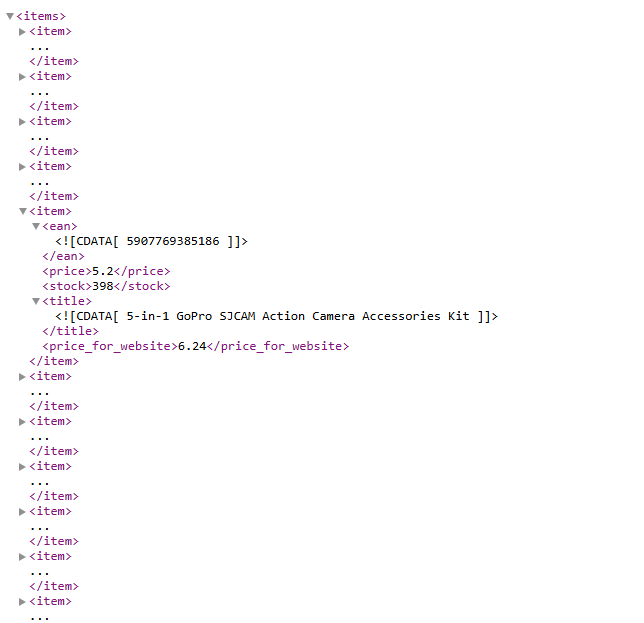
In the example, each product contains fields for:
- EAN.
- Price.
- Stock.
- Title.
- A custom price_for_website value.
Review several products rather than only the first record. Check products from different suppliers, categories, price ranges, and transformation-rule conditions.
Recommended safe workflow
- Confirm the destination requirements. Know which fields, XML path, prices, stock values, and product groups are expected.
- Create the export. Enter a clear title, choose the frequency and content-selection method, and select the intended suppliers.
- Check every default margin. Confirm the multiplier with a simple sample calculation.
- Create an explicit filter. Start with a simple rule and add conditions gradually.
- Enable transformation rules. Review each rule’s filter, priority, and Stop if matched setting.
- Add discounts only when needed. Verify the coefficient and EAN list.
- Build the template. Match output field names to the receiving system’s requirements.
- Save each section. Use Create for the initial export and Update in the configuration sections.
- Execute synchronization manually. Generate a fresh file after completing important changes.
- Inspect the XML. Confirm product count, prices, stock, content, custom attributes, and XML structure before using the public URL in another system.
Common mistakes
- Selecting the wrong suppliers: Products from an unintended supplier can enter the export, while required products may be missing.
- Entering a percentage instead of a multiplier: A margin of 1.2 represents a 20% markup. A discount of 0.8 leaves 80% of the value.
- Confusing price selection with content selection: Content selection determines the source of product content when duplicate EANs are available.
- Leaving the filter too broad: Products that were not intended for the destination may continue to the final file.
- Creating an overly strict filter: One incorrect AND condition can exclude every product in a group.
- Using commas with In or Not in: Multiple values must be separated with semicolons.
- Using numeric operators on text fields: Non-numeric values are treated as zero.
- Allowing several price rules to stack: Multiple matching transformations can create a larger price change than expected.
- Using the wrong rule priority: A later calculation may receive a value already changed by an earlier rule.
- Forgetting Stop if matched: Later rules can still affect a product after an earlier rule matches.
- Expecting an inactive custom attribute in the template: The transformation that creates it must first be enabled for the export.
- Pasting the EAN discount list in the wrong format: Enter one EAN per line.
- Using unsafe default values: Fixed stock or price fallbacks may hide missing source data.
- Changing the template without checking destination requirements: Valid product values can still be rejected when the XML structure is wrong.
- Forgetting to regenerate the export: Execute synchronization manually when you need to review the result immediately.
Example: Create an export for a website
A seller has several connected suppliers and wants to prepare a website XML feed.
- Create a new export with the title To website.
- Select XML and a generation frequency of 1H.
- Choose the required content-selection method.
- Select the suppliers whose products may appear on the website.
- Set a default margin of 1.2 for the selected suppliers where a 20% markup is intended.
- Create an export filter. For all products with a valid identifier, use EAN is not empty. Add category or stock conditions if the website should receive only a smaller product group.
- Enable the required price, stock, and content transformation rules. Arrange their priorities and decide where Stop if matched is necessary.
- If selected products are part of a promotion, add their EAN codes to a discount rule with the required coefficient.
- Configure the XML template with fields such as ean, price, stock, title, and the custom price_for_website attribute.
- Save the template, execute synchronization manually, and review several product records at the public XML URL.
After the configuration is verified, the same public URL can continue to represent this export projection while its XML file is regenerated according to the selected frequency.