How to create reusable channel-specific attributes without overwriting source data
Learn when to replace an existing product attribute and when to create a separate channel-specific value. This guide also explains naming, rule priority, reuse across exports, and checking the final XML result.
When this approach is useful
A supplier may provide one price, title, stock value, or description, while different sales channels require different versions of that information. For example, your website may need a price that includes your margin, while a marketplace may need a different title or a translated description.
B2BLIX Feed lets you map supplier data into a common product structure and then apply separate transformation rules when preparing exports. A transformation can replace an existing attribute or create a new attribute that can be used later in an export template.
Short answer
Replace an existing attribute when the transformed value should be used consistently and you do not need a separate version of that mapped value in the export workflow.
Create a new derived attribute when you need to:
- Keep the mapped value available for comparison or another channel.
- Create different prices, titles, descriptions, or stock values for different destinations.
- Maintain content in several languages.
- Reuse the same calculated value in more than one export.
- Make export templates easier to read and maintain.
Changes to transformation rules can affect the generated XML after the next export generation. Verify the result in the Export Checker before using the changed export with a live website, marketplace, or other destination.
How derived attributes work
A derived attribute is a new value created from existing product data. It can contain a calculated price, a modified title, a translated description, a standardized stock value, or another channel-specific result.
For example, instead of replacing price, you can create:
- price_for_website for your own store.
- price_marketplace for a marketplace export.
- price_comparison for a price-comparison platform.
The original mapped price remains available under its existing attribute name, while each export can use the derived price intended for that destination. The transformation does not edit the supplier's external source file.
When replacing an existing attribute is reasonable
Replacing an attribute can be appropriate when there is one clear result that should be used throughout the relevant export workflow.
Common examples include:
- Replacing price with a price that always includes your required margin.
- Replacing stock with a standardized stock value required by the destination.
- Removing HTML from every exported description.
- Applying the same title formatting to every product in an export.
Before replacing an attribute, confirm that another export or template does not need the mapped value under its original name. If different channels require different results, separate derived attributes are usually easier to manage.
When a new attribute is safer
A new attribute is safer when replacing the existing value could make its purpose unclear or prevent another export from using a different version.
This is especially useful for:
- Channel-specific prices and margins.
- Titles with different length or formatting requirements.
- Descriptions prepared for different languages.
- Plain-text and HTML versions of the same description.
- Stock values adjusted for a specific destination.
- Intermediate values used in a larger calculation.
For example, keep title as the mapped supplier title and create title_marketplace for a shortened or reformatted version. This makes it clear which value belongs to which workflow.
How to name channel-specific attributes
When you create your own export template, you can choose attribute names that match your workflow. Use names that clearly describe both the value and its intended destination.
Practical examples include:
- price_for_website
- price_marketplace
- stock_marketplace
- title_marketplace
- description_plain_text
- description_lt
Use one naming pattern consistently. Avoid vague names such as new_price, value2, or final_data, because their purpose may become unclear when more rules and exports are added.
When you use a prepared export template, follow the attribute mappings expected by that template rather than renaming fields without checking how they are used.
Create the transformation rule
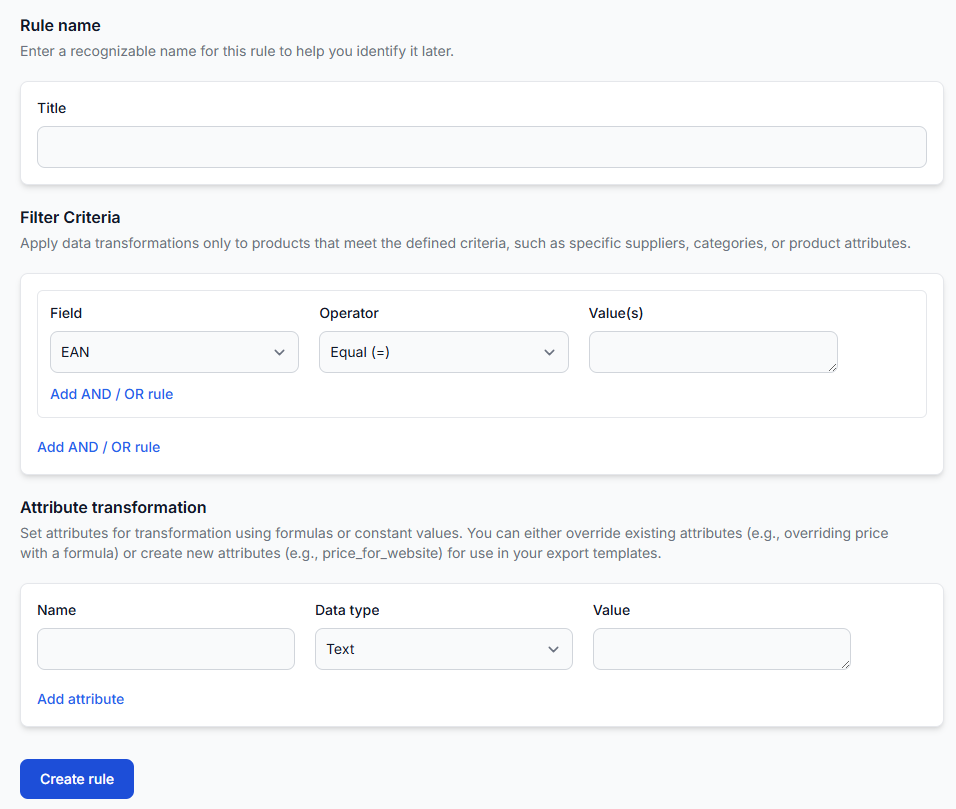
To create or review a derived attribute, open Data Transformation Rules in your account. To understand the available fields and transformation options, read Data transformation rules.
When creating the rule:
- Give the rule a name that explains its purpose and destination.
- Add filter conditions only when the transformation should apply to selected products.
- Select the existing attributes used in the calculation or text transformation.
- Enter the new derived attribute name.
- Set the rule priority in relation to the other rules used by the export.
- Save the rule and assign it to the required export projection.
Using several rules and rule priorities
Transformation rules are applied according to their configured priority. This allows you to control which rules are evaluated earlier or later in the export workflow.
More than one rule may affect the same attribute, but this should be used carefully. The final result can depend on each rule's priority, filter conditions, and configured transformation. Priority alone does not automatically combine several values into one calculation.
For a maintainable setup:
- Use one rule or one clear expression when a calculation can be completed in a single place.
- Use separate rules when different product groups require different conditions.
- Give each rule a descriptive name.
- Avoid several unrelated rules writing to the same derived attribute unless that behavior is intentional.
- Check the result for representative products after changing priorities.
Reuse the same attribute in several exports
A transformation rule can be selected for more than one export projection. You do not need to create a separate copy of the same calculation for every export unless the required logic is different.
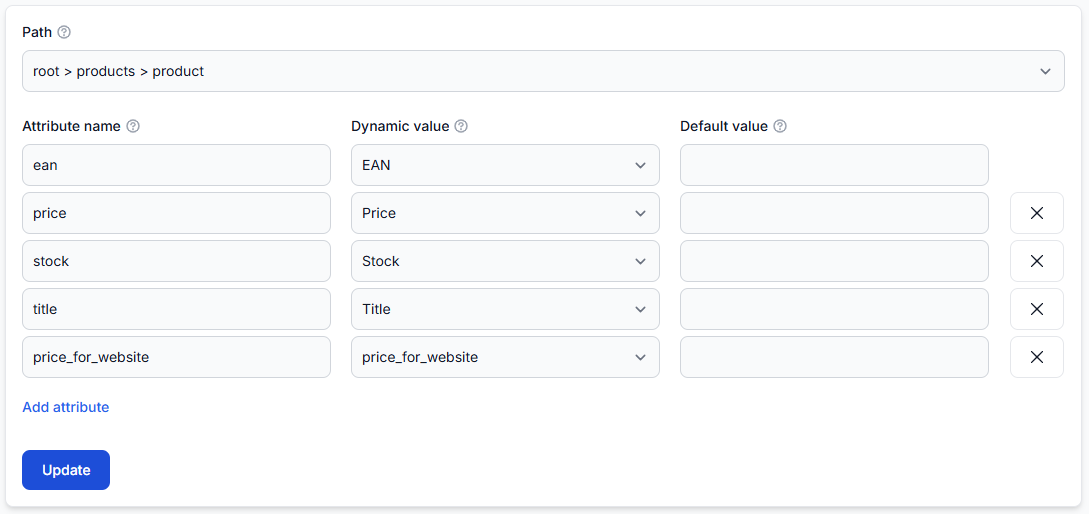
Open Exports in your account and edit each export that should use the rule. Enable the relevant transformation rule and map its derived attribute in the export template. For detailed export configuration instructions, read Exports: create and configure XML export projections.
For example, both a full website export and a smaller promotional export could use price_for_website. The same rule can be enabled in both exports, and both templates can map that attribute to the required XML element.
What to check in the export configuration
- Confirm that the required transformation rule is enabled for the export.
- Check the rule priority relative to other enabled rules.
- Check whether another rule also writes to the same attribute.
- Confirm that the export template maps the derived attribute, not the original attribute by mistake.
- Check that the rule's filters include the products you expect.
- Confirm that the attribute name is written consistently in the rule and template.
Example: separate website and marketplace prices
Suppose the mapped supplier price is €100. Your website price should include a 20% margin, while your marketplace price should include a 25% margin.
You could create:
- price_for_website with a result of €120.
- price_marketplace with a result of €125.
The website export template uses price_for_website. The marketplace export template uses price_marketplace. The mapped price remains available for checking and for any export that still requires it.
Check intermediate and final values
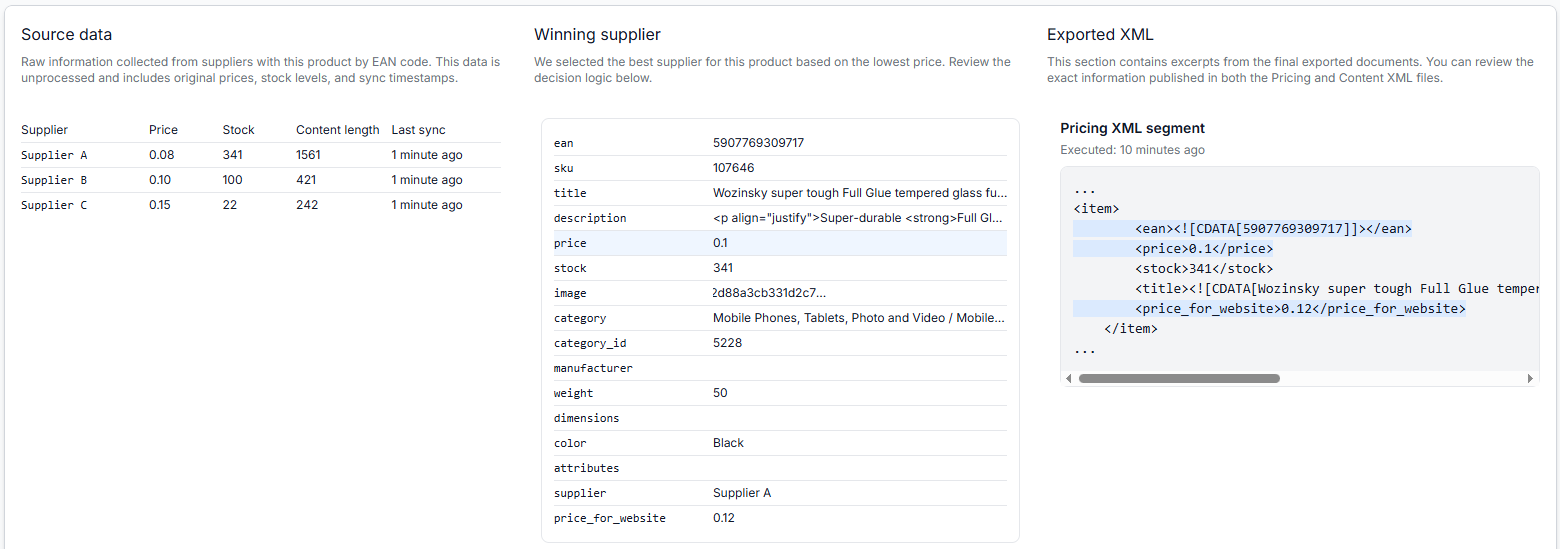
Use the Export Checker to review how a specific product was processed. Enter the product's EAN, select the relevant export, and inspect the source data, applied transformations, calculated values, and generated XML.
Open Export Checker in your account. For instructions, read Exports Checker: review product data and export results.
Common causes of an unexpected result
- The rule is not enabled for the export: A saved transformation rule does not affect an export unless it is selected in that export's settings.
- The template uses the wrong attribute: The rule may correctly create price_for_website, while the template still exports price.
- The filter does not match: A supplier, category, manufacturer, price, stock, or other condition may exclude the product from the rule.
- Another rule changes the same value: Review all enabled rules and their priorities.
- The attribute name is inconsistent: Check spelling and naming in both the transformation rule and the export template.
- The export has not been regenerated: The external XML file may still contain the result from an earlier export execution.
- The destination uses a different XML element: Check that the generated XML structure matches the requirements of the receiving platform.
What to do next
- Decide whether the original mapped attribute must remain available for another channel or calculation.
- Create a clearly named derived attribute when different outputs are required.
- Assign the transformation rule only to the exports that need it.
- Map the derived attribute in each relevant XML template.
- Check a small set of representative products by EAN in the Export Checker.
- Review the generated XML before the export is used by a live destination.
B2BLIX generates the configured XML output, but the external website, marketplace, or other destination controls how that file is imported and whether its values are accepted.