How to clean, normalize, and enrich inconsistent supplier content
A practical workflow for improving inconsistent supplier product data without unintentionally changing prices, stock, or other commercial information.
Supplier feeds often contain inconsistent titles, descriptions, stock values, capitalization, or formatting. One supplier may provide descriptions with HTML, another may leave important fields empty, and another may provide better product content but a less competitive price.
B2BLIX Feed provides different tools for collecting, correcting, and selecting this information. The important first step is deciding whether the problem belongs in supplier mapping, a data transformation rule, or the export projection.
When this guide is useful
Supplier feeds often contain inconsistent titles, descriptions, stock values, capitalization, or formatting. One supplier may provide descriptions with HTML, another may leave important fields empty, and another may provide better product content but a less competitive price.
B2BLIX Feed provides different tools for collecting, correcting, and selecting this information. The important first step is deciding whether the problem belongs in supplier mapping, a data transformation rule, or the export projection.
Short answer
- Use supplier mapping to extract the correct values from the supplier's source file and place them in the appropriate B2BLIX attributes.
- Use data transformation rules to change formatting, remove HTML, combine attributes, translate text, apply controlled defaults, or create destination-specific values.
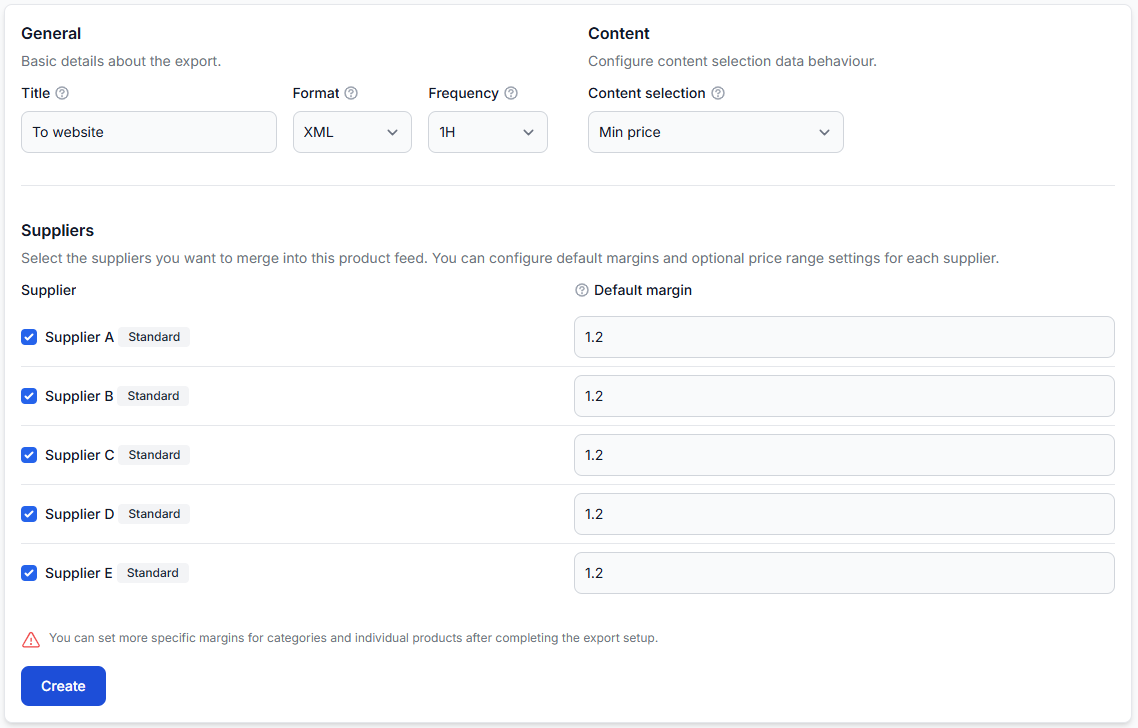
- Use the export projection to decide which suppliers, products, transformations, and content-selection logic should be used for a particular output.
Data transformations can change values included in a generated XML export. Before using a new rule in a production sales channel, check representative products and confirm the final output in Export Checker.
How mapping and transformations differ
Mapping collects the supplier's data
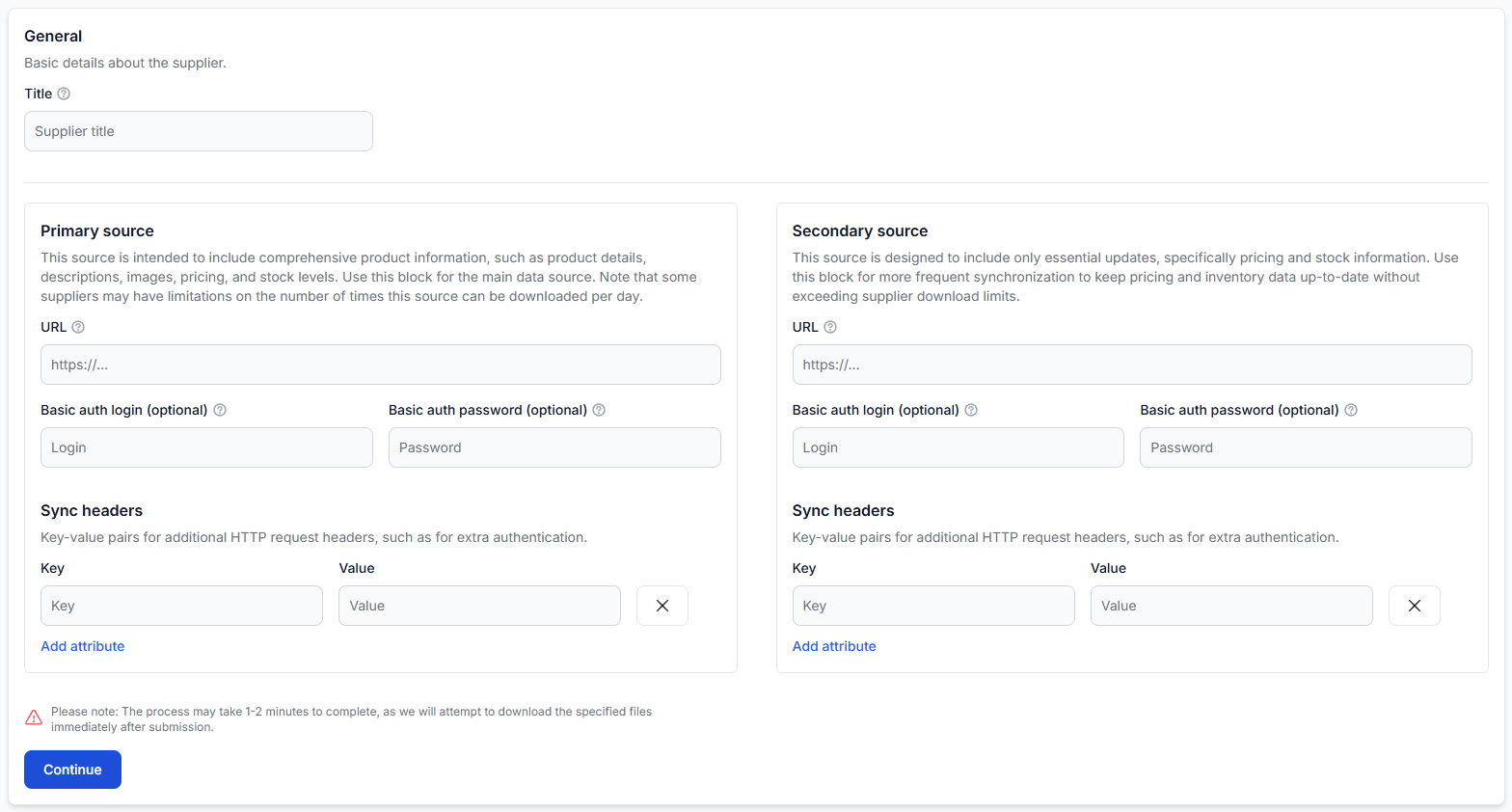
Mapping tells B2BLIX where each required value is located in the supplier's XML or JSON structure. For example, it can connect the supplier's product name, description, EAN, price, stock, manufacturer, and category fields to the corresponding B2BLIX attributes.
Mapping should extract the value that the supplier actually provided. It should not normally be used to redesign a title, change capitalization, remove HTML, or calculate a replacement value.
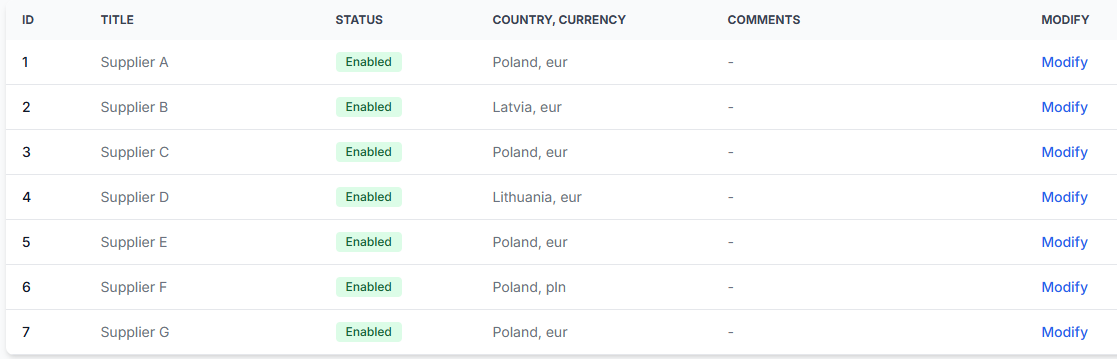
To review a supplier's source and mappings, open
Suppliers when you are logged in.
To understand the supplier configuration and mapping workflow, read
Add and configure a supplier feed.
Transformations change or create values
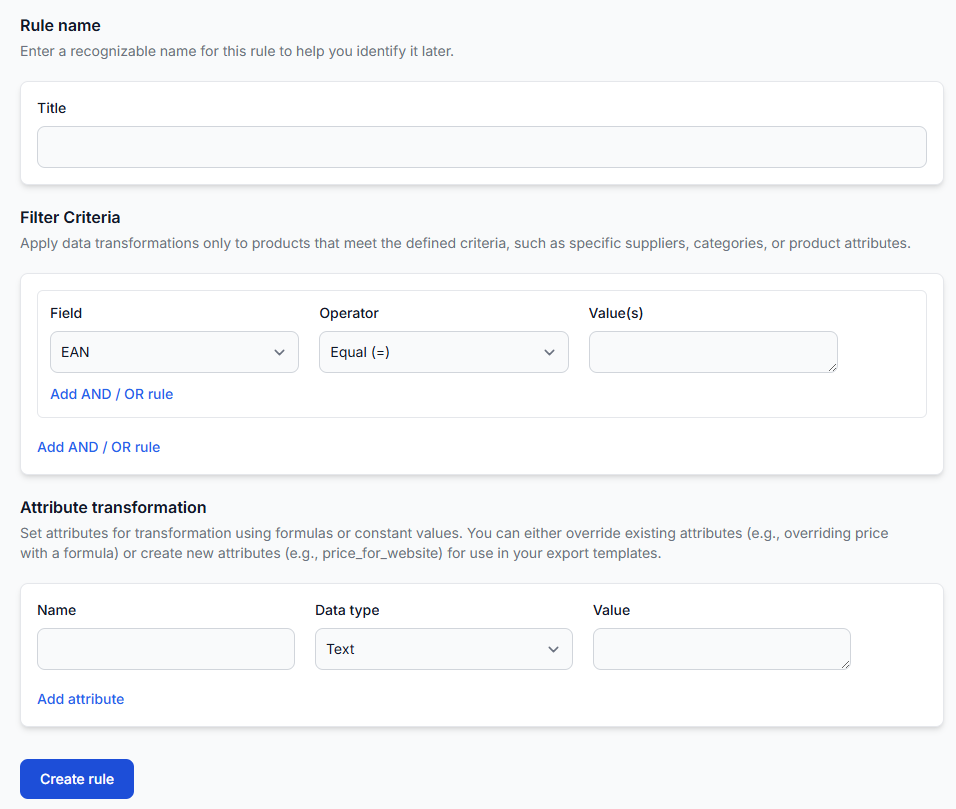
Data transformation rules work with the attributes collected through mapping. They can modify an existing attribute or create a new attribute for use in an export.
Typical transformation tasks include:
- Converting HTML descriptions to plain text.
- Changing text to uppercase, lowercase, or title-style capitalization.
- Combining several attributes into one title or description.
- Translating selected content.
- Applying a value only when an attribute is empty.
- Creating a destination-specific attribute while retaining the original value.
To create or review these rules, open
Data Transformation Rules.
For the available functions and formula syntax, read
Data transformation rules.
What to check in your account
-
Confirm that the correct source value is mapped.
Inspect the supplier mapping and make sure the title, description, stock, images, manufacturer, and other relevant values are being collected from the correct source paths.
If the wrong source field is mapped, correct the mapping before creating a transformation. A transformation cannot reliably repair a value that was collected from the wrong place.
-
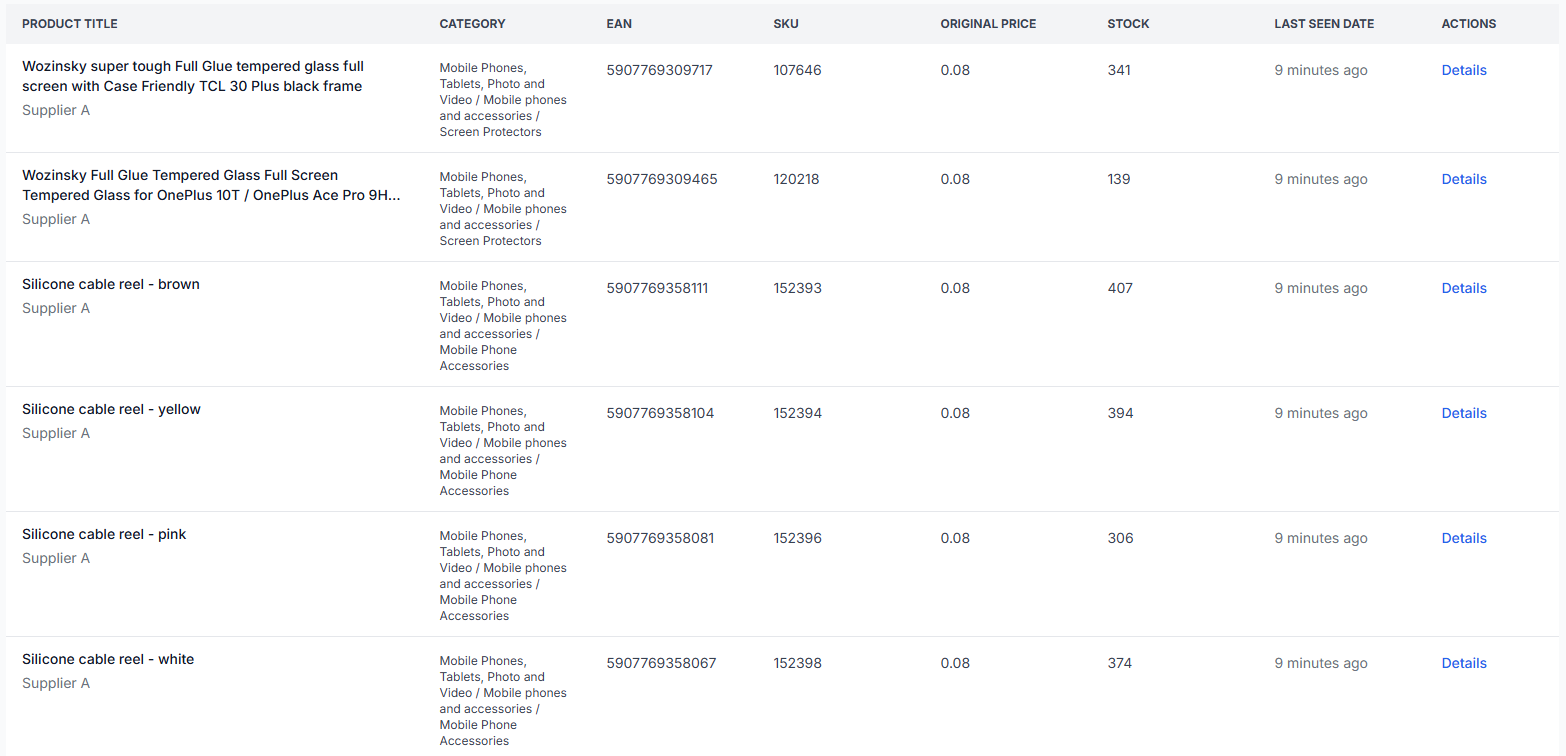
Inspect the stored product data.
Open All Products and review several imported products.
The All Products interface guide explains how to inspect the available product information.This helps you determine whether a problem already exists in the mapped catalog or appears only after an export transformation.
-
Create a narrowly focused transformation rule.
Use filters when a correction should apply only to certain suppliers, categories, manufacturers, or products. Avoid applying a broad rule to the whole catalog unless the same correction is valid for every affected product.
-
Preserve the original value when useful.
Instead of immediately replacing an important source attribute, consider creating a new attribute for the cleaned or destination-specific version. For example, you could retain the original title and create another title attribute for a particular website export.
-
Assign the rule to the correct export.
An export projection has its own filters, transformations, content selection, template, and schedule. Confirm that the new rule is enabled only for the exports that need it.
To review this configuration, open Exports.
For details about export projections, read Create and configure XML export projections. -
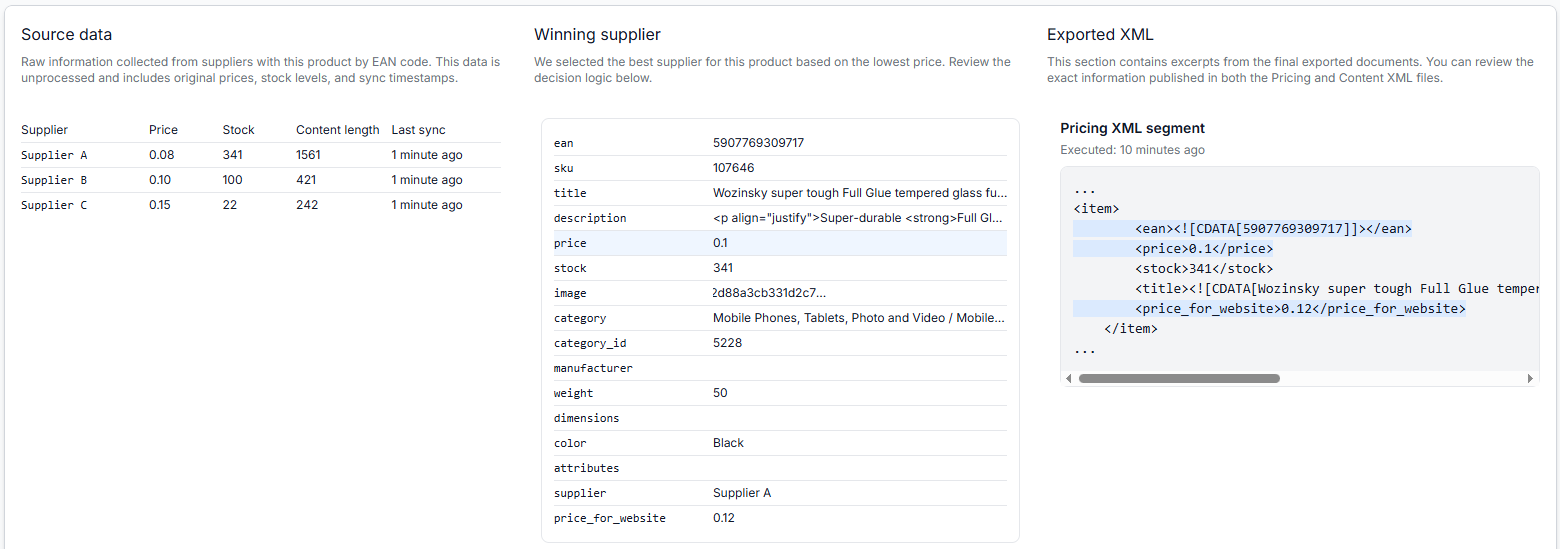
Check representative products in Export Checker.
Open Export Checker and inspect the source data, selected supplier, applied transformations, final attributes, and representative XML result.
Read Export Checker: review product data and export results for details about the information shown there.
Common content problems and how to handle them
| Problem | Where to handle it | Recommended action |
|---|---|---|
| The wrong supplier field is being imported | Supplier mapping | Map the correct source path to the appropriate B2BLIX attribute. |
| A description contains HTML | Data transformation rule | Use the HTML-to-text function to create a plain-text version. |
| Titles use inconsistent capitalization | Data transformation rule | Use the appropriate uppercase, lowercase, or title-style formatting function. |
| A title must contain several attributes | Data transformation rule | Use the concat function to combine values according to the documented syntax. |
| An empty field needs a controlled fallback | Data transformation rule | Use an empty-value condition and apply a default only when it is valid for the destination workflow. |
| Several suppliers provide different descriptions for the same EAN | Export content selection | Choose whether content should come from the commercially selected supplier or from the supplier with the longest available content. |
| The original value must remain available | Data transformation rule | Create a new attribute instead of overriding the original attribute. |
How to remove HTML safely
First, map the supplier's original description to the appropriate description attribute. Then use the HTML-to-text function in a data transformation rule.
For initial testing, it is usually safer to write the result to a separate attribute instead of replacing the original description immediately. You can then compare the original and cleaned values in Export Checker.
Test products that contain:
- A normal description without HTML.
- A description with substantial HTML formatting.
- An empty description.
- Unusual characters or multilingual content.
How to assemble titles and descriptions from several attributes
Use the concat function in a data transformation rule. It can combine mapped attributes and fixed text into a new value.
For example, a destination-specific title could be assembled from the manufacturer, original title, color, and another relevant product attribute. Use the exact function syntax documented in the Data Transformation Rules guide.
Before applying the formula widely, check how it behaves when one of the included attributes is empty. A combined title should not contain unnecessary separators, repeated text, or misleading information.
When to use default values for empty fields
A default should be used only when an empty field has a clear and safe meaning in the destination system.
For example, you may decide that an empty stock value should be exported as 0 so that the receiving system treats the product as unavailable. This should be a deliberate business rule, not a general correction for every missing value.
Changing an empty price, stock, or availability field can affect what is published by the receiving store, marketplace, or comparison platform. Verify the source mapping and destination requirements before adding a default.
Before applying a default, confirm:
- Why the supplier field is empty.
- Whether an empty value and zero have the same meaning.
- Whether the destination accepts the proposed default.
- Whether the rule should apply to every supplier or only a selected supplier.
- Whether the original value should remain available for checking.
How to select richer content without changing the commercial offer
Products from different suppliers can be grouped by their accepted EAN. The export can evaluate the commercial offer and the content source separately.
Within the suppliers included in an export, the system can select the commercial winner according to the export's supplier-selection logic. The export's content-selection logic can then use either:
- The content from the selected commercial winner.
- The longest available content from another supplier in the relevant supplier set.
This allows an export to use a competitive supplier offer while taking a richer description from another supplier. It does not prove that the longest description is always the most accurate, so the result should still be reviewed.
Example
Supplier A and Supplier B provide the same product with the same EAN. Supplier A has the lower price but provides a short description with HTML. Supplier B has a longer plain-text description.
The export can keep Supplier A as the commercial winner while using the configured content-selection logic to take the longer description. A transformation rule can then normalize its capitalization or create a destination-specific title without changing Supplier A's selected price.
Test representative products before wider use
Do not test a new content rule with only one ideal product. Select a small group that represents the different supplier-data conditions in your catalog.
- A product with complete and clean content.
- A product with HTML in its description.
- A product with an empty value that may require a default.
- A product available from several suppliers under the same EAN.
- A product with inconsistent capitalization.
- A product that should not match the transformation rule.
For each product, compare the mapped supplier data, transformation result, selected content, and final XML value. This helps confirm both that the intended products are changed and that unrelated products remain unaffected.
What to do next
- Correct any source-field problems in the supplier mapping.
- Create separate, clearly named transformation rules for each type of content correction.
- Use filters so that each rule applies only where needed.
- Create new destination-specific attributes when preserving the original value is useful.
- Review the rule priority and confirm that the correct rules are enabled in the export.
- Check representative products in Export Checker before using the updated XML in a live channel.