How b2blix merges the same ean from multiple suppliers
This guide explains why several supplier records may represent one product, how margins and export rules affect supplier selection, and how to inspect the source offers and final result.
When this guide is relevant
This guide is useful when the same product is available from several suppliers and you want to understand:
- Why several supplier records are connected by one EAN.
- Which supplier values remain separate.
- Why the supplier with the lowest raw price may not be selected.
- Why one supplier offer is excluded from an export.
- Where to inspect all source offers and the selected export result.
Short answer
B2blix uses an accepted EAN as the main identifier for recognizing the same product across different suppliers. Supplier records with the same accepted ean can therefore be treated as representations of one catalog product.
The individual supplier offers are not replaced by one universal record. Their prices, stock quantities, supplier skus, content, and other source values can remain different.
When an export projection is processed, b2blix evaluates the available supplier offers using the export's configured margins, filters, transformation rules, and other eligibility conditions. The supplier with the best resulting price is selected from the offers that remain eligible.
The same ean does not prove that every supplier has assigned the ean correctly. B2blix uses the accepted ean as the catalog identity rule, but the accuracy of the identifier and the related source data should still be checked when supplier records appear to describe different products.
How the multi-supplier merge works
- Supplier data is collected. B2blix imports the raw product information from each active supplier instance.
- The ean is validated. Products without a usable ean are not included in the normal product-merging and export workflow.
- Matching eans are connected. Records from different suppliers that have the same accepted ean can be recognized as the same catalog product.
- Supplier offers remain available separately. B2blix keeps the source values needed to compare and inspect each supplier's representation of the product.
- The export rules are applied. The export projection uses its configured margins, product filters, transformation rules, supplier selection, and other conditions.
- An eligible offer is selected. The offer with the best resulting price is selected from the supplier offers that pass the applicable conditions.
- The result is formatted for export. The selected and transformed data is written into the xml structure configured for that export projection.
This means that grouping by ean and selecting an offer are two different steps. The ean connects possible representations of the same product. The export configuration determines which eligible representation is used in the final output.
Which values remain supplier-specific?
| Value | How it is handled |
|---|---|
| EAN | Used as the main cross-supplier product identity when the value is accepted. |
| Price | Remains specific to each supplier and may be adjusted by supplier margins or transformation rules. |
| Stock | Remains specific to each supplier and may affect whether that offer is eligible for the export. |
| Supplier sku | May remain available as a supplier-specific attribute. It does not replace ean as the standard cross-supplier identifier. |
| Title, description, and images | Can differ between suppliers and may be changed by mapping or transformation rules. |
| Category and manufacturer | Can originate from supplier data and be standardized or used by filters and transformations. |
| Supplier identity | Remains attached to the source offer so the selected supplier and original data can be inspected. |
Why the cheapest raw supplier price may not win
B2blix does not necessarily compare only the original price received from each supplier. Supplier-specific default margins and activated transformation rules can change the price used during export processing.
An offer with the lowest raw supplier price may therefore lose to another offer after the configured calculations are applied. An offer may also be removed from consideration before selection if it does not pass the export conditions.
What can remove a supplier offer from consideration?
Common reasons include:
- The supplier is not active or is not included in the export projection.
- The product does not have a usable ean.
- The product does not match the export's product filters.
- The supplier's stock value does not satisfy a stock condition.
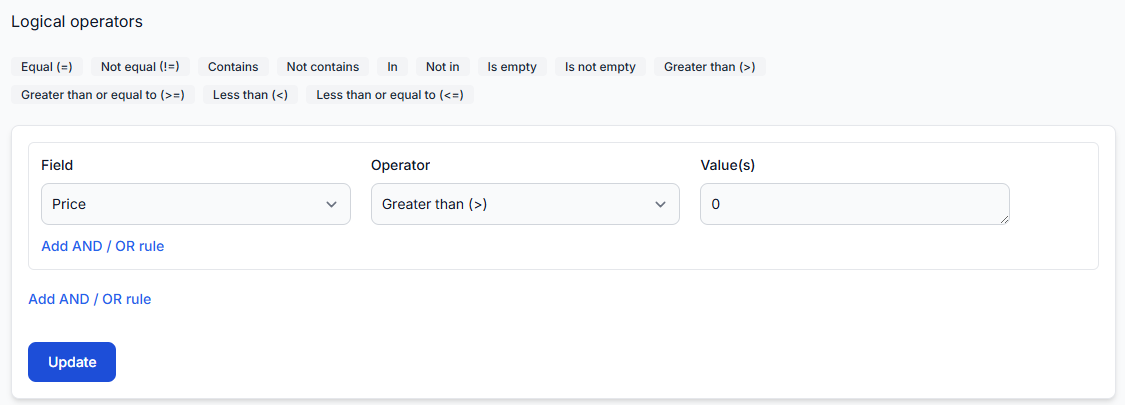
- The price does not satisfy a price condition, such as a requirement for the price to be greater than zero.
- A supplier-specific margin changes the effective price.
- An activated transformation rule changes the price or another value used by the export.
- A rule creates a value that causes the product to fail a later export condition.
If no supplier offer for that ean passes the required export conditions, the product is not added to that export projection.
Changing margins, product filters, stock conditions, or transformation rules can change the selected supplier and the final exported price. Verify the current result before applying changes to an export used by a live sales channel.
What to check in your account
1. Inspect every stored supplier record for the ean
When you are logged in, open All products and search for the ean. This allows you to compare the records currently stored from the different suppliers. To understand the information available on this page, read All products interface.
Check the following details for each matching record:
- The supplier associated with the record.
- The received ean and supplier sku.
- The raw price and stock.
- The available title, description, category, manufacturer, and other product attributes.
- Whether the records actually describe the same physical product.
2. Review the result for the specific export
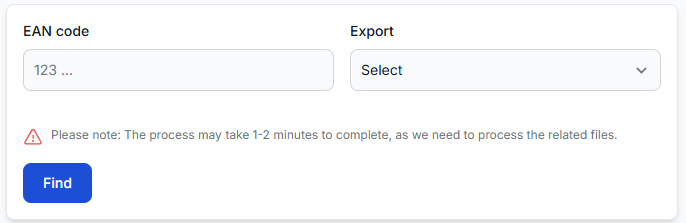
Open Exports checker, enter the ean, and select the export projection you are investigating. For an explanation of the report, read Exports checker: review product data and export results.
The checker is the main place to review:
- The original supplier data available for the ean.
- The supplier offer selected for processing.
- The margins and calculations that affected the price.
- The filters and transformations that affected the product.
- The winning supplier.
- The final attributes and representative exported xml.
- An exclusion reason when the product is not included.
3. Check the export configuration
Open Exports and review the projection in which the unexpected result appears. To understand its configuration options, read Create and configure xml export projections.
Verify:
- Which suppliers are included in the projection.
- The default margins configured for those suppliers.
- The product selection and filter conditions.
- The enabled transformation rules and their priorities.
- The attributes used by the export template.
4. Check supplier settings when the source values look incorrect
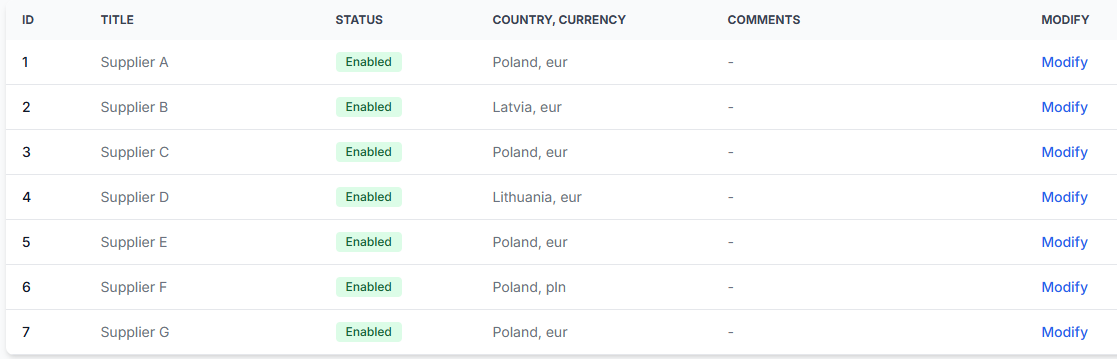
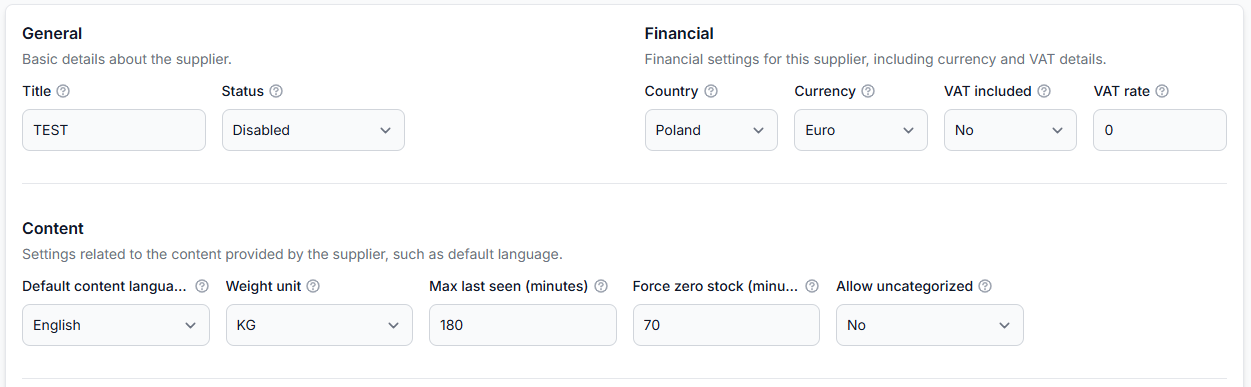
Open Suppliers to confirm that the relevant supplier is active and that its financial settings and field mappings correctly describe the incoming data. For page-level instructions, read Add and configure a supplier feed.
In particular, verify the supplier's source currency, vat interpretation, price mapping, stock mapping, and ean mapping before changing export rules.
5. Check price or content transformations
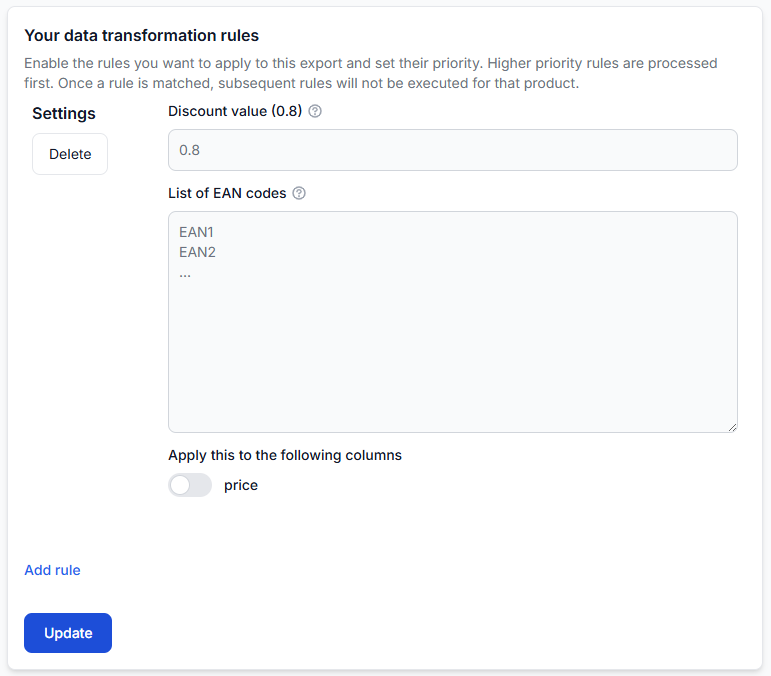
When a calculated value differs from the raw supplier value, open Data transformation rules. To understand rule filters, expressions, and priorities, read Data transformation rules.
Check whether an enabled rule changes the standard price, creates another price attribute, modifies stock, or changes a value used by an export filter.
Example
Supplier a and supplier b both provide the same accepted ean.
- Supplier a has a raw price of 100 and a 10% default margin, producing a price of 110.
- Supplier b has a raw price of 98 and a 20% default margin, producing a price of 117.60.
Although supplier b has the lower raw price, supplier a has the better price after the configured margins are applied. Supplier a can therefore be selected if both offers pass the remaining export conditions.
If supplier a does not pass a stock filter, its offer is removed from consideration. Supplier b may then be selected instead, provided its offer remains eligible.
What to do next
- Search for the ean in All products and compare every supplier record.
- Confirm that all matching records describe the same product and use a correct ean.
- Open Exports checker for the exact ean and export projection.
- Review the source offers, applied margins, filters, transformations, winning supplier, and final xml result.
- Check the export, supplier, or transformation configuration only after identifying which condition caused the result.
- After changing a setting, inspect the product again when the export has been regenerated.
The most important distinction is that an ean connects supplier representations of a product, while the export's settings determine which eligible supplier offer is used in the output.