How export filters and product exclusions work
Learn how to control which products are included in an export by combining AND and OR conditions, selecting supplier or product attributes, and adding exclusion rules. This guide explains why a product may be included in or excluded from a B2BLIX Feed export and provides a practical checklist for reviewing filter logic and product-level results.
When this guide is useful
Use export filters when an XML export should contain only a selected part of your B2BLIX catalog. For example, you may need to include products from particular suppliers, require a valid price or stock value, exclude restricted manufacturers, or remove a specific list of EANs.
This guide also helps when a product exists in B2BLIX but is missing from one export, or when a product is unexpectedly included even though you intended to exclude it.
Short answer
An export filter decides whether a product is included in a specific export. A product must satisfy the complete filter structure to continue to that export's transformations, template, and generated XML.
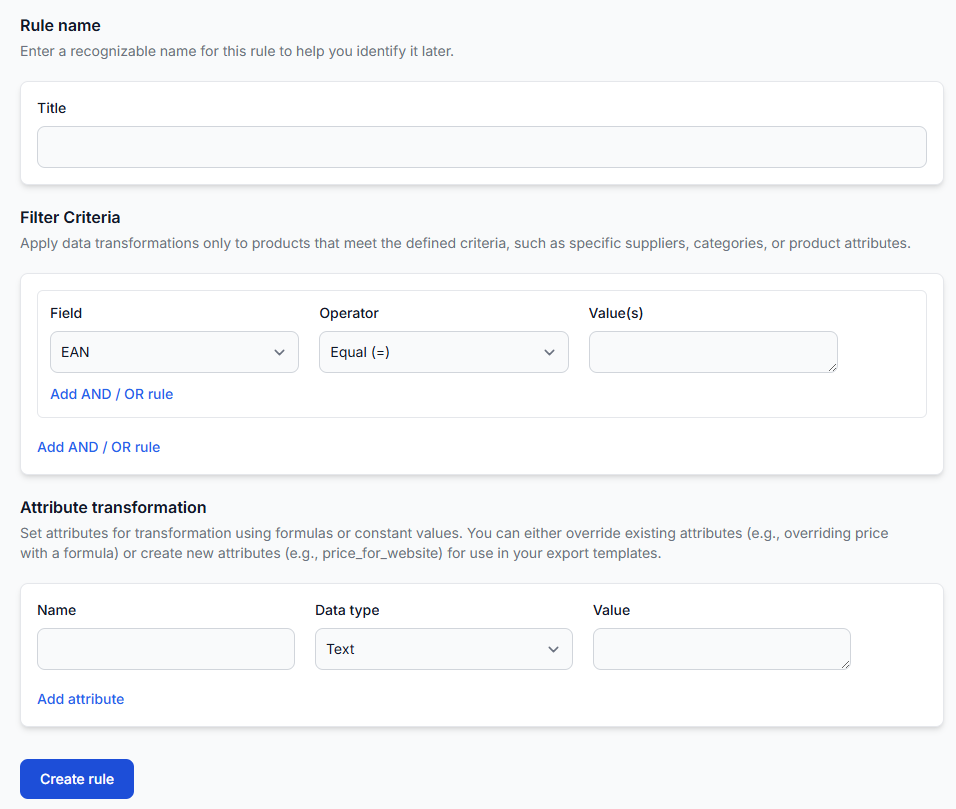
Conditions can be grouped with AND and OR:
- AND means that every condition in the group must be satisfied.
- OR means that satisfying any condition in the group is enough.
When several groups are combined, their placement changes the result. If a product is unexpectedly included or excluded, first review the grouping of the conditions rather than checking each condition separately.
Warning: Changing an export filter can change the products in the next generated XML file. Before using the updated export in a live store, marketplace, or price-comparison platform, test the filter with several known products and review the generated result.
How export filters work
B2BLIX stores supplier products in a combined catalog independently from individual exports. Each export projection can then select a different part of that catalog.
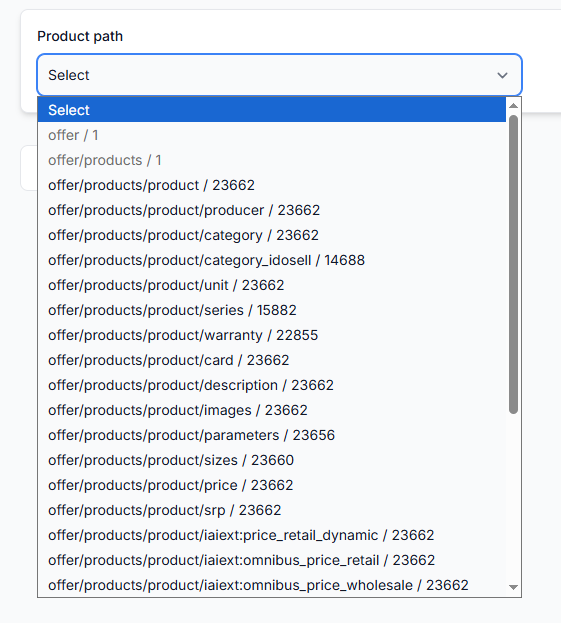
An export filter can use mapped product information such as:
- EAN or SKU
- Supplier
- Price or stock
- Title or description
- Category or category ID
- Manufacturer or brand value
- Weight, dimensions, color, or other mapped attributes
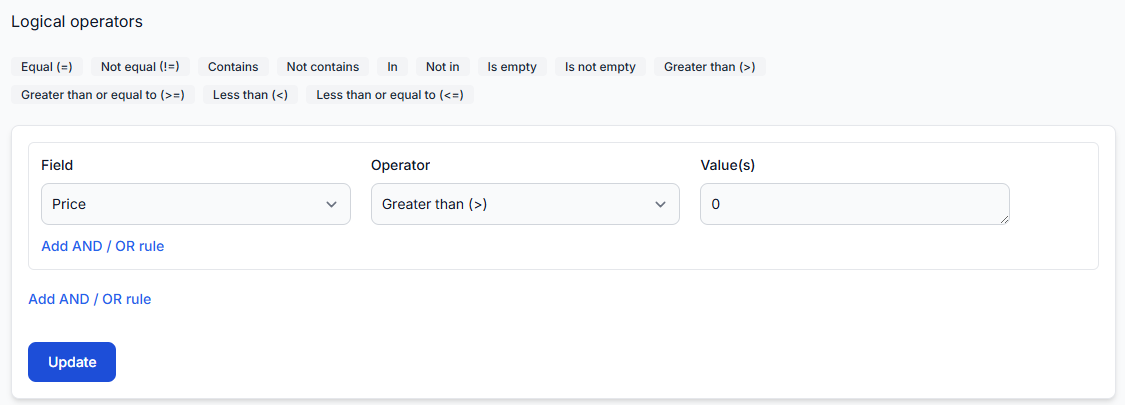
Available comparisons may include Equal, Not Equal, Contains, In, Not In, empty-value checks, and numeric comparisons such as greater than or less than.
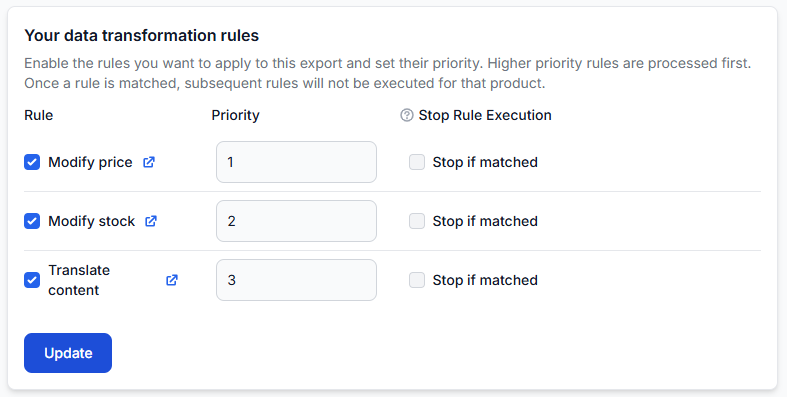
Export filters are separate from transformation filters:
- An export filter determines whether the product is included in the export at all.
- A transformation filter determines whether a particular calculation or content change is applied to an included product.
A transformation rule cannot add a product back after the export filter has excluded it.
What to check in your account
1. Review the export filter structure
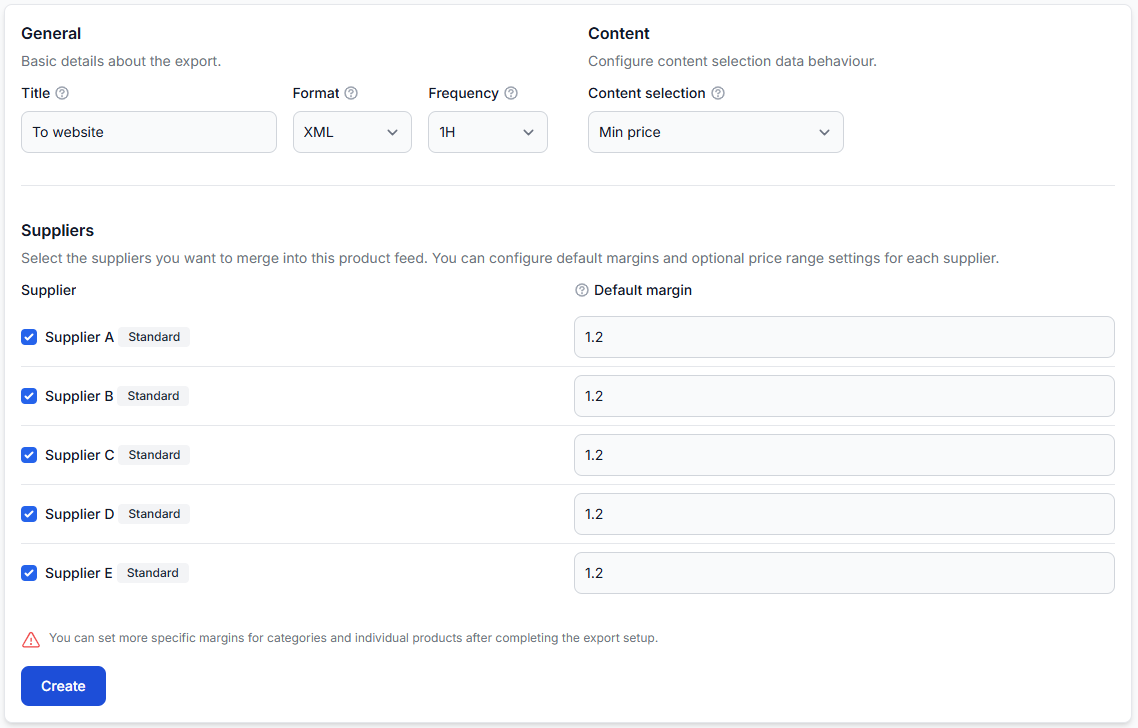
When you are logged in, open Exports and select the export you want to review. To understand the export configuration fields, read Create and configure XML export projections.
Check the complete filter structure and confirm:
- Which conditions are inside the same AND group.
- Which alternatives are inside an OR group.
- Whether an exclusion condition applies to the whole filter or only to one branch.
- Whether the selected attribute contains the value you expect.
- Whether text, numeric, and empty-value comparisons are appropriate for that field.
2. Check the product's source and mapped values
A condition is evaluated using the product data available in B2BLIX. For example, a supplier condition depends on the selected supplier value, while a manufacturer exclusion depends on the mapped manufacturer or brand information.
When you are logged in, open All products to confirm that the product is stored and that its core values are present. For details about that page, read All products interface.
If the value is missing or different from the value used in the filter, review the relevant supplier mapping before changing the export condition.
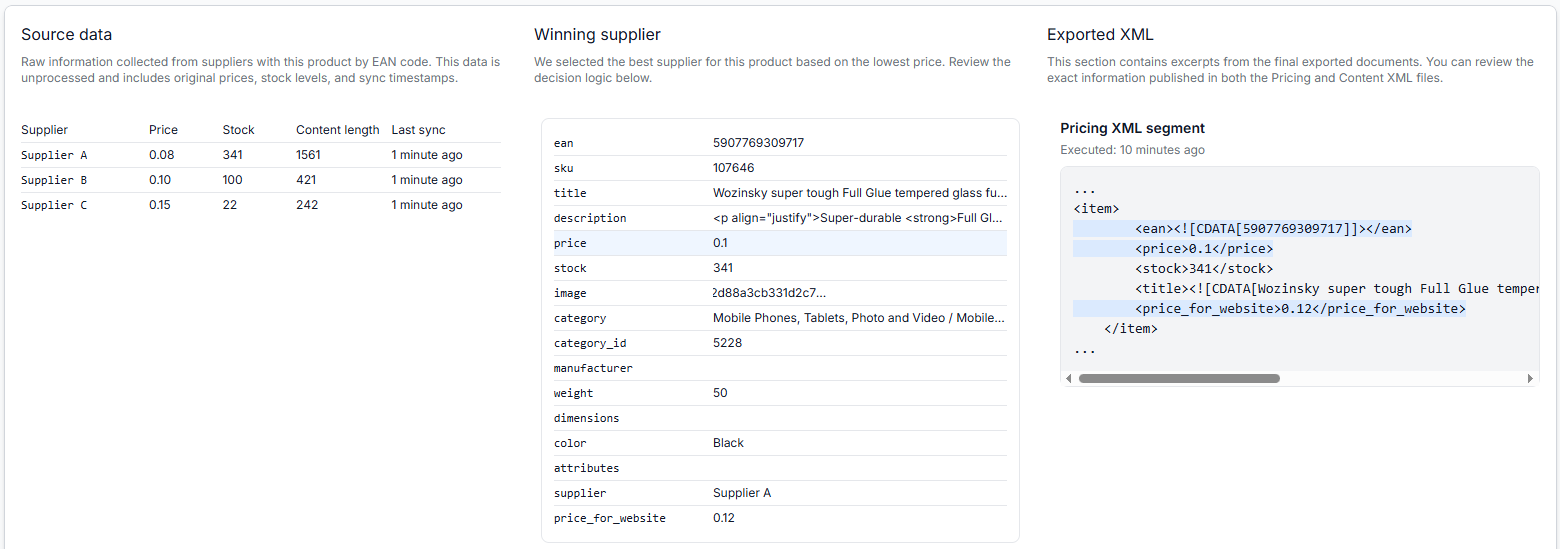
3. Inspect one product in Export Checker
The fastest way to investigate a filter is usually to test one known EAN.
When you are logged in, open Exports checker. To understand the report, read Exports Checker: review product data and export results.
- Enter the product's EAN.
- Select the relevant export.
- Review the original supplier data and the selected supplier offer.
- Check the filters that affected the product.
- Confirm whether the product reached the final exported attributes and XML result.
Common exclusion scenarios
Excluding a list of products by EAN
Use an EAN Not In condition and provide the EAN values that must not appear in that export. This removes the matching products only from the selected export. They may remain available in the catalog and in other exports.
Also check that the exclusion is placed at the correct level. If it is inside only one branch of an OR group, another branch may still allow the product to pass.
Excluding a supplier
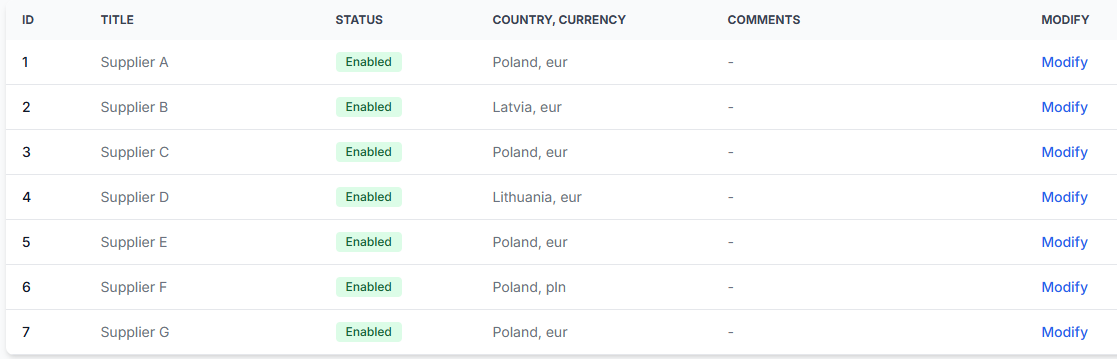
Use a supplier condition when products from one supplier must not be used in a particular destination export. Verify the actual supplier selected for the product, especially when several suppliers offer the same EAN.
A product may still be exported from another qualifying supplier unless your filter excludes the product itself rather than only one supplier offer.
Excluding a manufacturer or brand
Use the mapped manufacturer or brand value. Confirm the exact value stored in B2BLIX before creating the condition, because supplier feeds may use different spellings or naming formats.
When you are logged in, open Manufacturers to review discovered values. For details, read Manufacturers interface.
Requiring a usable EAN
For an EAN-based destination, a condition such as EAN is not empty can make the requirement visible in the export filter. Its position is important when the filter contains several AND and OR groups.
In the standard B2BLIX workflow, products without a usable EAN are not admitted to normal product processing and cross-supplier merging. If a product cannot be found in the catalog at all, check its supplier EAN value and mapping rather than only the export filter.
Requiring a positive price or stock value
Conditions such as Price greater than 0 or a stock comparison can prevent incomplete or unavailable products from entering an export.
Before changing such a condition, verify whether the zero or missing value comes from the supplier source, supplier mapping, freshness settings, or an active transformation rule.
The product exists but does not match the expected attribute
A product may be present in All Products but fail an export filter because the selected field contains a different value than expected. Common examples include:
- The supplier uses a different manufacturer spelling.
- The category was mapped to another global category.
- The expected price was mapped from the wrong source field.
- The product has zero stock after freshness processing.
- The condition checks a newly created attribute that is not available at the filtering stage.
Example: include selected suppliers but exclude restricted EANs
Suppose an export should contain products from Supplier A or Supplier B, but only when the product has a positive price and a usable EAN. A separate list of restricted EANs must always be excluded.
The intended logic can be described as:
- Supplier equals Supplier A OR Supplier equals Supplier B
- AND Price is greater than 0
- AND EAN is not empty
- AND EAN Not In the restricted EAN list
The supplier alternatives belong together in an OR group. The price, EAN requirement, and exclusion list must apply to the result of that complete group.
If the restricted-EAN condition is placed inside only the Supplier A branch, a restricted product from Supplier B may still pass through the other branch.
Why a product may still be missing
Not every missing product is excluded by the export filter. The product may have stopped earlier in the workflow because:
- Its EAN is missing, invalid, or mapped from the wrong supplier field.
- A required source value is unavailable.
- The product is no longer present in the supplier data and its freshness settings have changed its stock or retention status.
- The product is present in B2BLIX but does not satisfy the selected export's filter.
- The product is included in the generated XML but is rejected or delayed by the receiving platform.
B2BLIX controls the supplier import, mapping, catalog processing, filters, transformations, and generated XML. After an external platform downloads the file, that platform controls its own validation, import schedule, activation, and public display.
What to do next
- Choose one EAN that should be included and one that should be excluded.
- Confirm both products' values in All products.
- Review the complete AND and OR structure in Exports.
- Test both EANs in Exports checker.
- Regenerate the export and inspect the resulting XML before connecting the changed export to a live destination.
Make filter changes gradually. Testing a small set of known products makes it easier to confirm that required products remain included and excluded products do not return through another OR condition.