How supplier markups and advanced pricing rules work
Learn how to apply a basic markup for each supplier and use more specific pricing formulas for selected categories, brands, products, price ranges, VAT treatment, rounding, and sales channels.
This guide explains the order in which B2BLIX Feed calculates prices, what to verify before changing a formula, and how to troubleshoot an unexpected exported price.
When this guide is relevant
This guide is for sellers who need to build regular selling-price rules from supplier prices. It answers questions such as:
- How do I set a different markup for each supplier?
- Can lower-priced and higher-priced products use different formulas?
- Can I apply an extra margin to one category, brand, or product?
- Why did an active pricing rule not change the exported price?
- How does B2BLIX choose between suppliers offering the same EAN?
- Can different exports use different prices for the same product?
This article covers normal supplier markups and reusable pricing rules. Temporary campaign discounts are configured separately and are not covered here.
Short answer
Use the supplier’s base coefficient in an export to apply the main markup for that supplier. Then use Data Transformation Rules when a more specific formula is needed for a category, manufacturer, product, price range, country, or another condition.
The base supplier coefficient is applied first. Active transformation rules then process the resulting price according to their priority and conditions.
Important: Pricing changes can affect generated XML exports and live sales-channel prices. Before applying a new rule to a complete catalog, test it with a controlled product selection, regenerate the export, and verify several EANs in the Export Checker.
How the pricing calculation works
A typical pricing calculation follows these stages:
- B2BLIX reads the mapped supplier price. The source field mapped as the Feed price must contain the value you intend to use. A supplier file may contain several price fields, such as a price without VAT, an original price, or a discounted price.
- The supplier price is interpreted using the supplier’s financial settings. These settings include the source currency, whether VAT is already included, and the applicable VAT rate.
- The export applies the supplier’s base coefficient. This provides the initial supplier-level markup or adjustment for that export.
- Active transformation rules are processed. A matching rule can multiply the price, add a fixed amount, apply a more detailed formula, round the result, or create a separate destination-specific price attribute.
- The final calculated value is used by the export. The export template determines which calculated attribute is written into the generated XML.
Because each export projection has its own supplier selection, filters, transformations, and template, the same stored supplier catalog can use different pricing logic for a marketplace, an online store, or another destination.
Start with the supplier’s price settings
Before creating or changing a pricing formula, verify how the incoming supplier price is configured.
- Confirm that the correct source field is mapped as Price.
- Check the supplier’s currency.
- Check whether the source price already includes VAT.
- Check the configured VAT rate.
- Compare one source price with the value stored in B2BLIX.
These checks are important when a supplier file contains several prices. Applying a correct formula to the wrong source field will still produce an incorrect result.
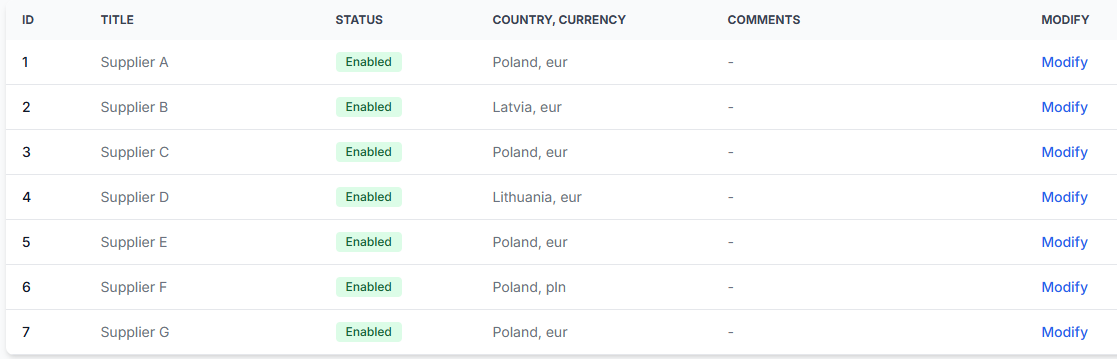
To check this in your account, open Suppliers. To understand the supplier settings and mapping process, read Add and configure a supplier feed.
Do not add VAT in a transformation rule until you have confirmed whether VAT is already included in the mapped supplier price. Otherwise, VAT may be added twice.
Set the base markup for each supplier
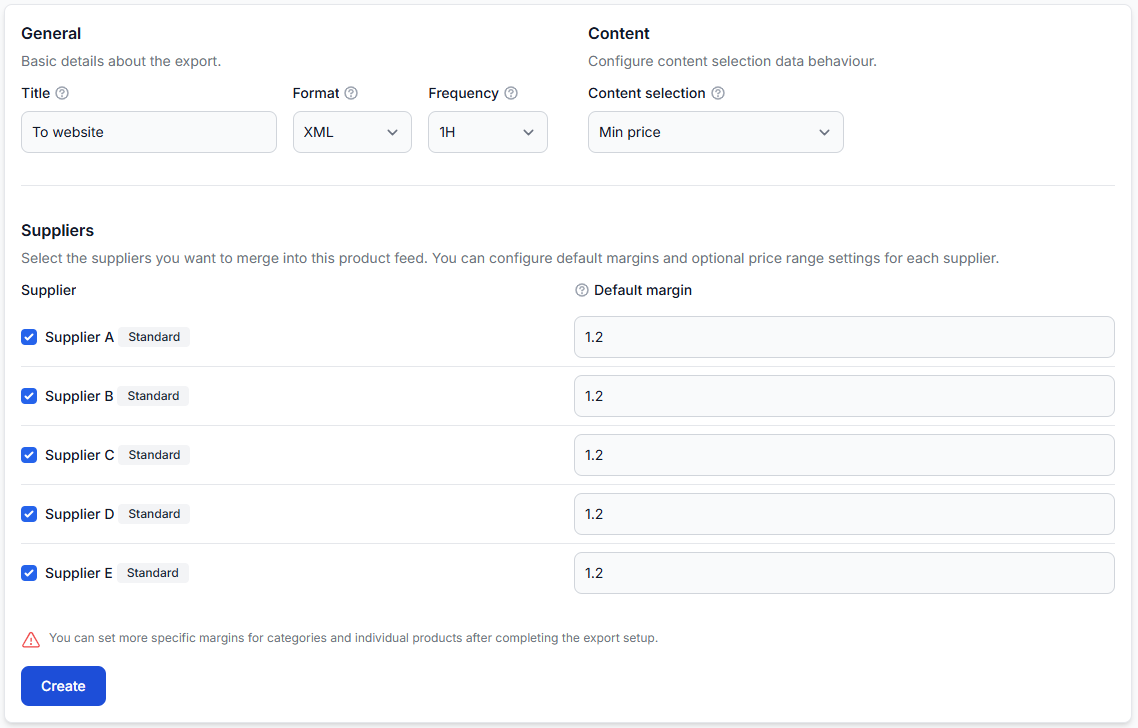
The supplier’s base coefficient is configured within an export. It is the simplest way to apply a standard pricing adjustment to all qualifying products from one supplier.
For example, a coefficient of 1.20 multiplies the supplier price by 1.20. A supplier price of 100 would therefore become 120 before additional pricing transformations are applied.
Different exports can use different coefficients for the same supplier. This allows one sales channel to use a different base margin from another sales channel without changing the stored supplier data.
To check or change the supplier coefficients, open Exports and modify the relevant export. To understand the export settings, read Create and configure XML export projections.
Use transformation rules for more specific formulas
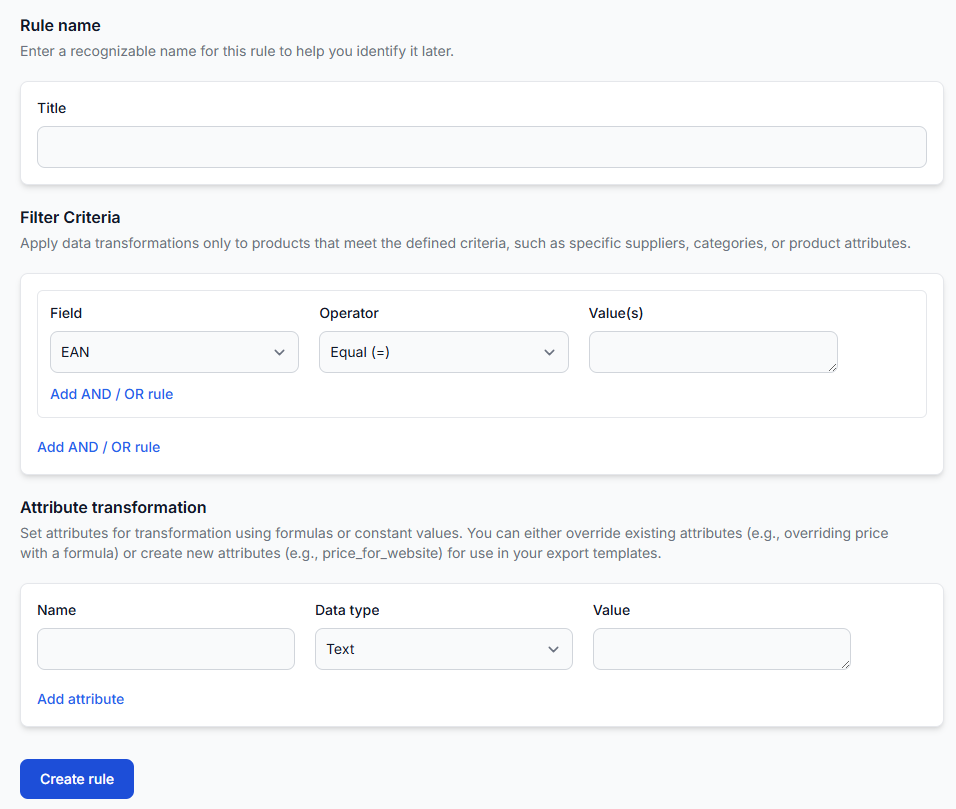
Create a transformation rule when the base supplier coefficient is not specific enough. A rule can be limited by conditions and can modify an existing price or create another price attribute for a particular destination.
Common conditions include:
- Supplier
- Minimum or maximum price
- Category or category ID
- Manufacturer or brand
- EAN or SKU
- Stock or another mapped product attribute
Common pricing actions include:
- Multiplying a price by a percentage coefficient
- Adding or subtracting a fixed amount
- Combining a percentage and a fixed amount
- Applying VAT where appropriate
- Using different formulas for different price ranges
- Rounding a calculated price
- Creating a separate price for a country, website, or marketplace
To create or review these rules, open Data Transformation Rules. For an explanation of rule conditions, formulas, and priorities, read Data transformation rules.
Rule priority and conflicting formulas
Transformation rules are processed according to their assigned priority. A product can be affected by several matching rules unless processing is stopped by a matching rule.
When a rule appears to be active but does not produce the expected result, check:
- Whether the rule is enabled for the correct export
- Whether the product matches every required rule condition
- Whether the product passes the main export filter
- Whether another rule has a higher priority
- Whether an earlier matching rule uses Stop if matched
- Whether a later rule overwrites the same price attribute
- Whether the export template uses the attribute changed by the rule
Use priorities to make the intended order clear. For example, a broad supplier rule can run before a more specific category rule, followed by a final rounding rule.
Common pricing scenarios
Different formulas for different price ranges
Create separate rules for each range. For example, one rule can apply to products below a selected source price, while another rule applies to products at or above that amount.
Check that the ranges do not leave unintended gaps or overlap in a way that causes several formulas to modify the same price.
Extra markup for one category or brand
Use the category, category ID, manufacturer, or brand as a rule condition. The rule can apply an additional multiplier or fixed amount after the supplier’s base coefficient.
Confirm that the product contains the expected category or manufacturer value before relying on the condition.
A special formula for selected products
Use an EAN or SKU condition when a formula should apply only to a specific product or list of products. EAN is the main cross-supplier product identifier in the standard B2BLIX workflow.
Different prices for different destinations
A transformation rule can create a separate price attribute, such as a price intended for a particular website or country. The relevant export template must then use that attribute.
Creating the attribute alone does not place it in the XML. The export template must map the correct calculated field to the required destination element.
Prioritizing one supplier
When several suppliers provide the same accepted EAN, supplier comparison uses the qualifying price after the supplier coefficient and active pricing transformations have been applied.
This means the supplier with the lowest raw price does not always win. A supplier with a slightly higher source price may be selected if its final transformed price is lower.
Example: two suppliers offering the same product
Assume two suppliers offer the same EAN:
- Supplier A: source price 100, base coefficient 1.20, final price before other rules 120
- Supplier B: source price 105, base coefficient 1.10, final price before other rules 115.50
Supplier A has the lower raw price, but Supplier B has the lower calculated price. If both offers qualify under the export rules, Supplier B may therefore be selected.
If an additional category rule applies only to Supplier B, its final result may change again. This is why supplier selection should be checked using the complete calculation rather than only the original supplier prices.
How to verify an unexpected price
The Export Checker is the most useful place to investigate one product. Search using a specific EAN and review the product from its original supplier value through the final exported result.
Check the following in order:
- The original supplier price
- The supplier selected for processing
- The supplier’s base coefficient
- The export filter result
- The transformation rules that matched
- The order in which those rules were applied
- The final calculated attributes
- The value written into the generated XML
To test a product, open Exports Checker. For details about the report sections, read Exports Checker: review product data and export results.
What to do next
- Verify the supplier’s mapped price, currency, and VAT settings.
- Confirm the base supplier coefficient in the correct export.
- List the exceptions that require more specific rules.
- Create narrowly defined transformation rules with clear names.
- Review rule priority and any Stop if matched settings.
- Confirm that the export template uses the calculated price attribute you intend to send.
- Test several representative EANs in the Export Checker.
- Regenerate and inspect the XML before using the new calculation in a live sales channel.