How to monitor processing, translations, and feed synchronization
Learn how to identify whether a delayed update is waiting for supplier synchronization, translation, classification, export generation, or marketplace processing. This guide explains how to follow product data through B2BLIX Feed, check the relevant account sections, and find the stage that needs attention when information is not yet updated.
Why product data may not update everywhere at the same time
A product update passes through several separate operations. B2BLIX may need to download the supplier source, update the stored catalog, process supporting operations such as translation or category classification, generate an export, and then wait for the receiving platform to download and process that export.
These operations do not necessarily run at the same time. For example, a supplier may synchronize every hour while an export is generated every two hours. A translation request may also remain in a separate processing queue.
Short answer
When data is not yet updated, first identify the last stage where the expected value is visible:
- Check whether the supplier source has been synchronized.
- Check whether the product and its new values are stored in All Products.
- Check translation or other supporting-operation progress.
- Check whether the relevant export has been generated after the supplier update.
- Use Export Checker to confirm the product’s final exported result.
- If the XML is correct, check the receiving marketplace, store, or comparison platform.
The first section that does not show the expected value usually indicates where the delay or configuration issue is located.
Changing supplier or export frequencies can affect live prices, stock updates, and usage-based charges. Verify the current configuration and understand which process is delayed before increasing a schedule or changing live settings.
How the operations work
Supplier synchronization
Each enabled supplier has its own source configuration and synchronization frequency. During synchronization, B2BLIX obtains the configured XML or JSON source, applies the supplier mapping, and updates eligible products in the stored catalog.
A temporary supplier download problem does not automatically delete the previously stored catalog. B2BLIX can attempt later synchronizations according to the configured schedule. Product freshness settings, such as Force zero stock and Maximum last seen, separately control what happens when a previously known product remains absent from newer supplier data.
Translation and classification
Translation is started through the translate function in a data transformation rule. Translation is a separate usage-based operation and may continue independently from supplier synchronization or export generation.
The Statistics section may contain a Translations block showing how many records remain in the translation queue and the current processing progress.
Supplier-category classification and other supporting operations may also update separately. Avoid assuming that a supplier synchronization problem exists only because translated content or category relationships are not ready yet.
Export generation
An export is generated from the latest catalog data available when that export operation runs. Each export has its own product selection, filters, transformations, template, and generation schedule.
Supplier synchronization and export generation are independent. A successful supplier update does not mean that every export file has already been regenerated.
External platform processing
B2BLIX controls supplier import, mapping, calculations, filters, transformations, and the generated XML file. After the file is available, the receiving platform controls when it downloads the file, validates it, imports products, and updates the public listing.
What to check in your account
1. Check the supplier configuration
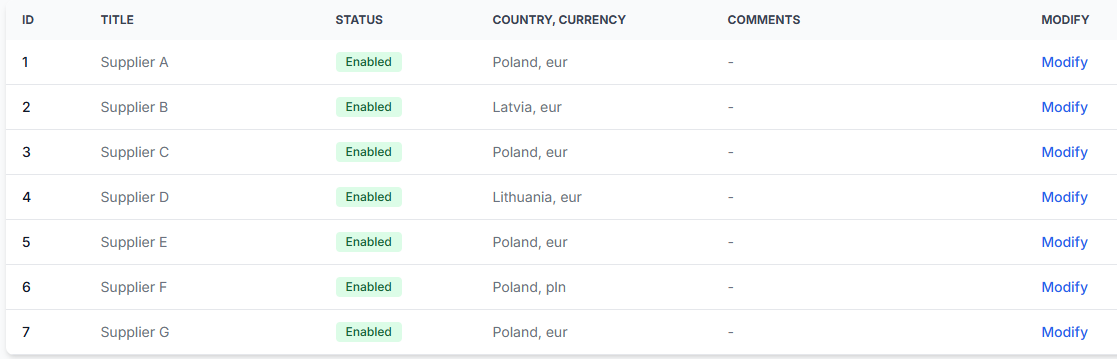
Open the supplier and verify that it is enabled, the correct source is configured, and the synchronization frequency matches your expected update schedule.
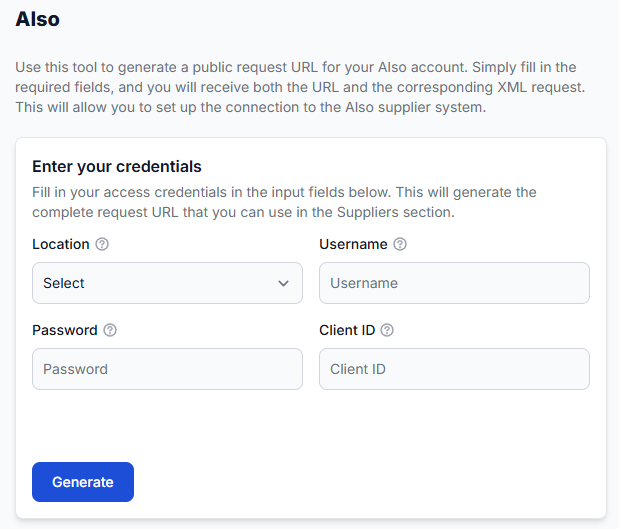
Also verify the primary or secondary source URL, required authentication, request headers, and field mapping. Do not replace working credentials or source settings unless you have confirmed that they are incorrect.
To check this in your account, open Suppliers. To understand the supplier settings and mapping workflow, read Add and configure a supplier feed.
2. Find the product in all products
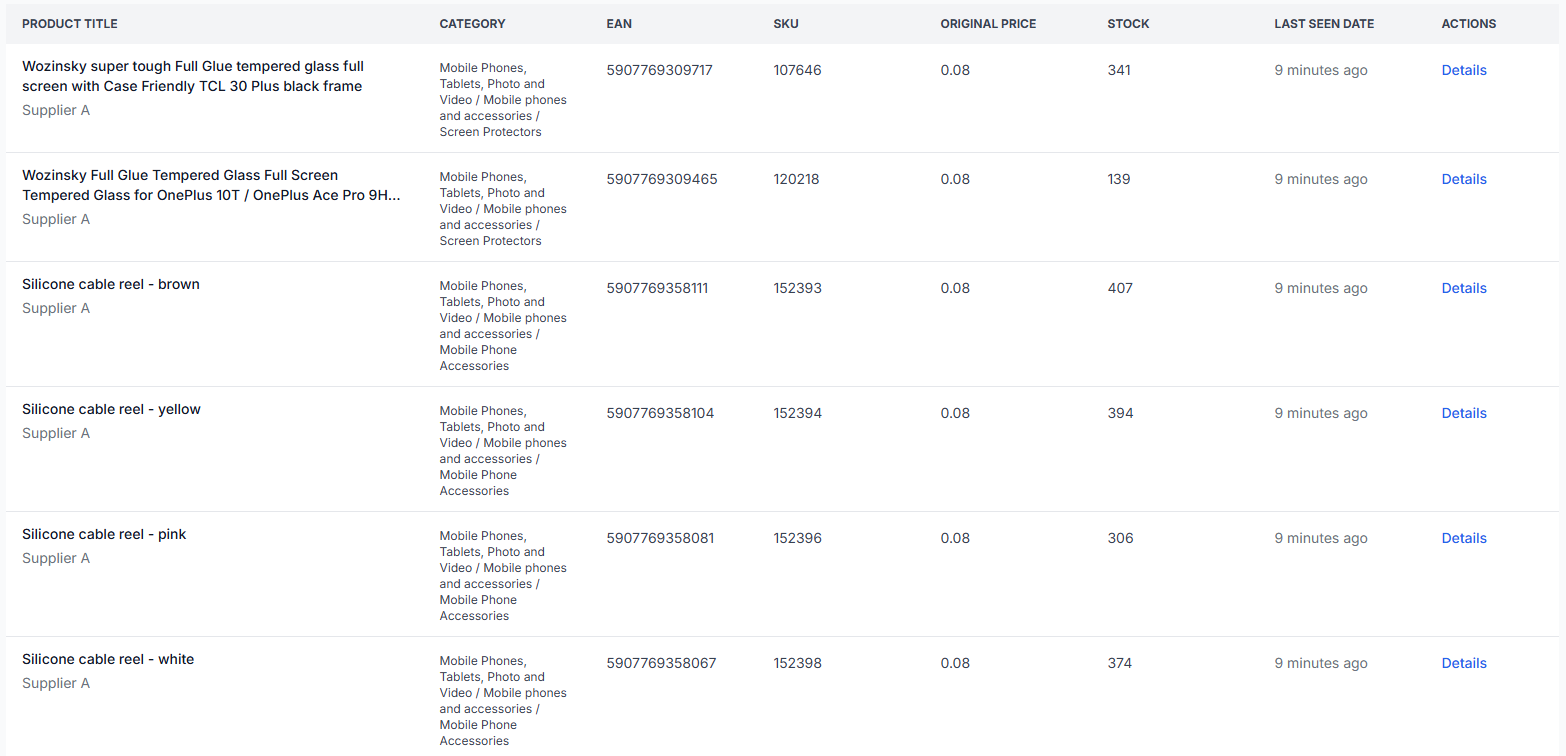
Search for one affected product, preferably by EAN. Confirm that the product exists and review its imported price, stock, identifiers, supplier information, and last-seen time.
If the product is not present, check whether:
- The supplier source contains a usable EAN for the product.
- The correct source field is mapped as EAN.
- Required values such as price, stock, title, or category are available.
- The product is being read from the expected primary or secondary source.
- The supplier allows uncategorized products when no category mapping is available.
Products without a usable EAN are not admitted to the normal product-processing and merging workflow.
To check this in your account, open All products. To understand the available product information, read All products interface.
3. Review translation progress
If the imported product is present but translated content is not ready, review the Translations information in the Statistics section.
Check that:
- The relevant transformation rule uses the translation function.
- The correct destination language is selected.
- The rule is enabled for the required export.
- The product matches the rule’s filter conditions.
- Translation records are still shown as waiting or processing.
Translation progress should be monitored separately from supplier and export status. Repeated supplier synchronization will not by itself resolve an incorrectly configured translation rule.
4. Check category processing when relevant
If a product is imported but has an unexpected or unresolved category, review its supplier-category relationship. Automated classification may create or suggest relationships, but these relationships should be reviewed when category accuracy is important for an export.
To review category relationships, open Category map. To understand the information shown there, read Category map interface.
5. Check the export schedule and configuration
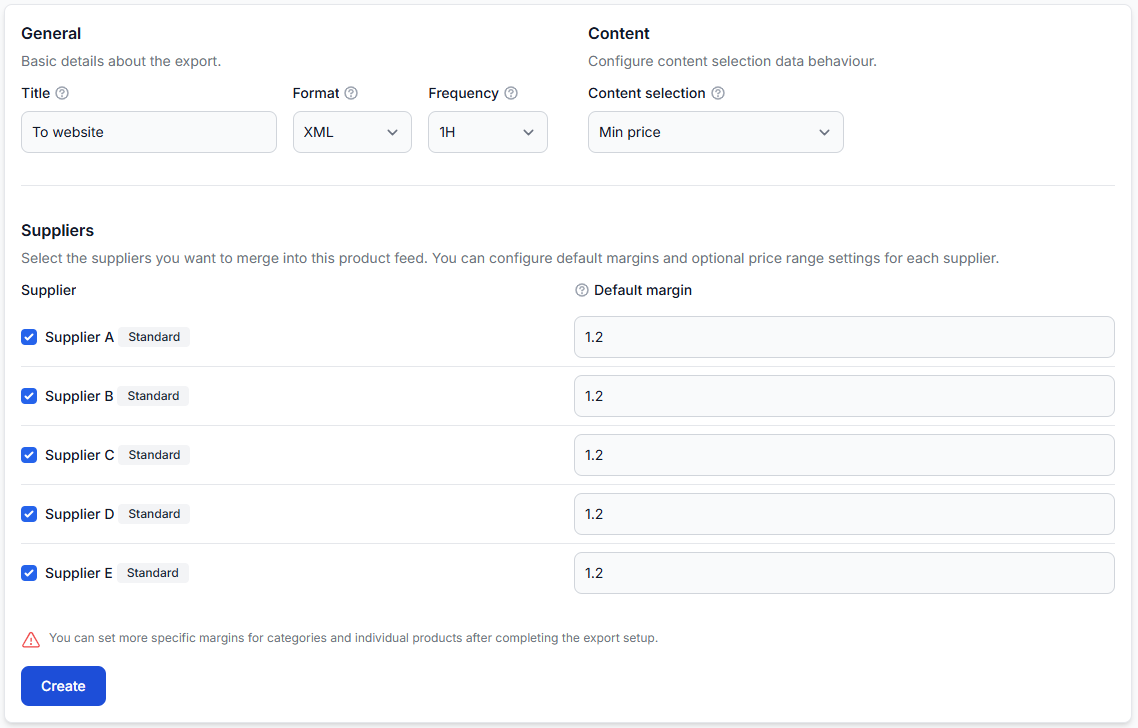
Confirm that the required export is enabled and that its generation schedule is appropriate. Compare the export’s latest generation time with the time when the supplier data changed.
Also verify that the correct suppliers, filters, transformations, attributes, and XML template are assigned to the export.
To check this in your account, open Exports. To understand the export settings, read Create and configure XML export projections.
6. Trace one product through export checker
Use one affected EAN to inspect the final processing result. Export Checker can help you determine whether the product was selected, filtered out, transformed, or written into the final XML with an unexpected value.
Review:
- The original supplier data.
- The selected supplier and mapped attributes.
- The product’s category and manufacturer information.
- Export filters that include or exclude the product.
- Transformation rules and calculations applied to it.
- The final attributes and representative XML output.
- Any displayed exclusion or rejection reason.
To check this in your account, open Export checker. To understand the report, read Review product data and export results with export checker.
7. Check the destination after confirming the XML
If export checker and the generated XML contain the correct price, stock, content, and required fields, the remaining delay may be outside B2BLIX.
Check the destination’s:
- Feed download time.
- Import status or error messages.
- Product validation requirements.
- Product activation or approval status.
- Public catalog update delay.
A correct B2BLIX export does not guarantee that an external platform has already downloaded, accepted, or published the product.
Common causes of delayed or missing updates
- The supplier has not synchronized yet. The supplier schedule may be less frequent than expected, or the source may have been temporarily unavailable.
- The supplier is disabled or incorrectly configured. The source URL, credentials, headers, or mapping may need attention.
- The product was rejected during import. A missing or invalid EAN, an incorrect mapping, or another required value can prevent normal processing.
- Translation is still processing. Translation is a separate operation and may remain in the queue after supplier data has been imported.
- The category relationship is not ready or is incorrect. The supplier category may need review in category map.
- The export has not regenerated since the catalog update. Supplier synchronization and export generation use independent schedules.
- An export filter excludes the product. Conditions involving EAN, supplier, manufacturer, category, stock, price, or other attributes may remove it.
- A transformation rule does not match. The rule may be disabled for the export, filtered incorrectly, or affected by rule priority.
- The destination has not processed the latest file. The marketplace or store may download feeds on its own schedule or reject a product during validation.
Example
A supplier changes the price of a product with EAN 4770000000001 at 10:00. The supplier synchronizes with B2BLIX at 10:30, and the new price becomes visible in all products.
The relevant marketplace export last ran at 09:30 and is scheduled every two hours. Its current XML therefore still contains the earlier price. After the next export generation, export checker can be used to confirm the new calculation and final XML value.
If the product description also uses a translation rule, translation progress should be checked separately. The supplier price update, translation processing, and export generation are different operations.
What to do next
- Select one affected product with a known EAN.
- Confirm that the expected value exists in the supplier’s original source.
- Check the supplier configuration and mapping.
- Find the product in all products and confirm its stored values.
- Review translation or category progress when relevant.
- Compare the supplier synchronization time with the export generation time.
- Trace the product through export checker.
- Open the generated XML and confirm the final destination fields.
- If the XML is correct, investigate the receiving platform’s import and validation process.
Avoid changing several schedules, mappings, filters, and transformation rules at once. Check one stage at a time so that you can identify which setting or operation caused the result.