Also helper: generate a supplier request URL
The Also helper creates a complete request URL from your Also account details. You can then use this URL as a primary or secondary supplier source in B2BLIX Feed.
What the Also helper is used for
The Also helper prepares the request URL required to connect an Also supplier source to B2BLIX Feed.
Instead of creating the request manually, you enter the required Also account information into a form. The helper combines this information with the required XML request and generates a complete URL.
You will normally use this helper while adding a new Also supplier or updating the source configuration of an existing supplier.
What you can do on this page
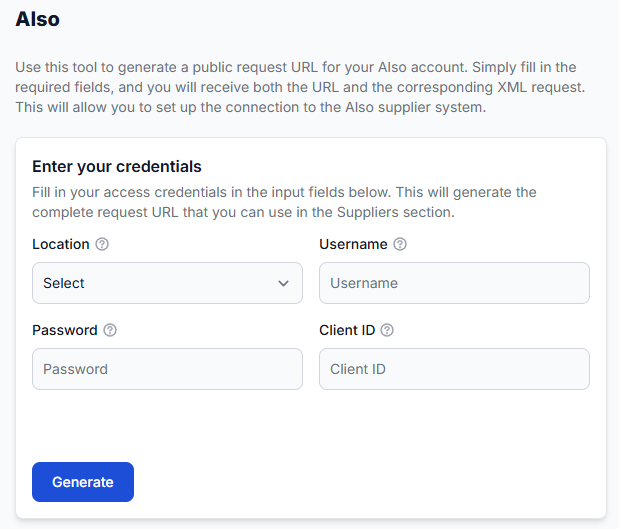
The helper allows you to:
- Select the location associated with your Also account.
- Enter your Also username and password.
- Enter the required client ID.
- Generate a complete supplier request URL.
- Review the XML request included in the generated URL.
- Copy the request URL for use in the B2BLIX Feed Suppliers section.
The helper only prepares the URL. It does not automatically add the URL to a supplier or change an existing supplier configuration.
Main fields and controls
| Field or control | What it means | How to use it |
|---|---|---|
| Location | The Also location or regional connection used to build the request. | Select the location that belongs to your Also account. Do not choose a location only because it is geographically close to you. |
| Username | The username used to access the Also supplier system. | Enter the username provided for this connection. This field is required to generate a usable URL. |
| Password | The password associated with the Also username. | Enter the current password carefully. The password becomes part of the generated request URL. |
| Client ID | The client identifier required for the Also request. | Enter the client ID assigned to your account or integration. Do not replace it with a B2BLIX supplier ID unless you were specifically instructed to do so. |
| Generate | Creates the complete request URL and the corresponding XML request. | Select this button after checking all entered values. |
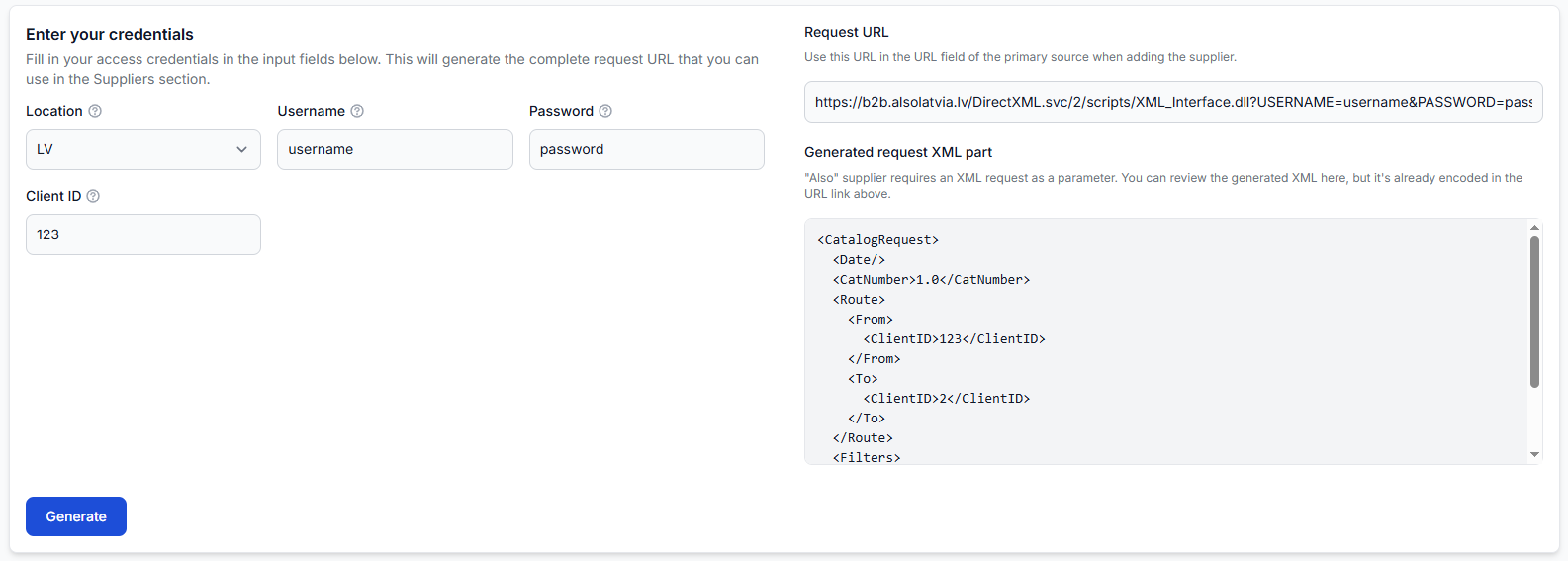
| Request URL | The generated source URL containing the account information and encoded request. | Copy the complete value into the appropriate source URL field in the Suppliers section. |
| Generated request XML part | A readable view of the XML request included in the URL. | Use it as a reference when checking the generated request. You normally do not need to copy or edit this XML separately. |
Understanding the generated result
After you select Generate, the result appears on the right side of the page.
The Request URL is the value needed for supplier configuration. The XML section below it shows the request data used to create that URL. The XML is already encoded in the generated URL, so it does not need to be added separately.
Keep the generated URL private. It may contain your Also username, password, client ID, and other connection information. Do not publish it, send it through an unsecured channel, or include it in a public support request.
How to use the helper safely
- Confirm that you have the correct Also location, username, password, and client ID.
- Enter the values into the corresponding fields.
- Review the entries before selecting Generate.
- Select Generate and wait for the request URL to appear.
- Copy the complete value from Request URL. Do not copy only the visible portion if the field is wider than the page.
- Open the relevant supplier in the B2BLIX Feed Suppliers section.
- Paste the URL into the Primary source URL or Secondary source URL field, depending on how the supplier is being configured.
- Review the remaining supplier settings before enabling synchronization.
Use the primary source field when this is the supplier's main catalog source. Use the secondary source field only when the supplier configuration requires an additional source.
If any credential changes later, return to the helper and generate a new URL using the updated details. The previously generated URL is not automatically updated.
What to check before using the URL
- Make sure the selected Location matches the Also account.
- Check the spelling and letter case of the Username and Password.
- Confirm that the Client ID is the one assigned to the connection.
- Copy the entire generated URL without removing or changing any characters.
- Place the URL in the correct primary or secondary source field.
- Do not expose the URL in screenshots, documents, tickets, or public messages.
Common mistakes
- Selecting the wrong location: The URL may be created for a different Also connection than the one assigned to the account.
- Using ordinary website login details: Enter the credentials provided for the supplier connection.
- Entering the wrong client ID: Use the client identifier required by Also, not an unrelated internal identifier.
- Copying only part of the URL: Long URLs may not be fully visible inside the field. Select and copy the complete value.
- Copying the XML instead of the URL: The Suppliers section requires the generated request URL. The XML area is provided for reference.
- Expecting the supplier to be updated automatically: Generating the URL does not save it to the supplier configuration.
- Sharing the generated result publicly: The URL may expose confidential access credentials.
Example use case
A seller is adding an Also catalog as a new supplier source. The seller selects the location assigned to the Also account, enters the supplied username, password, and client ID, and then selects Generate.
The helper displays a request URL and the XML request used to create it. The seller copies the complete URL, opens the new supplier in the Suppliers section, and pastes it into the Primary source URL field.
The seller then completes the rest of the supplier configuration and reviews the settings before enabling the supplier synchronization.