How B2blix feed imports, standardizes, and exports supplier data
Understand the complete B2BLIX Feed workflow, from importing supplier files and creating a standardized catalog to applying channel-specific rules and generating separate XML exports.
Description: This guide explains how B2BLIX Feed processes supplier data and how one combined product catalog can support marketplaces, online stores, price-comparison platforms, and other XML destinations.
What question does this article answer?
This article explains what B2BLIX Feed does with supplier product data and whether the same processed catalog can be used for several sales channels.
It is relevant when you receive product data from one or more suppliers and need to prepare different product selections, prices, stock values, content, or XML structures for destinations such as your own website, Pigu, Varle, a price-comparison platform, or another system.
Short answer
B2BLIX Feed imports product data from suppliers, maps different supplier structures into a common product structure, stores the processed data in a reusable catalog, and generates separate XML exports for different destinations.
You can use the same standardized supplier catalog for several exports. Each export can have its own suppliers, product filters, pricing rules, stock handling, transformations, fields, XML template, and generation schedule.
For example, you can create a Pigu-specific export directly from the combined B2BLIX Feed catalog. You do not have to send the data through WooCommerce first.
A generated XML file is an output prepared by B2BLIX. The external marketplace, store, or comparison platform must still retrieve, import, validate, and publish that file. Generating an export does not by itself confirm that products have been accepted or published by the destination.
How the B2BLIX Feed workflow works
The workflow can be understood as five separate stages. Keeping these stages separate makes it easier to identify where a product value came from and where a problem should be checked.
1. Supplier data is imported
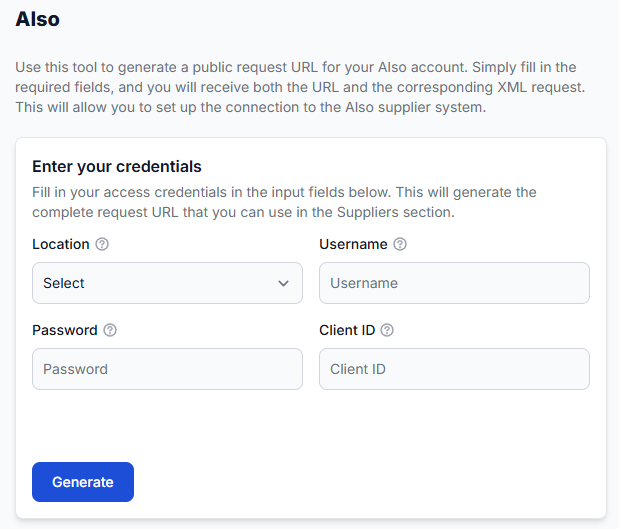
You add each supplier as a separate supplier instance. Standard supplier sources can currently use XML or JSON.
Each supplier can have its own source address, synchronization frequency, currency, VAT settings, content language, weight unit, stock-freshness settings, and field mapping.
To add or review supplier sources, open Suppliers when you are logged in. To understand the supplier setup and mapping process, read Add and configure a supplier feed.
2. Supplier fields are mapped to a common structure
Suppliers often use different names and formats for the same information. One supplier may call a field “quantity,” while another calls it “stock.” Prices, categories, product titles, images, and manufacturer names may also be structured differently.
Mapping connects those supplier fields to standard B2BLIX attributes such as:
- EAN
- SKU
- Title and description
- Price and stock
- Images
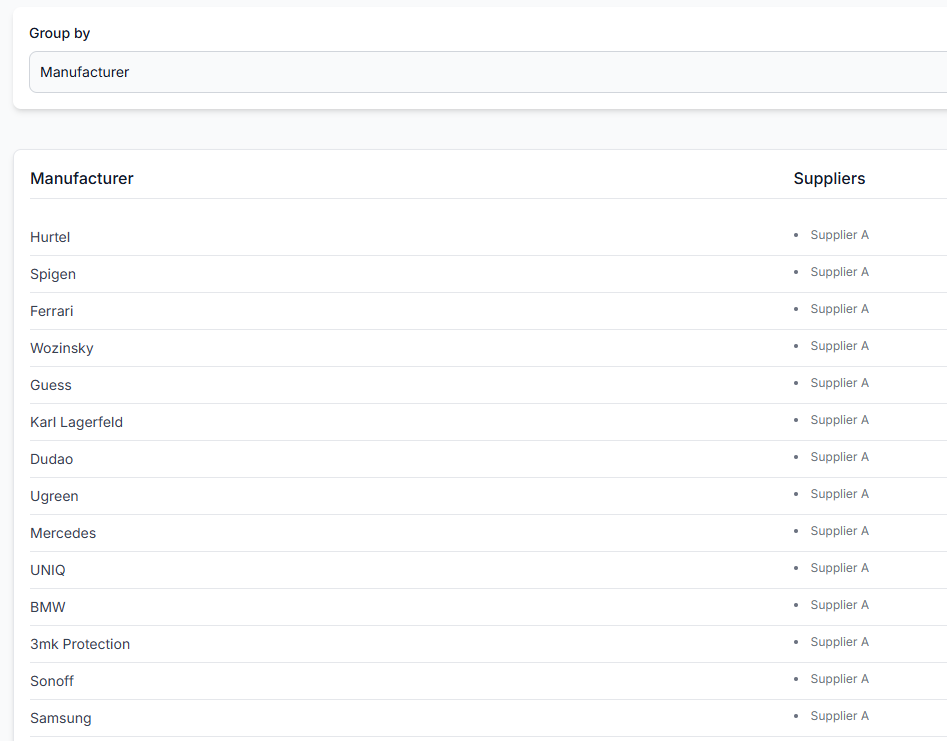
- Category and manufacturer
- Weight, dimensions, color, and other attributes
Ean is the primary product identifier in the standard B2BLIX Feed workflow. Products without a usable EAN are not processed through the normal catalog-merging workflow.
3. Products are stored in a standardized catalog
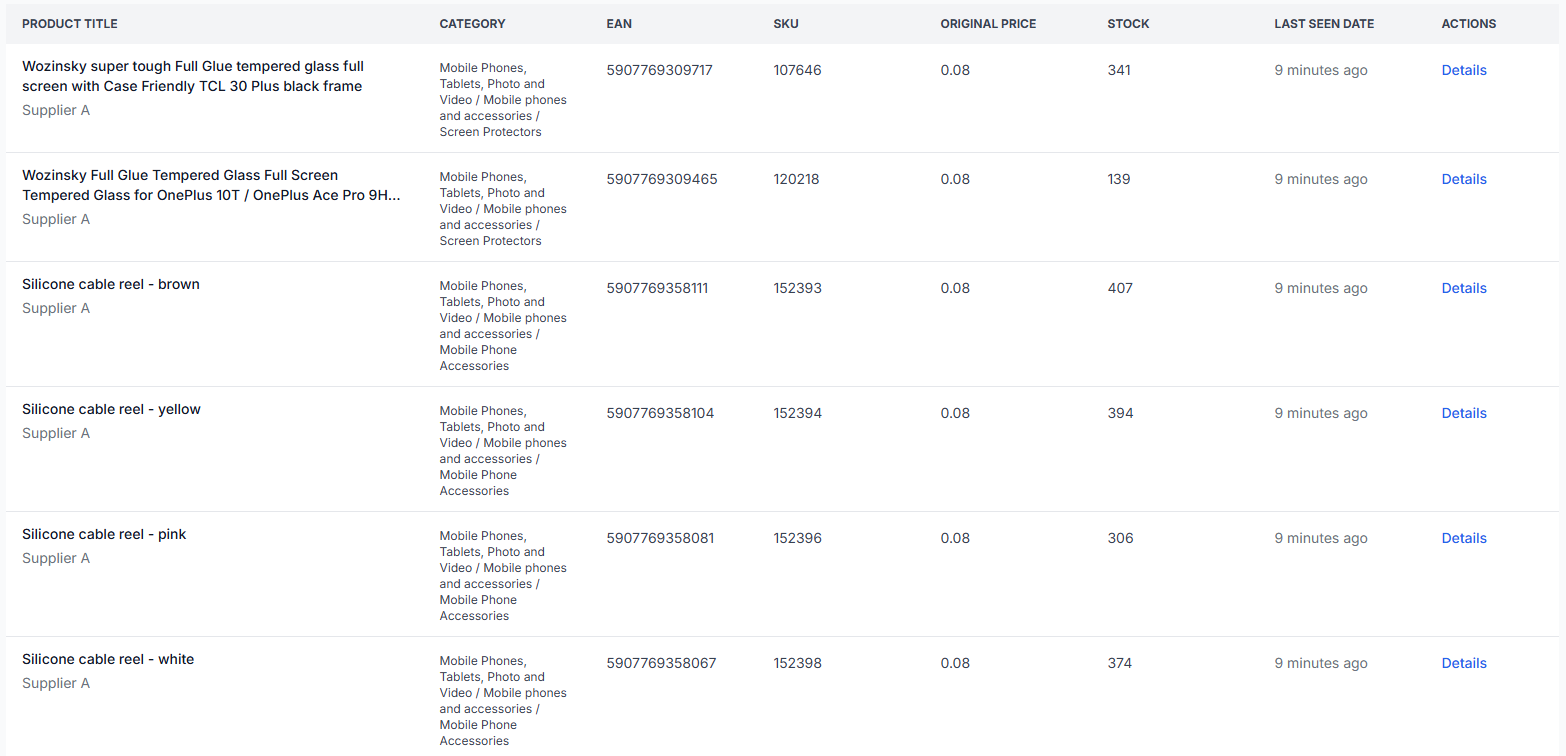
After mapping, eligible products are stored in the B2BLIX catalog. Products from different suppliers that have the same accepted EAN can be grouped as supplier offers for the same catalog product.
This catalog is stored independently from any individual export. You therefore do not need to import the same supplier data again for every marketplace or website.
To inspect products currently stored in your account, open All products. For an explanation of the available product information, read All products interface.
4. Rules prepare data for a specific destination
Data transformation rules can change or create product values for an export. Rules may apply to all products or only to products that meet selected conditions.
Typical uses include:
- Adding VAT or a commercial margin to a price.
- Rounding calculated prices.
- Creating a separate destination-specific price field.
- Changing stock values according to defined conditions.
- Preparing a different title for a marketplace.
- Translating selected content.
- Removing HTML from descriptions.
- Applying different rules by supplier, category, manufacturer, price, or stock.
To review or create these rules, open Data transformation rules. To understand how filters, expressions, and priorities work, read Data transformation rules.
5. Each export creates its own XML projection
An export projection selects data from the stored catalog and prepares it for one particular destination. It does not create a separate supplier catalog.
Each export can independently define:
- Which suppliers and products are included.
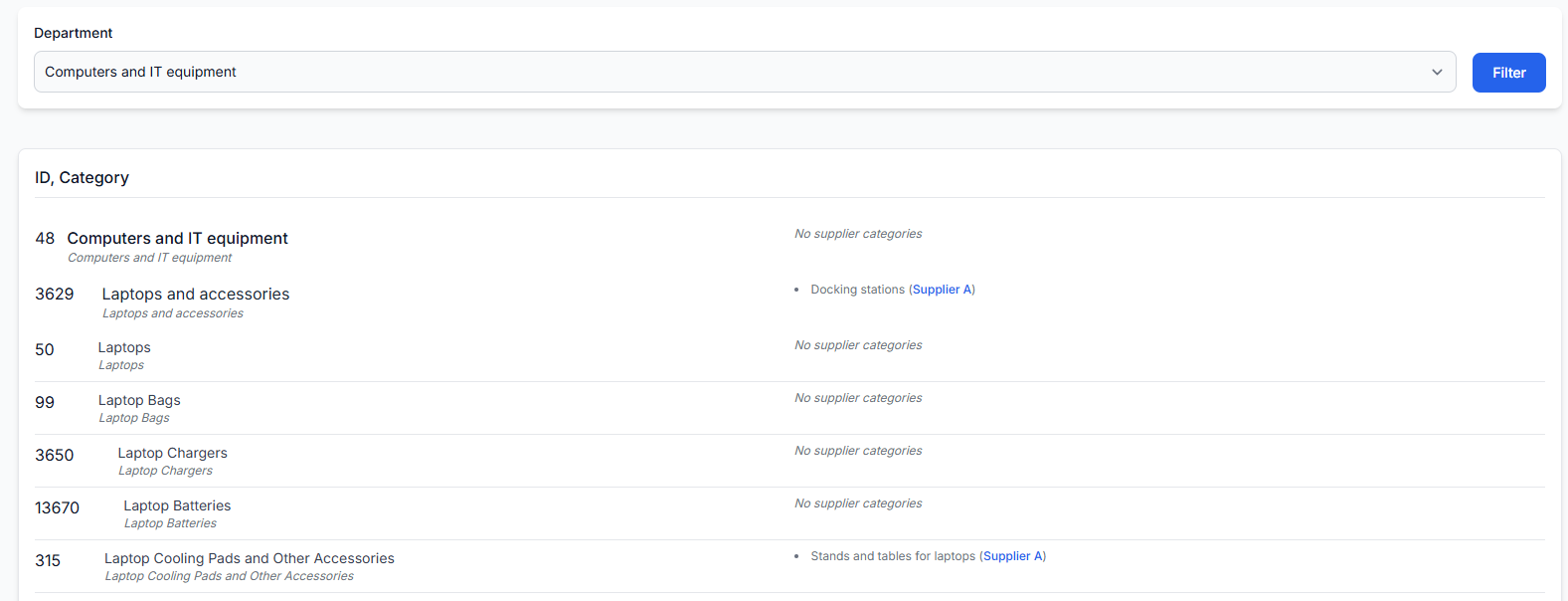
- Which categories or manufacturers are allowed.
- Which filters must be passed.
- Which pricing, stock, and content rules are applied.
- Which attributes are written to the output.
- How the XML is structured.
- How often the XML is generated.
To create or review an export, open Exports when you are logged in. For details about export filters, transformations, templates, and schedules, read Create and configure XML export projections.
Can the same catalog be used for different sales channels?
Yes. One collected and standardized catalog can be the source for several independent exports.
For example, you may create:
- A website export with your normal margin, complete descriptions, and available supplier stock.
- A Pigu export with marketplace-specific product filters, pricing rules, stock handling, and XML fields.
- A price-comparison export containing only selected products and a separate price attribute.
- Another XML export for a partner that requires a different field structure.
Changes made inside one export projection do not need to be used by the others. This allows each destination to have its own commercial and content rules while continuing to use the same underlying supplier catalog.
Can the combined catalog be exported directly to Pigu?
Yes. A Pigu-specific export can be created directly from the combined B2BLIX Feed catalog.
The Pigu export can use its own:
- Supplier and product selection.
- Category, price, stock, or other filters.
- Marketplace-specific margin and price calculations.
- Stock transformations.
- Required attributes and XML template.
- Export generation frequency.
WooCommerce does not have to be used as an intermediate data source. WooCommerce may have its own export if needed, but the Pigu projection can be prepared separately from the same stored B2BLIX catalog.
Before connecting an export to a live marketplace or store, verify its filters, price calculations, stock rules, transformations, and XML template. Export changes may affect the product data supplied to the external destination after its next import or synchronization.
What to check in your account
If the catalog or an export does not contain the products or values you expected, check the workflow in this order.
- Check the supplier source. Confirm that the correct supplier is enabled, its XML or JSON source is accessible, and its country, currency, VAT, language, and synchronization settings describe the incoming data correctly.
- Check the field mapping. Make sure important fields such as EAN, price, stock, title, category, and manufacturer are mapped to the correct supplier values.
- Check the EAN. A product needs a usable EAN to enter the normal processing and cross-supplier grouping workflow.
- Check the stored product. Search for the product in All products and review which supplier offers and core attributes are available.
- Check the export selection. Confirm that the required supplier, category, manufacturer, and product group are included in the relevant export.
- Check filters. A product may be stored in the catalog but excluded from one export because it does not meet that export’s price, stock, category, manufacturer, supplier, or other conditions.
- Check transformation rules and their order. Review which rules are enabled for the export, their priorities, and whether processing stops after a matching rule.
- Check the XML template. Confirm that the destination’s required attributes are mapped to the correct final B2BLIX values.
- Check the final product result. Use Export checker to compare the supplier data, selected offer, processing rules, final attributes, and generated XML.
To investigate one product, open Exports checker. For instructions on reviewing source data, calculations, transformations, exclusion reasons, and XML output, read Exports checker: review product data and export results.
Common causes of unexpected export results
- The product is missing a valid EAN. It is not admitted to the standard product-processing and merging workflow.
- A supplier field is mapped incorrectly. For example, the export may receive the wrong source value for price, stock, or title.
- The product is not included in that export. Another export may include it because every projection has its own product selection.
- An export filter excludes the product. A product can remain visible in the stored catalog while being excluded from a particular XML output.
- A transformation changes the value. The exported price, stock, title, or description may differ from the original supplier value because a rule created or replaced it.
- Several suppliers provide the same EAN. The supplier offer selected for processing may not be the supplier you first expected.
- The supplier and export schedules are different. A supplier synchronization and an export generation are separate operations and may run at different frequencies.
- The external platform has not imported the latest XML. The B2BLIX export may already be updated while the destination still shows data from an earlier import.
Example
Suppose two suppliers provide the same product with the same EAN. Supplier A offers it for €100 with 10 units in stock, while Supplier B offers it for €95 with 2 units in stock.
B2BLIX stores both supplier representations under the same catalog identity. You can then create one website export that uses Supplier B’s lower price and another marketplace export that requires higher stock and therefore uses Supplier A.
The website export might apply a 15% margin and create a detailed title. The marketplace export might apply a different margin, limit the exported stock, and use a marketplace-specific XML template. Both exports come from the same standardized catalog, but their final values can be different.
What to do next
- Review your supplier configurations and confirm that the incoming data is interpreted correctly.
- Check the mappings for EAN, price, stock, title, category, and manufacturer.
- Inspect several products in All products before building a large export.
- Create a separate export projection for each destination that needs different rules or XML fields.
- Start with a limited product selection and simple transformations.
- Use Export checker to verify the complete result for representative products.
- Test the generated XML with the external destination before using it for a full live catalog.
When reviewing a result, keep the stages separate: the original supplier value, the mapped and stored catalog value, the transformed export value, the generated XML, and the value eventually accepted or published by the external destination.