How required product fields and category mapping work
Learn which product identifiers and attributes B2BLIX Feed expects, why EAN mapping is essential, and how products with missing or unmapped categories are handled.
This guide explains how supplier records enter the B2BLIX catalog, how supplier categories are connected to the shared category tree, and what to check when a product is missing before export.
When this guide is relevant
Use this guide when products from a supplier are missing from B2BLIX Feed, appear without the expected category, or do not reach an export. These problems are often caused by missing product data, an incorrect field mapping, or an unresolved supplier category.
The most important field is the product’s EAN. B2BLIX uses EAN as the primary identifier for admitting products to the standard catalog workflow and grouping matching offers from different suppliers.
Short answer
A supplier product must have a usable EAN in the field mapped as EAN. Products with missing, invalid, or rejected EAN values are ignored by the normal product-processing workflow.
A usable product record will also normally need information such as:
- Price
- Stock
- Title
- Category or a permitted fallback category
The exact fields required in the final XML can depend on the destination. A product may exist in the B2BLIX catalog but still be excluded from a particular export if it does not meet that export’s filters or destination requirements.
Changes to EAN mapping, category mapping, or the Allow uncategorized setting can change which products enter the catalog and later exports. Check several sample EANs before regenerating an export that is connected to a live sales channel.
How product field mapping works
Each supplier can use different names and structures for the same information. One supplier may call a barcode ean, another may use gtin, and another may place it inside a variation record.
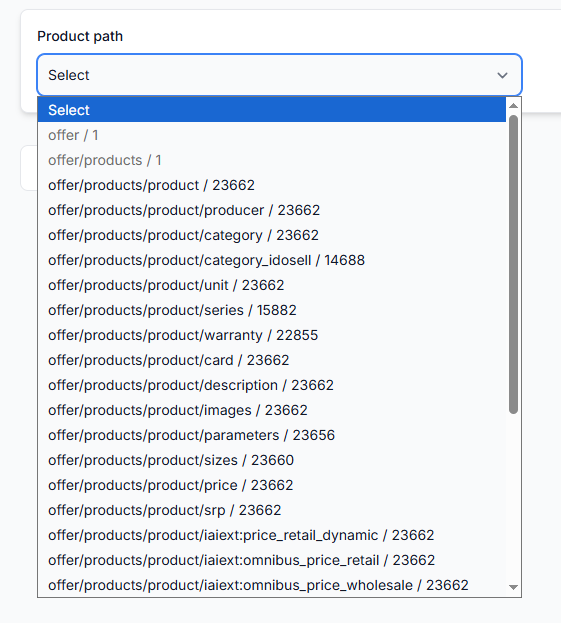
Supplier mapping tells B2BLIX which source field should be used for each standard product attribute. Typical mapped attributes include EAN, SKU, title, description, price, stock, images, category, category ID, manufacturer, weight, and dimensions.
The mapping must point to the field that describes the actual sellable item. Some files contain both a product-level identifier and a variation-level identifier. An internal variation code or supplier SKU should not be mapped as EAN unless it contains the product’s real barcode.
B2BLIX uses the mapped EAN as its catalog identity rule. It does not independently confirm that every barcode supplied by a supplier belongs to the correct product, so the source value and mapping should be checked when products are grouped incorrectly.
How category mapping works
Suppliers frequently use different category names and structures. B2BLIX Feed uses one shared category tree so that products from different suppliers can be organized consistently.
A supplier category is connected to the appropriate category in the B2BLIX category tree. Automated classification may help create or suggest these relationships, but the result should be reviewed and corrected when necessary.
The category relationship stored in B2BLIX is separate from any category value required by a marketplace or another destination. An export can still apply its own category filters, transformations, or output mapping.
Products without a mapped category
If a product does not have a resolved category, the supplier’s Allow uncategorized setting determines whether it can remain in the catalog under a fallback uncategorized value.
- When Allow uncategorized is enabled, products without a mapped category can continue through processing under the fallback category.
- When it is disabled, unresolved category data can prevent the product from continuing through the expected catalog workflow.
Allowing uncategorized products can be useful during initial setup, but it does not replace proper category mapping. A marketplace or store may still require a specific category before accepting or publishing the product.
What to check in your account
1. Confirm that the supplier source contains the product
Choose one missing product and locate it in the original XML or JSON source. Check which fields contain its real EAN, title, price, stock, and category.
If the source itself does not contain the required value, B2BLIX cannot map that value from the current file. You may need to use another supplier source or request a more complete feed from the supplier.
2. Check the supplier mapping
Confirm that each source field is connected to the correct B2BLIX attribute. Pay particular attention to EAN, especially when the source contains products with variations.
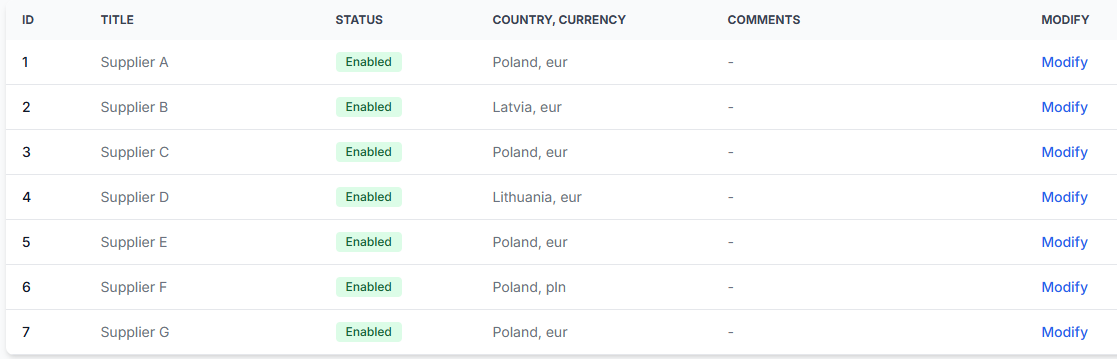
To check this in your account, open Suppliers. To understand the supplier setup and mapping workflow, read the supplier feed setup guide.
3. Verify the category relationship
Find the supplier category and confirm that it is connected to an appropriate category in the shared B2BLIX category tree.
To review category relationships when you are logged in, open Category Map. For an explanation of the information shown there, read the Category Map interface guide.
4. Check the Allow uncategorized setting
If the supplier does not provide categories, or category mapping is not complete yet, check whether Allow uncategorized is enabled in the supplier’s content settings.
For a warehouse feed that has no useful category structure, another option is to provide one constant category value in the source and map that field as the product category.
5. Confirm that the product reached the catalog
Search for the product by EAN and inspect its stored supplier data. This helps confirm whether the problem occurred during supplier import and mapping or later during export preparation.
To inspect imported products, open All products. For details about the product table and product information view, read the All products interface guide.
6. Check the final export result
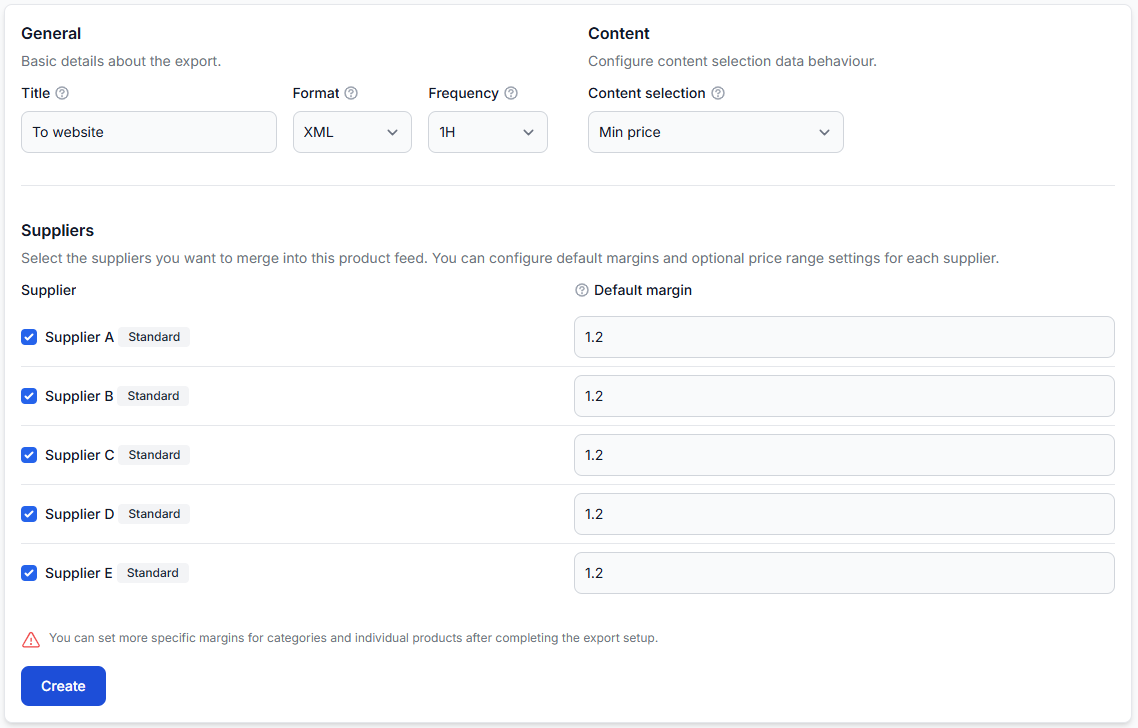
If the product exists in All Products but is missing from an export, check the export separately. An export filter, transformation, supplier-selection decision, or missing destination field may prevent it from appearing in the generated XML.
Enter the product’s EAN in Exports Checker. The Exports Checker guide explains how to review source data, processing decisions, exclusion reasons, and the final XML result.
Common causes of missing or incomplete products
- The EAN field is empty or invalid. The product is not admitted to the normal EAN-based catalog workflow.
- The wrong source field is mapped as EAN. A supplier SKU, parent product code, or variation identifier may have been selected instead of the barcode.
- Price, stock, or title is mapped from the wrong field. The expected value may exist elsewhere in the supplier file.
- The supplier category has no relationship. The category has not yet been connected to the shared B2BLIX category tree.
- Allow uncategorized is disabled. A product without a resolved category cannot use the fallback uncategorized value.
- An export filter removes the product. The product may be stored in B2BLIX but fail the rules of one specific export.
- The destination requires additional fields. The generated product record may be incomplete for the marketplace, website, or price-comparison platform receiving it.
Example
A supplier sends a laptop with a valid barcode, title, price, stock, and the supplier category “Notebook computers.” However, the mapping points the EAN attribute to an internal variation code instead of the barcode.
Because the mapped value is not a usable EAN, the product does not enter the standard catalog workflow. After the mapping is changed to the real barcode field, the product can be processed.
The supplier category “Notebook computers” can then be connected to the appropriate laptop category in the B2BLIX category tree. If that relationship has not been created yet and Allow uncategorized is enabled, the product can temporarily remain under the fallback uncategorized category.
What to do next
- Select one product that is missing or categorized incorrectly.
- Confirm its real EAN and other important values in the supplier source.
- Verify the supplier field mapping, especially the EAN path.
- Review its supplier-category relationship in Category Map.
- Check Allow uncategorized before changing it.
- Find the product in All Products after synchronization.
- Use Exports Checker to confirm whether it reaches the final XML.
- Repeat the check with several sample products before using the export in a live channel.