How supplier mapping, price fields, currency, and missing-product diagnosis work
A practical troubleshooting guide for supplier mapping, incorrect prices, currency settings, and products that do not appear in B2BLIX Feed or a generated XML export.
Excerpt: Learn how to choose the correct product path and supplier fields, configure price interpretation and currency, and identify why a product is missing from the B2BLIX catalog or export.
When this guide is relevant
This guide is useful when you are adding a supplier or investigating questions such as:
- Which part of the supplier file should be selected as the product path?
- Which of several supplier price fields should be mapped as the B2BLIX price?
- Why does the imported or exported price look incorrect?
- Why is a product present in the supplier file but missing from B2BLIX?
- Why is a product stored in B2BLIX but missing from an export or marketplace?
The most effective way to diagnose these problems is to follow one known product, using its EAN, through each stage: supplier source, supplier mapping, stored catalog, export processing, generated XML, and the receiving platform.
Short answer
B2BLIX can only process the data that is available in the selected supplier source and connected through the supplier mapping.
For each supplier, verify that:
- The selected product path identifies complete, individual products.
- The correct supplier field is mapped as EAN.
- The intended source value is mapped as the Feed price.
- The supplier's currency, VAT treatment, and VAT rate describe that source price correctly.
- Important fields such as stock, title, and category are mapped where they are available.
- The primary and secondary sources are connected correctly when both are used.
If the product is already visible in the B2BLIX catalog but is missing or incorrectly priced in an export, the supplier mapping may be correct. In that situation, check the export filters, supplier coefficient, transformations, supplier selection, and final XML result.
Warning: Changing a supplier's product path, price mapping, currency, VAT settings, or source connection can change stored product data and future XML exports after synchronization. Before using a change with a live sales channel, verify one known EAN and compare the source value, stored value, and final exported value.
How supplier mapping works
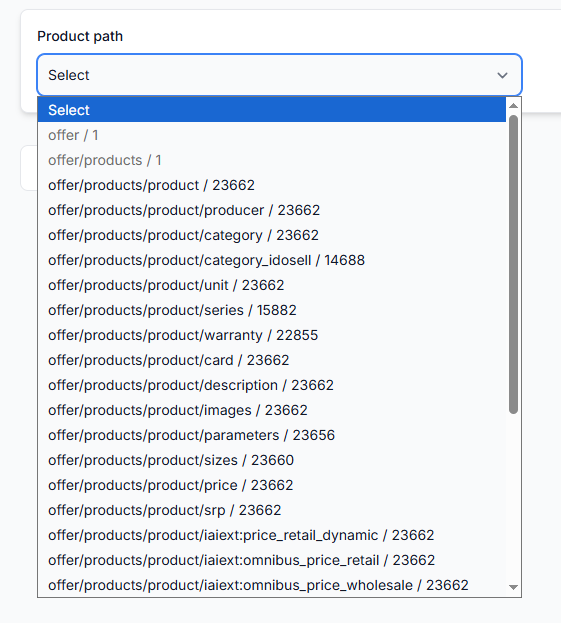
1. The product path identifies each product record
A supplier XML or JSON file may contain many nested sections. Before individual fields can be mapped, B2BLIX must know which repeated section represents one complete product.
For example, an XML file might contain a structure similar to:
- catalog
- offers
- offer
If each offer contains the EAN, price, stock, title, and category for one sellable product, that complete offer element should be selected as the product path.
Selecting a path that is too high may treat a complete product list as one record. Selecting a path that is too low may expose only one field or one variation instead of a complete product.
2. Source fields are mapped to the B2BLIX product structure
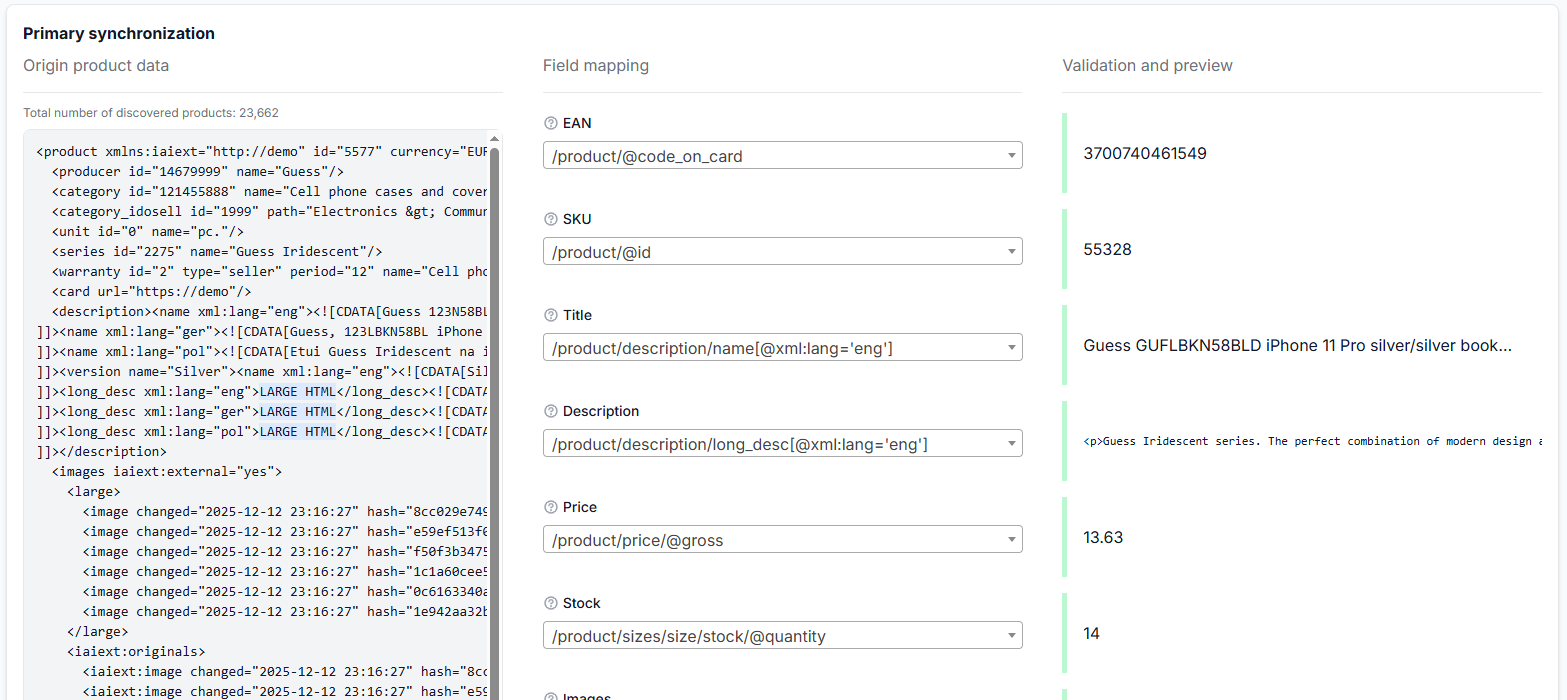
After the product path is selected, supplier fields can be connected to standard B2BLIX attributes such as:
- EAN
- SKU
- Price
- Stock
- Title
- Description
- Category and Category ID
- Manufacturer
- Images, weight, dimensions, color, and additional attributes
The names in a supplier file do not have to match the B2BLIX field names. A supplier may call its barcode field barcode, gtin, ean13, or something else. The mapping tells B2BLIX which source value has the required meaning.
3. EAN controls product identity
EAN is the primary product identifier in the standard B2BLIX Feed workflow. A product without a usable EAN is ignored and does not enter the normal catalog-processing and merging workflow.
When checking the EAN mapping, make sure it points to the barcode of the sellable item. Some supplier formats contain several identifiers, for example:
- A product-group identifier.
- A supplier SKU.
- A parent-product EAN.
- A separate EAN for each size, color, or variation.
Mapping a group identifier, SKU, or parent value as the sellable item's EAN can cause products to be rejected, grouped incorrectly, or appear under an unexpected product.
4. The mapped price should be the original supplier value you intend to use
A supplier source may contain several price-related fields, such as:
- Price without VAT.
- Price including VAT.
- Original or recommended price.
- Current discounted price.
- Purchase price.
- Marketplace selling price.
B2BLIX does not choose the correct commercial meaning from the field name alone. The required source field must be mapped as the Feed price.
Use the mapping preview to compare a known value from the original supplier file with the mapped value. Do not rely only on similar-looking field names.
If the required price is not present in the current supplier source, mapping another field will not create the missing value. In that case, you may need to use another supplier export, change the configured source URL, or connect an available alternative source such as JSON that contains the required price.
5. Currency and VAT settings describe how the mapped price should be interpreted
The supplier's financial settings should match the value selected in the price mapping. Check:
- Source currency.
- Whether VAT is already included in the mapped price.
- The applicable VAT rate.
- The supplier country where relevant to the configuration.
For supported non-EUR currencies, currency conversion can be applied during export preparation. The conversion result depends on the configured source currency and the original mapped price.
For example, do not select EUR merely because the final marketplace export uses EUR. If the supplier's mapped price is supplied in PLN, the supplier source currency should describe that incoming PLN value.
If the converted price appears incorrect, first verify both parts of the setup:
- Confirm that the mapped price is the original supplier value you intended to import.
- Confirm that the selected source currency is the currency used by that value.
If both settings are correct but the conversion direction or result still appears wrong, compare one source example with its processed value so the difference can be investigated precisely.
6. Primary and secondary sources must describe the same product consistently
A supplier may use a primary source and an optional secondary source. For example, one source may contain product content while another contains frequently updated price and stock values.
When two sources are used, verify that:
- The correct product path is selected for each source.
- The intended fields are mapped from each source.
- The selected source-connection values identify the same sellable item in both files.
- The connection preview shows the expected intersection between the sources.
A product may be missing or may retain incomplete data when its record cannot be connected between the primary and secondary sources.
What to check in your account
Step 1: Open the supplier configuration
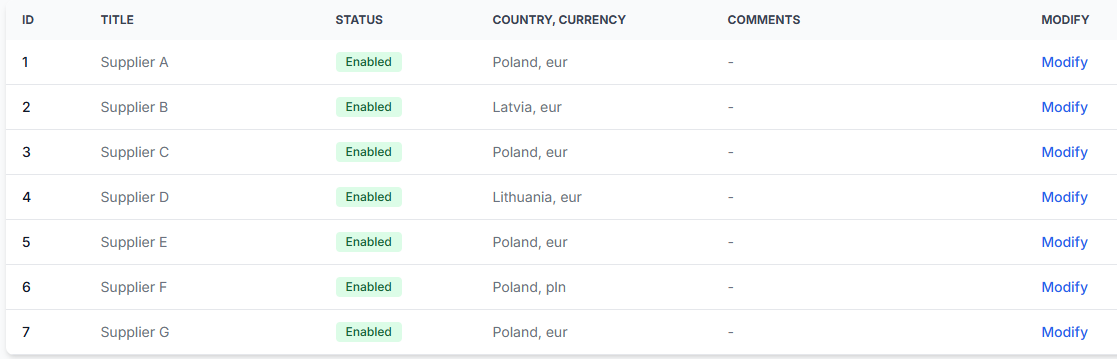
When you are logged in, open Suppliers and select the supplier you need to inspect. To understand the configuration and mapping screens, read Suppliers: Add and configure a supplier feed.
Step 2: Confirm that the product exists in the original source
Choose one affected product and copy its expected EAN. Check the supplier's current source data and confirm that the product record is present.
Within that record, identify the exact source values for:
- EAN.
- Price.
- Stock.
- Title.
- Category or category ID.
If the product is not in the supplier's current source, changing the B2BLIX mapping will not restore it.
Step 3: Verify the product path
Confirm that the selected product path points to the repeated element containing the complete product. Compare the number of discovered elements with the approximate number of products expected in the source.
A matching count alone is not enough. Open a preview and confirm that one selected element contains the full data for one sellable item.
Step 4: Verify the EAN mapping
Check that the EAN preview returns the exact barcode you selected for diagnosis. It should not return a supplier SKU, internal product ID, parent-product code, or an empty value.
If the product is a variation, confirm that the mapping uses the EAN assigned to that specific sellable variation.
Step 5: Verify the price mapping
Compare all available price fields in the original source. Map the field that represents the supplier price you intend to use as the starting value for calculations.
If the source contains both an original price and a discounted price, decide which one should become the Feed price. The mapping should point directly to that value.
Step 6: Verify currency and VAT interpretation
Confirm that the supplier's source currency, VAT-included setting, and VAT rate match the selected source price. These settings should describe the incoming supplier value, not merely the currency or tax format required by the final destination.
Step 7: Check the other core product values
EAN is mandatory for the standard workflow. Also review whether price, stock, title, and category values are available and mapped as expected.
If the supplier does not provide usable categories, check whether the supplier's Allow uncategorized option should be enabled. When enabled, products without a mapped category can remain under a fallback uncategorized value instead of being blocked by the missing category.
Step 8: Check whether the product reached the stored catalog
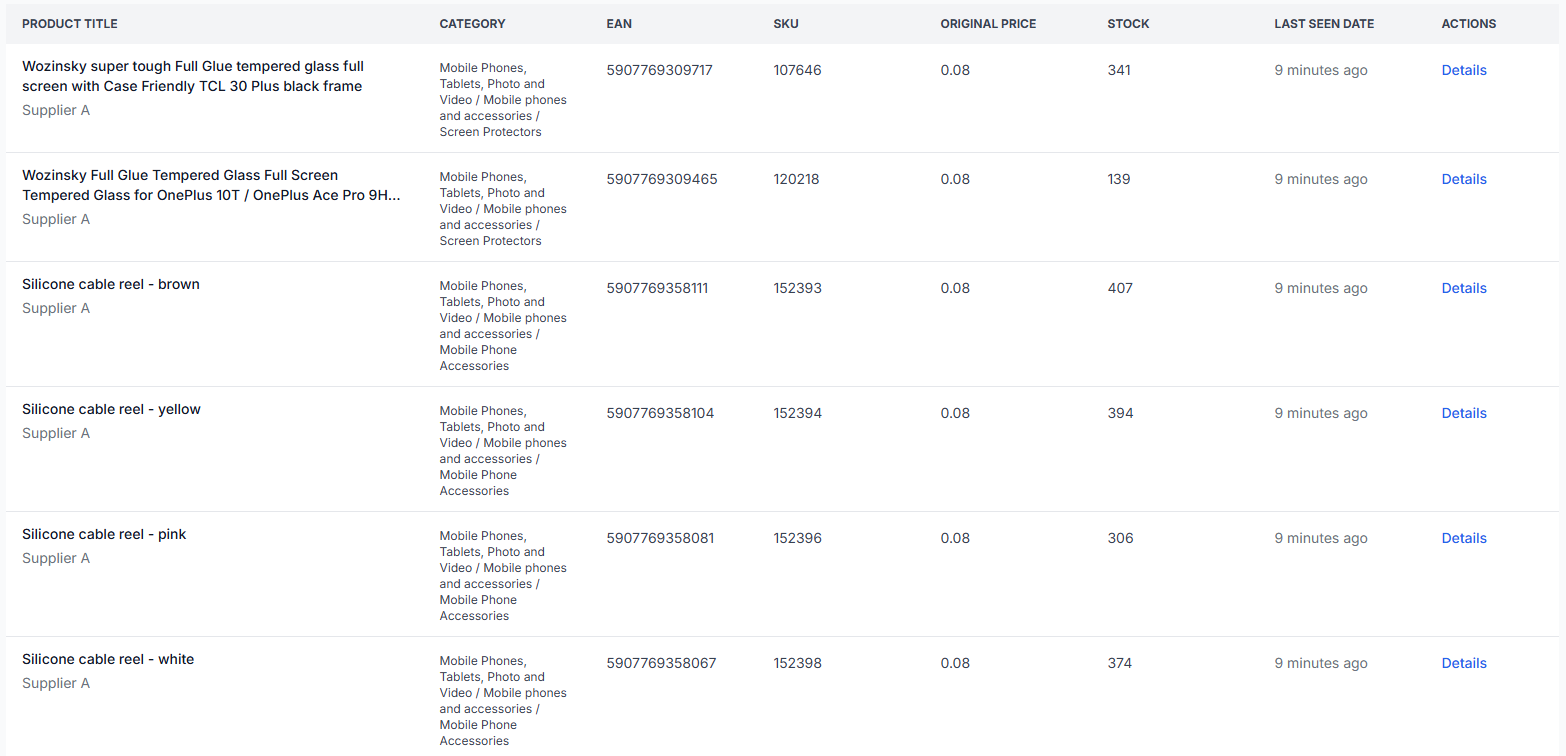
To search the processed catalog, open All products. For details about the available product information, read All products interface.
Search using the same EAN. The result tells you whether the problem occurred before or after the product was stored:
- Not found in All Products: Check the source record, product path, EAN mapping, other mapped values, source connection, and supplier synchronization.
- Found in All Products: The product was imported. Continue with export-level checks.
Step 9: Check the product in the export
To inspect one product in a specific export, open Exports checker. To understand the report, read Exports checker: Review product data and export results.
Enter the product's EAN and select the relevant export. Depending on the available result, review:
- The original supplier values.
- The mapped product attributes.
- The selected supplier offer.
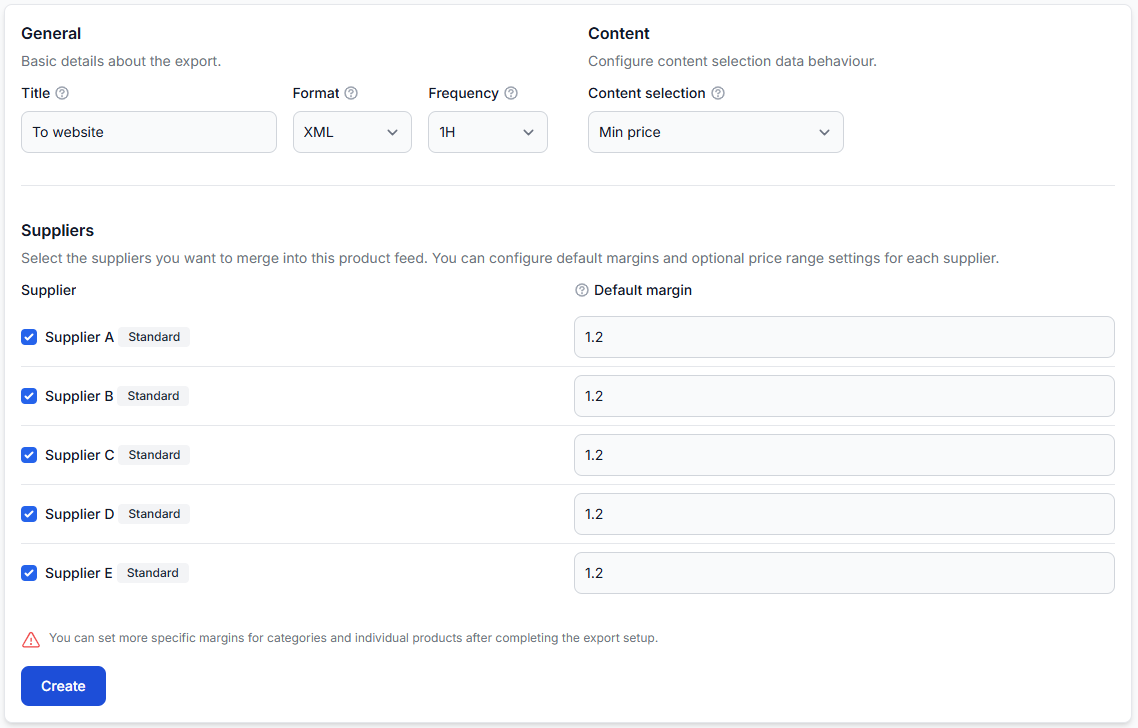
- The supplier coefficient and price calculations.
- Export filters and transformations affecting the product.
- The final values used by the export.
- The generated XML result or an exclusion reason.
If the price is correct in All Products but different in the final export, the difference may come from the export's supplier coefficient, transformation rules, discounts, or supplier-selection logic rather than the supplier price mapping.
Find the stage where the product disappears
| Result | Likely problem area | What to check next |
|---|---|---|
| The EAN is absent from the current supplier source | Supplier data | Confirm the supplier is still publishing the product and that you are checking the correct source. |
| The EAN is in the source but not in All Products | Supplier setup, mapping, validation, or synchronization | Check the product path, EAN mapping, mapped values, source connection, category handling, and supplier status. |
| The product is in All Products but not in the export | Export processing | Check export filters, supplier selection, stock, price, transformations, and exclusion information in Exports Checker. |
| The product is in the export, but its price is unexpected | Price interpretation or export calculations | Compare the mapped source price and currency with the supplier coefficient, transformations, discounts, and final exported value. |
| The product is in the generated XML but not on the destination | Receiving platform | Check the platform's import schedule, required fields, validation messages, product activation rules, and processing delay. |
Common causes of incorrect prices or missing products
- Incorrect product path: B2BLIX is reading the wrong level of the supplier structure.
- Incorrect EAN field: A SKU, parent identifier, or variation-group code is mapped instead of the sellable item's barcode.
- Empty or unusable EAN: The product cannot enter the normal EAN-based catalog workflow.
- Wrong price field: An original, recommended, VAT-inclusive, or non-discounted value is mapped instead of the intended supplier price.
- The required price is absent from the source: Another supplier source or available source format may be needed.
- Incorrect source currency: The configured currency does not describe the mapped source value.
- Incorrect VAT interpretation: A net price is configured as VAT-inclusive, or a VAT-inclusive price is configured as net.
- Missing category: The product has no usable category and uncategorized products are not allowed for that supplier.
- Primary and secondary sources do not connect: Their selected identifiers do not refer to the same product.
- Export filter: The product is stored but does not satisfy the selected export's inclusion conditions.
- Stock or price conditions: The export excludes products with zero stock, an empty price, or another disallowed value.
- Export transformation: A rule changes the price or another required field after supplier data has been mapped.
- External platform processing: The final XML is correct, but the receiving platform rejects, delays, or does not activate the product.
Example
A supplier product contains the following values:
- EAN: 5901234567890
- price_without_vat: 80
- original_price: 100
- discounted_price: 72
- Currency: PLN
The seller wants to use the current discounted supplier price as the starting value for export calculations.
The correct setup is to map discounted_price as the Feed price and configure the supplier's source currency as PLN. Mapping original_price would start calculations from 100 instead of 72. Configuring the source as EUR would also cause the incoming value to be interpreted incorrectly.
If this product is missing entirely, the seller should then verify that 5901234567890 is returned by the mapped EAN field for the selected product path. If the EAN is mapped from a parent record while the price and stock are stored at variation level, the record may not represent one complete sellable product.
What to do next
- Select one affected product with a known EAN and record its expected source price, currency, stock, title, and category.
- Confirm that the product exists in the supplier's current XML or JSON source.
- Review the supplier's product path and field previews.
- Verify the EAN and intended source price mappings.
- Confirm that currency and VAT settings describe the mapped source price correctly.
- Search for the EAN in All Products.
- If it is stored, inspect the same EAN in Exports Checker.
- Compare the source value, mapped value, processed export value, and final XML before changing a live destination.
By checking one EAN from beginning to end, you can determine whether the issue comes from supplier data, mapping, financial interpretation, catalog validation, export processing, or the external platform.