How transformation-rule priority and product-level testing work
Understand how several matching transformation rules interact, how rule order changes the final result, and how to test representative EANs before publishing export changes.
This guide explains how to diagnose unexpected transformed values, verify rule priority and stopping behavior, and inspect the complete result for a specific product in Export Checker.
When this guide is useful
This guide is relevant when a transformation rule is active but the exported price, stock, title, delivery time, or another attribute does not have the value you expected.
It is also useful when several rules can match the same product and you need to understand:
- Which rules are applied.
- In which order they are processed.
- Whether one rule prevents later rules from running.
- Which final value is written to the XML export.
- Whether a price change affects the supplier selected for an EAN.
Short answer
Transformation rules are processed according to their configured priority. A product can match more than one rule, so the result of an earlier rule may be used or replaced by a later rule.
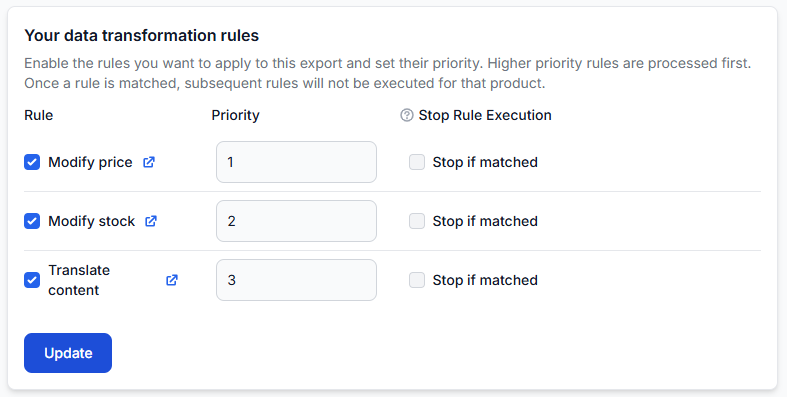
If Stop if matched is enabled for a matching rule, further transformation processing for that product can stop at that point. This means that another relevant rule may be active but never applied.
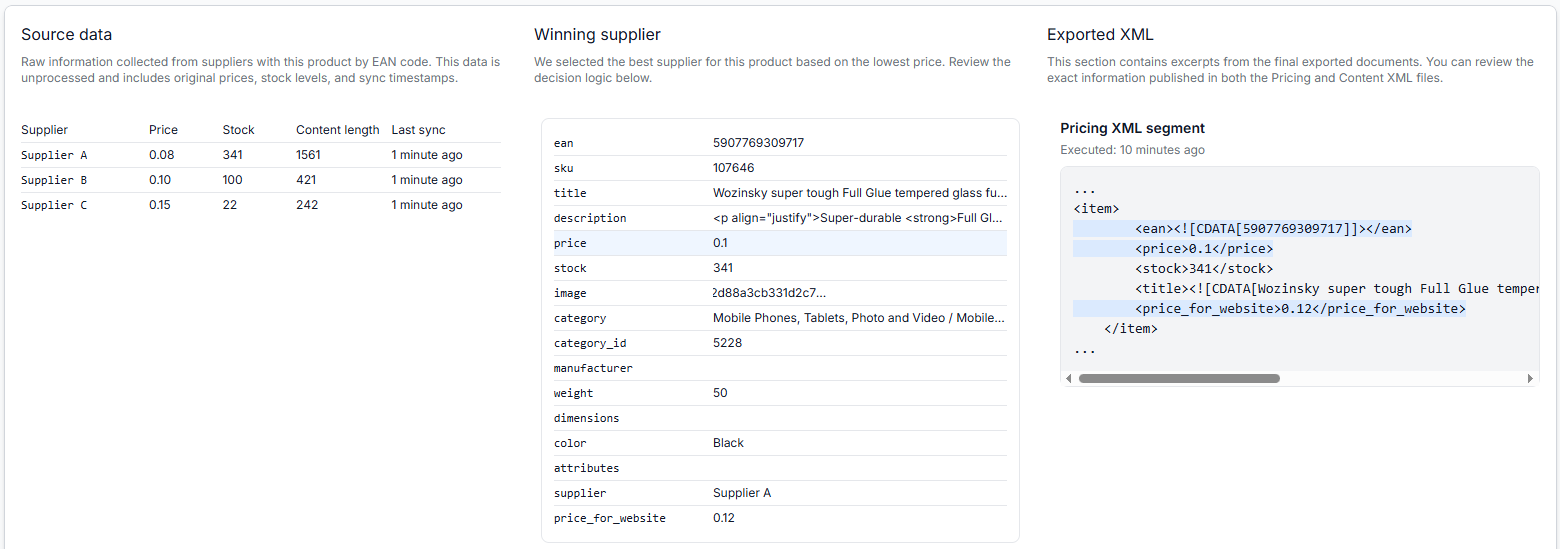
To confirm what happened, test a specific EAN in Export Checker. It can show the source data, selected supplier, calculations, matching transformations, final attributes, and representative exported XML.
Changes to transformation priority can affect live prices, stock values, supplier selection, and generated export content. Test several representative products before regenerating or publishing an export used by a live sales channel.
How matching transformation rules interact
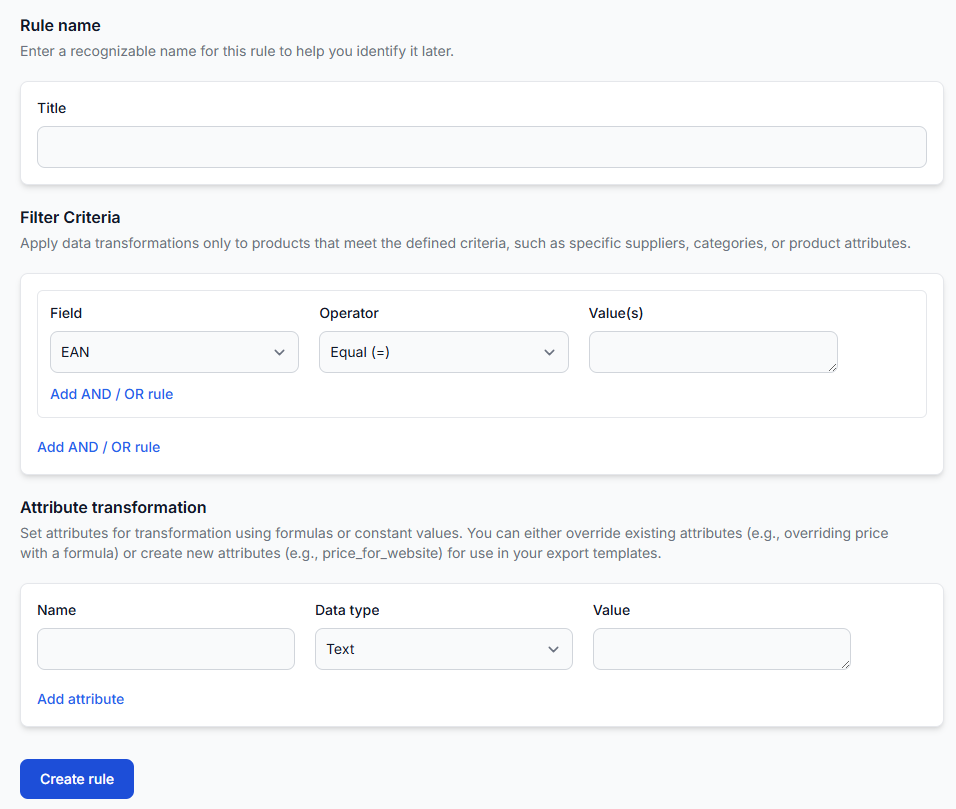
Each transformation rule can contain:
- A name that identifies its purpose.
- Optional filter conditions that decide which products match.
- One or more attribute transformations.
- A priority that controls its position relative to other rules.
A rule can override an existing attribute, such as price, or create a new destination-specific attribute, such as price_for_website.
When several enabled rules match the same product, their order matters because one rule may use a value that an earlier rule has already changed. A later rule may also replace the result produced by an earlier rule.
The priority should therefore reflect the intended calculation sequence. For example, you may want to apply a general supplier margin first and then apply a category-specific correction. Reversing that order may produce a different result.
What “Stop if matched” changes
Stop if matched is useful when one matching rule should provide the final transformation result and no following rules should modify it.
Before enabling it, check whether the product may also need:
- A general price adjustment.
- A destination-specific attribute.
- A stock or delivery-time rule.
- A category, manufacturer, or supplier correction.
- A later exception for selected EANs.
If one of these transformations is positioned after a matching rule with Stop if matched, it may not be processed.
What to check in your account
1. Check the rule conditions
Open the rule and confirm that its filters match the product you are testing. Pay particular attention to conditions based on:
- Supplier.
- EAN or SKU.
- Price or stock range.
- Category or category ID.
- Manufacturer.
- Empty or missing attribute values.
- Combined AND and OR groups.
A rule may be correctly configured but still have no effect because the selected product does not satisfy all required conditions.
To check or edit the rule, open Data Transformation Rules. To understand the rule fields and conditions, read Data transformation rules.
2. Confirm that the rule is enabled for the correct export
A transformation rule must be assigned to the export you are testing. A rule that exists in the account does not necessarily affect every export projection.
Check that:
- The correct rule is enabled.
- You are reviewing the intended export projection.
- The rule priority reflects the required processing order.
- Stop if matched is enabled only where it is intentional.
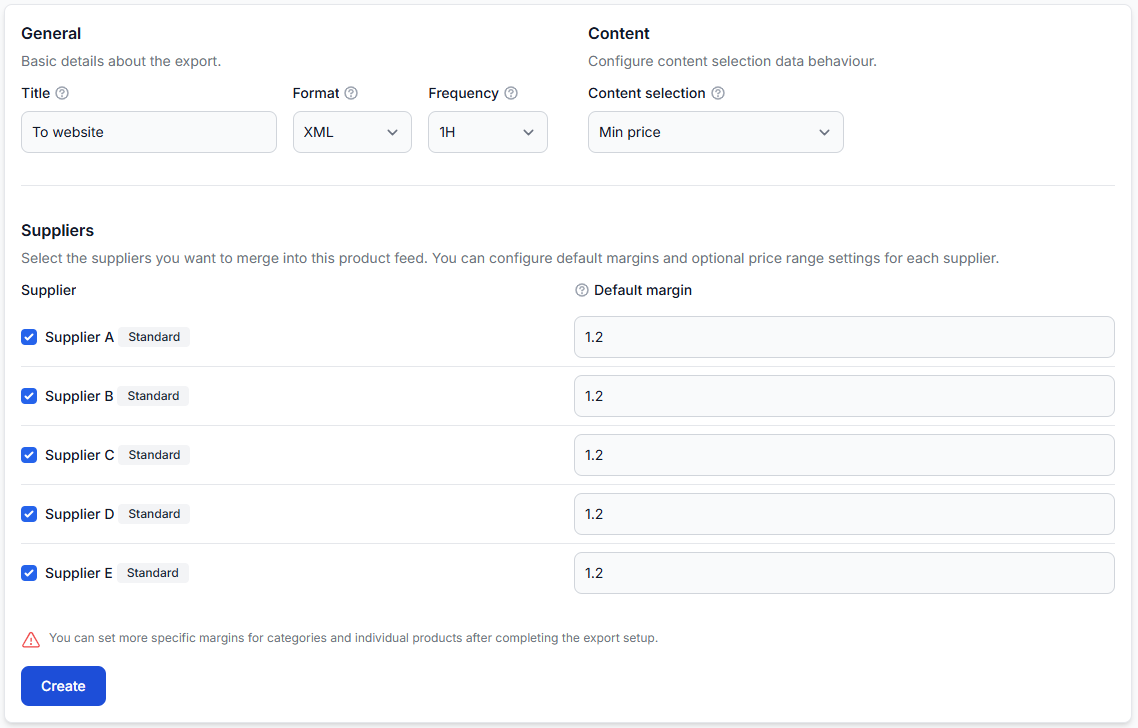
When you are logged in, open Exports. For details about configuring an export and its transformations, read Create and configure XML export projections.
3. Confirm that the product passes the export filter
An export filter and a transformation filter have different purposes:
- An export filter decides whether the product is included in the export.
- A transformation filter decides whether a particular modification is applied.
If the product does not pass the export filter, changing transformation priority will not make it appear in the output.
4. Check which attribute is being transformed
Confirm that the rule modifies the attribute actually used by the export template.
For example, a rule may create price_for_website while the export template still writes the standard price attribute. In that situation, the transformation can work correctly without changing the value visible in the final XML field you are checking.
5. Test the product in Export Checker
Enter a specific EAN and select the export projection that contains the rules you want to test.
To inspect the result, open Exports Checker. For an explanation of the information shown in the report, read Exports Checker: review product data and export results.
Review the product from beginning to end:
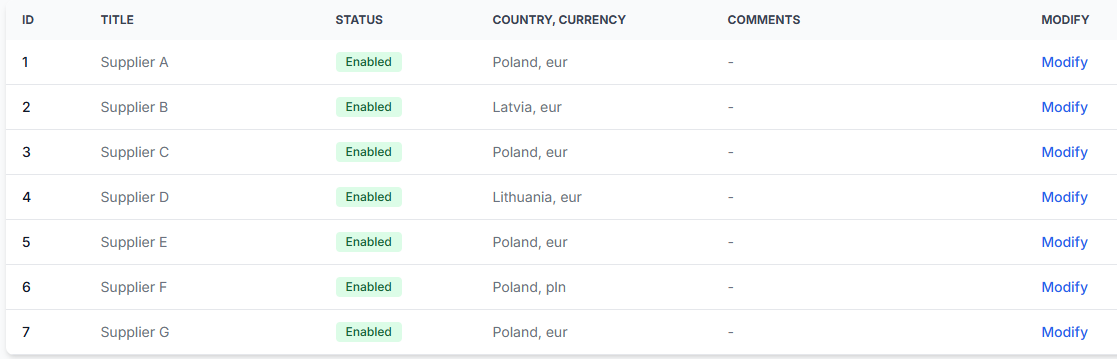
- Confirm that the correct supplier data was received.
- Check the mapped price, stock, EAN, and other relevant attributes.
- Confirm which supplier was selected when several suppliers provide the same EAN.
- Review the base supplier coefficient or other initial pricing adjustment.
- Check which transformation rules matched.
- Review the calculated and final attribute values.
- Confirm that the expected field appears in the generated XML result.
Products you should test
Do not test only one product that already gives the expected result. Use a small group of representative EANs that covers the main rule combinations.
- A product that should match only the first rule.
- A product that should match only the second rule.
- A product that should match both rules.
- A product that should match neither rule.
- A product close to a minimum or maximum price condition.
- An EAN offered by several suppliers, if the rules modify prices.
This helps reveal incorrect filter grouping, overlapping conditions, unexpected stopping behavior, and priority conflicts before they affect the full export.
Common reasons for an unexpected result
- The rule is not enabled for the selected export. Rules can be used independently by different export projections.
- The product does not match the rule filter. A supplier, category, manufacturer, price, stock, or EAN condition may exclude it.
- An earlier rule changes the value first. The next rule then calculates from the modified value rather than the original one.
- A later rule replaces the result. The expected rule runs, but another matching rule subsequently overwrites the same attribute.
- Stop if matched prevents later processing. A relevant rule positioned later in the sequence is not reached.
- The wrong attribute is exported. The transformation creates one field, but the XML template uses another.
- The product is removed by the export filter. The transformations are not the reason it is missing.
- A different supplier wins the comparison. Price transformations can change the final qualifying result used when several suppliers offer the same EAN.
- The external destination has not processed the new file. B2BLIX can generate the updated XML, but marketplace download, validation, activation, and display are separate processes.
Example
An export contains these two rules:
- Rule A: For products from Supplier One with a price below 100, multiply the price by 1.20.
- Rule B: For products in a selected category, add 5 to the price.
A product from Supplier One costs 80 and belongs to the selected category, so it matches both rules.
If Rule A is processed first, the price becomes 96. Rule B can then add 5, producing 101. If Rule B is processed first, the price becomes 85 before Rule A applies its multiplier, producing 102.
If Stop if matched is enabled on the first matching rule, only that rule may affect the product. The final result would therefore be different again.
The correct order depends on the intended commercial calculation. Export Checker should be used to confirm the actual result for this EAN.
What to do next
- Identify one EAN with an unexpected result.
- Confirm that the product passes the export filter.
- Review every enabled rule that can match the product.
- Check their priority and Stop if matched settings.
- Confirm that the transformed attribute is used in the XML template.
- Inspect the complete calculation and final XML in Export Checker.
- Repeat the test with products that match different rule combinations.
- Regenerate or publish the export only after the representative results are correct.
When testing a live pricing export, preserve the previous working configuration or output until the updated rules have been verified. A correct result for one EAN does not confirm that all overlapping rule combinations are correct.