How to configure delivery time and other exported attributes
Learn how to add delivery time, stock, titles, descriptions, weight, dimensions, prices, and other destination-specific values to a B2BLIX Feed XML export.
This guide explains where exported attribute values come from, how to create or modify them with transformation rules, and what to check when an expected field is missing or incorrect in the final XML.
When this guide is useful
Use this guide when you need to send an additional product value to a marketplace, online store, price-comparison platform, or another system receiving your XML export.
Common examples include:
- Setting a different delivery time for each supplier.
- Exporting stock, weight, dimensions, titles, or descriptions.
- Creating a destination-specific selling price or sale price.
- Adding a new attribute that is not available directly in the supplier feed.
- Changing an existing supplier value before it is written to the final XML.
Short answer
An attribute can be exported when its value is available in the B2BLIX product data or is created with a data transformation rule. The attribute must then be included in the relevant export template.
For example, to configure delivery time separately for each supplier, create a transformation rule filtered by supplier and set the collectionhours attribute to the required value. Enable that rule for the export and add the attribute to the export template.
Changes to transformation rules and export templates can affect live prices, stock, delivery information, and other marketplace data. Verify the result with a limited test before relying on the updated export in a production sales channel.
How exported attributes work
An exported value normally passes through three stages:
- The value is received or mapped. B2BLIX imports information from a supplier source and maps supplier fields into its common product structure.
- The value may be transformed. A transformation rule can change an existing attribute or create a new destination-specific attribute.
- The value is written into the XML. The export template determines which attributes are included and what XML elements are generated.
These stages are separate. A value may exist in the supplier data but remain absent from the final XML if it is not included in the export template. Similarly, adding an XML element to the template will not produce a useful result if the mapped or transformed attribute has no value.
Using a value from the supplier feed
If the supplier already provides the required information, verify that the correct source field is mapped. This applies to values such as stock, weight, dimensions, title, description, and other supplier attributes.
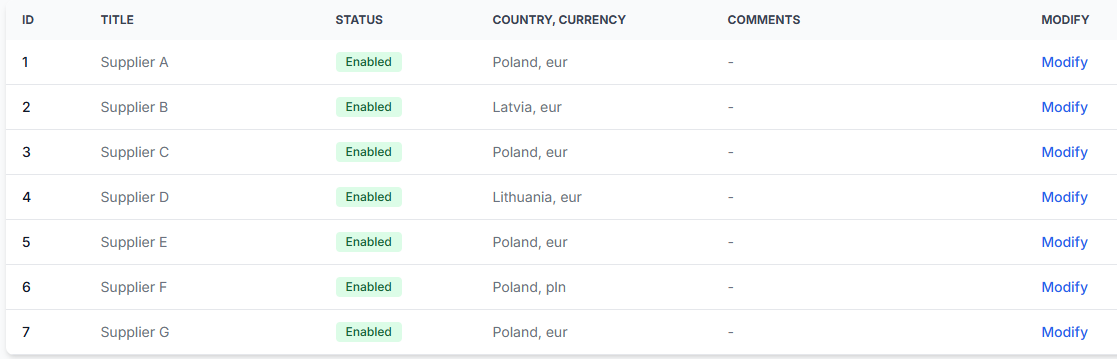
When you are logged in, open Suppliers to review the supplier configuration and mapping. To understand the supplier setup and mapping process, read Add and configure a supplier feed.
Creating or changing a value
Use a transformation rule when the required value does not exist in the supplier source, needs to be calculated, or must differ by supplier, category, product, price range, or another condition.
A transformation rule can, for example:
- Set a fixed delivery time for products from one supplier.
- Create a separate price for a particular destination.
- Replace an empty title with a value built from other attributes.
- Convert weight into the unit required by the destination.
- Create a stock value based on product or supplier conditions.
- Remove HTML from a description.
- Combine existing fields into a destination-specific title.
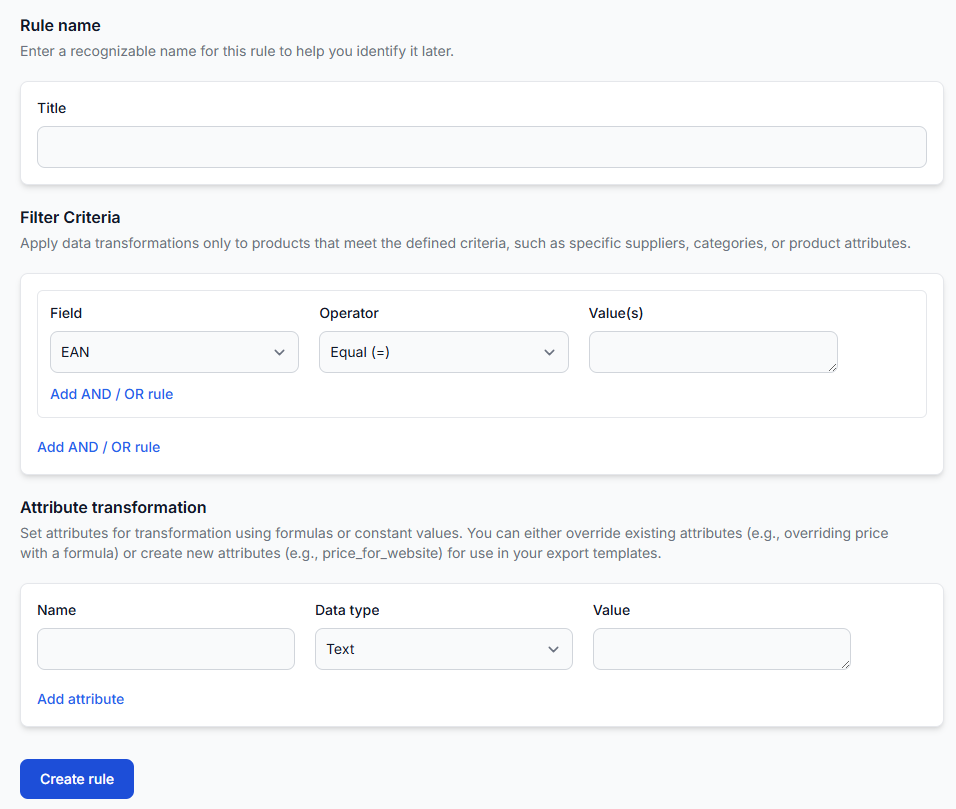
To create or review these rules, open Data transformation rules. For an explanation of the rule fields, conditions, expressions, and priorities, read Data transformation rules.
Including the value in the final XML
After the attribute is available, it must be included in the correct export template. The template connects B2BLIX attributes to the XML element names required by the destination.
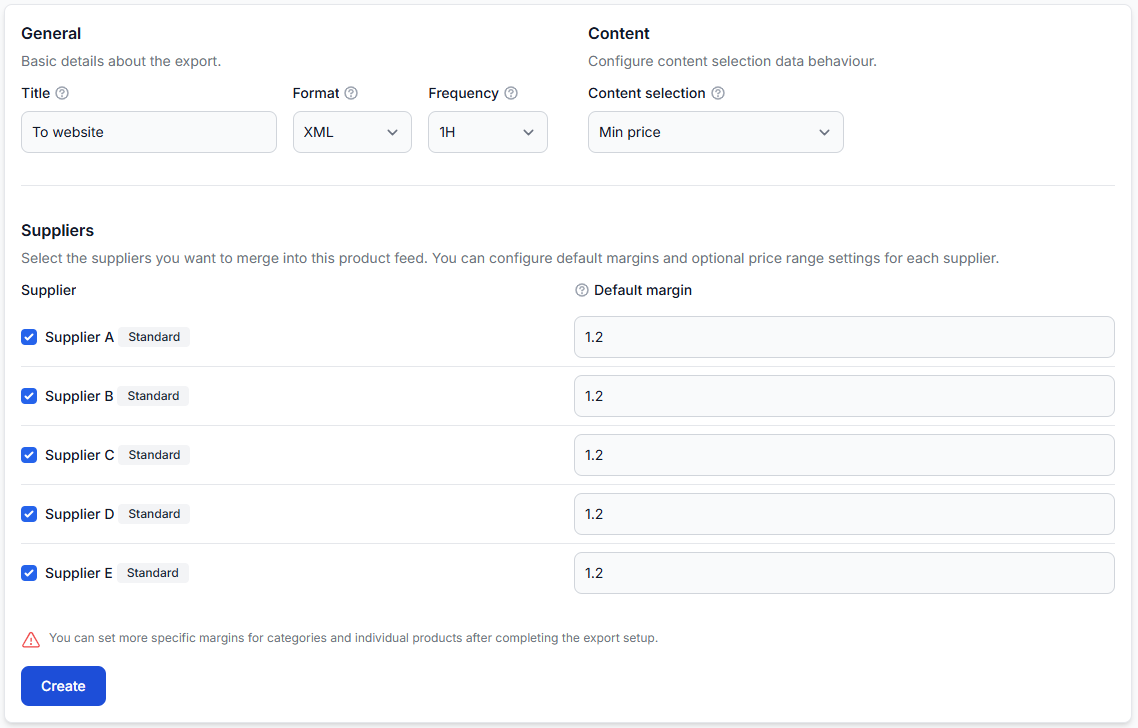
When you are logged in, open Exports and select the export you want to update. For details about export settings and XML templates, read Create and configure XML export projections.
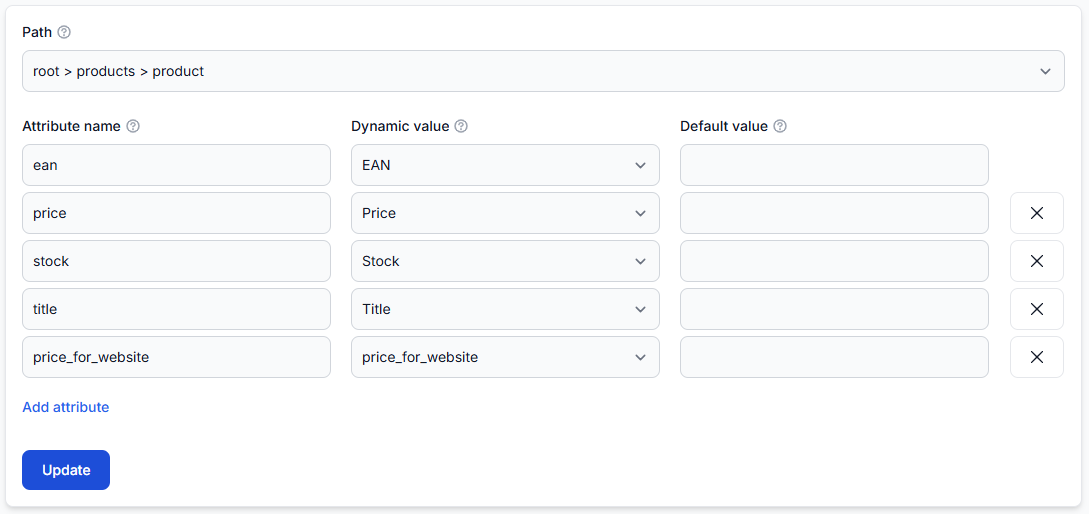
How to configure delivery time for each supplier
- Open Create data transformation rule.
- Give the rule a clear name, such as Supplier A delivery time.
- Add a filter that limits the rule to the required supplier.
- Set the collectionhours attribute to the required delivery-time value.
- Save the rule.
- Open the relevant export and enable the rule for that export.
- Check the rule priority if other rules can also modify the same attribute.
- Add the attribute to the export template using the XML element required by the destination.
- Generate and inspect a test export before using the result in a live channel.
Create separate supplier-filtered rules when different suppliers require different delivery values.
What to check in your account
1. Confirm where the value should come from
- If the supplier provides the value, verify the supplier field mapping.
- If the value should be fixed or calculated, verify the transformation rule.
- If the value should differ by supplier or product group, verify the rule filter.
- If the value already exists but needs a different XML name, verify the export template.
2. Check that the transformation rule applies to the export
A saved transformation rule does not necessarily affect every export. Confirm that the rule is enabled for the export you are testing.
Also verify:
- The product matches the rule conditions.
- The supplier selected for the product matches the supplier filter.
- The rule priority is correct.
- A higher-priority rule is not replacing the value first.
- A matching rule is not configured to stop further rule processing.
3. Check the export template
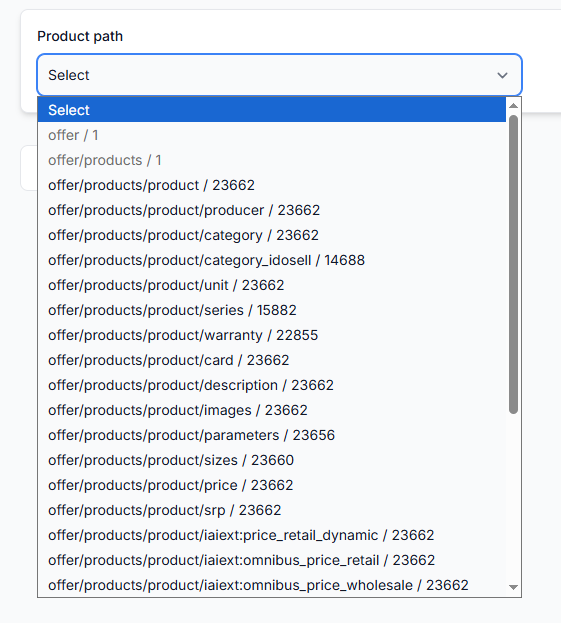
Confirm that the template includes the correct B2BLIX attribute and writes it to the XML element expected by the destination.
A template parameter name and a transformed attribute name must refer to the intended value. Similar names do not automatically mean that they contain the same data.
4. Inspect one product in Export Checker
Use one known product to verify the complete result. Search by its EAN and review the supplier data, selected supplier, transformations, final attributes, and generated XML.
To check this in your account, open Exports checker. To understand the information shown in the report, read Exports Checker: review product data and export results.
Common reasons an attribute is missing or incorrect
- The supplier field is not mapped. The source contains the value, but B2BLIX is reading another field or no field at all.
- The source does not provide the value. A transformation rule may be needed to create a fixed or calculated value.
- The rule is not enabled for the export. The rule exists but is not active in the export being generated.
- The product does not match the rule filter. A supplier, category, EAN, price, or other condition excludes the product from the transformation.
- Another rule changes the same attribute. Rule priority and stop-processing settings can affect the final result.
- The attribute is absent from the template. The value exists in B2BLIX but is not written into the XML.
- The template references the wrong attribute. The XML element is present but receives an empty or unintended value.
- The receiving platform expects another format. The generated XML may contain the value, but the destination may require a different element name, unit, value format, or configuration.
Example
Supplier A normally delivers within 24 hours, while Supplier B requires 72 hours. Create one rule filtered to Supplier A that sets collectionhours to the value required for 24-hour delivery, and another rule filtered to Supplier B with the value required for 72-hour delivery.
Enable both rules in the marketplace export and map collectionhours to the required delivery-time element in its XML template. Then check one EAN from each supplier in Export Checker to confirm that the correct value appears in the final XML.
What to do next
- Identify whether the required value should come from the supplier source or a transformation rule.
- Verify the supplier mapping before changing any rules.
- Create or update the transformation only when the source value needs to be added, replaced, or calculated.
- Enable the rule for the intended export and review its priority.
- Add the correct attribute to the export template.
- Inspect at least one affected product in Export Checker.
- Confirm that the generated XML uses the field name and value format required by the receiving platform.
- Test the updated export with a controlled product selection before applying it to a live catalog.
B2BLIX prepares the XML output, but the external store or marketplace controls how it imports, validates, and displays that data. If the correct value is present in the final XML but is not shown correctly at the destination, check the destination’s field mapping and import requirements.