How to diagnose sudden product-count changes and supplier feed failures
A practical diagnostic guide for investigating failed supplier downloads, changed feed structures, mapping problems, stale-product controls, and unexpected catalog or export count changes.
Excerpt: Learn how to identify why a supplier catalog or export suddenly contains fewer products and determine whether the problem occurred during supplier import, catalog processing, export generation, or marketplace processing.
When this guide is relevant
Use this guide when the number of products in B2BLIX Feed, a generated XML export, or a marketplace changes unexpectedly. It also applies when products from one supplier appear to have disappeared or when a supplier source has stopped updating.
B2BLIX Feed processes data in several stages: it downloads supplier data, maps the source fields into the B2BLIX catalog, applies freshness controls, selects products for an export, processes export rules, and generates the final XML file. A product-count change can begin at any of these stages. :contentReference[oaicite:0]{index=0}
Short answer
Start by identifying where the count first changed. Check the supplier source, the stored B2BLIX catalog, the generated export, and the destination marketplace separately.
A sudden decrease can be caused by:
- A supplier source that could not be downloaded.
- A supplier sending an incomplete or changed XML or JSON structure.
- A changed product path or field mapping.
- Missing or invalid EAN values.
- Products being changed to zero stock or removed by freshness settings.
- An export filter or supplier-selection setting excluding products.
- An incomplete or incorrectly configured XML export.
- A delay, validation problem, or import failure on the marketplace side.
Warning: Supplier settings, mappings, freshness controls, filters, and export rules can affect live product availability, stock, prices, and marketplace updates. Verify the cause with sample products before changing production settings or regenerating a live export.
How product counts can change
The product count shown at each stage may be different because each stage answers a different question.
- Supplier source count: How many product records the supplier currently provides.
- B2BLIX catalog count: How many valid and retained supplier products are currently stored.
- Export count: How many stored products pass the selected export’s supplier selection, filters, stock conditions, and other rules.
- Marketplace count: How many exported products the external platform accepts, activates, and displays.
Do not assume that a lower marketplace count means that the supplier import failed. Likewise, a successful supplier synchronization does not guarantee that every imported product will pass the export conditions.
What to check in your account
1. Identify which supplier or stage is affected
Compare the current result with a known normal period. Record the approximate product count before and after the change.
When several suppliers are included in one export, choose at least one EAN that is unique to each supplier. Follow each EAN through the source, catalog, export, and destination. This is usually faster than reviewing the complete catalog.
For example, if products from Supplier A are still present but unique products from Supplier B have disappeared, investigate Supplier B first.
2. Check the supplier configuration and source
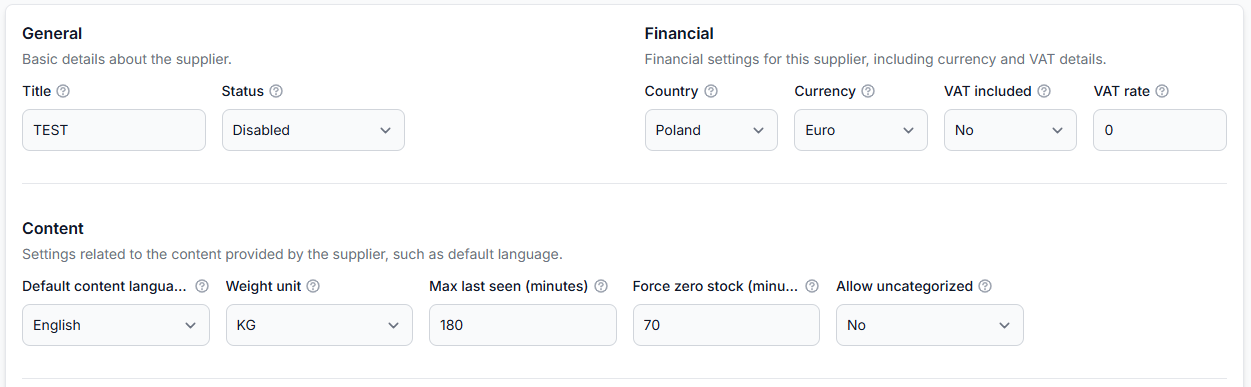
Confirm that the affected supplier is enabled and that its primary and, where applicable, secondary sources are still available.
To check this in your account, open Suppliers. To understand the supplier settings and mapping workflow, read Suppliers: add and configure a supplier feed.
Check the following:
- The supplier is enabled.
- The configured source URL still returns the expected file.
- Authentication details or synchronization request headers have not changed.
- The supplier has not moved the feed to a different URL.
- The source is not empty, truncated, or much smaller than usual.
- The source still uses the expected XML or JSON structure.
- The configured synchronization frequency is appropriate.
- The correct primary and secondary sources are connected.
A single failed supplier download does not automatically erase all previously stored products. B2BLIX attempts later synchronizations according to the configured schedule. However, products that remain absent can eventually be affected by Force zero stock and Max last seen.
3. Check whether the supplier changed its feed structure
A supplier may continue returning a valid file while changing the location or name of product fields. The file can therefore appear available even though B2BLIX no longer finds the expected products or values.
Check whether the supplier changed:
- The complete product path in the source.
- The field containing the sellable product’s EAN.
- The price, stock, title, category, or SKU fields.
- The product and variation structure.
- The primary-to-secondary source connection identifiers.
Pay particular attention to EAN mapping. EAN is the primary product identifier in the standard B2BLIX Feed workflow. Products without a usable EAN are not processed normally, and an EAN mapping change can cause a large catalog decrease.
Some supplier formats contain one identifier at the main product level and another at the variation level. The mapping must use the identifier that represents the actual sellable item. :contentReference[oaicite:1]{index=1}
4. Check whether the products are still stored in B2BLIX
Search for several affected EANs in the combined catalog.
To check this in your account, open All Products. To understand the information available there, read All products interface.
For each sample product, check:
- Whether the product is present.
- Which supplier records are available for the EAN.
- Whether the price and stock values are populated.
- When the supplier product was last seen.
- Whether the expected title, category, manufacturer, and other required data are available.
If the product is missing from All Products, focus on the supplier source, product path, mappings, EAN validation, and stale-product settings. If it is present there, continue to the export checks.
5. Review Force zero stock and Max last seen
Supplier freshness settings control what happens when a previously imported product is no longer present in newer supplier data.
- Force zero stock keeps the product in the catalog but changes its stock to zero after it has remained unseen for the configured period.
- Max last seen controls how long an unrefreshed product remains stored before it is removed.
Normally, Force zero stock should be longer than the expected supplier synchronization interval and shorter than Max last seen. This helps prevent temporary download delays from immediately changing valid products to zero stock while still limiting outdated availability.
Before changing these values, verify whether the affected supplier has missed one synchronization or has been unavailable for a longer period. Increasing retention settings can keep stale products in the catalog, while reducing them can remove or disable products sooner.
6. Check the affected export
If products exist in All Products but are missing from the generated file, review the export configuration.
To check this in your account, open Exports. To understand the available export settings, read Exports: create and configure XML export projections.
Verify:
- The export is enabled and generating as expected.
- The affected supplier is included in the export.
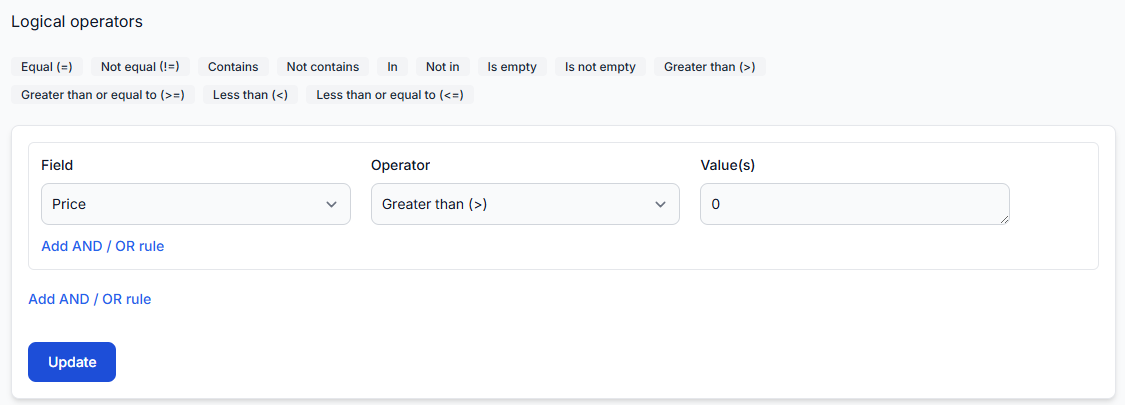
- Export filters have not been changed.
- Products are not excluded by EAN, supplier, manufacturer, category, price, stock, or another attribute.
- AND and OR filter groups are arranged correctly.
- The export does not require positive stock when the affected products have been forced to zero.
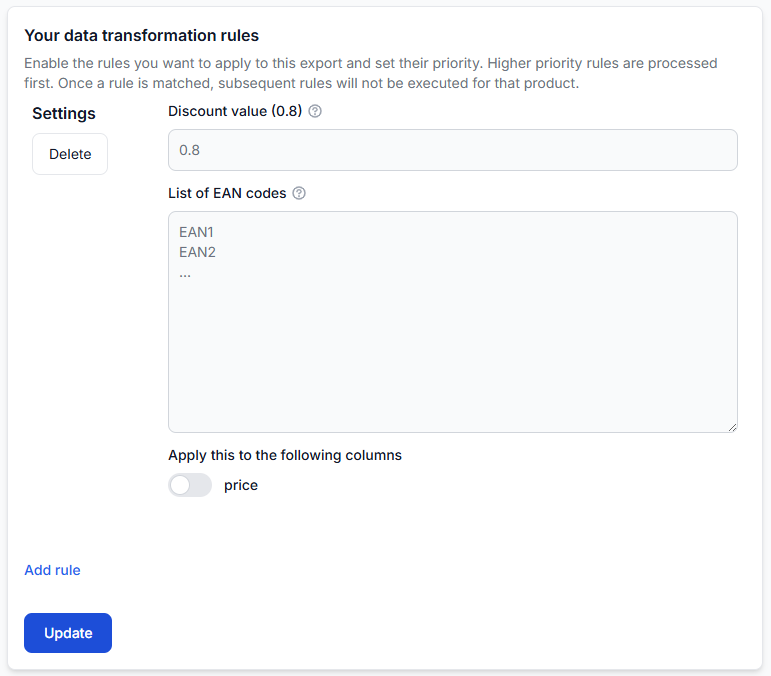
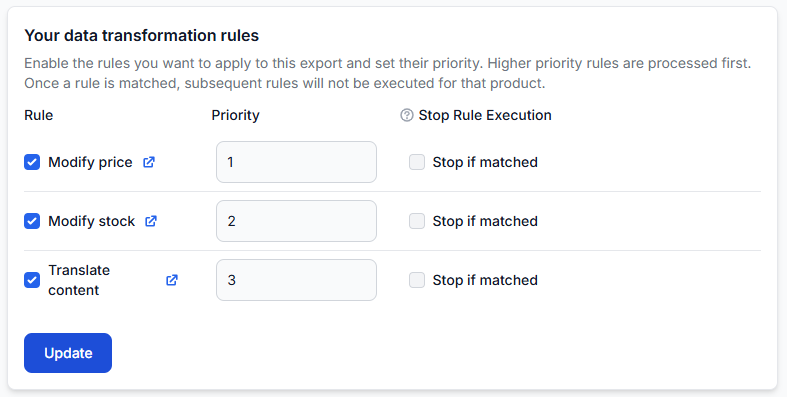
- The expected transformation rules are enabled for this export.
- The XML template still contains the required product path and fields.
- The generated XML file is complete and can be opened.
An export filter determines whether a product is included at all. A transformation filter only determines whether a particular calculation or data change is applied. Do not treat these as the same type of filter.
7. Inspect sample products in Export Checker
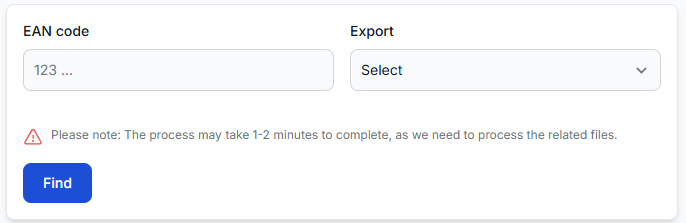
Use Export Checker to follow one affected EAN through the export process. Repeat the check with a product that still works correctly so you can compare the results.
To check this in your account, open Exports Checker. To understand the report, read Exports Checker: review product data and export results.
Check whether Export Checker shows:
- The expected original supplier data.
- The correct selected supplier.
- Valid mapped values for EAN, price, stock, and required content.
- An export filter that rejects the product.
- A transformation rule that changes price, stock, or another required value.
- The final attributes expected by the XML template.
- The product in the representative final XML result.
If the product is rejected, the checker can help identify whether the reason comes from the input data, mapping, product selection, filters, or transformations.
8. Compare B2BLIX output with the marketplace result
Open the generated XML and confirm whether the missing products are present with valid destination fields and the expected stock.
- If products are missing from the XML, continue investigating B2BLIX supplier and export settings.
- If products are present in the XML but missing from the marketplace, check the marketplace’s import history, validation errors, required fields, and refresh schedule.
B2BLIX controls supplier import, mapping, filters, transformations, calculations, and generation of the XML output. After an external platform downloads the file, its validation, activation, import timing, and public display are controlled by that platform.
Common causes and what they look like
| What you observe | Likely area to investigate |
|---|---|
| Products from one supplier disappear from both All Products and the export | Supplier download, product path, field mapping, EAN validation, or freshness settings |
| Products remain in All Products but disappear from one export | Export supplier selection, export filters, stock conditions, or export-specific rules |
| Products remain stored but their stock changes to zero | Supplier stock data, transformation rules, or Force zero stock |
| Many products disappear after a supplier updates its file format | Product path, EAN mapping, source connection, or required field mappings |
| The generated XML contains the expected products, but the marketplace count is lower | Marketplace import delay, validation, activation rules, or destination-side processing |
| The count changes only for products without categories | Category mapping or the supplier’s Allow uncategorized setting |
| The export count drops after a filter change | Filter conditions and the grouping of AND and OR logic |
Example: an export suddenly loses one supplier’s products
An export normally contains approximately 30,000 products from three suppliers. It suddenly decreases to approximately 20,000.
- Select one EAN that is unique to each supplier.
- Check all three EANs in All Products.
- Check the same EANs in Export Checker.
- Open the generated XML and search for each EAN.
If the unique product from Supplier B is missing from All Products, check Supplier B’s source, synchronization, mappings, and freshness settings.
If the product is present in All Products but missing from Export Checker or the XML, check the export’s supplier selection and filters.
If all three EANs are present in the XML but Supplier B’s products are missing from the marketplace, investigate the marketplace import result rather than changing the supplier mapping.
What to do next
- Record the normal count, current count, affected export, and approximate time of the change.
- Identify whether all suppliers or only one supplier are affected.
- Select a small set of known EANs, including at least one unique product from each relevant supplier.
- Follow those EANs through the supplier source, Suppliers mapping, All Products, Export Checker, generated XML, and destination.
- Correct only the stage where the first incorrect or missing result appears.
- Generate and inspect a controlled test export before applying changes to a live sales channel.
- After the cause is resolved, confirm that later supplier synchronizations and export generations return to the expected counts.