How discounts and campaign prices are applied in exports
Apply campaign discounts to selected products without changing their normal pricing rules. Learn when the discount is applied, how multiple discount lists work, and how to verify the final exported price.
This guide explains how product-specific discount coefficients affect B2BLIX Feed exports and what to check before publishing promotional prices to a marketplace, website, or another sales channel.
When this guide is relevant
Use this guide when you want to apply a temporary campaign price to selected products while keeping your existing supplier coefficients, margins, delivery rules, and other transformations unchanged.
This is especially useful when a campaign applies only to a defined list of EAN codes or when different product groups require different discount percentages.
Short answer
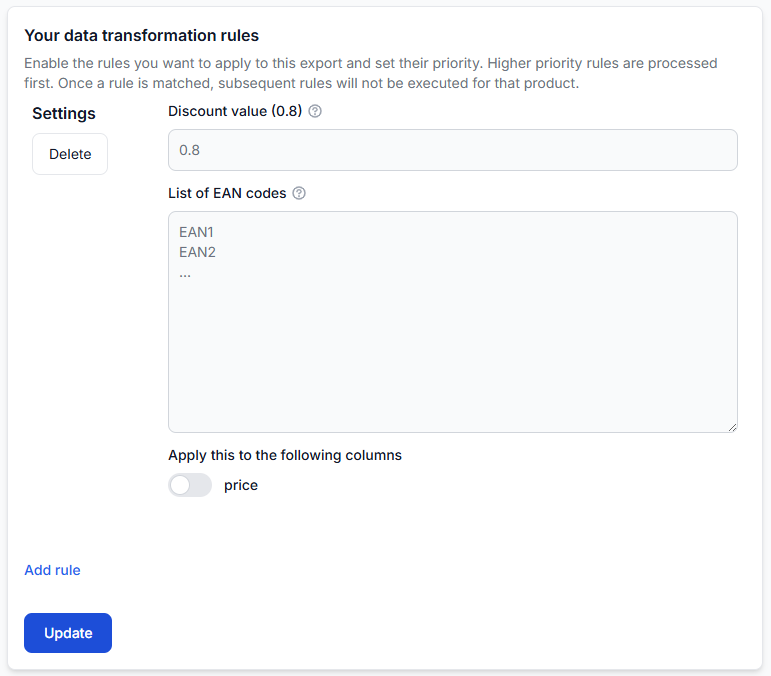
Add the campaign products to the export’s Discounts section and assign a discount coefficient to the relevant EAN list.
The export discount is applied after the normal price calculation and active transformation rules. This means you can add a campaign adjustment without rebuilding the pricing rules that produce the product’s regular selling price.
You can create several discount blocks with different EAN lists and coefficients. When a product appears in more than one block, the first matching discount block is applied.
Warning: Export discounts can change live selling prices after the receiving platform downloads the generated file. Verify the affected products and promotional values before regenerating or publishing a production export.
How campaign pricing works
A product’s normal export price may already include a supplier coefficient and one or more transformation rules. These calculations can create the regular selling price used by your website or marketplace.
The export discount is an additional adjustment applied after those normal calculations. It is intended for selected-product campaigns rather than for replacing the complete pricing workflow.
The simplified order is:
- The supplier price is read from the mapped supplier data.
- The export’s supplier coefficient is applied.
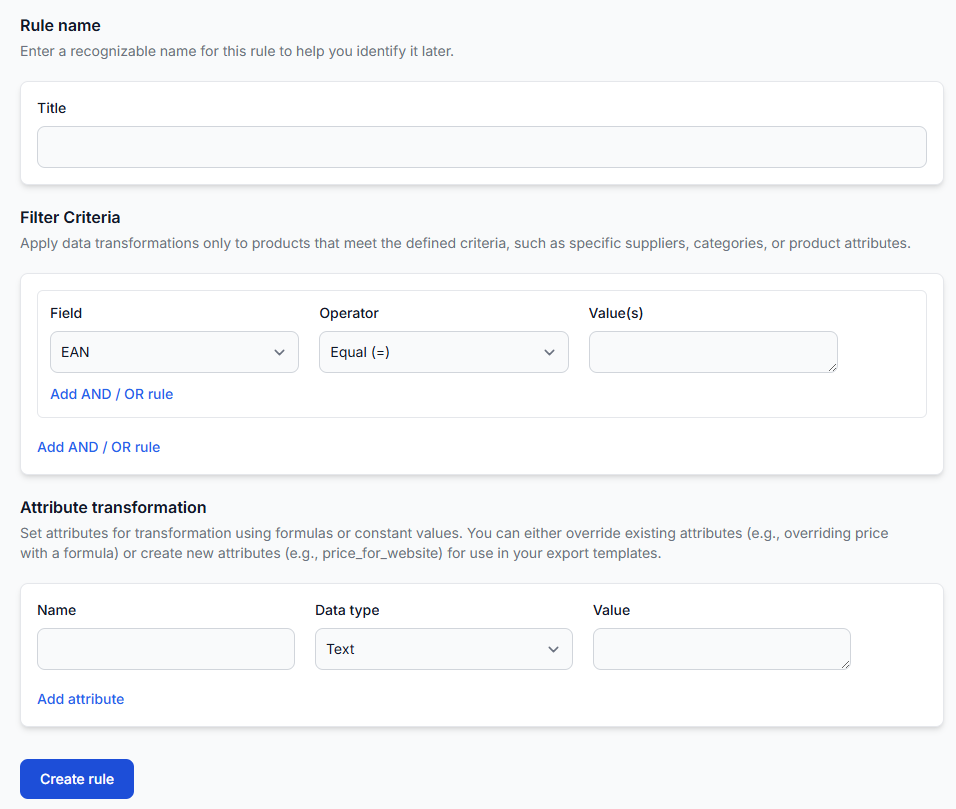
- Active transformation rules calculate or modify the price.
- A matching export discount is applied.
- The resulting value is written into the configured XML export field.
The exact exported field still depends on the export configuration and template. A field name shown in the XML template is not necessarily the same as the internal value that the discount configuration modifies.
What to check in your account
1. Confirm the normal price before adding a discount
First verify that the product’s regular price is correct without the campaign adjustment. Check the supplier coefficient, active transformation rules, and any price-range or supplier-specific calculations.
Do not use a campaign discount to correct an incorrect base price. Fix the supplier mapping or normal pricing calculation first.
2. Open the export and review its discount blocks
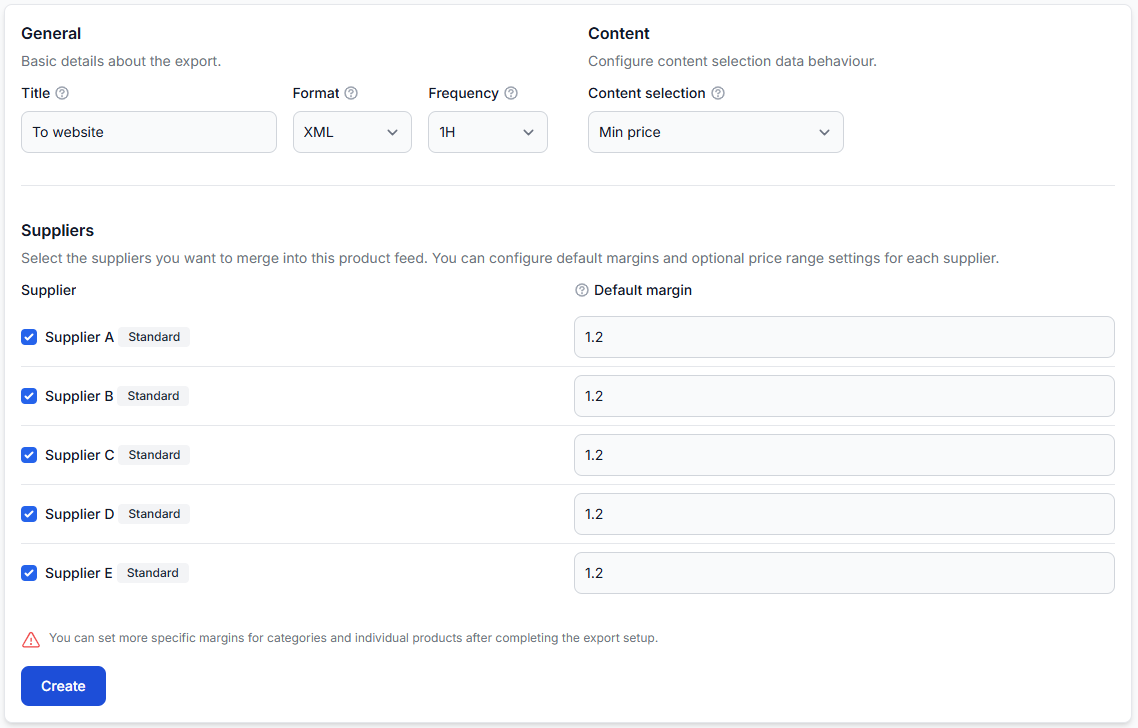
When you are logged in, open Exports and select the export used by the relevant sales channel. To understand the export settings, read Create and configure XML export projections.
For each campaign block, verify:
- The correct EAN codes are included.
- The discount coefficient represents the intended price change.
- The block is in the correct order when several blocks are configured.
- The discount is connected to the actual calculated price value used by the export.
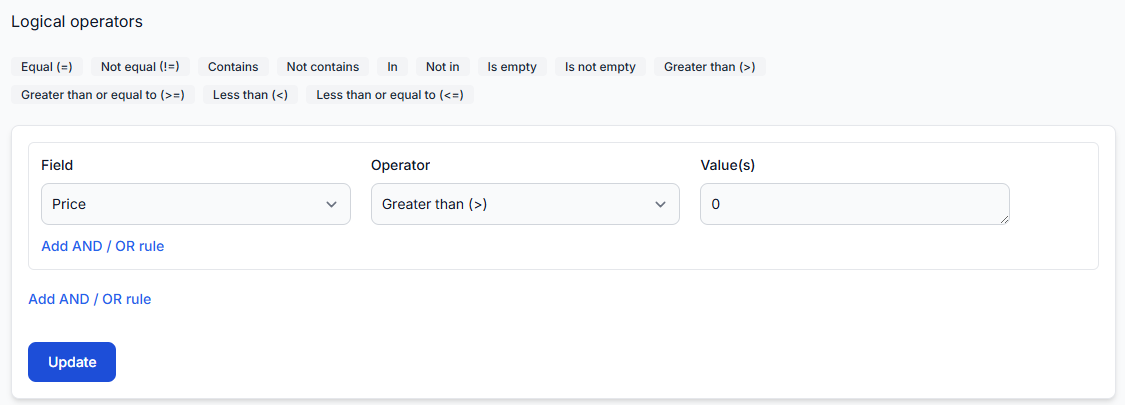
- The campaign products are not excluded by the export filter.
3. Check which field is exported
Confirm that the discounted value is written to the correct XML field. For example, a destination may require the campaign price in price and the previous selling price in price_old.
When both values are required, the regular and promotional values must be created and mapped correctly. Adding a discount does not automatically create every destination-specific price field.
4. Test one EAN in the export checker
When you are logged in, open Export checker. To understand the displayed processing results, read Review product data and export results with export checker.
Use one campaign EAN to compare the supplier value, calculated price, applied rules, and final XML result. This is the safest way to confirm which price was discounted and what value will be sent to the destination.
Common causes of an incorrect campaign price
- The EAN is missing from the discount list. The discount applies only to products matching a configured EAN.
- The product matches an earlier discount block. When an EAN appears in several blocks, the first matching block is used.
- The wrong price value is selected. The discount may be connected to a different internal value from the one written into the final XML.
- The base price is already incorrect. Supplier mapping, coefficients, or transformation rules may produce an unexpected price before the campaign discount is applied.
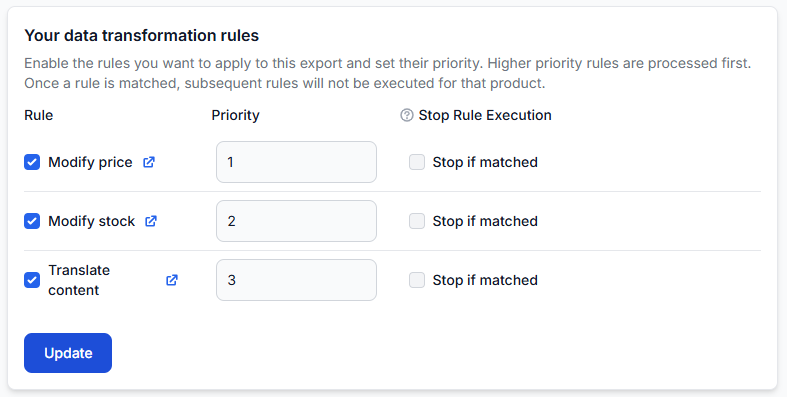
- A transformation overwrites the expected price field. Check the active rules and their priority to understand which values are created before the discount stage.
- The product is excluded from the export. A correct discount configuration has no effect when the product does not pass the export filter.
- The destination expects separate old and new price fields. The XML template may need both the regular price and the discounted price.
Example
A product has a supplier price of €100. The supplier coefficient and active pricing transformations produce a normal selling price of €125.
You add the product’s EAN to a campaign discount block with a coefficient of 0.90. The campaign adjustment is applied to the calculated €125 price:
€125 × 0.90 = €112.50
The export should therefore send €112.50 as the promotional value, provided that the discount is connected to the price field used by the XML template.
What to do next
- Check the product’s normal calculated price before applying the campaign.
- Add the required EAN codes and discount coefficient to the correct export.
- Review the order of all discount blocks.
- Confirm which calculated value is being discounted and which XML field receives the result.
- Test at least one campaign EAN in export checker.
- Inspect the generated XML before the campaign goes live.
- Regenerate or publish the production export only after the promotional and regular prices are correct.
B2BLIX prepares the generated XML using your export configuration. The receiving marketplace, website, or comparison platform controls when it downloads the file and how it validates or displays the submitted campaign prices.