How to troubleshoot rejected feeds, missing marketplace products, and data differences
Trace an affected product from the supplier source through B2BLIX and into the destination to find where it was rejected, excluded, changed, or delayed.
This guide explains how to diagnose rejected XML feeds, products that are missing from a marketplace, unexpected price or stock differences, and sudden changes in exported product counts.
When this guide is relevant
Use this guide when you experience one or more of the following situations:
- A marketplace or another destination rejects the complete feed.
- A product exists in B2BLIX but does not appear at the destination.
- The exported price, stock, title, or another value is different from the supplier value.
- The destination displays a different value from the generated XML.
- The number of exported or published products suddenly decreases.
The most reliable way to investigate these problems is to choose one affected product and follow its EAN through every stage of the workflow.
Short answer
Start with one specific EAN and check it in this order:
- The original supplier XML or JSON source.
- The supplier mapping and validation settings.
- The B2BLIX product catalog.
- The export filters and transformation rules.
- The Export Checker result and generated XML.
- The external destination's import, validation, and publication process.
This separates problems in the B2BLIX output from problems that occur after an external platform downloads the file.
Warning: Changes to mappings, filters, transformation rules, stock settings, or export templates can affect live prices, stock quantities, and product availability. Verify the current settings and test the result with a controlled export before the destination downloads the updated file.
How the troubleshooting process works
B2BLIX processes product information in several stages. A value may change or a product may be excluded at any of these stages.
The original supplier data is first mapped into the common B2BLIX product structure. Products from different suppliers may then be grouped by EAN. An export selects products from the stored catalog, applies its own filters and transformations, and generates an XML file.
After the XML is generated, the external destination controls its own download schedule, file validation, product activation, and public display. A correct B2BLIX export does not automatically confirm that the destination has accepted or published every product.
What to check in your account
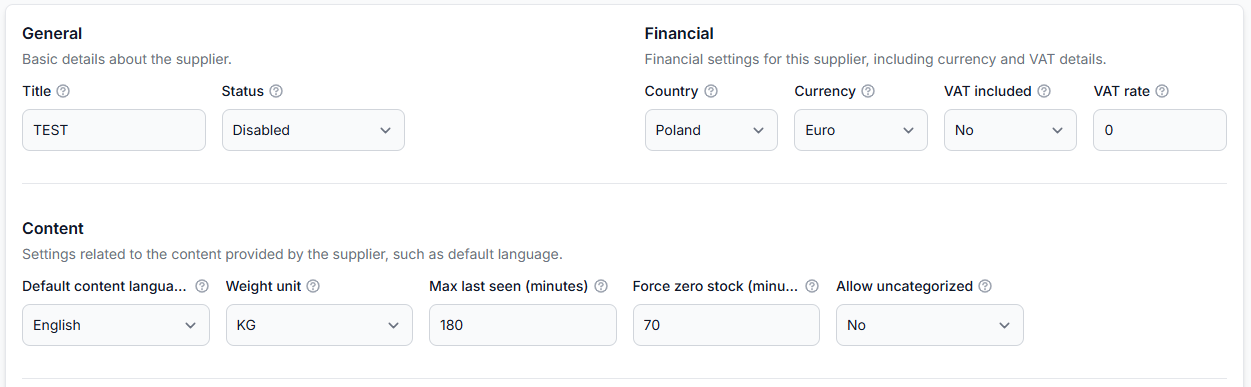
1. Confirm that the product exists in the supplier source
Open the supplier's original XML or JSON data and search for the affected EAN. Confirm that the record contains the expected product information.
Check the following values where relevant:
- EAN: The barcode must be present, usable, and mapped from the field that represents the sellable item.
- Price: Confirm which source field contains the price that should be used.
- Stock: Check whether the supplier currently reports a positive quantity.
- Title: Verify that the expected product title is available.
- Category: Confirm that a category is supplied or that uncategorized products are intentionally allowed.
Some supplier formats contain several identifiers or prices at different levels. For example, one barcode may belong to a general product while another belongs to a specific variation. The mapping must use the value that identifies the actual sellable item.
Products without a usable EAN are not processed through the normal B2BLIX catalog and cross-supplier merging workflow.
To check this in your account, open Suppliers. To understand the supplier settings and mapping workflow, read Add and configure a supplier feed.
2. Check whether the product reached the B2BLIX catalog
Search for the EAN in All Products. This confirms whether the product was imported and stored before any export-specific rules were applied.
If the product is not shown in All Products, investigate the supplier stage first. Common reasons include:
- The EAN is missing, invalid, or mapped from the wrong field.
- A required value is not available in the mapped source fields.
- The product does not have a usable category and uncategorized products are not allowed.
- The supplier no longer includes the product in its latest data.
- The source contains the expected value, but it is located in a different field than the mapping uses.
To check this in your account, open All Products. To understand the product information shown there, read All products interface.
A temporary supplier download problem does not automatically remove the previously stored catalog. However, products that remain absent from later supplier data may eventually have their stock changed to zero or be removed according to the supplier's Force zero stock and Maximum last seen settings.
3. Review the export configuration
A product can exist in All Products but still be excluded from a particular export. Each export is an independent projection with its own product selection, supplier settings, filters, transformations, template, and generation schedule.
Verify that:
- The correct suppliers are included in the export.
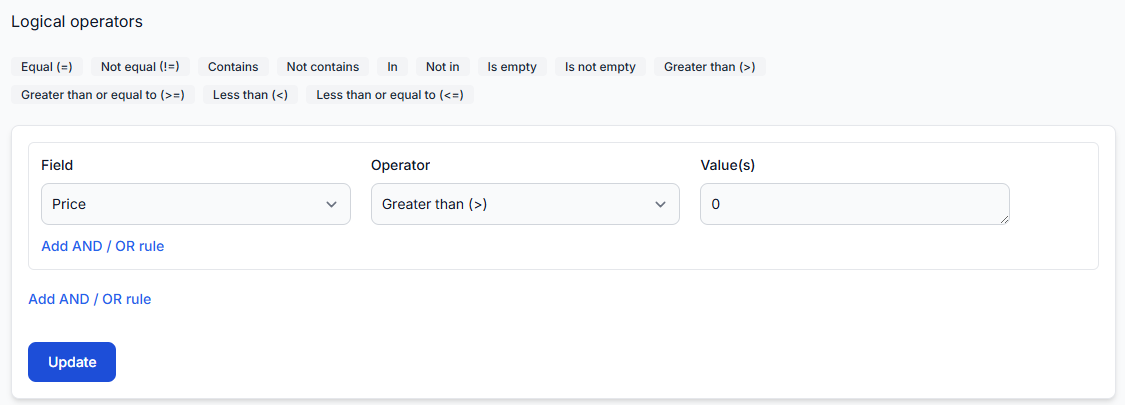
- The product passes all export filters.
- The export does not exclude its EAN, supplier, manufacturer, category, or another attribute.
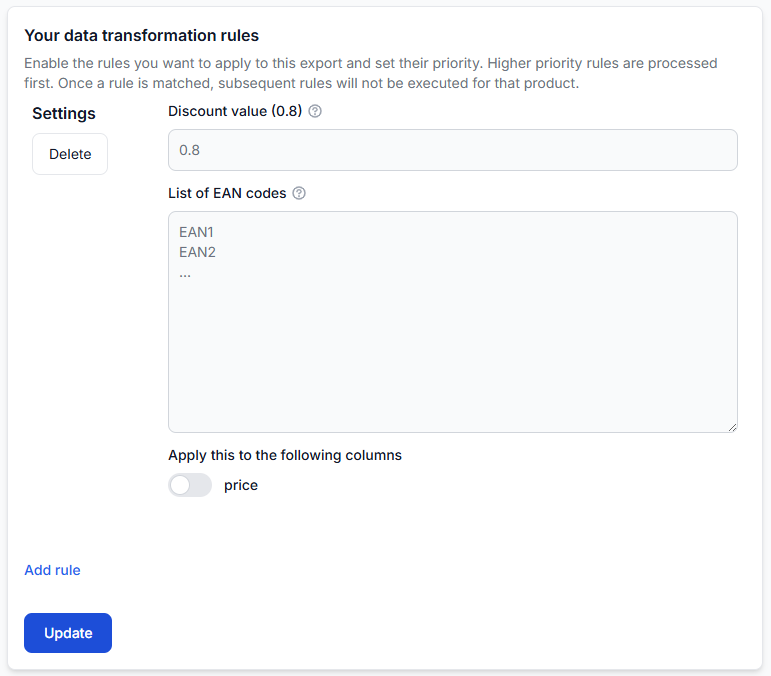
- The required transformation rules are enabled for this export.
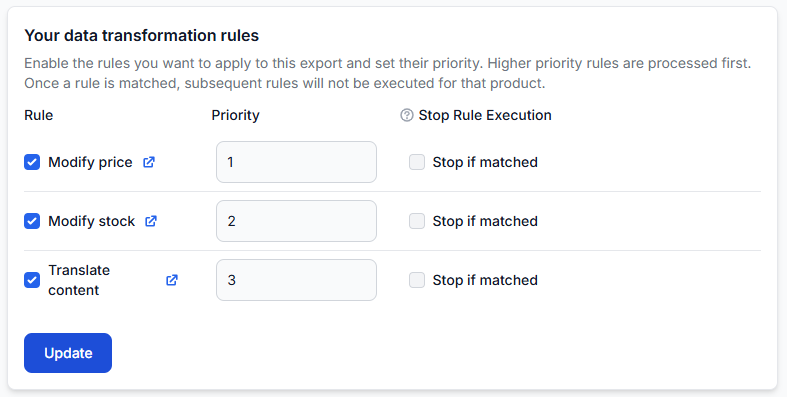
- A higher-priority transformation rule is not producing an unexpected result.
- The required destination fields are included in the XML template.
- You are checking the correct export projection.
An export filter determines whether a product is included at all. A transformation filter determines whether a particular change is applied to the product. These are different checks.
To check the export configuration, open Exports. To understand the available export settings, read Create and configure XML export projections.
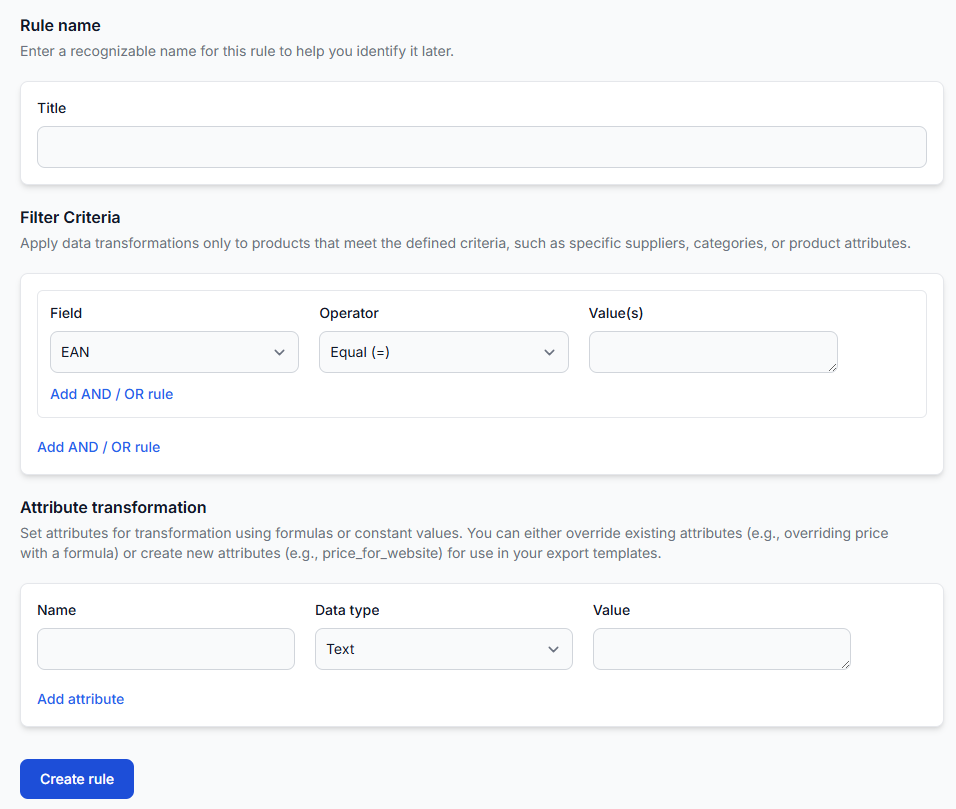
To review rules that can change product values, open Data Transformation Rules. For an explanation of rule filters, transformations, and priorities, read Data transformation rules.
4. Trace the product in Export Checker
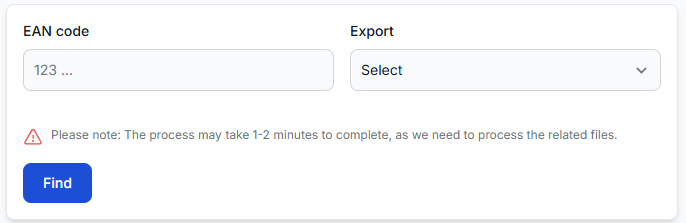
Export Checker is the main product-level troubleshooting tool. Select the relevant export and enter the product's EAN.
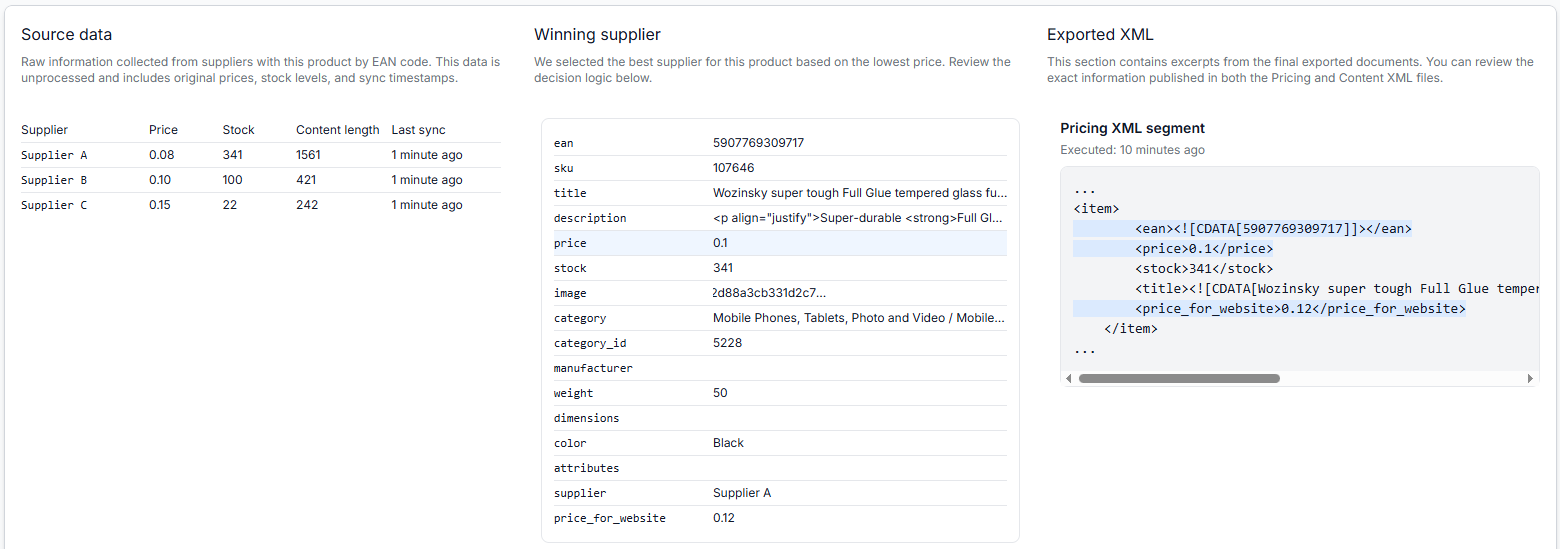
Depending on the product and configuration, the result can show:
- The original supplier data.
- The selected supplier offer.
- The mapped product attributes.
- Filters that included or excluded the product.
- Pricing calculations and transformation rules.
- The final values prepared for the export.
- A representative XML result.
- An exclusion or rejection reason when applicable.
To investigate a product, open Export Checker. To understand the report, read Export Checker: review product data and export results.
5. Inspect the generated XML
If the complete feed is rejected, inspect the generated XML rather than checking only one product.
Confirm that:
- The file is complete and can be opened.
- The expected XML structure is present.
- The destination's required fields are included.
- The affected product appears in the XML when it is expected to be included.
- The exported price, stock, identifiers, and other required values are populated correctly.
If a product appears in the final XML with the expected values, the B2BLIX processing and export stages have produced that result successfully. Continue the investigation at the external destination.
6. Check the external destination
After downloading the XML, a marketplace, store, price-comparison platform, or another destination may apply its own rules.
The external destination may control:
- When the feed is downloaded.
- Whether the file and individual products pass validation.
- Whether a product must be matched to an existing catalog item.
- Whether the product is activated or remains pending.
- How stock is distributed or displayed across countries.
- When an accepted change becomes publicly visible.
If the generated XML is correct but the destination displays different data, provide the destination operator with the affected EAN, the relevant XML values, and any validation message shown in the destination account.
How to interpret the result
| What you find | What it usually means | Where to continue |
|---|---|---|
| The product is absent from the supplier source. | The supplier is not currently providing the product. | Check the supplier data and freshness settings. |
| The product is in the source but absent from All Products. | The problem is likely related to mapping, EAN validation, required data, category handling, or supplier synchronization. | Check Suppliers and the supplier mapping. |
| The product is in All Products but excluded from the export. | An export filter, supplier selection, transformation, or another export setting affected it. | Check Exports and Export Checker. |
| The product is exported, but its value is unexpected. | The mapped source value, pricing calculation, or transformation rule may differ from what was expected. | Compare the source, processing steps, and final XML in Export Checker. |
| The final XML is correct, but the destination differs. | The difference occurred after B2BLIX generated the file. | Check the destination's validation, import, activation, and display process. |
| The complete XML is rejected. | The file structure, required fields, or destination-specific requirements may not match what the destination accepts. | Inspect the export template, generated XML, and destination error message. |
Common causes of missing or different product data
- Incorrect EAN mapping: The mapped field contains a parent-product identifier or another code instead of the sellable item's EAN.
- Invalid or missing EAN: The product cannot enter the normal EAN-based processing workflow.
- Wrong price field: The supplier source contains several prices, but the mapping uses a different value from the intended one.
- Missing category: The product has no resolved category and uncategorized products are not allowed.
- Zero or outdated stock: The supplier reports no availability, or a freshness setting has forced the stock to zero.
- Export filter: The product is removed because of its EAN, supplier, category, manufacturer, price, stock, or another mapped value.
- Transformation-rule priority: Another rule changes the value first or stops later processing.
- Export template: The product is selected, but a required destination field is missing from the XML structure.
- Destination validation: The XML contains the product, but the receiving platform rejects or delays it.
- Destination-side display rules: The receiving platform changes how stock, price, or availability is shown.
When many products disappear at once
A sudden product-count decrease should be investigated by supplier and by export rather than by checking only the total number.
- Choose at least one EAN that is unique to each important supplier.
- Check whether each EAN is still present in All Products.
- Check whether each EAN appears in the current export with a positive price and stock.
- Compare the current XML with an earlier XML from a period when the product count was normal, if both versions are available.
- Review recent supplier availability, stock changes, export filters, and generation results.
- Check whether the destination reported an import or validation error.
Possible causes include a supplier not refreshing, products changing to zero stock, an export filter removing records, an incomplete generated file, or the destination importing a different version of the feed.
Supplier synchronization and export generation use independent schedules. Confirm that the export was regenerated after the supplier data you expected to use became available.
Example
A seller searches for EAN 5901234567890. The product exists in the supplier source and is visible in All Products.
Export Checker shows that the product passed the export filter and that the final XML contains a price of 39.99 and stock of 4. The marketplace still does not display the product.
In this situation, the product has passed the supplier, catalog, and B2BLIX export stages. The next checks should focus on the marketplace's product validation, import status, activation requirements, and publication delay.
If Export Checker instead shows that the product was excluded by a stock or category filter, the export configuration should be reviewed and tested before sending an updated file to the marketplace.
What to do next
- Select one affected EAN rather than troubleshooting only the total product count.
- Confirm the original supplier values and supplier mapping.
- Verify that the product is present in All Products.
- Use Export Checker to identify filters, transformations, calculations, and the final XML result.
- Inspect the complete XML if the destination rejected the whole feed.
- Test configuration changes with a controlled export before applying them to a live destination.
- If the final XML is correct, continue the investigation with the external destination using the EAN, exported values, and destination error information.