How to translate product content and build multilingual exports
Use supplier language settings and data transformation rules to translate selected product titles, descriptions, or other content for multilingual XML exports.
Description: Learn how source-language settings affect translation, how to keep original content, how to translate only selected products, and why translated values may appear gradually in an export.
When this guide is useful
This guide explains how to prepare product content for an export that requires a different language from the original supplier feed. It is relevant when you need to translate product titles, descriptions, or selected attributes for a marketplace, website, price-comparison platform, or another XML destination.
It also explains why translated content may not appear for every product immediately after you enable a translation rule.
Short answer
Product translation is configured through a data transformation rule. The rule uses the supplier's configured content language as the source language and the language selected in the translation function as the destination language.
You choose which attribute to translate, which products the rule applies to, and whether the translated result should replace an existing attribute or be stored in a separate attribute.
In most multilingual workflows, it is safer to create a separate translated attribute. This preserves the original supplier content and allows different exports to use different language versions.
Important: Translation is a separate usage-based operation and may continue processing after an export has already been generated. For a large catalog, translated values can appear gradually across several export generations. Review a controlled product sample before using translated content in a live sales channel.
How the supplier content language is used
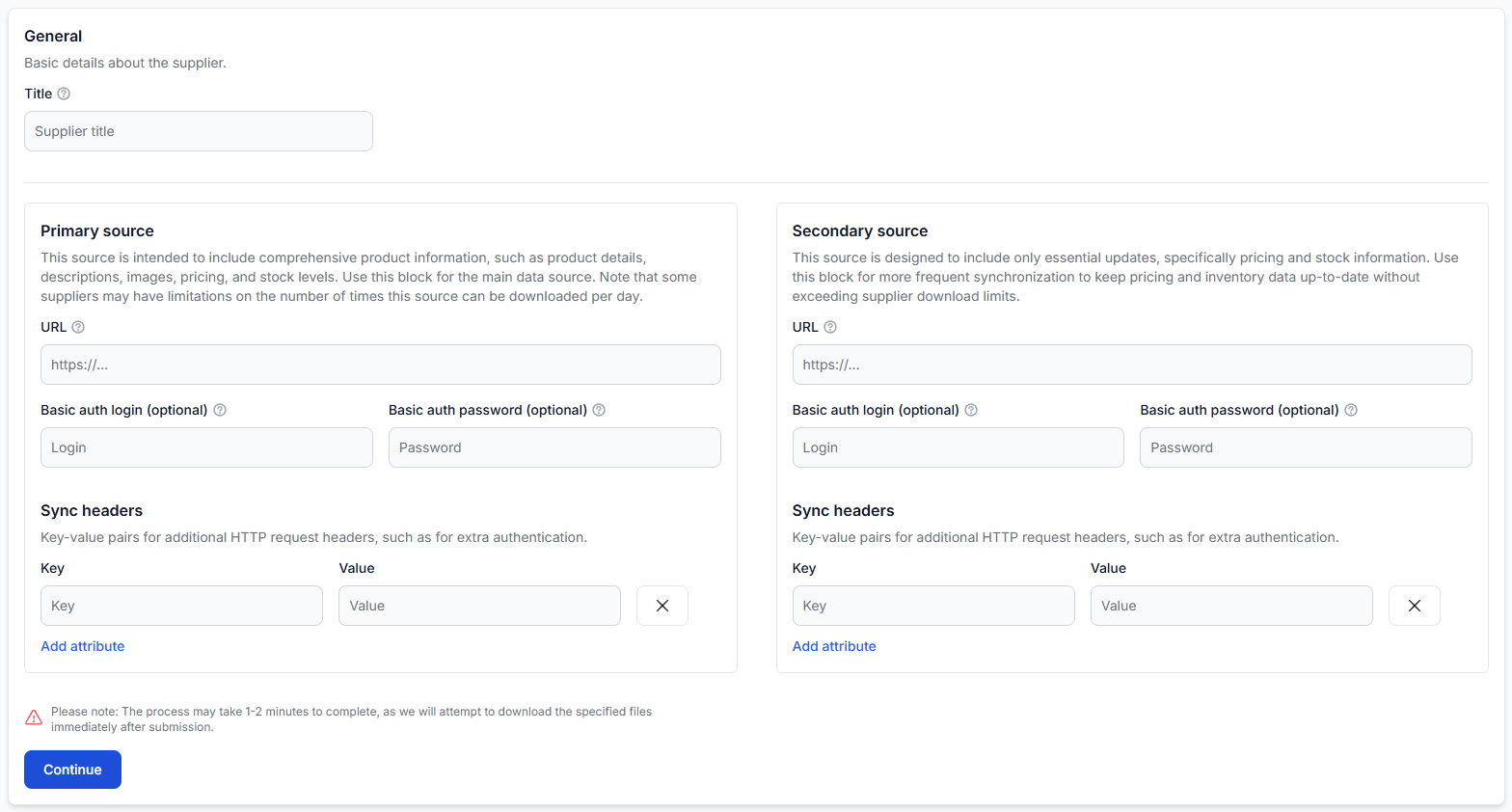
Each supplier can have a default content language. This setting describes the language of the incoming supplier content. When a transformation rule uses the translation function, B2BLIX uses this information to understand the source language from which the content should be translated.
For example, when a supplier's titles and descriptions are in Polish and the supplier content language is set accordingly, a transformation rule can translate those values into Lithuanian, Latvian, English, or another destination language currently available in the application.
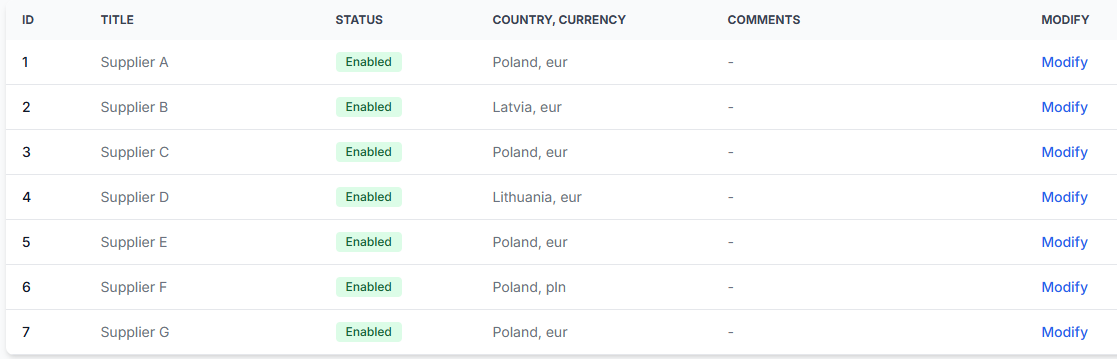
To verify the source-language setting, open Suppliers when you are logged in. To understand the supplier configuration fields, read Add and configure a supplier feed.
Which product fields should be translated?
Translate only the fields required by the destination and your product-content workflow. The most commonly translated fields are:
- Product title, when the destination expects customer-facing titles in a local language.
- Long description, when detailed product information must be localized.
- Additional text attributes, when they are displayed to customers or required by the destination.
Avoid translating identifiers, prices, stock quantities, EAN values, supplier SKUs, or other fields that are not language-dependent.
Before creating a rule, confirm which translated fields are required by the system that will import the generated XML. Some destinations may need only a translated title, while others may require descriptions and additional attributes as well.
Should the translated value replace the original?
A transformation rule can override an existing attribute or create a new attribute. The correct choice depends on how the generated XML will be imported and used.
Create a separate attribute when possible
A separate translated attribute is usually the safer option because it:
- Preserves the original supplier content.
- Allows you to compare the source and translated values.
- Lets different exports use different language versions.
- Makes it easier to identify translation or mapping problems.
- Avoids changing the source-language value for exports that still need it.
For example, you can keep the original title and create another destination-specific attribute containing the translated title. The export template can then map the translated attribute to the title element required by that destination.
Override the original attribute only when required
Overriding the original field may be appropriate when an export is designed for one language and the receiving system expects the translated value under the standard attribute name.
Before doing this, verify that no other assigned rule or export depends on the original value. Also check the rule priority, because another transformation may change the same attribute before or after the translation rule.
How to translate only selected products
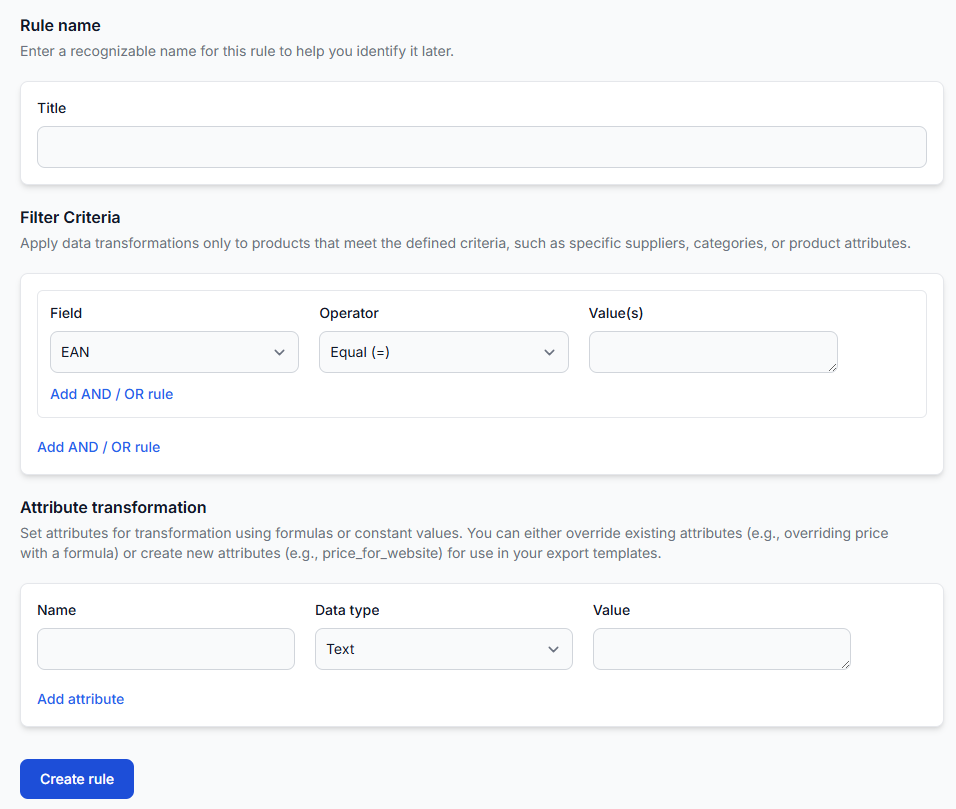
Each data transformation rule can include its own filter criteria. Only products that match the filter are processed by that rule.
You can therefore limit translation by conditions such as:
- Supplier.
- Category or category ID.
- Manufacturer.
- Product title or description content.
- EAN or SKU.
- Whether the source attribute is empty or not empty.
- Other available product attributes relevant to your workflow.
For example, a rule can translate descriptions only for products from one supplier, only for products in selected categories, or only when the original description is present.
To create or review the rule, open Data Transformation Rules. To understand rule filters, priorities, and attribute transformations, read Data transformation rules.
Why translation and export timing are different
Supplier synchronization, translation processing, and export generation are separate operations. An export can run on its configured schedule while translations are still being processed.
When a translation rule is first applied to a large number of products, the translation requests may be processed over time. As results become available, later export generations can contain more translated values than earlier ones.
This means that an hourly export does not guarantee that every newly requested translation will be completed within one hour. The export uses the latest values available in the B2BLIX catalog at the time it is generated.
Warning: Do not treat the first generated XML file as confirmation that translation has finished for the complete catalog. Publishing a partially translated export may result in mixed-language product content on the destination platform.
Example of gradual translation
Suppose you apply a translation rule to 100,000 products and the full translation workload takes approximately six hours. Your export is generated once per hour.
The first export may contain translated values for only part of the catalog. Each following export may include more translated products until processing is complete. The exact progress can vary, so this example should not be treated as a guaranteed processing rate.
A product may also still contain a value even when its text has not changed from the source language. Do not use only the presence of a non-empty value as proof that the content has been translated correctly. Check the actual language and meaning of the result.
What to check in your account
- Verify the supplier content language. Open Suppliers, select the relevant supplier, and confirm that its content language describes the incoming title and description language.
- Review the source attribute. Confirm that the title, description, or other field contains usable source content before translation.
- Check the rule filter. Make sure the intended products match the transformation rule and that the filter is not excluding them.
- Check the destination language. Confirm that the translation function is configured for the language required by the export destination.
- Check the target attribute. Confirm whether the rule should replace the original field or create a separate translated attribute.
- Review rule priority. Another rule may change the same field or stop further transformations after a match.
- Confirm that the rule is enabled for the export. An existing transformation rule affects an export only when it is included in that export's configuration.
- Confirm the XML mapping. Make sure the export template writes the translated attribute into the correct XML element.
- Allow time for translation processing. For a large product selection, review several export generations rather than checking only the first one.
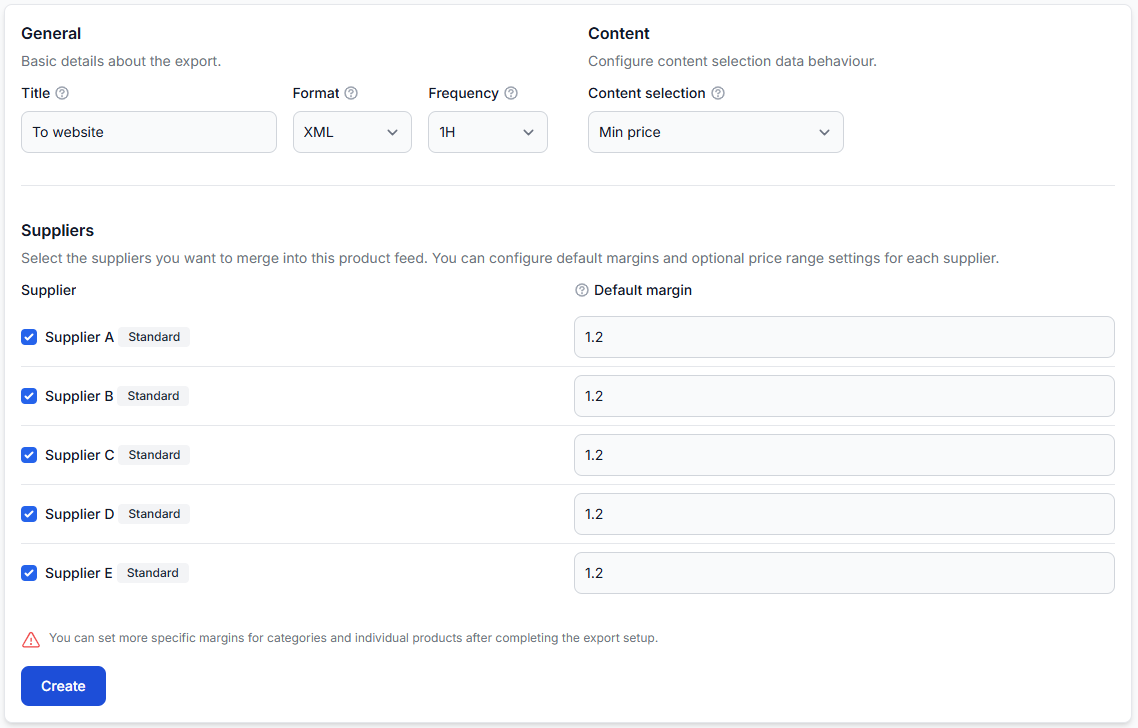
To review which transformations are assigned to an export, open Exports. To understand export filters, transformation priorities, templates, and schedules, read Create and configure XML export projections.
Common reasons for missing or unexpected translated content
- The supplier language is incorrect. The configured source language does not match the actual incoming content.
- The product does not match the rule filter. The translation rule is limited to a different supplier, category, manufacturer, or product condition.
- The source field is empty. There is no title, description, or other source value for the translation function to process.
- The translation rule is not assigned to the export. The rule exists but is not enabled in the relevant export projection.
- The translated attribute is not mapped in the XML template. The value may exist in B2BLIX but is not written to the generated XML.
- Another rule changes the same field. Rule priority or a stop-after-match setting may produce a different final value.
- Translation is still processing. Some products have completed translation while others are still pending.
- The text remains similar to the source. Product names, brand terms, model numbers, or already localized text may not visibly change.
How to verify the final result
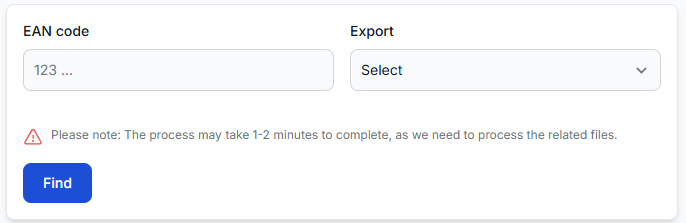
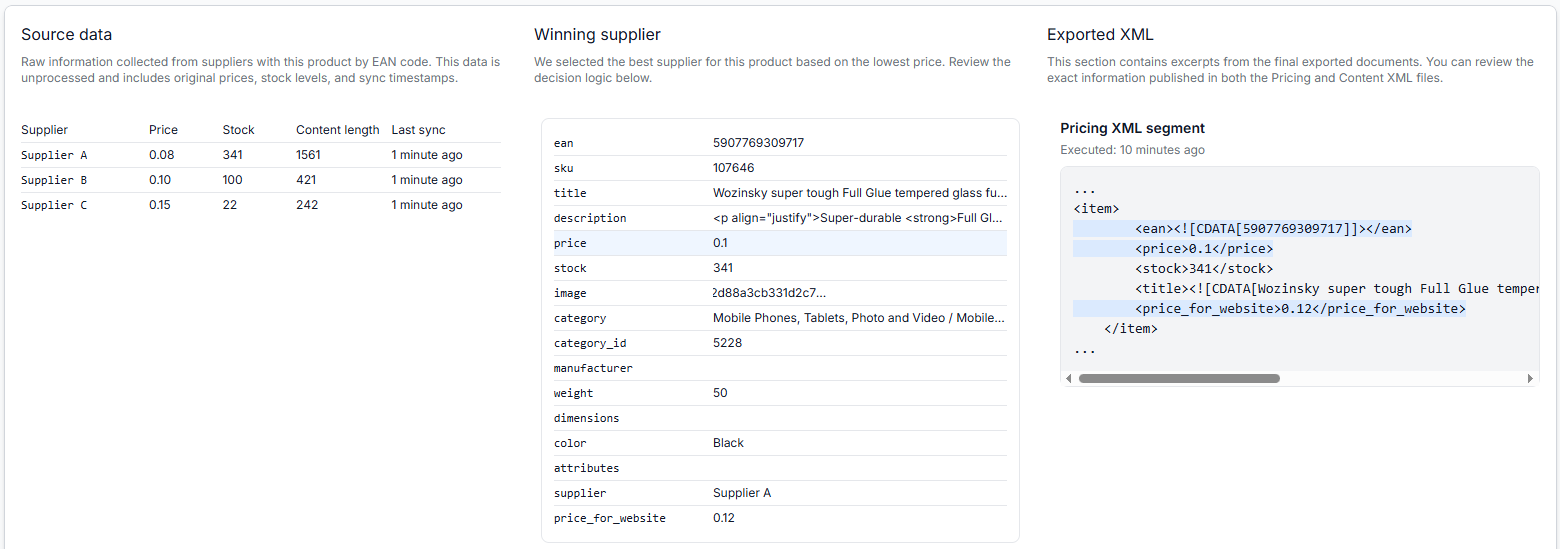
Check individual products instead of relying only on the complete export file. Use a known EAN from the affected product group and compare the source content, applied transformations, final attributes, and generated XML.
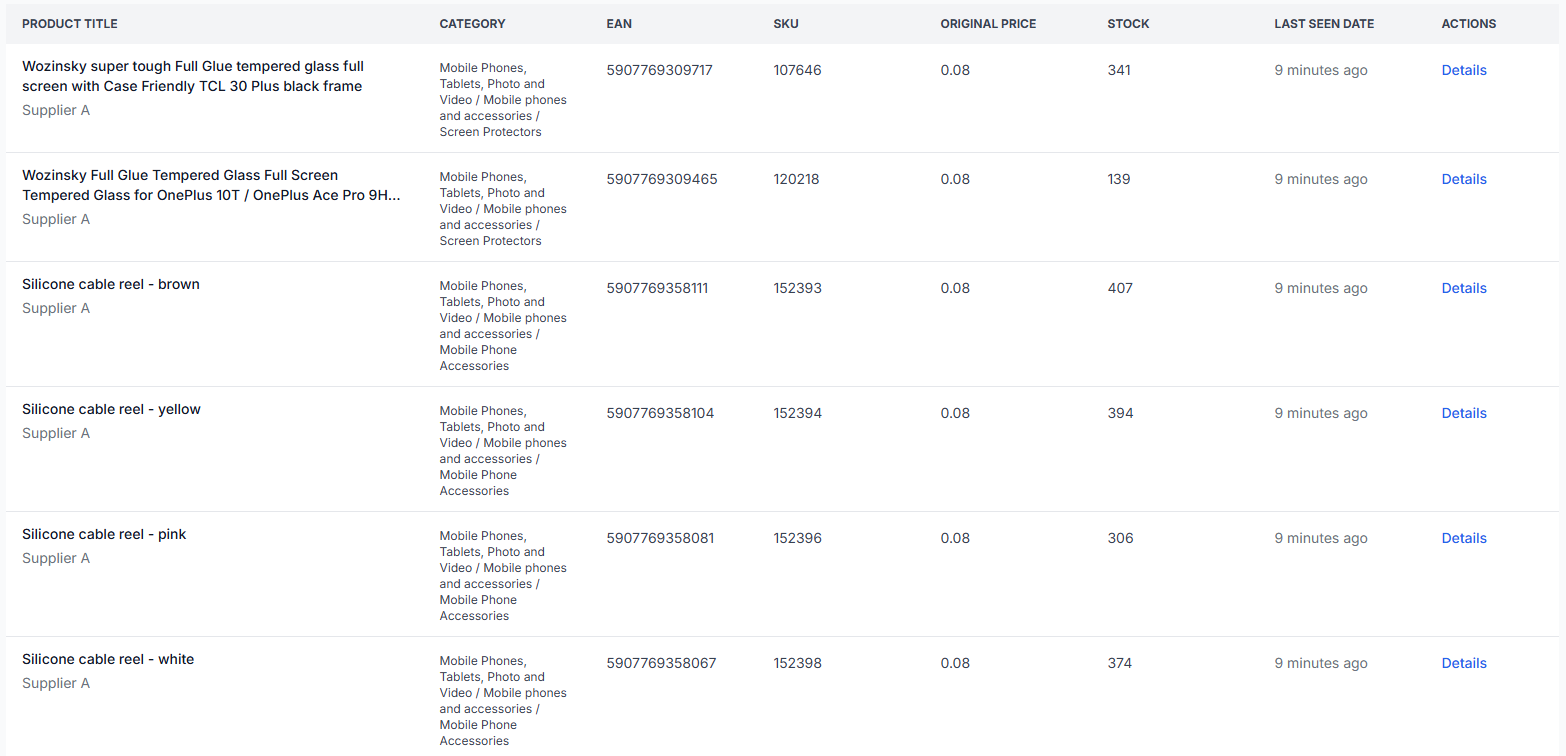
To inspect a product, open Exports Checker. For details about the information shown there, read Exports Checker: review product data and export results.
What to do next
- Start with a small, clearly filtered product group.
- Keep the original title or description and create a separate translated attribute where possible.
- Assign the transformation rule to a test export.
- Check several products in the Exports Checker.
- Review more than one export generation when processing a large catalog.
- Confirm that the destination imports the correct translated XML elements.
- Expand the rule to more products only after the source language, filters, output mapping, and final text have been verified.