How to turn a destination xml specification into a b2blix export template
Learn how to convert a marketplace, website, or partner xml specification into a practical B2BLIX export template, including product paths, output fields, values, transformations, and validation.
What this guide helps you do
A destination may provide an XML specification describing the structure and product information it expects. Your task is to translate that specification into an export projection that uses your B2BLIX catalog data.
This usually involves identifying the repeating product path, creating the required output fields, choosing where each value comes from, and preparing values that need calculation or formatting.
B2BLIX Feed creates XML exports from mapped catalog data, export-specific product selections, filters, transformation rules, and template settings.
Short answer
Start by converting the destination specification into a simple field plan. For every destination field, record:
- The xml element name and its location in the document.
- Whether the field is required or optional.
- Which B2BLIX attribute should provide the value.
- Whether the value must be calculated, reformatted, translated, or replaced.
- Whether the field uses a fixed value that is the same for every product.
- What should happen when the source value is empty.
You can then build the structure in the export template and use data transformation rules for values that cannot be used directly.
Changes to an enabled export can affect the xml file used by a website, marketplace, price-comparison platform, or another destination. Review the current settings and generated xml before changing a live template.
Prepare the destination requirements first
Before configuring the export, create a checklist from the destination specification. Separating required and optional fields makes it easier to identify missing product data and avoid spending time on fields that the destination does not need.
| Requirement to record | What it means | Example |
|---|---|---|
| Xml location | Where the element appears in the document structure. | products/product/ean |
| Output field name | The exact xml element name expected by the destination. | ean |
| Required or optional | Whether the destination expects the field for every applicable product. | EAN required; description optional |
| Value source | The B2BLIX attribute, transformed attribute, or fixed value used in the field. | EAN, price_for_website, or EUR |
| Formatting rule | Any calculation, text cleanup, translation, or conditional logic required. | Remove html from description |
| Empty-value requirement | What the destination expects when the source value is unavailable. | Use an approved default or do not include the product |
Use the destination's exact field names and documented formats. Do not rename a destination field simply because the corresponding B2BLIX attribute has a different name.
Understand the parts of an xml template
Root and container paths
The root is the outer structure of the xml document. It normally appears once and contains the exported product collection.
For example, a destination specification may place all products inside a structure such as catalog/products.
Product path
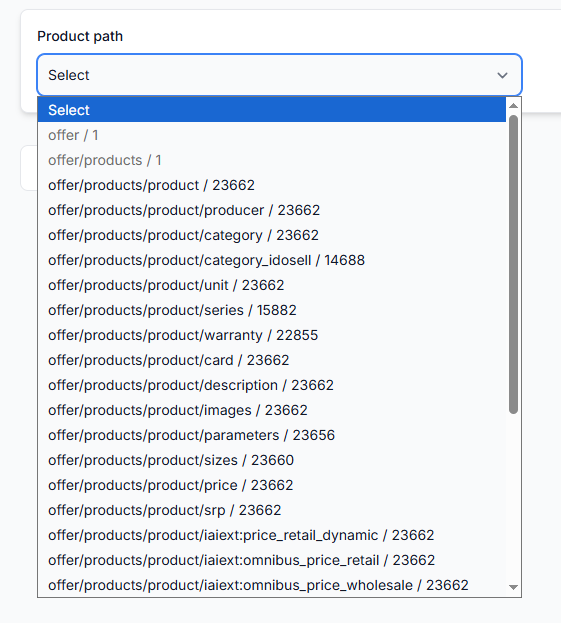
The product path identifies the xml element that repeats for every selected product. If the specification uses catalog/products/product, each exported product is written as a separate product element inside that path.
Output field names
Output field names are the xml element names required by the destination, such as ean, price, stock, or title.
They describe the destination structure. They do not determine where the field's value comes from.
Dynamic values
A dynamic value comes from the current product data. It may use:
- A standard mapped attribute such as ean, price, stock, or title.
- A value selected from the supplier data.
- A new attribute created by a data transformation rule, such as price_for_website.
The value can therefore be different for every product.
Constants
A constant is a fixed value written for every applicable product. It is useful when the destination requires information that does not change between products.
For example, a currency field could use the constant EUR when that is correct for the entire export.
Use a constant only when the value is genuinely valid for every affected product. A fixed value should not be used to hide incomplete or inconsistent supplier data.
Defaults
A default is a prepared fallback used when the normal source value is empty. Defaults are appropriate only when the destination allows the fallback and the value remains accurate.
Before adding a default, verify:
- Whether the destination permits a fallback for that field.
- Whether the same fallback is valid for all affected products.
- Whether an empty required value should instead cause the product to be excluded.
- Whether the missing value should be corrected in the supplier mapping or source data.
Build the export template
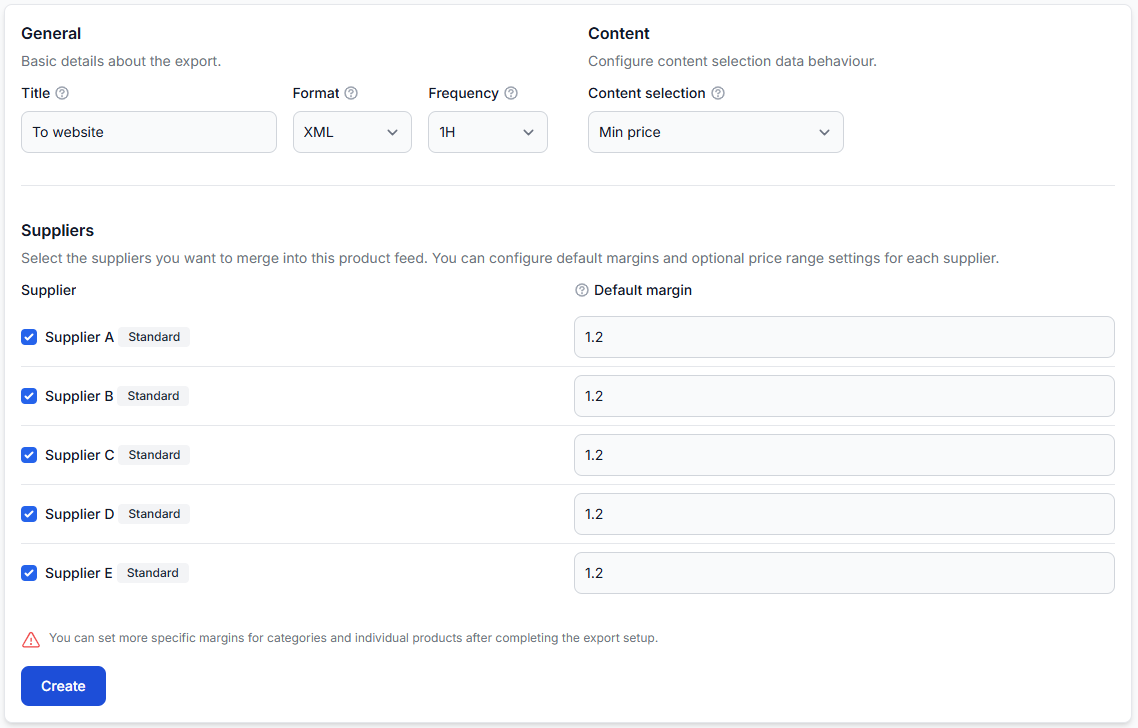
To configure the xml structure, open Exports in your account. For details about the export settings and template interface, read Create and configure xml export projections.
- Create a new export or open the export you are preparing.
- Configure the general export settings and select the relevant suppliers and products.
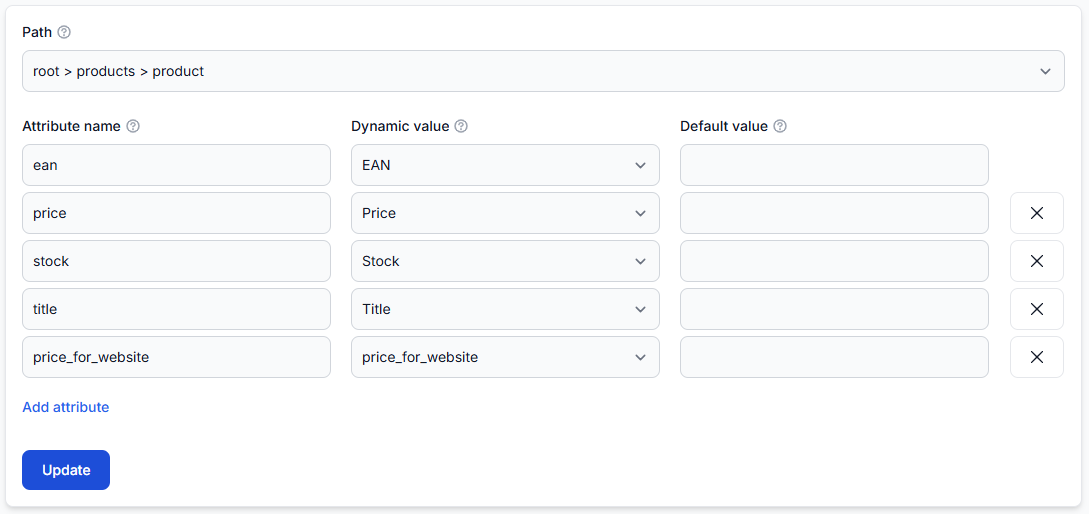
- Set the repeating product path according to the destination specification.
- Add the destination's required output field names.
- Connect each output field to a standard attribute, a transformed attribute, or an appropriate constant.
- Add optional fields only when they provide useful data and match the destination specification.
- Save the configuration and review the generated xml before using it in a production channel.
Use transformations when a value cannot be exported directly
Some destination requirements can be fulfilled with standard mapped attributes. Other values must be prepared before they are added to the template.
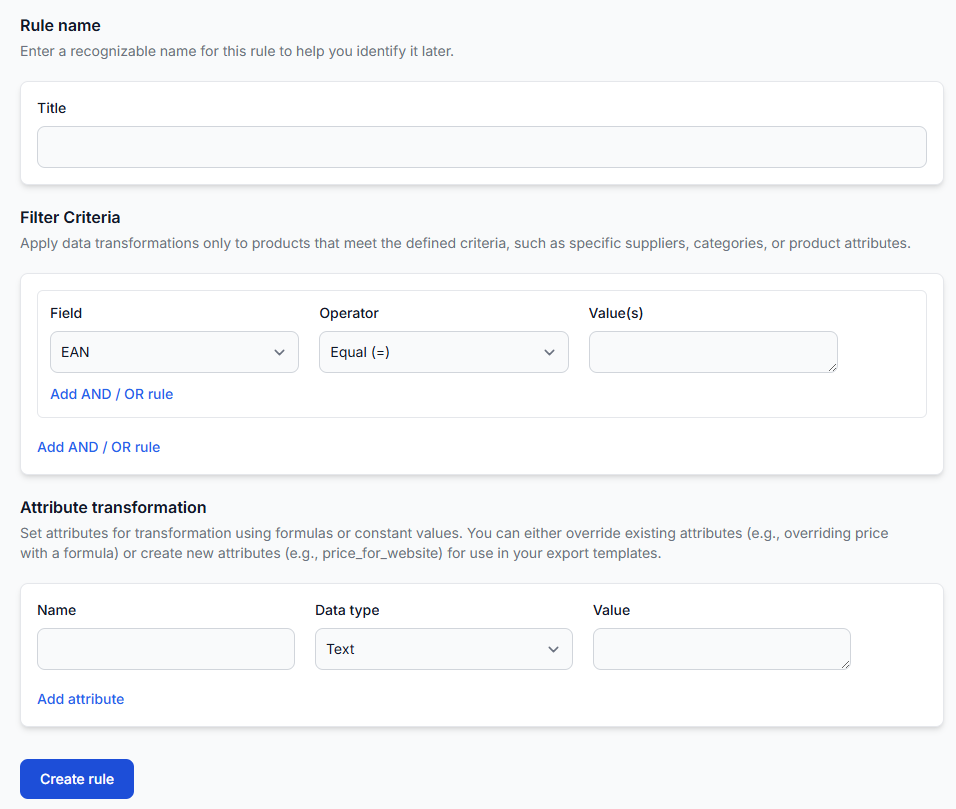
To create or review these rules, open Data transformation rules in your account. For an explanation of rule filters, expressions, priorities, and transformed attributes, read Data transformation rules.
Common uses include:
- Calculating a destination-specific price.
- Applying VAT, a fixed margin, or a percentage margin.
- Rounding numeric values.
- Creating a destination-specific title.
- Translating selected content.
- Converting html descriptions to plain text.
- Changing letter case or title formatting.
- Combining several attributes into one output value.
- Using conditional logic when different products require different values.
- Creating an additional attribute without replacing the original value.
When to use category ids or category codes
Category titles can be long, translated, or written differently by different suppliers. A category id is often easier to use in a filter or conditional transformation because it provides a shorter and more consistent reference.
For example, a rule could apply a particular value only when category id matches a selected category. It could also exclude products from that category or create a destination-specific attribute.
To review available B2BLIX categories and their ids, open Category map in your account. For details about the category hierarchy and supplier-category relationships, read Category map interface.
If the destination uses its own category codes, check whether those codes are different from the B2BLIX category ids. When they are different, prepare the required destination value through an appropriate rule or mapping rather than assuming the ids are interchangeable.
Handle empty values, html, and special characters
Empty values
Use empty-value conditions in a transformation rule when the output depends on whether an attribute is available. Depending on the destination requirement, the rule may create an approved fallback, select another attribute, or help identify products that should not be included.
Do not automatically add defaults to every empty field. First check whether the field is required and whether the proposed fallback is accurate.
Html content
If a destination requires plain text but a supplier description contains html, use the html-to-text function in a data transformation rule. Connect the resulting transformed attribute to the destination field in the export template.
Special characters
Review the generated xml to confirm that titles, descriptions, manufacturer names, and other text values appear correctly. Pay particular attention to products containing quotation marks, ampersands, accented letters, or multilingual content.
A destination may also impose its own character, length, or content restrictions. Those requirements must be taken from the destination specification.
Validate the generated xml
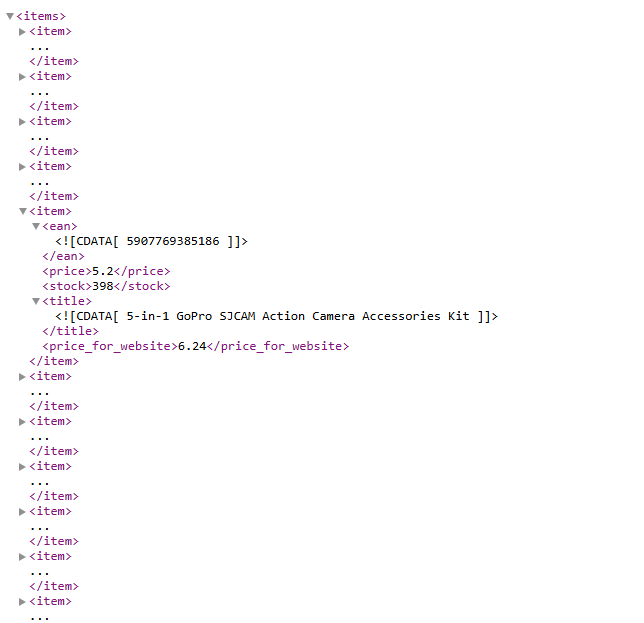
After saving the template, open the export's general settings from the Exports section. When you are logged in, use the export's public url to open the generated xml in your browser and review its current contents.
Check that:
- The outer xml structure matches the destination specification.
- The product element repeats at the correct path.
- The required output fields use the correct names.
- The fields contain the expected product values.
- Constants appear only where intended.
- Calculated and transformed values are present.
- Empty values are handled according to your plan.
- A small selection of products with unusual data also looks correct.
Successfully generating and opening the xml confirms that B2BLIX produced an output file. It does not confirm that an external marketplace, website, or partner has accepted, imported, or published the file.
Do not publish or share a private customer-specific export url in public documentation or with unauthorized parties.
Check individual products when the result is unexpected
When one product has a missing field, an unexpected value, or is not included, use Export Checker to inspect the product-level result.
Open Exports checker in your account. For details about the source data, processing information, and exported xml shown there, read Exports checker: review product data and export results.
Depending on the product, review:
- The original supplier values.
- The mapped B2BLIX attributes.
- The supplier selected for the product.
- Export filters that may have included or excluded it.
- Transformation rules that changed its values.
- The final attributes used by the export.
- The representative exported xml.
Common implementation problems
- The output field name is incorrect. The B2BLIX attribute name was used instead of the element name required by the destination.
- The product path is set at the wrong level. The repeating path must represent one complete product, not the entire collection or one individual attribute.
- A required field has no mapped value. Check the supplier mapping and confirm that the product contains the required source data.
- A calculated attribute was not created. Create the required data transformation rule and make sure it is enabled for the export.
- A transformation does not apply to the intended products. Check its filter criteria, priority, and any stop-if-matched behavior configured in the export.
- A constant is being used where product-specific data is required. Replace it with a mapped or transformed dynamic value.
- Category identifiers were treated as destination codes. Confirm which category system the destination expects and transform the value when necessary.
- The xml opens correctly but is rejected externally. Compare it with the destination's required fields, formats, permitted values, and import rules. Xml generation alone does not prove destination acceptance.
Example: preparing a marketplace product record
Suppose a marketplace requires one repeating product element containing ean, price, stock, title, and currency.
- ean uses the standard ean attribute.
- stock uses the current exported stock value.
- title uses the mapped title or a destination-specific transformed title.
- price uses a transformed attribute that includes the required margin and rounding.
- currency uses the constant eur because every price in this export is prepared in euros.
If the destination requires plain-text descriptions, create an additional transformed description using the html-to-text function and connect that attribute to the appropriate output field.
What to do next
- Convert the destination specification into a required-and-optional field checklist.
- Confirm that the necessary supplier attributes are mapped and available in B2BLIX.
- Create any calculations, formatting rules, defaults, or conditional values in data transformation rules.
- Build the xml product path and field mappings in the export template.
- Generate the xml and compare it with the destination specification.
- Inspect representative products, including products with empty or unusual values.
- Use Export Checker when an individual product result is unclear.
- Test the file with the destination using a controlled product selection before expanding the export.
Keep the test export separate from a live sales-channel workflow where possible. Expanding the catalog only after the structure and values have been reviewed reduces the risk of publishing incorrect prices, stock, content, or product selections.