How to change a supplier url or feed structure without breaking exports
Learn how to replace a supplier URL or migrate to a changed XML or JSON structure while reducing the risk of missing products, incorrect values, or incomplete exports.
Description: This guide explains why existing mappings may stop working after a supplier-source change, what to review before enabling synchronization, and how to verify the affected exports.
When this guide is relevant
Use this guide when a supplier gives you a new feed URL, changes the structure of an existing XML or JSON feed, replaces one source file with another, or changes how primary and secondary sources are connected.
The change should be treated as a controlled migration. Even when the new source contains the same products, its product path, field names, or field locations may be different. Existing mappings can then stop finding important values such as EAN, price, stock, title, or category.
Short answer
It is recommended to disable the supplier while changing the source configuration. Update the URL, review the product path, review every mapping, and verify any primary-to-secondary source connection before enabling the supplier again.
You should also identify every export that uses this supplier. After the supplier has synchronized successfully, inspect several known products and check the final output of each dependent export.
Warning: A source or mapping change can affect exported prices, stock quantities, product availability, and content. Do not re-enable the supplier until the new structure and mappings have been checked carefully.
Why an old mapping can become invalid
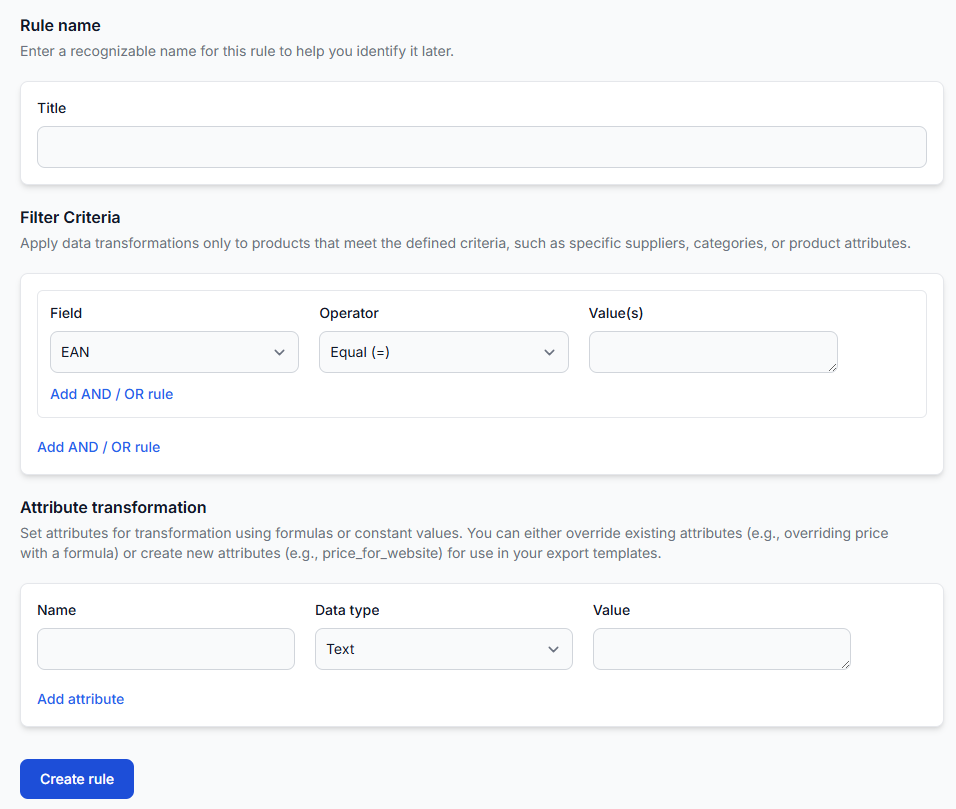
B2BLIX reads product information from specific locations in the supplier's XML or JSON structure. During supplier setup, those locations are connected to standard B2BLIX fields.
For example, the old source may store the product identifier in a field called EAN. The new source may call it barcode or place it under a different product section. The old mapping continues looking in the previous location and may therefore receive an empty value.
This is especially important for EAN. B2BLIX uses an accepted EAN as the primary product identifier. Products without a usable EAN are not processed through the normal product-merging workflow. A broken EAN mapping can therefore make many products disappear from the expected catalog and export results.
The URL itself is not always the problem. If the new URL returns exactly the same structure, an existing mapping may still work. However, you should verify the structure rather than assume that it is unchanged.
Prepare before changing the supplier
Before editing the source, record a few checkpoints from the current working configuration. This gives you something practical to compare after the migration.
- Note the current supplier URL and whether a secondary source is used.
- Record the current product count or another available catalog count.
- Select several representative products and note their EANs.
- Include products with different stock statuses, prices, categories, and content quality.
- Note which exports use the supplier.
- Record the expected price, stock, title, and supplier for the selected sample products.
The purpose of recording sample EANs is not to convert an old EAN into a new one. The same known EANs are used as checkpoints before and after the change. If they cannot be found afterward, the source data, product path, EAN mapping, or another eligibility condition may need attention.
Change the supplier source safely
- Disable the supplier. This reduces the risk of synchronizing a partially configured source while paths and mappings are being changed.
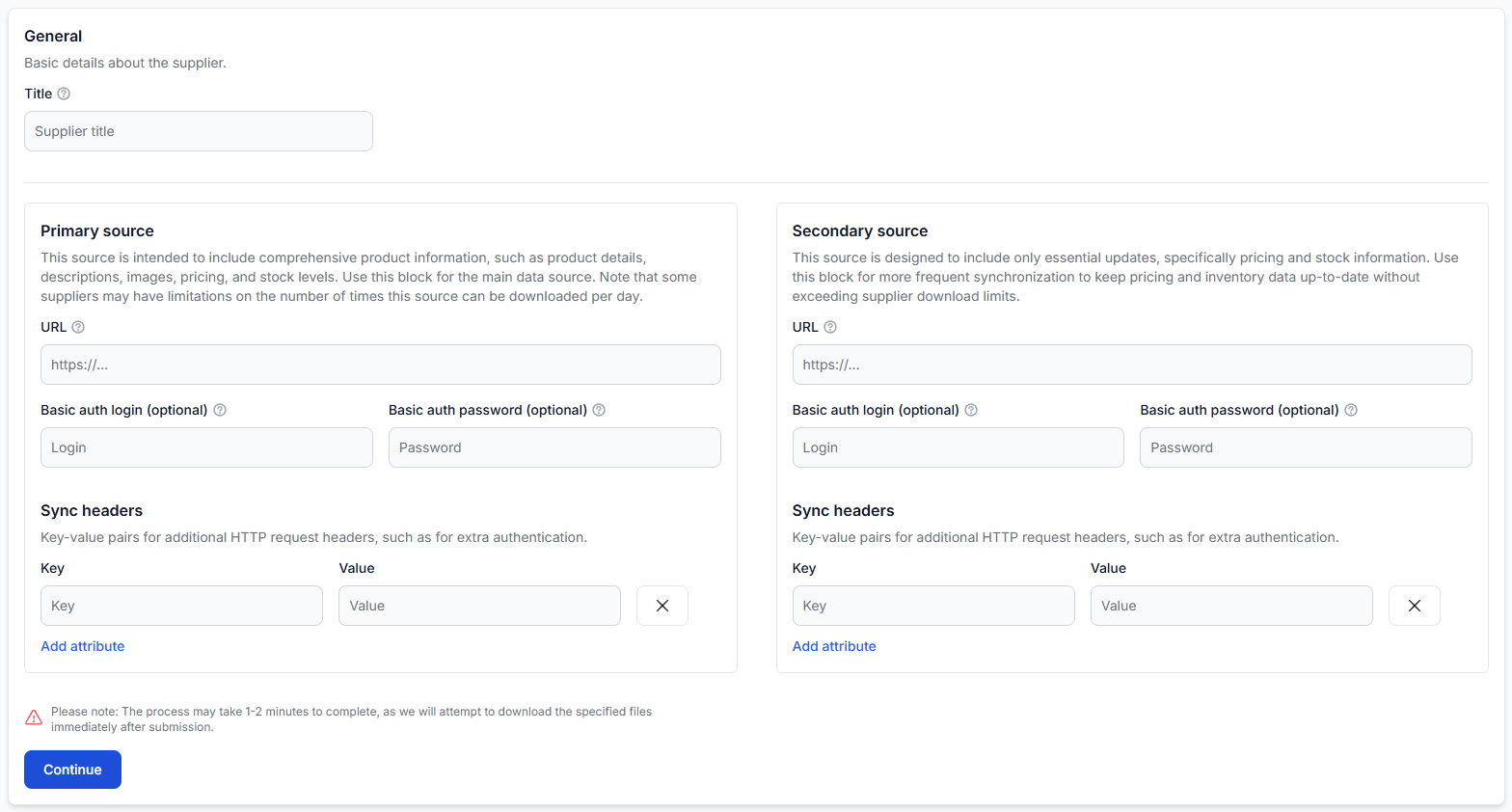
- Replace the source URL or source configuration. Check any relevant authentication or request settings, but do not publish or share private supplier URLs, credentials, or headers.
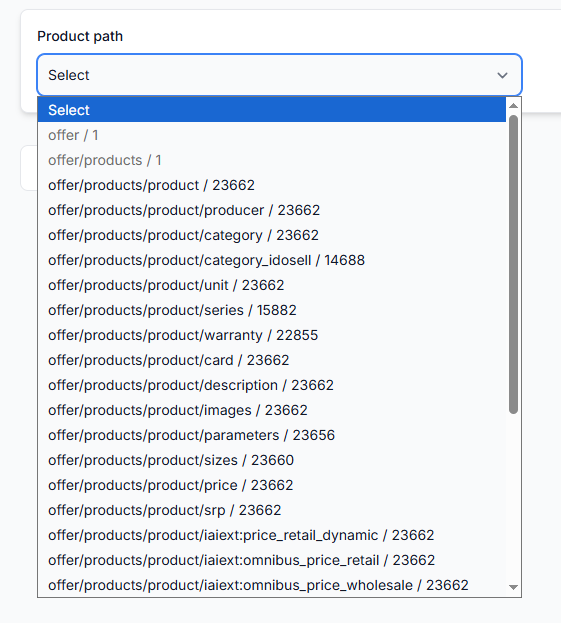
- Review the complete product path. Confirm that B2BLIX is reading the repeating element that represents one complete product.
- Review every primary-source mapping. Do not check only EAN, price, and stock. Review all mapped content and commercial fields.
- Review every secondary-source mapping. Do this when the supplier uses a separate update, stock, price, or content source.
- Review the primary-to-secondary connection. Confirm that the selected identifiers still connect the correct records and that the two sources continue to have a reasonable product intersection.
- Check the mapping previews. Verify that the displayed example values are real product values and are taken from the expected fields.
- Enable the supplier only after the configuration is complete. Allow the supplier to synchronize according to its configured schedule, and then begin the product and export checks described below.
To change the source and review its mappings, open Suppliers. For an explanation of the supplier configuration and mapping workflow, read Add and configure a supplier feed.
Mappings that must be reviewed
A supplier-structure migration should include a full mapping review. A field that still displays a value is not necessarily mapped to the correct new location.
Primary source
Check all fields used from the main supplier source, including relevant identifiers, prices, stock, product content, images, categories, manufacturers, dimensions, and other mapped attributes.
Secondary source
If a secondary source is configured, check its product path and mappings separately. A supplier may change the main catalog while leaving the update feed unchanged, or change both sources at the same time.
Source connection
When primary and secondary sources are connected, review the identifiers used to match their records. A correct primary mapping and a correct secondary mapping will not help if the connection between them no longer matches the same products.
Financial and content interpretation
A structural change does not automatically mean that supplier financial settings must change. However, confirm whether the new source still uses the same currency, VAT treatment, content language, weight units, and stock conventions before leaving those settings unchanged.
Find exports that depend on the supplier
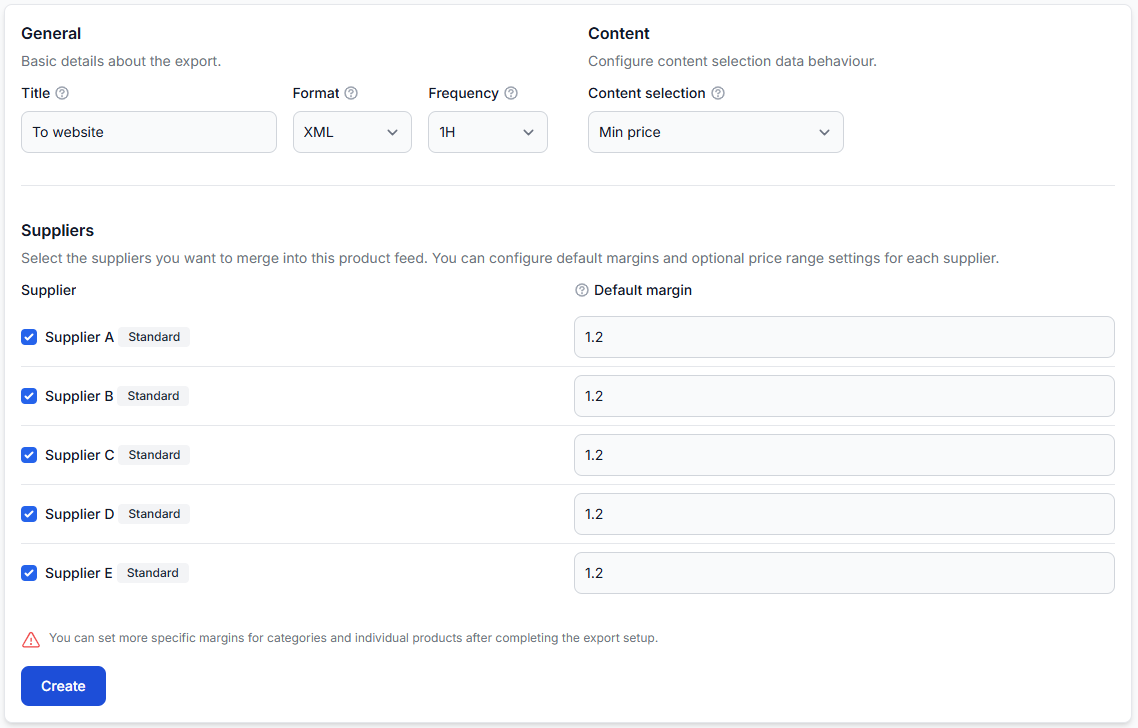
An export projection can use only selected suppliers from the complete B2BLIX catalog. A supplier is directly relevant to an export when it is selected in that export's supplier settings.
Open each export that may use the supplier and check the supplier-selection checkboxes. You do not need to test unrelated exports in which the supplier is not selected.
To review this in your account, open Exports. To understand the export settings, read Create and configure XML export projections.
Important: Disabling a supplier should not be treated as proof that all previously stored products have immediately disappeared from every export. Previously collected catalog data may remain available according to the account's freshness and retention settings. Always inspect the actual export result.
Compare products before and after the change
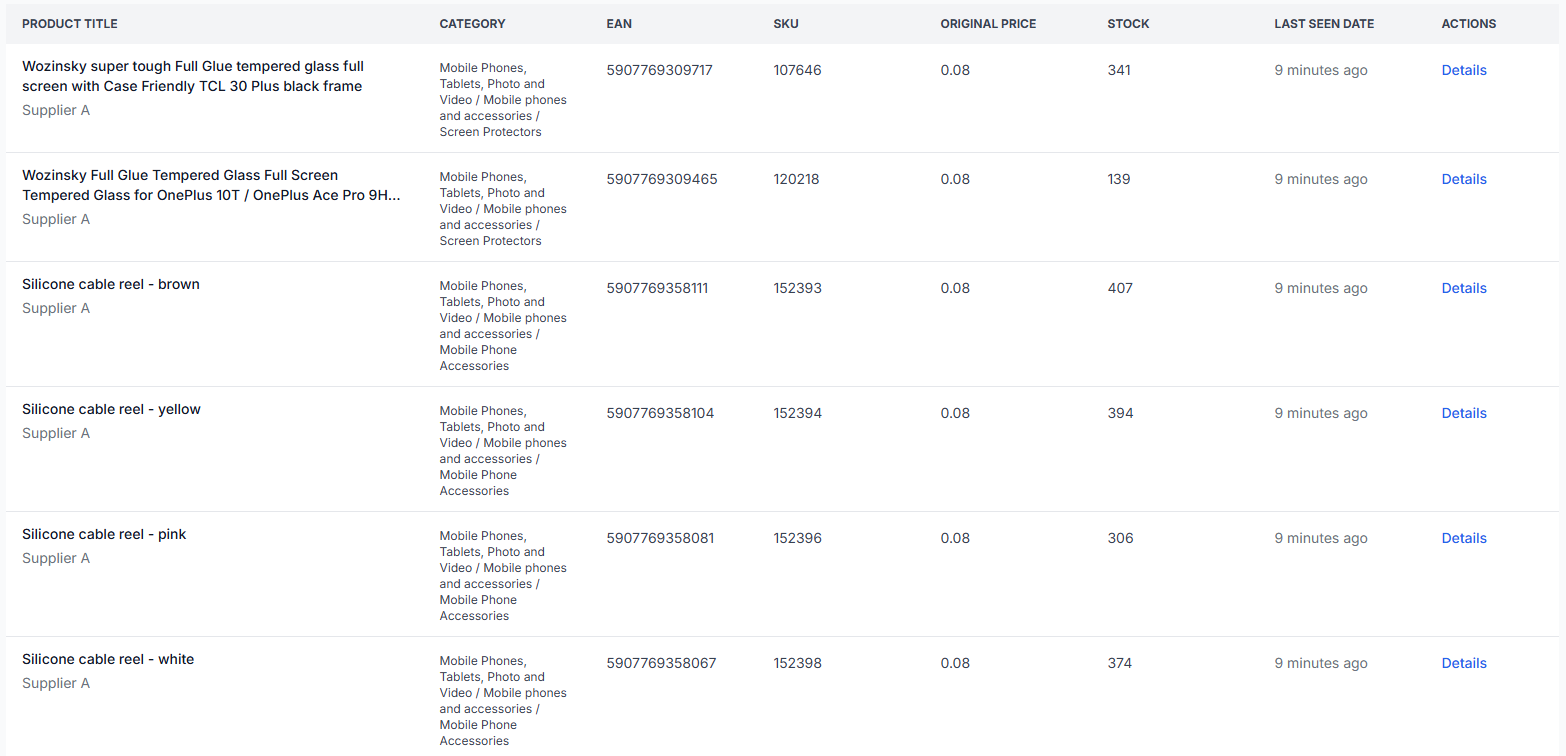
After the supplier has synchronized from the new source, search for the EANs recorded before the migration. Compare the mapped data rather than checking only whether the product exists.
| Check | What to confirm |
|---|---|
| EAN | The expected identifier is present, valid, and mapped from the correct field. |
| Price | The value is present and still uses the expected currency and VAT interpretation. |
| Stock | The quantity or availability value matches the supplier's new stock convention. |
| Title and description | Content is taken from the intended language and source fields. |
| Category and manufacturer | The source values are present and continue to support the expected relationships and filters. |
| Secondary data | Primary and secondary records are connected to the same product. |
| Exported XML | The product appears in the expected export with the correct final values. |
To inspect the newly imported catalog data, open All Products. For details about the available product information, read All products interface.
Test the dependent exports
Finding the product in the stored catalog is only the first check. An export may still exclude it, select another supplier, apply a transformation, or produce a different final value.
For every export that uses the changed supplier, check several sample EANs in Export Checker. Review the original supplier data, selected supplier, mapped attributes, processing result, and final XML output.
To verify this in your account, open Exports Checker. To understand the product-level report, read Review product data and export results with Exports Checker.
Common problems after a source change
- No products are imported: The complete product path may point to the wrong section of the new file.
- Many products are missing: The EAN mapping may be empty, may point to the wrong field, or may receive values that are not accepted as usable EANs.
- Prices are empty or incorrect: The price field location or the supplier's currency and VAT interpretation may no longer match the new source.
- Stock becomes zero or unavailable: The stock field or the meaning of its values may have changed.
- Content is missing: Title, description, image, category, manufacturer, or language-related mappings may still point to old locations.
- Primary and secondary information does not combine: The connection mapping may no longer identify the same product in both files.
- Products exist in All Products but not in an export: The export may not include the supplier, or the product may be affected by that export's filters and processing rules.
- The export still contains older values: Supplier synchronization and export generation use independent schedules. Confirm that both operations have had an opportunity to run with the new data.
Example
A supplier previously stored each product under an offer section and provided its EAN, price, and stock there. The new source stores products under a different section and uses a different field location for the EAN.
If only the URL is replaced, the old mapping continues looking under the previous product path. Products may then have no mapped EAN and may not enter the normal catalog workflow.
The safe approach is to disable the supplier, select the new complete product path, map every field again where necessary, verify the primary-secondary connection, and then enable the supplier. After synchronization, search for several previously recorded EANs and confirm their final values in each dependent marketplace or website export.
What to do next
- Keep the supplier disabled until the new source is accessible and the complete product path is confirmed.
- Review all primary, secondary, and connection mappings.
- Confirm whether the source's financial and content conventions have changed.
- Identify dependent exports through their supplier-selection settings.
- Enable the supplier and inspect representative products after synchronization.
- Check the same EANs in Export Checker for every affected export.
- Compare product availability, prices, stock, content, counts, and final XML with the checkpoints recorded before the migration.
- Continue monitoring the affected exports after the next scheduled supplier and export executions.
If the sample products and counts differ significantly, disable the supplier again and review the source path and mappings before allowing the changed data to continue into production exports.