Why the same ean can have different values in different exports
Learn how to compare one product across two B2BLIX exports and identify which supplier selection, margin, filter, transformation, content, template, or timing difference produced the result.
The same EAN can have different prices, stock values, content, attributes, or inclusion results because each B2BLIX export is an independent projection with its own settings and schedule.
Why this happens
B2BLIX stores imported supplier data in a shared product catalog. You can then create multiple exports from that catalog for different marketplaces, websites, price-comparison platforms, or other destinations.
Each export is an independent projection. It can select and process the same product differently, even when both exports use the same EAN and the same supplier data.
This article is relevant when one EAN has a different:
- Price or calculated margin.
- Stock value.
- Title, description, image, or other content.
- Generated or transformed attribute.
- XML value or structure.
- Inclusion or exclusion result.
Short answer
The same EAN can have different values because the two exports may use different settings, rules, templates, generation schedules, or content-selection logic.
To find the exact reason, check the EAN separately in each export. Compare the selected supplier, calculated values, filters, transformations, final attributes, and generated XML.
Changes to margins, filters, transformations, stock logic, supplier selection, or templates can affect the next generated XML file. Review the product in Export Checker before using the changed export in a live sales channel.
How one catalog can produce different exports
Supplier collection and export generation are separate parts of B2BLIX Feed.
Enabled suppliers provide product data that is mapped and stored in the shared B2BLIX catalog. An export then takes the latest available catalog data and applies the settings configured for that particular export.
An export may apply:
- Its own supplier selection.
- Default margins or other price calculations.
- Product filters.
- Prioritized data transformation rules.
- Discount rules.
- Content-selection settings.
- Default attribute values.
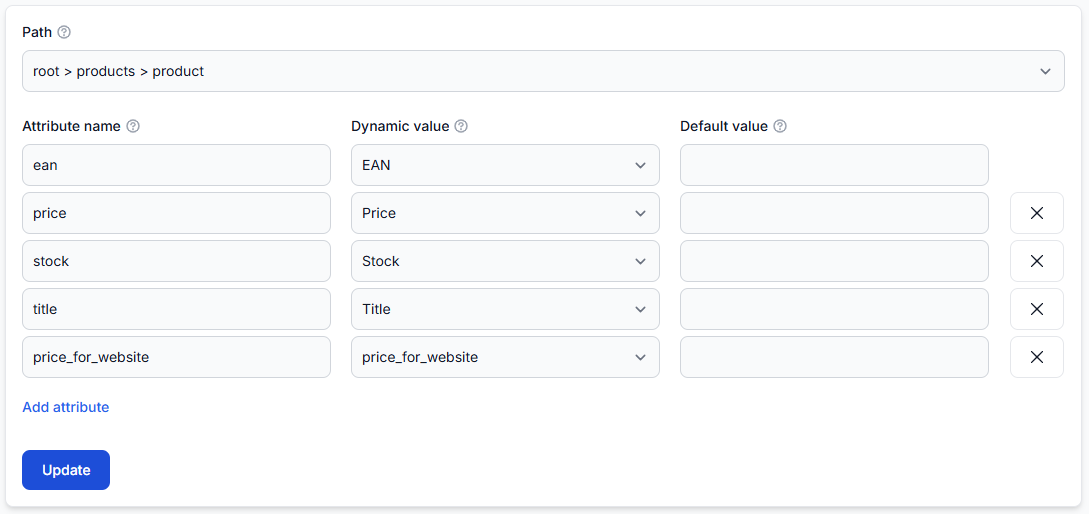
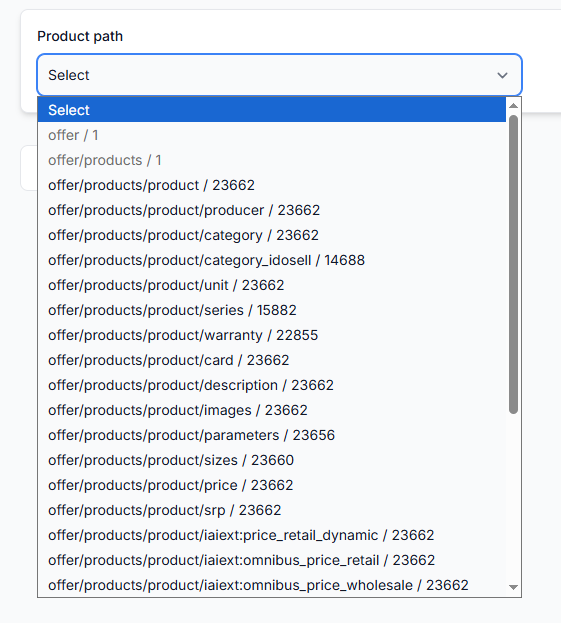
- Its own XML template and field mappings.
- Its own generation schedule.
This allows one EAN to be prepared differently for different destinations. For example, a marketplace export may use a different margin, stock rule, product title, or XML field structure than an export for your own website.
How the supplier is selected for the same ean
When several suppliers provide a product with the same accepted EAN, B2BLIX groups those offers as the same catalog product.
The supplier with the cheapest eligible price is selected as the winning supplier for the product offer. However, the supplier used for product content does not always have to be the same supplier.
Depending on the export’s general content settings, content may be selected from:
- The winning supplier.
- A preferred supplier.
- The supplier that provides the longest available content.
As a result, two exports can use the same winning price but produce different titles or descriptions because their content-selection settings are different.
What to check in your account
1. Compare the product in Export Checker
Open Exports Checker when you are logged in. To understand the information in the report, read Exports checker: review product data and export results.
Enter the EAN and select the first export. Review:
- The original supplier offers available for that EAN.
- The winning supplier.
- The supplier selected for content.
- The price after the export’s margin settings.
- Filters that included or excluded the product.
- Transformation rules that changed attributes.
- The final attributes used by the export.
- The representative XML result.
Then repeat the search for the second export. For easier comparison, open Export Checker in two browser tabs and select one export in each tab.
2. Check the suppliers selected by each export
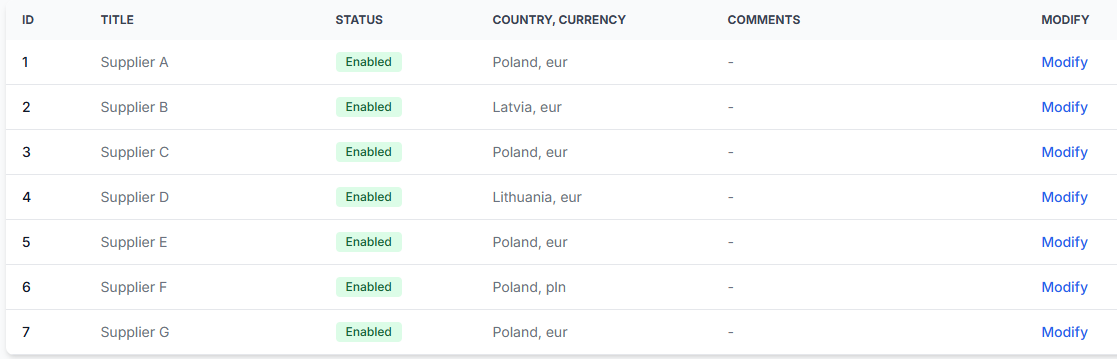
A supplier being active in the Suppliers section means its data can be collected and stored in the shared catalog. Each export can still use its own supplier-selection settings.
Confirm that both exports include the suppliers you expect. If one export does not use a supplier that provides the EAN, its winning offer, stock, or available content may be different.
To review supplier status and configuration, open Suppliers. For an explanation of supplier settings, read Add and configure a supplier feed.
3. Compare the export settings
Open Exports and review both export projections. For details about the available settings, read Create and configure XML export projections.
Compare the following settings:
| Setting | Possible effect on the same EAN |
|---|---|
| Suppliers | A different set of eligible supplier offers may change the winning price, stock, or available content. |
| Default margins | The same supplier price may produce a different exported price. |
| Content selection | The title, description, images, or other content may come from a different supplier. |
| Filters | The product may be included in one export and excluded from another. |
| Transformations | Price, stock, title, category, or another attribute may be changed or replaced. |
| Transformation priority | Rules applied in a different priority can produce a different final value. |
| Discount rules | An EAN-specific or conditional discount may affect only one export. |
| Default values | If a generated attribute is empty, the default configured for that export field may be used. |
| XML template | The exports may write different attributes or format the same value differently. |
| Generation schedule | Exports generated at different times may use different versions of the latest available catalog data. |
4. Review transformation rules and their priority
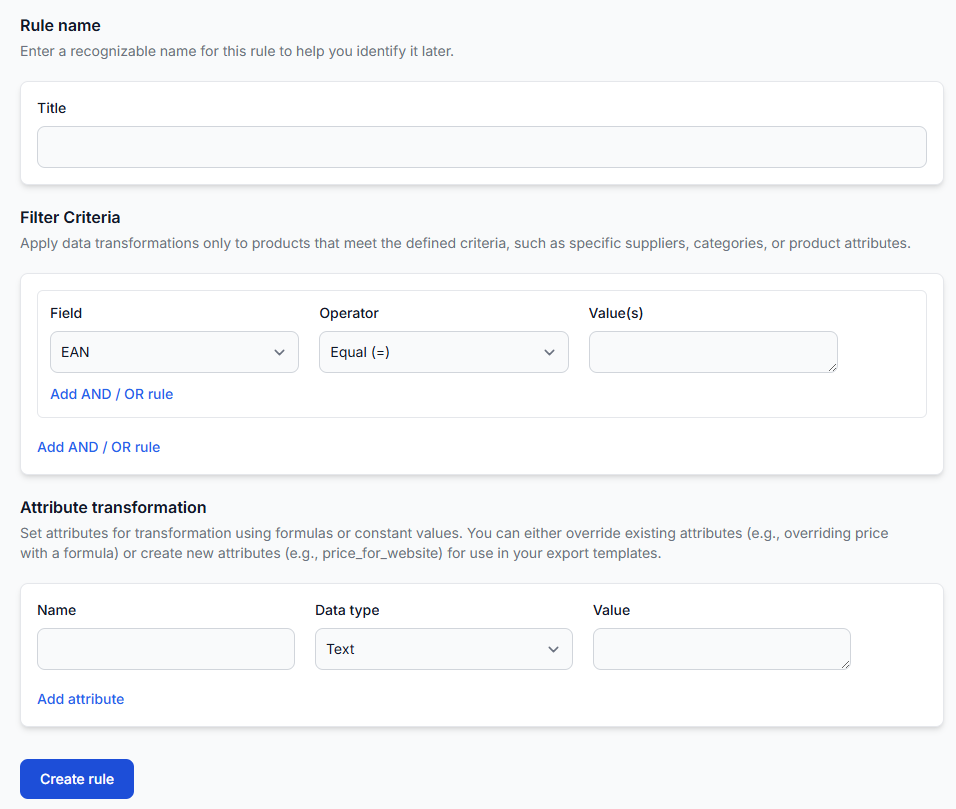
Transformation rules can override existing attributes or create new attributes for an export template. A rule may affect only products that match its conditions.
Confirm that both exports have the expected rules enabled and that their priorities are correct. Also check whether a rule is configured to stop further processing after it matches.
To review available rules, open Data Transformation Rules. For an explanation of conditions, transformations, and priorities, read Data transformation rules.
5. Check the generation times
Supplier synchronization and export generation have independent schedules. Two exports do not have to be generated at the same time.
If supplier price, stock, or content changed between two export generations, the files may contain different values even when their settings are otherwise similar.
When comparing results, note when each export was last generated and whether a supplier synchronization occurred between those generation times.
Common scenarios
Different prices
- The exports use different margins.
- An EAN-specific discount applies in only one export.
- One export excludes the cheapest supplier.
- A transformation changes or rounds the price.
- The exports were generated from catalog data available at different times.
Different stock values
- The winning supplier is different.
- A filter or transformation changes the stock value.
- One export uses a generated stock attribute while another uses the standard stock attribute.
- The supplier’s stock changed between export generations.
Different titles, descriptions, or images
- The exports use different content-selection settings.
- One export uses the winning supplier’s content and the other uses a preferred supplier.
- A transformation translates, combines, shortens, or reformats the content.
- The XML templates use different source attributes.
Present in one export but missing from another
- A product filter excludes it from one export.
- The eligible supplier selection is different.
- A required value is empty after processing.
- The EAN is included in an export-specific condition or exclusion rule.
Different values in the final xml
- The templates map different attributes to the XML field.
- A generated attribute is empty in one export, so its default value is used.
- A transformation changes the value before it is written to XML.
- The exports use different XML structures for different destinations.
Example
Supplier A and Supplier B both provide the same EAN. Supplier A has the cheapest eligible price, so it becomes the winning supplier.
The website export applies a 20% margin and uses content from the supplier with the longest description. The marketplace export applies a 30% margin and uses content from the winning supplier.
Both exports use the same EAN and the same shared catalog, but they can produce:
- Different final prices because the margins are different.
- Different descriptions because the content-selection settings are different.
- Different XML fields because the export templates are different.
What to do next
- Open the same EAN in Export Checker for the first export.
- Open Export Checker in a second browser tab and select the other export.
- Compare the winning supplier, content supplier, calculations, filters, transformations, final attributes, and XML result.
- Review both projections in the Exports section if the checker shows different settings or processing results.
- Verify supplier selection and status if the available supplier offers are different.
- Review transformation priorities before changing any rule.
- After making a change, check the EAN again before using the next generated XML file in a live channel.