Why buybox status may look incorrect or undefined
Learn why B2BLIX may show an incorrect winning status, an unrecognized seller, or an undefined BuyBox case, and what to check before changing your pricing settings.
When this guide is relevant
This guide is useful when you notice one of the following situations:
- B2BLIX shows that you are winning the BuyBox, but the marketplace page appears to show another seller.
- Your shop is shown as an unrecognized seller.
- A product has an Undefined seller or BuyBox status.
- A product remains in the same status even though the marketplace page has changed.
- Many products on one marketplace suddenly show incomplete or undefined information.
Short answer
B2BLIX displays a status based on the latest marketplace information it has successfully observed and processed. It is not a guaranteed real-time confirmation of the current BuyBox winner.
A status may look incorrect or become Undefined when:
- The latest marketplace observation is old or incomplete.
- B2BLIX cannot match the observed shop name to your seller profile.
- The product has not been monitored again since the marketplace changed.
- The available seller information became too old before the next scheduled monitoring run.
- Marketplace page changes temporarily affect the collection or processing of public product information.
If only one or a few products are affected, start by checking the product details and monitoring time. If many products become undefined at the same time, especially on one country marketplace, the cause may be a wider marketplace-data issue rather than an individual product setting.
Warning: BuyBox status can influence the strategy selected for a calculation. Before changing an Undefined strategy, monitoring schedule, or automatic export setting, review an affected product carefully. A new calculation may later be included in an export or marketplace update.
How B2BLIX determines the displayed status
B2BLIX works with several different types of information:
- Marketplace observation: The latest known seller, BuyBox position, prices, and other publicly available product information.
- Your imported product data: Information such as EAN, current price, minimum price, maximum price, and availability.
- B2BLIX calculation: The price and action produced by your selected strategy.
- Published marketplace price: A price that has been exported, accepted, and applied by the marketplace.
These values are related, but they are not the same. For example, the marketplace page may change after the latest observation, while B2BLIX still displays the previously observed seller until the next successful monitoring and processing cycle.
The marketplace itself determines the BuyBox winner. B2BLIX uses the latest available information to help calculate a competitive price, but it does not control the marketplace decision or know every factor used by the marketplace.
What “Undefined” means
Undefined means that B2BLIX does not currently have enough sufficiently recent information to confirm the normal seller or BuyBox situation for that product.
When this happens, the calculation may use the strategy configured for the Undefined segment. This allows the seller to choose a cautious fallback action instead of treating an uncertain position as confirmed.
An undefined status does not automatically mean that the product, connection, or pricing setup is permanently broken. It may be temporary while the next marketplace observation is collected or while incomplete information is being processed.
What to check in your account
1. Check the affected product and marketplace
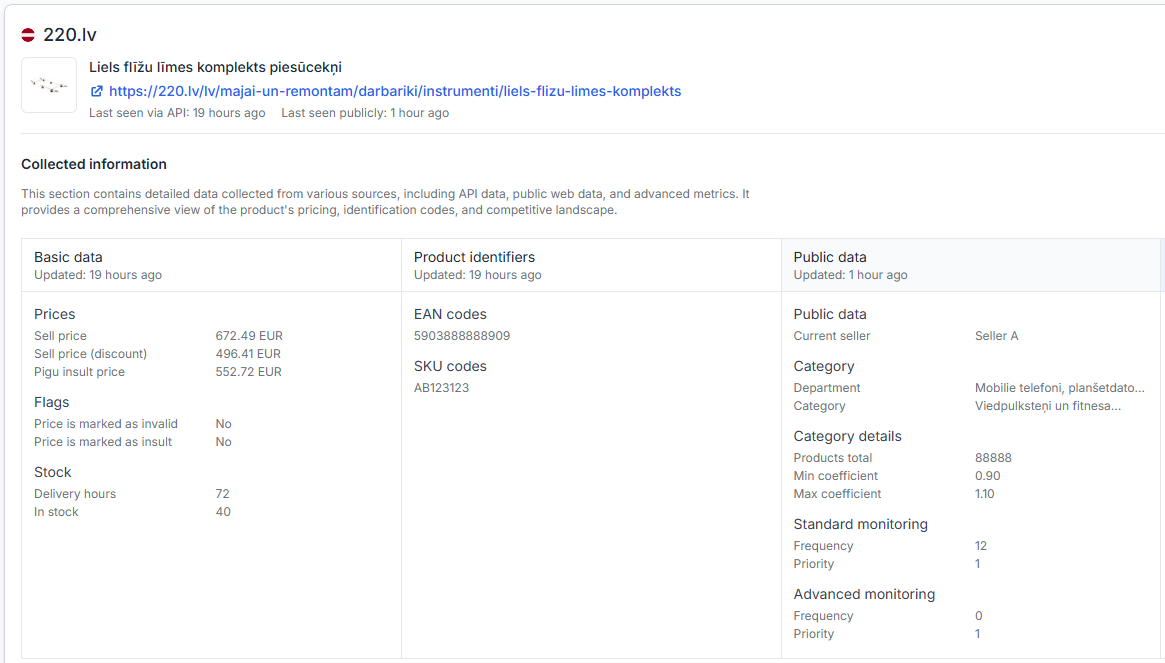
Confirm the product’s EAN, marketplace, displayed BuyBox status, observed seller, and latest observation time.
To review the product list, open All Products when you are logged in. To understand the available columns and product information, read All Products page.
Check whether the issue affects:
- One product only.
- Several products from the same category.
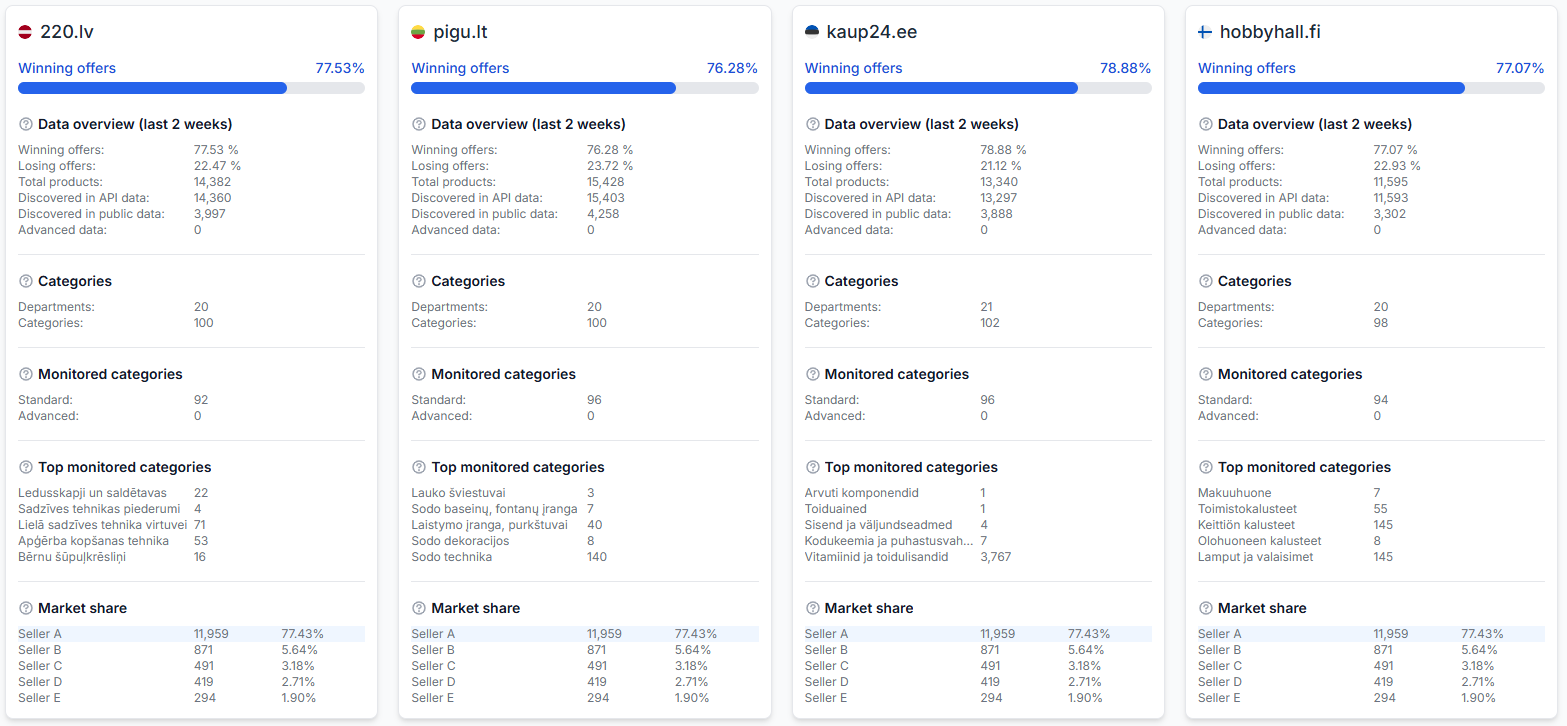
- Many products on one marketplace.
- Products across all connected marketplaces.
This helps separate a product-specific issue from a category, account, or marketplace-wide issue.
2. Review the product in Product Checker
Use Product Checker as the main troubleshooting page for an individual EAN. It can help you compare the latest known marketplace information with the strategy, price limits, calculation result, and export information.
To investigate an EAN, open Product Checker. For an explanation of its product data, calculation, and export sections, read Product Checker: review product data, price calculations, and exports.
Pay particular attention to:
- The marketplace selected for the check.
- The seller name found in the latest observation.
- The observation date and time.
- The status used during the calculation.
- The strategy selected for that status.
- The calculated price and whether it was exported.
3. Verify your marketplace shop names
B2BLIX needs the correct shop profile name for each marketplace to associate an observed offer with your seller account. A missing, outdated, or differently written shop name may cause your offer to appear as another seller or remain unrecognized.
To verify the configured names, open Marketplace slugs when you are logged in. For instructions, read Marketplace slugs: add or update your shop profile names.
Check each marketplace separately. Your public shop name may not be identical on 220.lv, Pigu.lt, Kaup24.ee, and HobbyHall.fi.
4. Check when the product is monitored
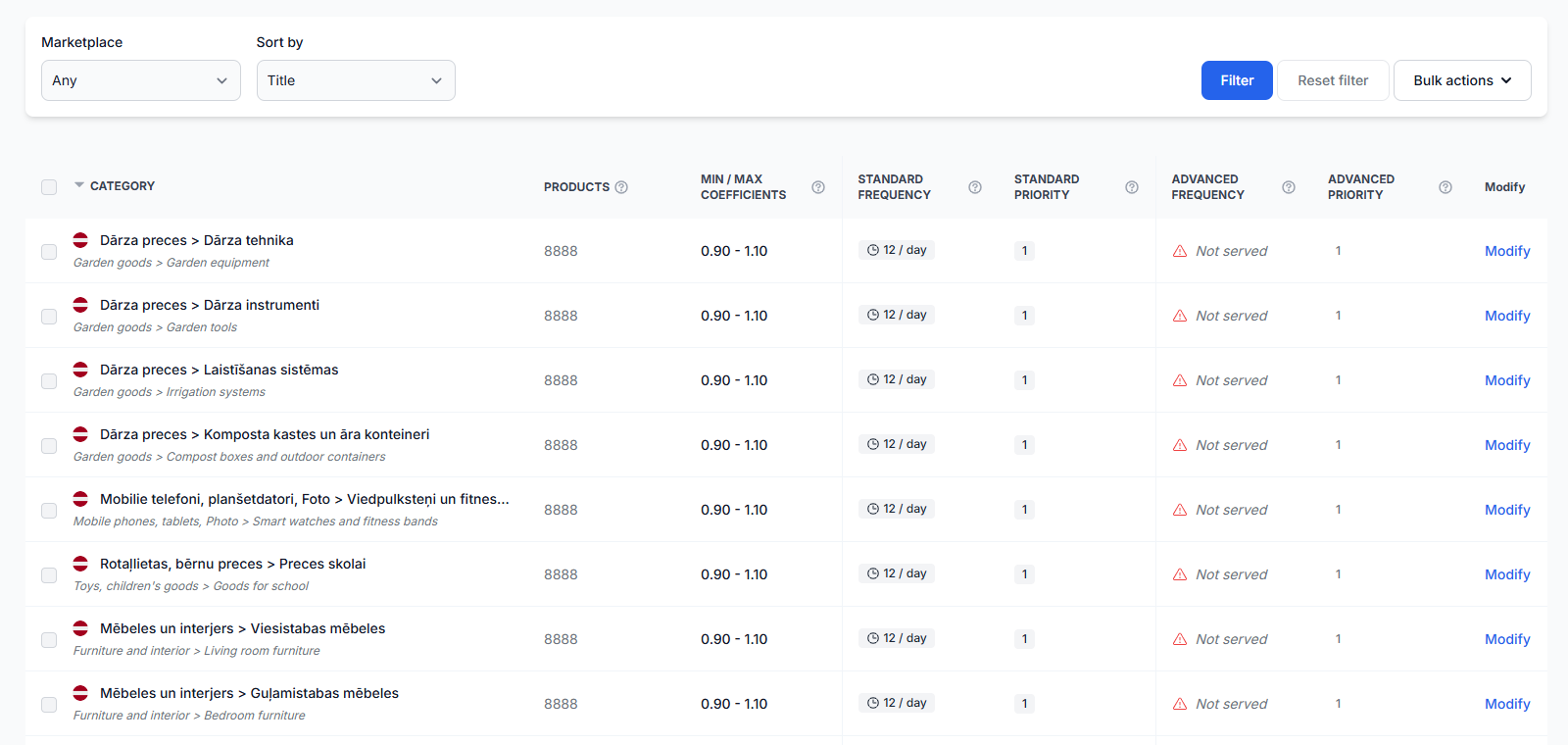
A product status can remain unchanged until a new marketplace observation is collected. Check whether monitoring is enabled for the product’s category and whether its schedule is suitable for the product’s importance and competitiveness.
To review category schedules, open Category Management. For details about category monitoring frequencies, read Category Management: monitoring frequencies and price coefficients.
If the product has its own monitoring schedule, that schedule may override the category setting.
To check product-specific monitoring, open Individual Products. For instructions, read Individual Products: set product-specific monitoring frequencies.
Cost notice: Increasing monitoring frequency can increase usage costs. Verify the number of affected products and the existing schedule before applying a faster frequency to a category or product group.
5. Review the strategy used for uncertain data
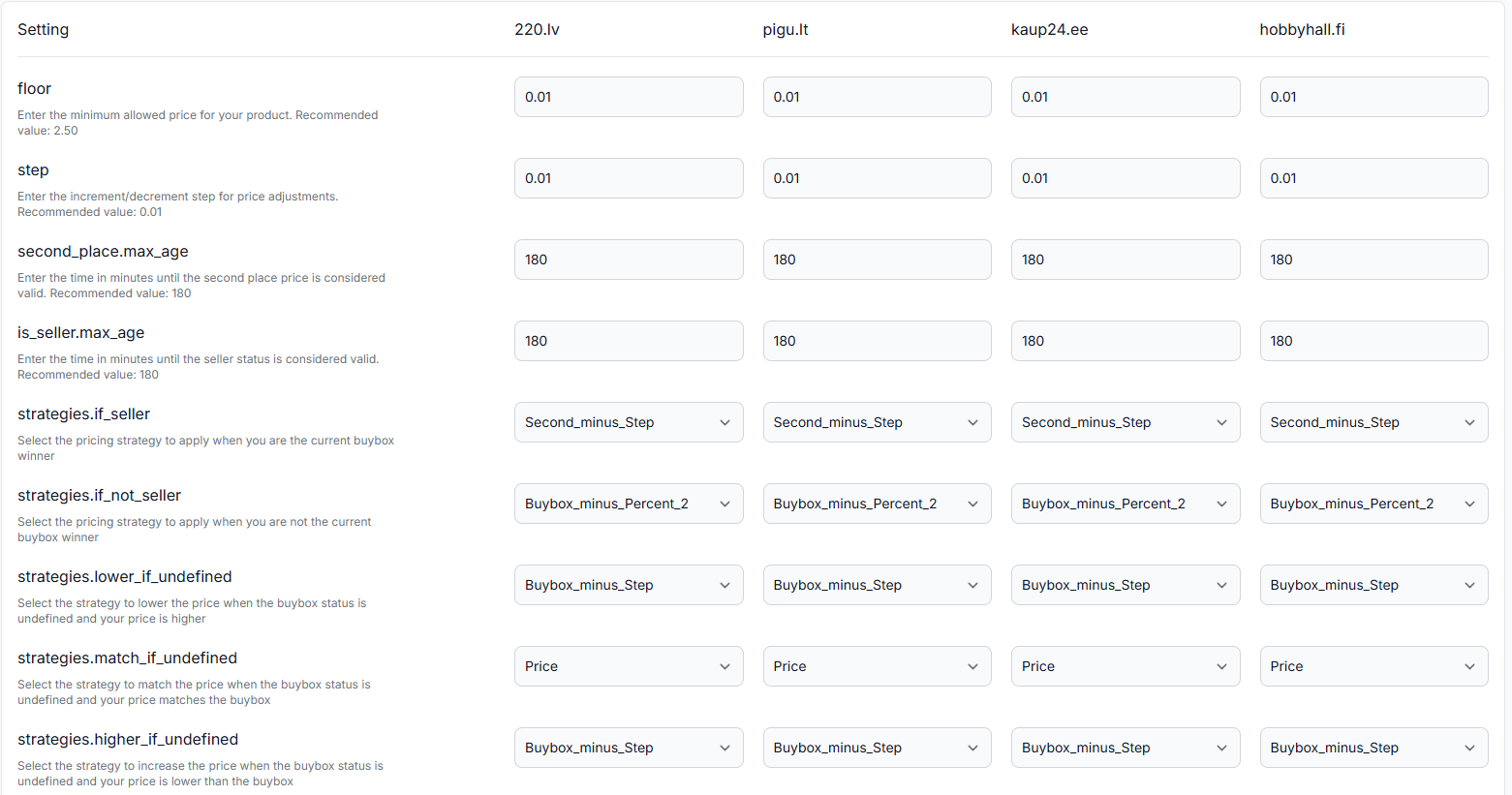
When seller recognition or marketplace information is incomplete, B2BLIX may use the strategy assigned to the Undefined situation. Review this strategy before changing it, especially when automatic exports or API updates are enabled.
To review calculation preferences, open BuyBox settings. For an explanation of the available settings, read BuyBox settings page.
A conservative undefined strategy can be useful when the current competitive position cannot be confirmed. Avoid treating an undefined product as definitely winning or definitely losing unless that behavior is appropriate for your pricing policy.
6. Check the latest synchronization report
A marketplace observation, a BuyBox calculation, and a price export happen at different stages. A status change does not necessarily mean that a new price has already been published.
To review recent processing results, open Synchronization Reports. For help interpreting the results, read Synchronization Reports: review import, BuyBox calculation, and export results.
Check whether the affected product was included in the latest run, whether a BuyBox case was assigned, and whether the calculated price was exported.
Common causes and scenarios
The marketplace changed after the latest observation
The marketplace page may already show a new seller or price while B2BLIX still displays the last successfully processed observation. The status should not be treated as a live marketplace confirmation.
Your seller profile is not recognized
The observed shop name may not match the marketplace name saved in your B2BLIX account. This can make the system treat your own offer as another seller.
The information became too old before the next check
A product can temporarily become Undefined when its seller information is no longer considered recent enough and the next scheduled monitoring run has not yet happened.
This is more likely when the allowed data age is shorter than the interval between marketplace checks.
Monitoring is disabled or too infrequent
If a category is not monitored, or is checked only occasionally, the product’s known status may remain old for longer. A product-specific schedule can also affect when the next observation is collected.
Marketplace information is incomplete
Marketplace pages and data structures can change. During such changes, some product or seller information may be temporarily unavailable or incomplete. One country marketplace may also be affected while the others continue to work normally.
Processing has not completed
A recently collected observation may still need to pass through processing and calculation before the updated status appears in all relevant account sections.
Example
A seller checks a product on Pigu.lt and sees that another shop currently has the primary offer. In B2BLIX, the product still appears as Winning.
In Product Checker, the seller sees that the displayed status comes from an earlier marketplace observation. The shop name is configured correctly, but the category has not yet reached its next monitoring run.
In this situation, the seller should not immediately change the winning or losing strategy. The practical action is to confirm the monitoring schedule, wait for a new successful observation, and then review the updated calculation before publishing a new price.
What to do next
- Find the affected EAN and marketplace in All Products.
- Open the EAN in Product Checker and review the observed seller, observation time, calculation status, and export result.
- Verify the marketplace-specific shop name in Marketplace slugs.
- Check the category and individual-product monitoring schedules.
- Review the strategy assigned to Undefined before changing it.
- Check Synchronization Reports to confirm whether a later calculation or export has completed.
If many products on the same marketplace become undefined at approximately the same time, avoid making broad pricing changes based only on those statuses. First confirm whether the issue is marketplace-specific and whether newer observations are becoming available.
After the status is refreshed, review a small number of representative products before enabling or continuing automatic price publication for the wider catalog.