All products page
The all products page shows the products stored for your account together with the latest available marketplace observations, imported price data, buybox results, calculation labels, and data timestamps.
What the all products page is used for
The All Products page provides a combined view of the product information currently stored for your account. It can include seller data received through the supported Pigu integration, publicly observed marketplace information, and results from the latest B2BLIX calculation.
Open this page when you need to:
- Find a product by its EAN or SKU.
- Review products from a particular marketplace or category.
- See the latest known BuyBox status and observed winning seller.
- Find products that followed a particular calculation branch.
- Identify products with price or monitoring flags.
- Export a selected group of products for further analysis.
- Open a product in Product Checker or BuyBox Playground.
The information on this page may have been collected at different times. Always check the timestamps before treating a seller, price, or BuyBox status as current.
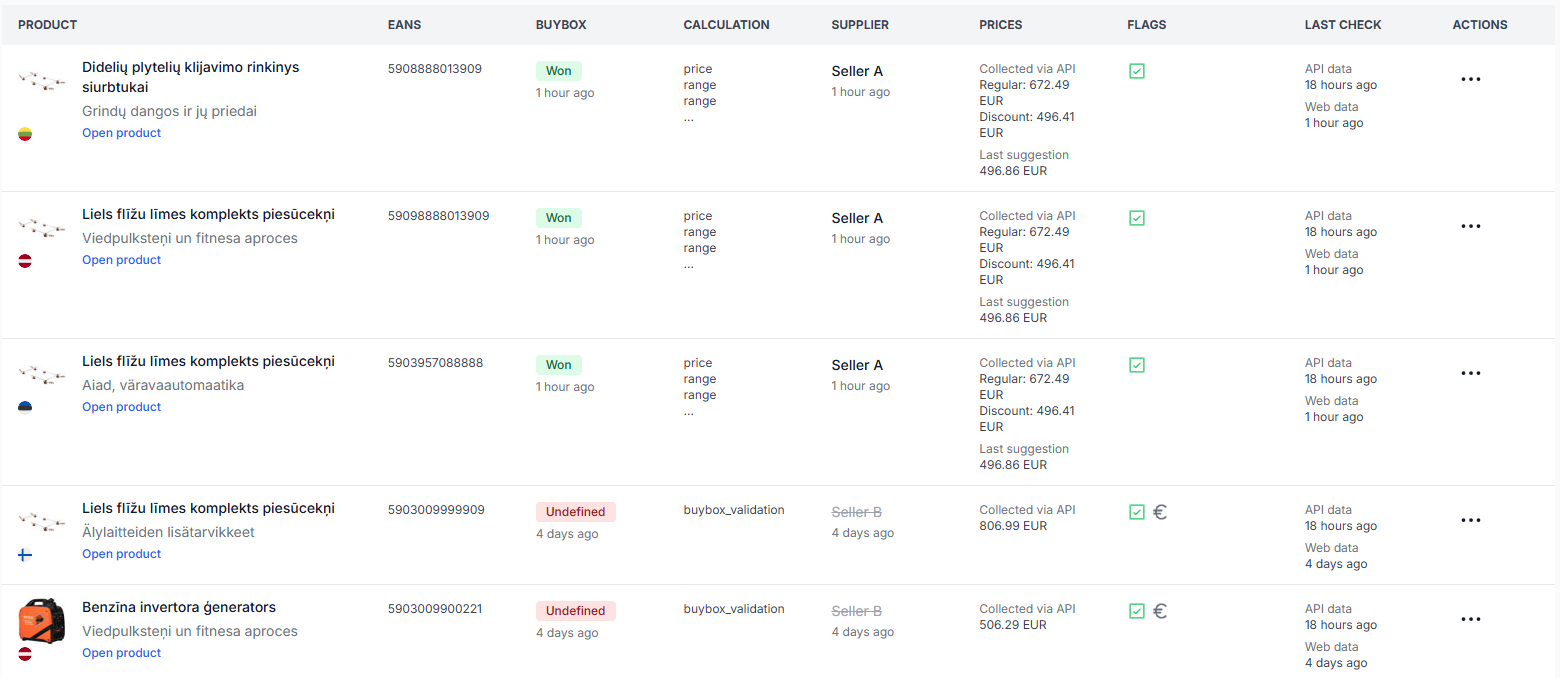
What you can do on this page
- Filter the product list by EAN or SKU, marketplace and category, supplier, calculation case, or data flags.
- Reset the filters and return to the complete product list.
- Request a CSV export containing the products that match the current filters.
- Open the public marketplace product page when a public product URL is available.
- Open Product Checker for a detailed explanation of the known product data and its latest calculation.
- Open BuyBox Playground to test pricing strategies using the product's EAN.
This page is mainly for viewing and analysis. Applying a filter does not change product settings, recalculate a price, or publish a price to a marketplace.
Filters and controls
| Filter or control | What it means | How to use it |
|---|---|---|
| EAN or SKU | Searches for a product using an exact EAN or SKU value. | Enter the complete identifier. A partial number or partial SKU may not return a result. |
| Marketplace / category | Limits the list to a supported marketplace, all categories within that marketplace, or one discovered product category. | Select this before using complex filters such as Supplier or BuyBox case. |
| Supplier | Filters by the latest observed seller associated with the BuyBox offer. | Use it to review products where a particular seller was last observed. The available suppliers depend on the selected marketplace or category and the products known for your account. |
| BuyBox case | Filters by a decision or calculation label recorded during the latest automatic synchronization. | Use it to find products that followed the same pricing branch, reached a price limit, failed a validation, or matched an exclusion. |
| Invalid price | Returns products marked with an invalid-price status in the available marketplace data. | Use it to prepare a list of products whose price data may require review. |
| Insult price | Returns products marked with the marketplace's price-limit indicator. | Use it to review cases where the marketplace limit may restrict the product's allowed maximum price. |
| Has API data | Returns products for which seller product data has been received through the supported integration. | Use it to separate imported seller data from products known only through public marketplace observations. |
| Has WEB data | Returns products that were found on public marketplace product pages. | Use it when you need products with an observed BuyBox seller, public price, or marketplace product URL. |
| Filter | Applies the selected criteria to the product table. | Review the selected filters first, especially the marketplace and category. |
| Reset filter | Clears the current search criteria. | Use it when the selected filters return no results or when you want to begin a new search. |
| Export | Creates an export request for the currently filtered products. | Select In CSV format. The generated file is made available through the Product Exports section. |
For filters such as Supplier and BuyBox case, select a Marketplace / category first. These lists depend on the products and calculation information available within that marketplace selection.
Understanding the product table
| Column | What it shows | How to interpret it |
|---|---|---|
| Product | The product image, marketplace flag, original title, marketplace category, and an Open product link when a public URL is available. | The flag identifies the local marketplace: Latvia, Lithuania, Estonia, or Finland. The public link opens the product on the relevant Pigu Group marketplace. |
| EANs | One or more EAN codes associated with the stored product. | A marketplace product may have more than one known EAN. Use Product Checker when you need to inspect the complete product record. |
| BuyBox | The latest calculated BuyBox status and the age of the marketplace observation used for that status. | This is a result based on the latest available information, not a permanent or guaranteed marketplace position. |
| Calculation | Up to several labels from the latest synchronization calculation. More labels may be available through the tooltip or Product Checker. | The labels describe the calculation path, checks, formula, range adjustment, or exception that applied to the product. |
| Supplier | The latest observed seller holding the BuyBox offer, with the observation age shown below. | If the information is older than the permitted freshness period, the last known supplier may still be displayed but should not be treated as confirmed current information. |
| Prices | Seller prices collected through the integration and the most recent B2BLIX price suggestion. | Regular and discount prices are seller data. Last suggestion is a calculation result and is not proof that the price is currently live on the marketplace. |
| Flags | Icons showing monitoring status, marketplace price warnings, or other product conditions. | Hover over a flag in the interface to see its exact meaning. |
| Last check | Separate timestamps for API data and public marketplace data. | Compare these timestamps before drawing conclusions. Seller data and public marketplace data may have been updated at different times. |
| Actions | A three-dot menu with links to Product Checker and, where an EAN is available, BuyBox Playground. | Use Product Checker for a detailed explanation. Use BuyBox Playground to test possible strategy results without treating the test as a live marketplace update. |
BuyBox status labels
Won
Won means that the latest sufficiently recent observation identified your seller account as the BuyBox seller.
Lost
Lost means that the latest sufficiently recent observation identified another seller as the BuyBox seller.
Undefined
Undefined means B2BLIX cannot confidently confirm the current seller. This commonly occurs when the marketplace observation is older than the freshness period configured in your settings.
When the seller status is undefined, the calculation may compare the available prices mathematically instead of treating the observed seller identity as confirmed.
No data
No data means that suitable public marketplace information was not available for identifying the BuyBox seller.
A status can become outdated after it is collected. A product shown as Won one hour ago may have a different winner now. Use the timestamp and open the public product page when a current manual check is important.
BuyBox case filter
The BuyBox case filter uses labels recorded during the latest automatic synchronization. These labels help you locate products that followed a particular decision path.
A calculation can contain several labels. For example, one product may have a seller-status label, a selected formula, and a final price-range result.
Seller status cases
| Option | Meaning |
|---|---|
| Seller status: yes | The latest marketplace information was recent enough and identified your account as the BuyBox seller. |
| Seller status: no | The latest marketplace information was recent enough and identified another account as the BuyBox seller. |
| Seller status: undefined | The seller could not be treated as confirmed, usually because the available marketplace observation was outside the configured freshness period. |
Price comparison cases when seller status is undefined
| Option | Meaning |
|---|---|
| BuyBox is lower than price | The observed BuyBox price is below your product price. For example, your price is EUR 100 and the observed BuyBox price is EUR 90. |
| BuyBox is equal to price | Your product price and the observed BuyBox price are equal, although the winning seller is not confidently known. |
| BuyBox is higher than price | The observed BuyBox price is above your product price. For example, your price is EUR 100 and the observed BuyBox price is EUR 110. |
Final price-range checks
| Option | Meaning |
|---|---|
| Calculated price is below MIN | The formula produced a result below the permitted minimum. The result is restricted to the minimum price instead of using the lower calculated amount. |
| Calculated price is over MAX | The formula produced a result above the permitted maximum. The result is restricted to the maximum price instead of using the higher calculated amount. |
| Calculated price is inside of the MIN / MAX price range | The calculated result is within the permitted price boundaries and does not need a boundary adjustment. |
For example, if the permitted range is EUR 90–110 and the formula returns EUR 120, the result cannot remain at EUR 120. The maximum allowed result is EUR 110.
Calculation formula cases
The first part of a formula name describes the pricing situation or decision branch. The second part describes the action selected by the configured strategy.
- Higher_if_undefined means the seller is uncertain and the observed BuyBox price is higher than your price.
- Match_if_undefined means the seller is uncertain and the observed BuyBox price matches your price.
- Lower_if_undefined means the seller is uncertain and the observed BuyBox price is lower than your price.
- If_not_seller means another seller was identified as the BuyBox seller.
- If_seller means your account was identified as the BuyBox seller.
| Formula option | Practical interpretation |
|---|---|
| Higher_if_undefined > Buybox_minus_Step | Uses the observed BuyBox price and subtracts the configured monetary step. |
| Higher_if_undefined > LastPublished | Keeps the last price previously published through the configured B2BLIX output workflow. |
| Higher_if_undefined > Price | Uses the current product price from the seller's imported data. |
| Match_if_undefined > Price_plus_Step | Adds the configured monetary step to the current product price. |
| Match_if_undefined > LastPublished | Keeps the last previously published price. |
| Match_if_undefined > LastPublished_plus_Step | Adds the configured step to the last previously published price. |
| Match_if_undefined > LastPublished_plus_Step_to_Price | Moves from the last published price toward the current product price by the configured step. |
| Match_if_undefined > Price | Uses the current imported product price. |
| Lower_if_undefined > Price_minus_Step | Subtracts the configured step from the current product price. |
| Lower_if_undefined > Buybox_minus_Step | Subtracts the configured step from the observed BuyBox price. |
| Lower_if_undefined > Price | Keeps the current imported product price. |
| If_not_seller > Price_minus_Step | When another seller is confirmed as the winner, subtracts the configured step from your current price. |
| If_not_seller > Buybox_minus_Step | When another seller is confirmed as the winner, subtracts the configured step from the observed BuyBox price. |
| If_not_seller > Price | When another seller is confirmed as the winner, keeps your current product price. |
| If_not_seller > LastPublished_minus_Step | Subtracts the configured step from the last previously published price. |
| If_not_seller > Buybox_minus_Percent | Reduces the observed BuyBox price by the percentage configured in the selected strategy. |
| If_seller > Second_minus_Step | Uses the next observed competing offer and subtracts the configured step. |
| If_seller > Price_plus_Step | Adds the configured step to your current product price. |
| If_seller > LastPublished_plus_Step | Adds the configured step to the last previously published price. |
| If_seller > LastPublished_plus_Step_to_Price | Moves from the last published price toward the current product price by the configured step. |
| If_seller > LastPublished | Keeps the last previously published price. |
| If_seller > Price | Uses the current imported product price. |
For example, suppose another seller is confirmed as the BuyBox seller at EUR 95.00, your permitted range is EUR 90.00–110.00, and the selected strategy is If_not_seller > Buybox_minus_Step with a EUR 0.01 step. The calculated suggestion is EUR 94.99, provided that the result passes the final range check.
Formula labels on this page are intended for filtering and identification. Review the BuyBox Schema in your account for the complete strategy explanation and use its tooltips to understand the purpose of a specific formula.
Price-range adjustment cases
| Option | Meaning |
|---|---|
| MIN was adjusted by Floor price | The product's original minimum was below the floor price permitted by your settings, so the effective minimum was raised to the configured floor. |
| MAX was adjusted by Insult price | The product's original maximum was above the marketplace price limit available for that product, so the effective maximum was reduced to that limit. |
For example, if a product has a minimum of EUR 0.10 but the configured floor is EUR 2.00, the effective minimum used by the calculation becomes EUR 2.00.
Validation and exclusion cases
| Option | Meaning |
|---|---|
| BuyBox validation issue | The available BuyBox-related information did not pass the checks required for the normal pricing calculation. |
| Static validation issue | The product data did not pass one or more required checks that are not dependent on the current BuyBox situation. |
| EAN not found | The synchronization could not find the required stored product match for the EAN being processed. |
| Exclusion rule applied | The product matched a configured exclusion, such as an excluded EAN, SKU, category, or other supported exclusion condition. |
Use Product Checker when you need the product-level reason, calculation inputs, selected strategy, range values, and detailed sequence of decisions. The all products page only provides a compact summary.
Flags in the product table
| Flag | Meaning |
|---|---|
| Monitored category | The product belongs to a category with an active monitoring frequency. |
| Category not monitored | The product belongs to a known category, but that category does not currently have a positive monitoring frequency. |
| Invalid price | The product is marked with an invalid-price status in the available marketplace data. |
| Insult price | The product has a marketplace price-limit marker that may restrict its permitted maximum price. |
| Scheduled for deletion | The product has not been observed for an extended period and is marked as a possible outdated record. |
The icons are compact indicators. Hover over an icon in the interface before deciding what action is required.
Actions menu
Open in Product Checker
Product Checker is the detailed product-level transparency interface. It can show the available imported and observed product data, marketplace records, price limits, selected strategy, calculation decisions, suggested price, and output status for the marketplaces where the product was found.
Use it when a row in the all products table does not provide enough detail or when you need to understand why a particular suggestion was produced.
Open in BuyBox Playground
BuyBox Playground opens a simulator using the product's EAN. It allows you to test different pricing situations and strategies before applying settings to a synchronization workflow.
A Playground result is a test result. It does not by itself prove that a price has been published or accepted by a marketplace.
Exporting filtered products
The Export control requests a CSV file containing the products that match the current filters. The request is processed separately, and the resulting file becomes available in the Product Exports section.
Useful export examples include:
- Competitor review: Select a marketplace, category, and supplier to analyse products where a particular competing seller was last observed.
- Price-quality review: Export products marked with Invalid price or Insult price for checking by the catalogue or pricing team.
- Calculation audit: Filter by a BuyBox case, such as a result below the minimum price, and review which products repeatedly reach that condition.
A CSV export is a data file for review or further processing. Creating it does not publish prices, update marketplace offers, or change synchronization settings.
How to use this page safely
- Select the correct Marketplace / category.
- Add one or two filters rather than combining many conditions immediately.
- Apply the filter and confirm that the returned products match your intention.
- Compare the API data and Web data timestamps.
- Check whether the BuyBox seller information is fresh or marked as undefined.
- Confirm that Last suggestion is a calculated result, not necessarily the current live marketplace price.
- Open unusual products in Product Checker before changing any related pricing or synchronization settings.
- When exporting, confirm the filtered product count and selection before requesting the CSV file.
Price calculations may influence a later export or API publication workflow, but the all products page itself does not edit or publish prices. A calculated, exported, or suggested price is not necessarily live until it has been accepted and applied by the marketplace.
Common mistakes
- Using Supplier or BuyBox case without selecting a marketplace or category. Select the marketplace context first so the available options are relevant.
- Searching with a partial EAN or SKU. The identifier search expects an exact match.
- Reading an old observation as a current result. Always check the age shown under BuyBox, Supplier, API data, and Web data.
- Treating Undefined as Lost. Undefined means the seller cannot be confirmed from sufficiently recent information.
- Assuming Last suggestion is the live price. It is the result of a calculation and may not have been published or accepted.
- Assuming the Supplier column is real-time. It shows the latest observed BuyBox seller together with the observation timestamp.
- Exporting the wrong product group. Review all active filters before requesting the CSV file.
- Trying to troubleshoot only from the table. Open Product Checker when you need the complete calculation explanation.
Example use case
A seller wants to review products in the Latvian marketplace where another seller was recently identified as the BuyBox winner.
- Select 220.lv or a specific Latvian category under Marketplace / category.
- Select the relevant competitor under Supplier, or choose Seller status: no under BuyBox case.
- Apply the filter.
- Review the BuyBox and Supplier timestamps to confirm that the observations are sufficiently recent.
- Check the Last suggestion values and open selected products in Product Checker.
- Request a CSV export if the seller wants to compare the results in a spreadsheet or share the selected list with the pricing team.
This workflow helps the seller identify and analyse non-winning products. It does not guarantee that a suggested price will win the BuyBox, because the marketplace determines the winning offer.