Sync settings: configure product import and price export
Use this guide to configure your product feed, synchronization interval, XML or API output, discount mode, and public export URL safely.
What the sync settings page is for
The sync settings page connects your product data to the B2BLIX calculation and export process. It tells B2BLIX where to find your products, how the source is formatted, how often the data should be processed, and where the calculated results should be delivered.
A seller normally opens this page after the initial account setup and monitoring configuration. B2BLIX needs both marketplace observations and your own product data before it can evaluate products using your buybox settings.
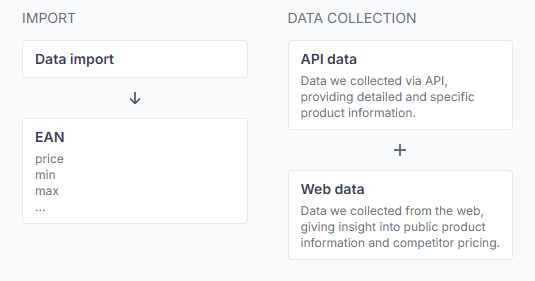
Your source should contain the products that you want B2BLIX to process. Products are normally identified by their EAN codes and may include prices, stock, minimum and maximum prices, collection hours, and marketplace-specific values.
Important: Synchronization and marketplace monitoring are separate processes. Monitoring collects current marketplace information. Synchronization imports your product feed, performs calculations using the available observations and settings, and prepares the selected output.

What you can do on this page
- Enter the URL from which B2BLIX should download your product data.
- Select XML, CSV, or Google Spreadsheets as the source format.
- Provide optional basic authentication details for a protected source.
- Choose how often the synchronization process should run.
- Select XML or one of the supported API export methods.
- Enable or disable discount mode.
- Save the synchronization configuration.
- Run a synchronization immediately without waiting for the next scheduled interval.
- Copy the personalized public XML URL when XML export is selected.
- Review the recognized import attributes and their alternative names.
Main fields and controls
| Field or control | Requirement | What it means | What it affects |
|---|---|---|---|
| Data source URL | Required | The address from which B2BLIX retrieves your product and pricing data. | Product import, calculation input, and all following synchronization results. |
| Data format | Required | The structure that B2BLIX should expect at the source URL: XML, CSV, or Google Spreadsheets. | How the imported data is read and interpreted. |
| Basic auth login | Optional | The username needed to access a source protected with basic authentication. | Access to the import source only. |
| Basic auth password | Optional | The password used together with the basic authentication login. | Access to the import source only. |
| Sync interval | Required | How often B2BLIX imports the source, evaluates the products, and prepares the configured output. | Calculation and export frequency. It does not change the separate marketplace monitoring schedule. |
| Export type | Required | Chooses whether results are written to a public XML file or submitted through a supported API method. | How calculated results are delivered and whether they may be submitted directly to Pigu. |
| Discount mode | Optional, but important | Controls how the submitted standard price and calculated price are placed into the before-discount and after-discount fields. | The price fields included in the export and how a discount may be represented on the marketplace. |
| Update settings | Action | Saves the current import, frequency, and export configuration. | Future scheduled synchronizations. |
| Run sync | Optional action | Starts the synchronization process immediately using the currently saved settings. | Import, calculation, and export for the manual run. |
| Your public URL | Informational | Your personalized address for the generated Pigu-compatible XML file. | XML integration with the Pigu seller account or another permitted consumer of the feed. |
| System attributes | Reference table | Shows the field names that B2BLIX recognizes in imported files, including supported alternatives. | Correct interpretation of product data. |
Import settings
Data source URL
Enter a direct URL from which B2BLIX can retrieve the product file. The address must remain available when scheduled synchronization runs.
Check that the URL:
- opens successfully;
- returns the intended product data rather than a login page or website page;
- contains the products that you want B2BLIX to process;
- does not expire after a short time;
- uses the same format selected in data format.
If the URL is protected with basic authentication, enter the required username and password in the optional authentication fields.
Google spreadsheets access: When using a Google spreadsheet, share it with view-only access for anyone who has the link. B2BLIX must be able to read the sheet without signing in to your Google account. Do not give public edit permission.
Data format
Select the format that matches the source:
- XML: Use this when the source provides products as structured XML elements.
- CSV: Use this for a table-based text file containing one product per row.
- Google spreadsheets: Use this when the product information is stored in a shared Google sheet.
Selecting the wrong format can prevent the source from being interpreted correctly even when the URL itself is accessible.
Synchronization frequency
The sync interval determines how often B2BLIX performs the complete synchronization procedure:
- Download the latest product data from your source.
- Match and evaluate the imported products.
- Calculate prices according to the configured buybox rules and safety limits.
- Prepare the selected XML or API output.
The available intervals are:
- Never
- 30 minutes
- 1 hour
- 2 hours
- 3 hours
Changing this synchronization interval is not itself chargeable. Marketplace monitoring and its usage costs are configured separately.
Strategies based on the last published price
Pay particular attention to the interval when using a strategy that refers to the last published or last calculated price.
For example, a “last published price plus step” rule can apply another increase each time synchronization runs. With a one-hour interval, the step may be applied once per hour. With a 30-minute interval, it may be applied twice per hour.
This consideration does not apply in the same way to strategies that do not use the last published price as an input.
Export settings
XML
The XML option creates a product file arranged according to the supported Pigu pricing XML structure. The file is made available through your personalized public URL.
The URL is designed to remain constant for your account. Each successful synchronization refreshes the data available at that address rather than creating a new address.
XML is the recommended default for many sellers. It is particularly suitable for large catalogs because B2BLIX prepares one file for the marketplace to retrieve instead of sending a separate update request for every product.
XML does not publish itself: Generating the B2BLIX XML file does not automatically connect it to your Pigu seller account. You must configure the generated HTTPS URL as the appropriate prices and stock import source inside the Pigu seller interface.
After the XML source has been connected, the general workflow is:
- B2BLIX downloads your source according to the selected synchronization interval.
- B2BLIX calculates the output and refreshes the XML file.
- Pigu retrieves the XML according to its own import schedule.
- Pigu processes and applies accepted updates.
The B2BLIX synchronization interval and the Pigu import interval are independent. A refreshed XML file does not mean that the marketplace price has already changed.

API
The standard API option schedules calculated price updates to be submitted through the supported Pigu integration.
With this option, B2BLIX submits the relevant selling-price fields. The marketplace may need additional processing time before the accepted changes become visible.
API with stock and collection hours
The API (with stock and collection hours) option submits a wider set of product updates. In addition to price information, it includes stock and collection-hour data where supported and supplied.
Use this option only when your import data includes accurate stock and collection-hour values and you intend B2BLIX to submit them.
Large catalogs: XML is strongly recommended when a catalog can produce a very large number of updates. A short synchronization interval combined with tens of thousands of API updates may start another synchronization before all previous updates have been processed.
Discount mode
Pigu supports a standard price and a price after discount. B2BLIX refers to these as the price before discount and price after discount.
When discount mode is disabled
The calculated B2BLIX price is placed into both output fields:
- Price before discount: calculated price
- Price after discount: calculated price
This represents the calculated value as the regular selling price rather than as a separate discount.
When discount mode is enabled
The source price and calculated price are kept separate:
- Price before discount: the original submitted standard price
- Price after discount: the new calculated B2BLIX price
This mode is intended for cases where the calculated price should be represented as a discount from the submitted standard price. Check that the calculated price is appropriate in relation to the original price before using this mode for live exports.
Live pricing warning: Changing the export type or discount mode can change the price fields submitted to the marketplace. Review a small test group, minimum and maximum prices, and the resulting export before applying the configuration to a full catalog.
Import file structure
CSV files and Google spreadsheets normally contain one product per row, with recognized attributes used as column headings.
For XML sources, products should be represented using repeated product, item, or row elements. The recognized attributes are placed inside each product element.
<item>
<ean>1234567890123</ean>
<price>24.99</price>
<min>22.00</min>
<max>28.00</max>
</item>
The system attributes table on the page lists accepted field names and alternatives. It does not necessarily mean that every listed attribute must be supplied for every setup. The required fields depend on the products, marketplaces, price-limit configuration, and selected export method.
System-recognized attributes
| Purpose | Recognized attribute names | Meaning |
|---|---|---|
| Product identifier |
|
Identifies the product using its EAN or equivalent GTIN value. Accurate EAN data is essential for matching products. |
| Seller SKU | sku |
Your own stock keeping unit identifier for the product. |
| Stock | stock |
The available product quantity. It is relevant when stock is included in the selected output method. |
| Default collection hours |
|
The general collection or delivery-hours value used for XML exports. |
| Latvia collection hours |
|
Collection hours for products supplied to 220.lv. |
| Lithuania collection hours |
|
Collection hours for products supplied to Pigu.lt. |
| Estonia collection hours |
|
Collection hours for products supplied to Kaup24.ee. |
| Finland collection hours |
|
Collection hours for products supplied to HobbyHall.fi. |
| Default price before discount |
|
The product price before a discount is applied. |
| Marketplace-specific price before discount |
|
The before-discount price for Latvia, Lithuania, Estonia, or Finland. |
| Default price after discount |
|
The product price after discounts are applied. |
| Marketplace-specific price after discount |
|
The after-discount price for the relevant local marketplace. |
| Default minimum price | min |
The lowest permitted calculated price for the product. |
| Marketplace-specific minimum price |
|
The minimum permitted price for each supported local marketplace. |
| Default maximum price | max |
The highest permitted calculated price for the product. |
| Marketplace-specific maximum price |
|
The maximum permitted price for each supported local marketplace. |
Collection-hours rule: Default
collectionhoursapplies only to XML exports. When different values are required for Latvia, Lithuania, Estonia, or Finland, provide the marketplace-specific attributes instead. Do not combine the default value with marketplace-specific collection-hour values.
How to use this page safely
- Prepare a small test source. Start with a limited number of products rather than the complete catalog.
- Check product identification. Make sure each product has the correct EAN and that EAN values are not shifted, shortened, or changed by spreadsheet formatting.
- Verify price limits. Review product-level minimum and maximum prices before allowing calculated results to be exported.
- Test source access. Confirm that the URL is reachable and that the selected format matches the actual file. The synchronization tester can be used where available.
- Select a suitable interval. Consider how often your source changes and whether any pricing strategy uses the last published price.
- Choose the output carefully. Use XML for review or file-based marketplace integration. Use an API option only when you are ready for the selected fields to be submitted through the integration.
- Review discount mode. Confirm whether the calculated price should be a normal price or a price after discount.
- Save the settings. Click Update settings.
- Run a manual synchronization. Click Run sync when you need an immediate test using the saved configuration.
- Review the result. Check the generated XML or API result and the corresponding synchronization report before expanding the setup to the full catalog.
Safety reminder: A calculated price, exported price, or submitted API update is not necessarily the current live marketplace price. The marketplace must still receive, accept, and apply the update.
What happens after saving
When you click Update settings, B2BLIX performs basic validation and stores the configuration for future synchronization runs.
Saving the form does not necessarily execute a synchronization immediately. At the next selected interval, B2BLIX will:
- retrieve the source from the saved URL;
- interpret it using the selected data format;
- process the imported products using the current buybox settings;
- apply available minimum and maximum price limits;
- prepare the XML or API output;
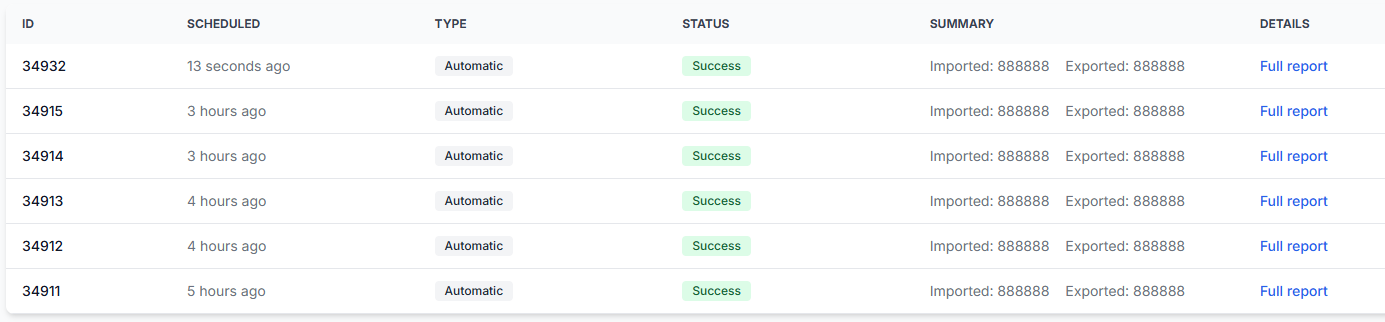
- record information about the run in synchronization reports.
Use Run sync when you want this process to start immediately.
For XML export, the generated file is refreshed at the same personalized public URL. For API export, the supported updates are scheduled for submission through the integration.
Common mistakes
- Using a page URL instead of a data URL. The source must return the product data, not a website page that displays or describes the file.
- Selecting the wrong format. A CSV source must be configured as CSV, an XML source as XML, and a Google Sheet as Google spreadsheets.
- Leaving a Google Sheet private. B2BLIX cannot retrieve a sheet that requires a personal Google login.
- Providing edit access to a Google Sheet. Only view permission is needed. Public edit permission creates an unnecessary risk.
- Missing or incorrect EAN values. Products may not be matched correctly when EANs are absent or invalid.
- Using unrecognized column names. Compare your source headings with the system attributes table and supported alternatives.
- Combining default and marketplace-specific collection hours. Use either the default XML value or the separate country values as required.
- Misunderstanding discount mode. Enabling it separates the original standard price from the calculated after-discount price.
- Choosing a very short interval with a last-published-price strategy. The strategy may apply its configured step more frequently than expected.
- Using API export for an extremely large update set. A large number of individual updates may take longer than the selected synchronization interval.
- Expecting the XML URL to publish prices automatically. The URL must first be configured as an import source in the Pigu seller account.
- Assuming that saving starts a run. Wait for the next scheduled interval or use Run sync.
Example use case
A seller maintains product data in a Google spreadsheet. The sheet contains EAN, SKU, current price, minimum price, maximum price, and stock columns.
- The seller shares the sheet with view-only access for anyone who has the link.
- They paste the sheet URL into data source URL.
- They select Google spreadsheets as the data format.
- They leave the basic authentication fields empty.
- They choose a 1 hour synchronization interval.
- They select XML as the export type.
- They enable discount mode because the imported standard price should remain the price before discount and the B2BLIX result should be exported as the price after discount.
- They click Update settings and then Run sync.
- They review the synchronization result and generated XML using a small test catalog.
- After confirming the prices and limits, they copy Your public URL into the appropriate HTTPS prices and stock import configuration in their Pigu seller account.
From that point, B2BLIX refreshes the XML according to the selected synchronization interval. Pigu retrieves and processes the file according to its own schedule.