Marketplace slugs: add or update your shop profile names
Use the Marketplace Slugs page to enter the shop name shown in your seller profile URL for each marketplace where you sell. Keep these values current so B2BLIX can correctly associate marketplace information with your shop.
This guide explains how to enter and update your marketplace shop slugs for 220.lv, Pigu.lt, Kaup24.ee, and HobbyHall.fi, including what to leave blank and what to check before saving.
What the marketplace slugs page is for
A marketplace slug is the shop name or identifier at the end of your public seller profile URL. Each local marketplace may have a separate profile URL and slug.
B2BLIX uses these identifiers to associate marketplace information with the correct seller account. They are also important when the service discovers your products and marketplace categories.
You normally provide this information during onboarding. After onboarding, you only need to return to this page when a shop name or seller profile URL changes, such as after rebranding.
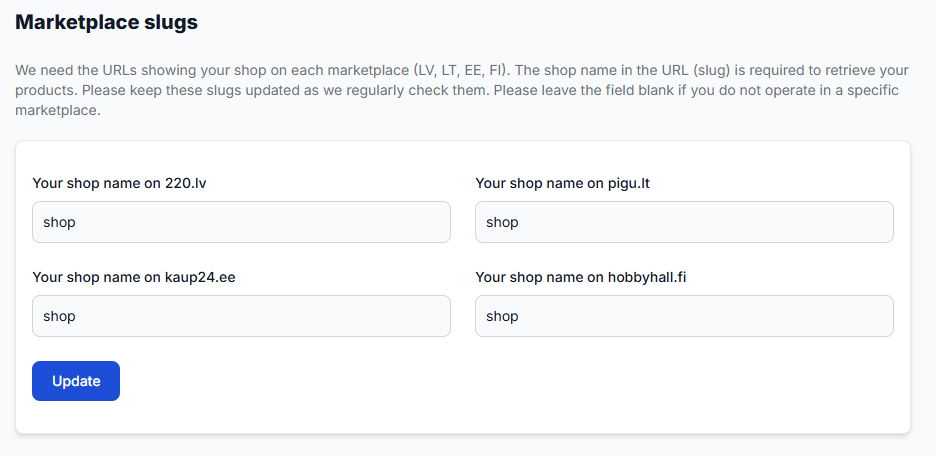
What you can do on this page
- Enter the shop slug for each marketplace where you currently sell.
- Update a slug after your shop name or seller profile URL changes.
- Leave marketplaces blank when you do not operate there.
- Submit the values for validation and save them to your B2BLIX account.
This page does not contain product filters, pricing strategies, monitoring schedules, or product tables. It is an account-level setting used by other B2BLIX workflows.
Main fields and controls
| Field or control | What to enter or do | When it is needed |
|---|---|---|
| Your shop name on 220.lv | Enter the final shop-name part from your 220.lv seller profile URL. | Complete this field when you sell on the Latvian marketplace. |
| Your shop name on pigu.lt | Enter the final shop-name part from your Pigu.lt seller profile URL. | Complete this field when you sell on the Lithuanian marketplace. |
| Your shop name on kaup24.ee | Enter the final shop-name part from your Kaup24.ee seller profile URL. | Complete this field when you sell on the Estonian marketplace. |
| Your shop name on hobbyhall.fi | Enter the final shop-name part from your HobbyHall.fi seller profile URL. | Complete this field when you sell on the Finnish marketplace. |
| Update | Checks the entered shop profiles and saves the accepted values. | Use this after adding or changing one or more slugs. |
The shop fields are required only for marketplaces where you participate. For example, when you sell in Latvia, Lithuania, and Estonia but not Finland, leave the HobbyHall.fi field blank.
How to identify the correct slug
Open your public shop or seller profile on the relevant marketplace and look at the final part of its URL. Enter only that shop-name part in the matching field.
| Marketplace | Profile URL structure |
|---|---|
| 220.lv | https://220.lv/lv/veikals/<your-shop> |
| Pigu.lt | https://pigu.lt/lt/parduotuve/<your-shop> |
| Kaup24.ee | https://kaup24.ee/et/pood/<your-shop> |
| HobbyHall.fi | https://hobbyhall.fi/fi/myyja/<your-shop> |
For example, if the profile URL ends with /my-shop-name, enter my-shop-name. Keep the spelling, hyphens, and other characters exactly as they appear in the marketplace URL.
Important: An incorrect or outdated slug can prevent B2BLIX from correctly recognizing your shop. This may affect product association, category discovery, and the marketplace information available for calculations. Updating a slug does not directly change a product price, but it can affect the data used by wider B2BLIX workflows.
How to use this page safely
- Open the public seller profile for each marketplace where you sell.
- Confirm that the profile belongs to your business and is currently active.
- Copy or carefully enter the final shop-name part of the URL.
- Leave fields blank for marketplaces where you do not participate.
- Review the spelling of every value before selecting Update.
- Check whether the page confirms the values or reports that a profile could not be checked.
Do not copy a product URL, category URL, marketplace homepage, or another seller’s profile. The value must identify your own public shop profile.
What happens after you select update
B2BLIX attempts to validate the entered marketplace profiles. Accepted values are stored in your account and can then be used when the service needs to identify your shop or work with your marketplace categories and products.
The effect may not appear as a visible change on this page beyond the saved values. The information becomes relevant when related discovery, monitoring, synchronization, or calculation processes use the marketplace profile details.
If the page reports that a value could not be checked, the profile may have been temporarily unavailable or the entered slug may be incorrect. Check the public URL and try Update again. When several values are being changed, you can also add and save them one marketplace at a time.
Common mistakes
- Keeping an old slug after rebranding: Update the field whenever the marketplace changes your shop profile URL.
- Entering the full URL: Enter the shop-name part shown after the marketplace’s shop-profile path.
- Using a product or category link: The slug must come from your seller profile page.
- Completing unused marketplaces: Leave a field blank when you do not sell on that marketplace.
- Changing several fields without checking them: Confirm each profile separately before saving.
- Ignoring a validation message: Recheck the spelling and confirm that the public seller profile is available.
Example use case
A seller operates on 220.lv, Pigu.lt, and Kaup24.ee. The business changes its public shop name, and each marketplace creates a new seller profile URL using the updated name.
The seller opens the marketplace slugs page and replaces the three old values with the new shop-name parts. The HobbyHall.fi field remains blank because the seller does not operate in Finland. After reviewing the values, the seller selects Update.
B2BLIX validates and stores the updated profiles. Future workflows can then use the current shop identifiers when associating marketplace information with the seller.