Buybox exclusion rules
The BuyBox Exclusion Rules page lets you prevent selected products or seller situations from being processed by the automatic BuyBox price calculation.
What the exclusion rules page is used for
The Exclusion Rules page is used to keep prices unchanged for products or situations that should not be processed by the BuyBox calculation algorithm.
When a product matches an active exclusion rule, B2BLIX does not run the normal BuyBox price calculation for that product. The suggested price remains equal to the product’s standard price.
Exclusion rules affect the price calculation only. They do not stop marketplace data collection or remove the product from monitoring.
Important: An exclusion rule can affect prices prepared during synchronization and later included in an export or supported publication workflow. Check the rule value and selected marketplaces carefully before saving.
You may need this page when:
- A distributor or sales agreement does not allow you to change the price of specific products.
- You want to keep the prices of selected bestsellers fixed.
- You do not want to compete with a particular seller.
- You want an exclusion to apply on only one or several marketplaces.
What you can do on this page
On the Exclusion Rules page, you can:
- Create a rule for an EAN, EAN list, SKU, or Seller.
- Select the marketplaces where the rule is active.
- Review all existing rules in one table.
- See whether each rule is active for 220.lv, Pigu.lt, Kaup24.ee, and HobbyHall.fi.
- Modify an existing rule.
- Delete a rule that is no longer required.
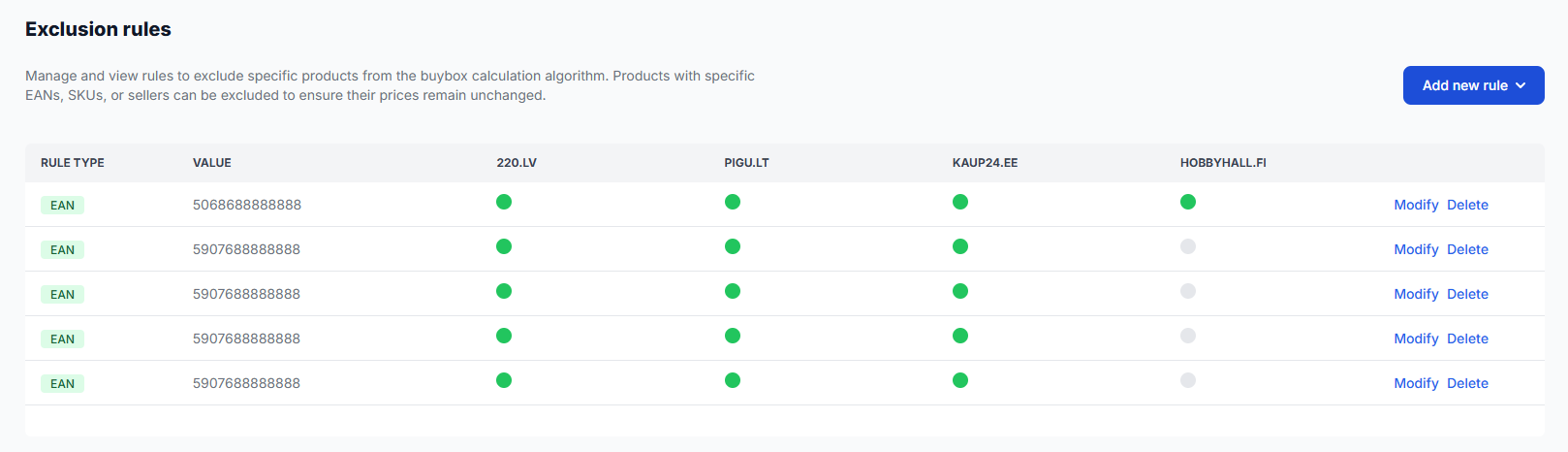
Understanding the rules table
| Column or control | What it means | What to check |
|---|---|---|
| Rule type | Shows the condition used by the rule, such as EAN, SKU, or seller. | Confirm that the selected rule type matches the identifier or seller condition you intended to exclude. |
| Value | Shows the exact EAN, SKU, seller, or other value used for matching. | Check for missing digits, extra spaces, or typing mistakes. |
| Marketplace columns | Show whether the rule is active on 220.lv, Pigu.lt, Kaup24.ee, or HobbyHall.fi. | A green indicator shows an active marketplace. A grey indicator shows that the rule is not active there. |
| Modify | Opens the existing rule so that its value or marketplace selection can be changed. | Review the complete rule before saving, especially when changing its marketplace scope. |
| Delete | Removes an exclusion rule. | Make sure the product can safely return to normal BuyBox calculation before deleting the rule. |
| Add new rule | Opens the form for creating a new exclusion rule. | Select the correct rule type before entering its value. |
Available rule types
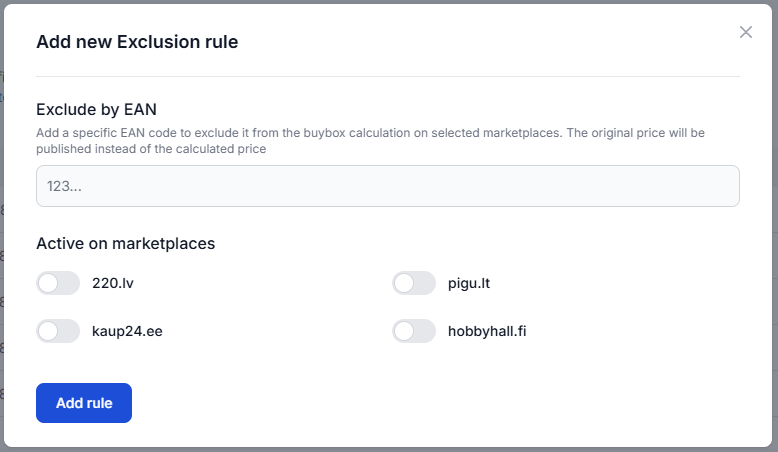
Exclude by ean
Use an EAN rule when one specific product identifier must be excluded from BuyBox calculation. Enter the full EAN exactly as it appears in your product data.
This is useful when a pricing agreement applies to a specific product across one or more marketplaces.
Exclude by ean list
Use an EAN list when the same exclusion requirement applies to several products. Make sure every EAN in the list is complete and belongs to the intended product.
Exclude by sku
Use an SKU rule when products should be matched by your own SKU instead of an EAN. The product’s SKU must match the rule value.
Copy the SKU from your source product data or from the product information available in B2BLIX. Do not assume that an EAN and SKU are interchangeable.
Exclude by seller
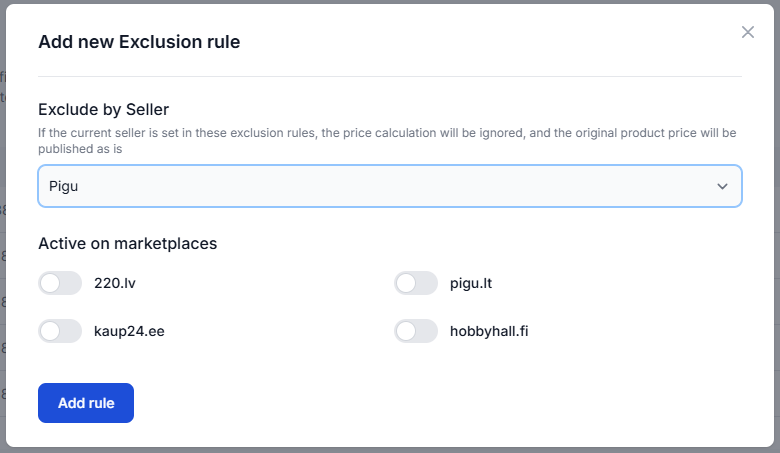
Use a seller rule when you do not want B2BLIX to change your price while a selected seller is the current seller in the monitored product situation.
For example, you may choose not to compete directly with Pigu when Pigu is selling the product itself. The rule can be limited to the relevant marketplaces.
Fields and controls in the add new rule form
| Field or control | Purpose | Guidance |
|---|---|---|
| Rule type | Defines whether the rule matches an EAN, EAN list, SKU, or seller. | Choose the rule type that matches the data you plan to enter. |
| EAN or SKU value | Identifies the product that should be excluded. | Enter the value exactly. A typo may cause the intended product not to match the rule. |
| Seller | Selects the seller condition that should trigger the exclusion. | Confirm that you selected the intended seller before saving. |
| Active on marketplaces | Defines where the rule is valid. | Enable only the marketplaces where the exclusion is required. |
| Add rule | Saves the new exclusion rule. | Review the value and marketplace switches before clicking this button. |
| Close icon | Closes the form without adding the rule. | Use it when you do not want to save the current entry. |
How to add an exclusion rule
- Open the Exclusion Rules page.
- Select Add new rule.
- Choose the required rule type, such as EAN, EAN list, SKU, or seller.
- Enter or select the matching value.
- Enable the marketplaces where the exclusion should apply.
- Check the value for typing mistakes.
- Confirm that the correct marketplace switches are enabled.
- Select Add rule.
The rule is saved immediately. It becomes relevant to product processing during the next synchronization cycle.
When an applicable product is processed during that synchronization, the BuyBox algorithm is skipped and the suggested price remains equal to the standard price. A calculated or exported price is not necessarily live until it has been accepted and applied by the marketplace.
How to use this page safely
Before adding or modifying a rule, verify the product in the All Products section. Confirm that the product has been discovered by B2BLIX and that you are using the correct EAN, SKU, and marketplace.
A safe workflow is:
- Find the product in All Products.
- Copy the required EAN or SKU instead of typing it from memory.
- Decide exactly which marketplaces need the exclusion.
- Create the rule and review it in the rules table.
- Wait for the next synchronization cycle.
- Review the product result before relying on the exclusion in a wider publication workflow.
Safety reminder: Excluding a product does not stop monitoring. It changes how the suggested price is calculated. Make sure the product’s standard price is suitable for every marketplace where the rule is active.
Common mistakes
- Entering the wrong EAN: One incorrect digit can prevent the product from matching the rule.
- Using an EAN instead of an SKU: Select the correct rule type for the value you are entering.
- Selecting the wrong seller: Confirm the seller name before adding a seller rule.
- Enabling too many marketplaces: A rule may be needed on one marketplace but not on the others.
- Expecting monitoring to stop: Exclusion rules stop the BuyBox calculation for matching situations, not data collection.
- Expecting an immediate live-price change: The rule is used during the next synchronization cycle, and any published price still depends on the configured output workflow and marketplace processing.
- Deleting a rule too early: After removal, the product may return to normal BuyBox calculation during a later synchronization.
Example use case
A seller has a distribution agreement that requires a specific product to remain at its standard price on 220.lv and Pigu.lt.
The seller finds the product in All Products, copies its EAN, and creates an EAN exclusion rule. The seller enables the rule for 220.lv and Pigu.lt but leaves Kaup24.ee and HobbyHall.fi disabled.
During the next synchronization, B2BLIX continues to use available marketplace observations for monitoring. However, the BuyBox calculation is not executed for that EAN on the two selected marketplaces, and the suggested price remains equal to the standard price.