Category management: monitoring frequencies and price coefficients
Learn how to review discovered categories, filter the category list, change monitoring schedules, set price coefficients, and safely apply settings to one or several categories.
What the Category Management page is for
The Category Management page lists categories in which B2BLIX has discovered products belonging to your marketplace account. Categories are discovered separately for the supported Pigu Group marketplaces: 220.lv, Pigu.lt, Kaup24.ee, and HobbyHall.fi.
The page is mainly used to control how often marketplace information is collected for products in each category. You can also set category-level coefficients that B2BLIX may use to calculate minimum and maximum price limits.
Open this page a few hours after onboarding, after B2BLIX has had time to discover categories from your public marketplace shop. Return to it after adding products in a new marketplace category.
Important: A newly discovered category may appear without a standard monitoring frequency. If its frequency is zero or not configured, products in that category will not be refreshed regularly.
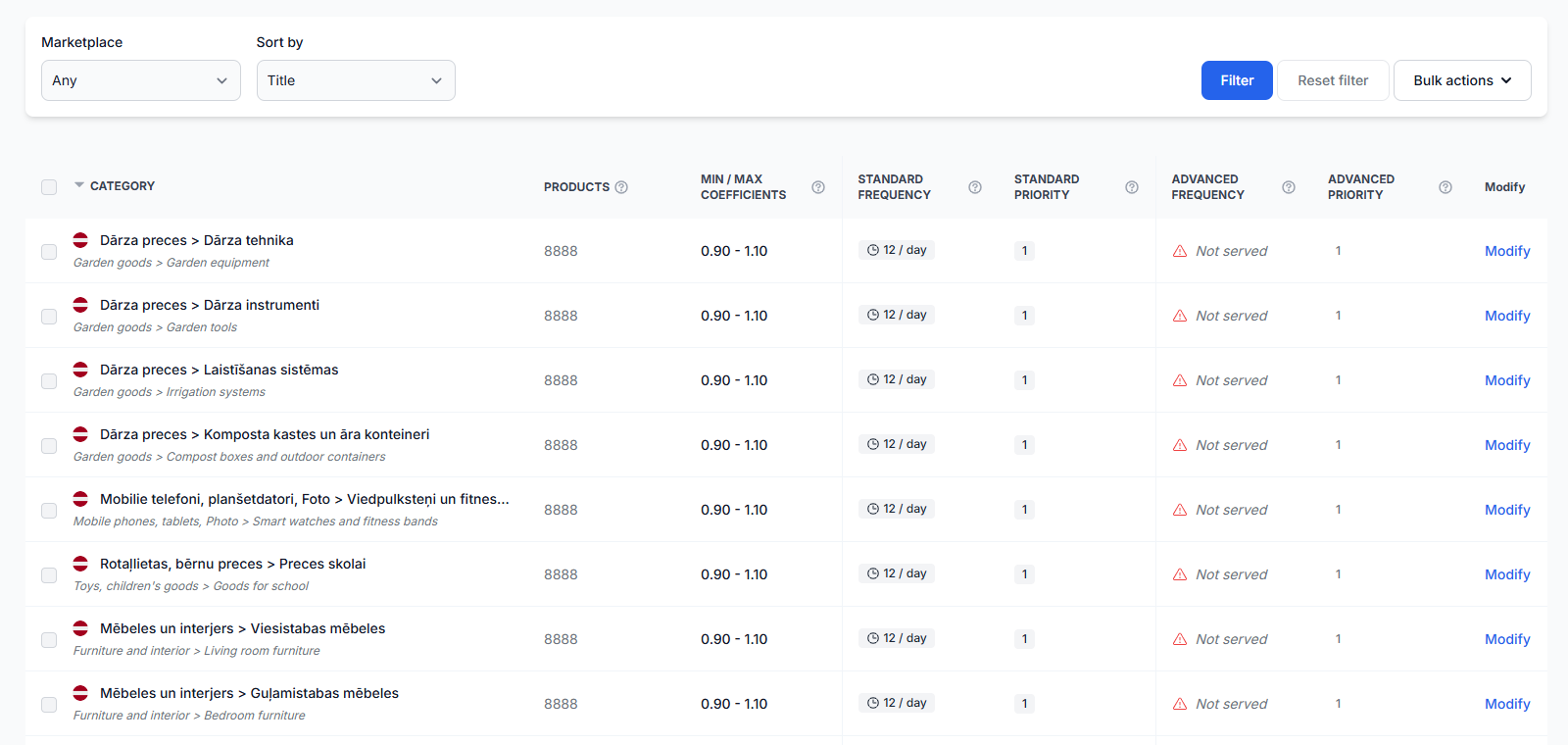
What you can do on this page
- Review categories discovered for your marketplace account.
- See how many products are currently associated with each category.
- Filter the list by marketplace.
- Sort categories by title or selected category settings.
- Set minimum and maximum price coefficients.
- Choose a standard monitoring frequency.
- Enable or disable advanced monitoring.
- Modify one category individually.
- Apply the same settings to several selected categories.
Category settings control monitoring and price-limit calculations. Changing them does not by itself publish a new product price to the marketplace.
Filters and page controls
| Control | What it means | When to use it |
|---|---|---|
| Marketplace | Limits the list to categories discovered on a selected marketplace. | Use it to review 220.lv, Pigu.lt, Kaup24.ee, or HobbyHall.fi separately. Select Any to include all available marketplaces. |
| Sort by | Changes the order of the category list. | You can sort by title, product count, coefficients, standard frequency, standard priority, advanced frequency, or advanced priority. |
| Filter | Applies the selected marketplace and sorting options. | Click it after changing the filter controls. |
| Reset filter | Clears the selected filter settings and restores the default view. | Use it when you want to return to the normal category list. |
| Category checkboxes | Select one or more category rows. | Use them before opening a bulk action. The checkbox in the table header can select all visible rows. |
| Bulk actions | Opens options for changing the same type of setting in several categories. | Use it when selected categories should receive the same coefficients or monitoring settings. |
| Modify | Opens the complete settings window for one category. | Use it when a category needs an individual configuration. |
Understanding the category table
| Column | What it shows | What it affects |
|---|---|---|
| Category | The category discovered on the marketplace. The row may include the local category name and an English category path. | Display only. |
| Products | The number of products currently discovered in the category. | Display only. Use this number when considering the possible cost of a monitoring schedule. |
| Min / Max coefficients | The factors used to derive minimum and maximum prices from each product's original or base price. | Price-limit calculation. They are not used when the imported product data already contains explicit minimum and maximum prices. |
| Standard frequency | How often standard marketplace information should be collected for products in the category. | Monitoring freshness and usage cost. |
| Standard priority | A priority value displayed for standard monitoring. | For normal seller setup, leave the existing value unchanged unless you receive specific instructions. |
| Advanced frequency | How often more detailed marketplace information should be collected. | Advanced monitoring freshness and usage cost. |
| Advanced priority | The processing order for advanced data collection. Higher values indicate higher priority. | Relevant when advanced monitoring is enabled. |
| Modify | Opens the settings for the selected category. | Allows you to change coefficients and monitoring settings. |
Minimum and maximum price coefficients
The MIN and MAX coefficients can be used when minimum and maximum prices are not supplied directly in your imported product data.
B2BLIX applies the coefficient to the product's original or base price. For example, for a product with a base price of EUR 100:
- A MIN coefficient of 0.80 produces a calculated minimum of EUR 80.
- A MAX coefficient of 1.20 produces a calculated maximum of EUR 120.
If the imported product data already contains a minimum and maximum price, those product-level values take precedence over the category coefficients.
Price safety warning: Check the resulting price limits before saving. For example, a minimum coefficient of 0.10 applied to a EUR 100 product would produce a minimum price of EUR 10. That value may be below the product's cost and could allow an unsafe calculated price.
Coefficients limit the prices B2BLIX may calculate. They do not guarantee that the product will win the BuyBox, and saving them does not immediately publish a marketplace price.
Standard monitoring frequency
Standard frequency controls how often B2BLIX collects standard marketplace information for products in the category. This may include information such as the latest known BuyBox position.
| Frequency setting | Approximate interval |
|---|---|
| Not monitored or zero | No regular refresh |
| 1 time per day | Every 24 hours |
| 2 times per day | Every 12 hours |
| 4 times per day | Every 6 hours |
| 6 times per day | Every 4 hours |
| 8 times per day | Every 3 hours |
| 12 times per day | Every 2 hours |
| 24 times per day | Every hour |
| 48 times per day | Every 30 minutes |
| 96 times per day | Every 15 minutes |
A higher frequency provides more recent observations, but it also creates more chargeable monitoring activity. Consider both the selected interval and the number of products in the category.
Cost warning: Do not automatically choose the highest frequency for every category. Monitoring a category containing thousands of products every 15 minutes can create substantial usage in a short period.
Advanced monitoring
Advanced frequency controls how often more detailed marketplace information is collected. This may include additional competitive information used by pricing strategies that require more than standard BuyBox data.
Leave advanced frequency set to Not monitored unless advanced information is required for your pricing setup and you understand the related cost.
High-cost setting: Advanced monitoring can be substantially more expensive than standard monitoring. Check the category's product count and selected interval carefully before enabling it, especially for large categories.
Modifying one category
Click Modify in a category row to open the individual category settings.
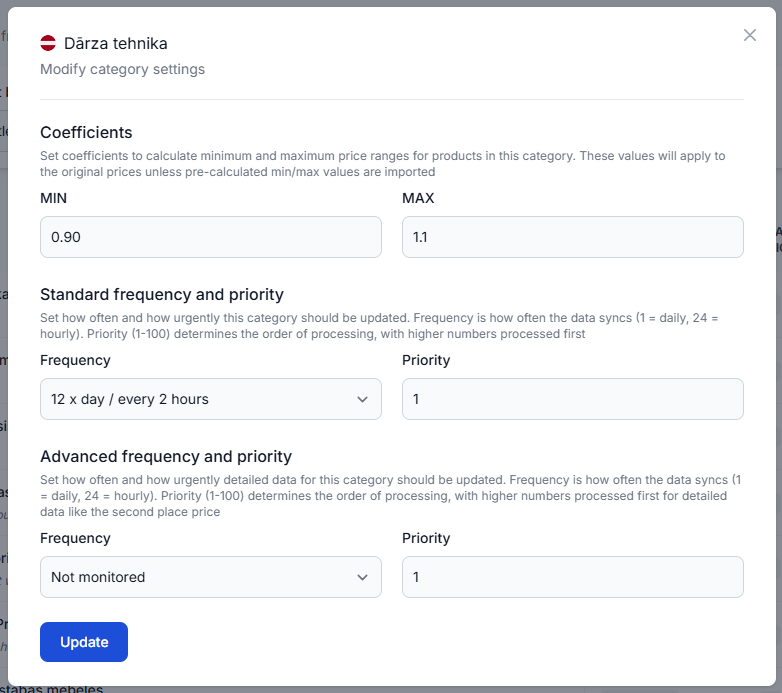
The individual category window contains three groups of settings:
- Coefficients: The minimum and maximum factors used for category-derived price limits.
- Standard frequency and priority: The schedule for standard marketplace monitoring.
- Advanced frequency and priority: The schedule for more detailed data collection.
Click Update to save the changes. The new settings become active after saving. When the next scheduled collection time is reached, B2BLIX will process the category according to the saved frequency.
Saving a category setting does not necessarily cause an immediate refresh, calculation, export, or live marketplace price update. Monitoring, calculation, synchronization, and publication are separate parts of the workflow.
Modifying several categories in bulk
Use Bulk actions when several categories should receive the same settings.
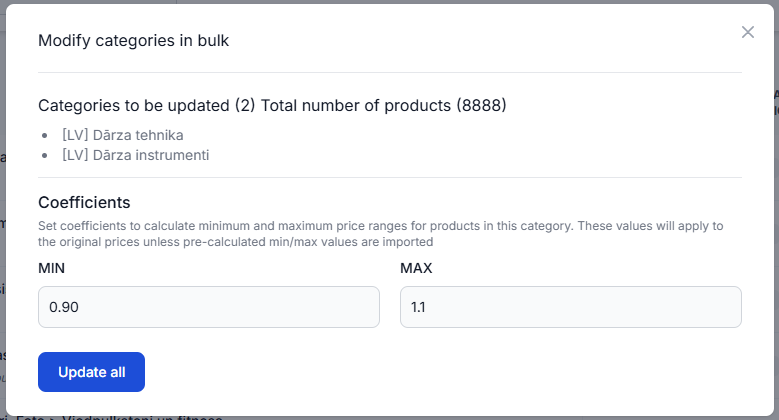
The available bulk actions allow you to update:
- Coefficients only.
- Standard frequency and priority only.
- Advanced frequency and priority only.
The bulk window shows the number of selected categories and the total number of products discovered in them. Review both values before saving because they help indicate the possible monitoring impact.
- Select the required category checkboxes.
- Open Bulk actions.
- Choose the type of settings to modify.
- Review the listed categories and total product count.
- Enter the new values.
- Click Update all.
Before clicking Update all: Confirm that every listed category should receive exactly the same values. The saved settings become active for all selected categories.
How to use this page safely
-
Allow time for category discovery.
After onboarding, wait a few hours and then check whether your marketplace categories have appeared.
-
Review every marketplace you use.
Categories are discovered separately for each marketplace, so use the Marketplace filter to check them individually.
-
Return after adding new products.
A product added to a previously undiscovered category may create a new category row that still needs a monitoring frequency.
-
Check the product count.
A frequent schedule has a greater cost impact when the category contains many products.
-
Verify coefficients before saving.
Calculate a few example minimum and maximum prices and confirm that they protect your required costs and margins.
-
Start with a reasonable standard frequency.
Increase the frequency only when the category requires fresher marketplace information.
-
Keep advanced monitoring disabled by default.
Enable it only for categories that require detailed competitive data.
-
Leave priority values unchanged unless needed.
Most sellers only need to configure coefficients and frequencies.
-
Review spending controls.
Before enabling frequent monitoring for a large catalog, check your current usage and configured spending limits.
-
Confirm the saved values.
After clicking Update or Update all, check that the expected settings appear in the category table.
Common mistakes
- Assuming new categories are monitored automatically. A newly discovered category may remain unmonitored until a standard frequency is saved.
- Not checking Category Management after adding products. Products in a new category may not be refreshed regularly.
- Setting a minimum coefficient that is too low. This can create a calculated minimum below the product's cost.
- Choosing the highest standard frequency for every category. This can create unnecessary monitoring costs.
- Enabling advanced monitoring accidentally. Advanced collection may consume the usage budget much faster than expected.
- Ignoring product counts during a bulk update. Applying a frequent schedule to several large categories can have a significant combined impact.
- Changing priority fields without a clear reason. These values normally do not need routine seller adjustment.
- Selecting the wrong categories before a bulk action. Always review the list shown in the confirmation window.
- Expecting an immediate live price change. Category settings affect monitoring and calculation limits, but publication follows a separate workflow.
Example use case
A seller completes onboarding for 220.lv and waits for B2BLIX to discover the products shown in the public marketplace shop. A few hours later, the seller opens Category Management and finds two newly discovered garden categories.
The seller's imported product data does not contain individual minimum and maximum prices. The seller therefore selects both categories and applies these coefficients:
- MIN: 0.80
- MAX: 1.20
For a product with a base price of EUR 100, the resulting calculated price range would be EUR 80 to EUR 120.
The seller then chooses a standard frequency of 8 times per day, which is approximately every three hours. Advanced frequency remains set to Not monitored.
After the seller clicks Update all, the settings become active for both categories. Standard marketplace information will be collected according to the saved schedule. Any later price calculation will still follow the configured pricing strategy and available minimum and maximum limits.