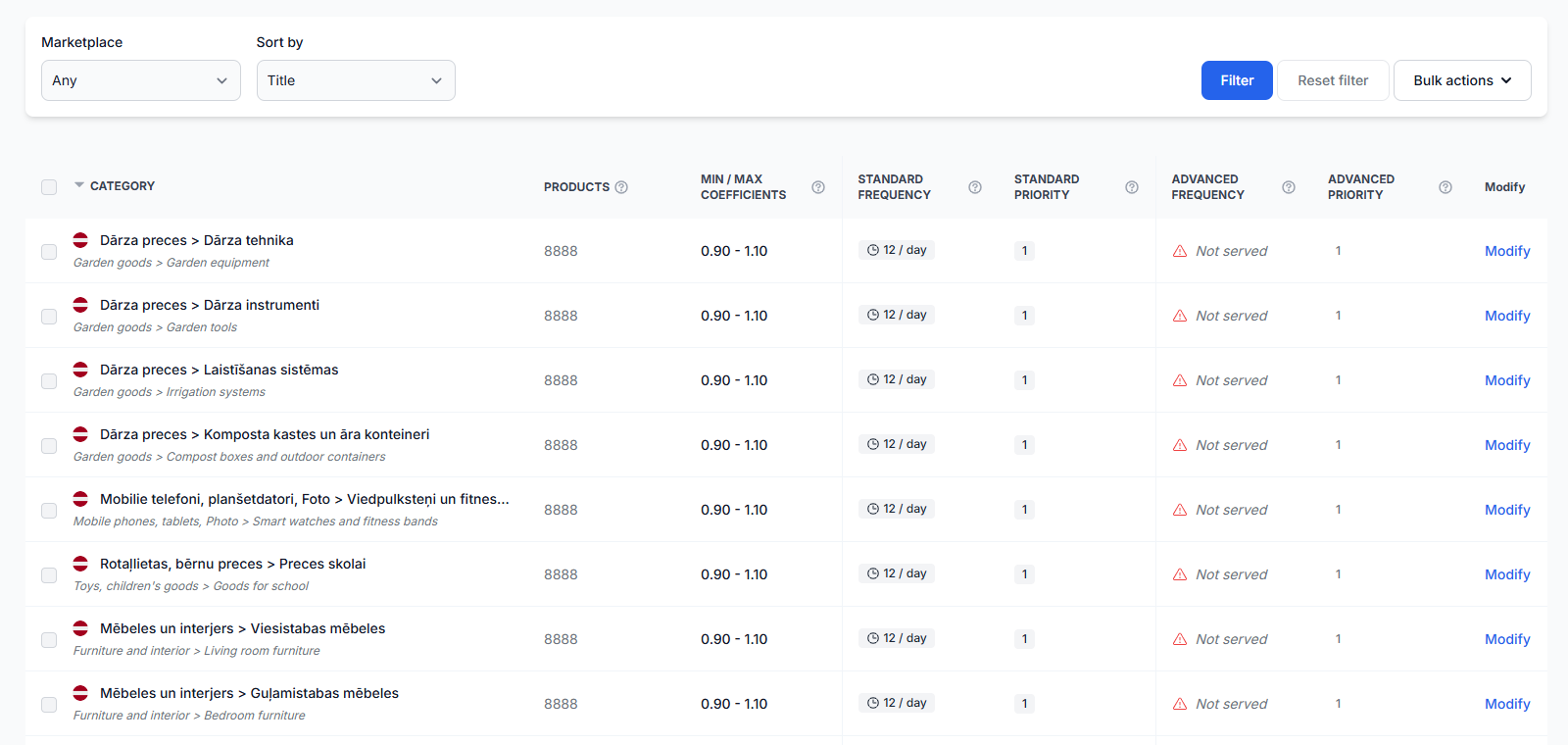
Using the BuyBox simulator
The BuyBox simulator lets you test pricing strategies with real marketplace product data without changing or publishing your live prices. Learn how to enter product prices, select BuyBox strategies, run a simulation, and interpret the suggested price and calculation process.
What the BuyBox simulator is used for
The BuyBox simulator is a testing area for understanding how B2BLIX pricing strategies may respond to a real product situation.
You select a marketplace, enter a product EAN, provide the same type of price limits used in your imported product data, and choose the strategies you want to test. B2BLIX then retrieves available marketplace information and performs a BuyBox price calculation.
The simulator is especially useful after onboarding and before you configure automatic behavior in BuyBox settings. It allows you to compare strategies and understand why a particular price is suggested.
The simulator does not publish or change your marketplace price. Its suggested price is for testing and review only. To use a strategy in your regular workflow, you must configure it separately in BuyBox settings.
Billing note: A successfully completed simulation counts as one advanced action. A form submission that stops because of validation errors does not use an action.
What you can do on this page
- Select one of the supported Pigu Group marketplaces.
- Test a real product by entering its EAN code.
- Simulate the product’s imported minimum, standard, and maximum prices.
- Change the price adjustment step and other general calculation settings.
- Compare strategies for winning, losing, and undefined BuyBox situations.
- Optionally override selected system values for a more specific test.
- Review the suggested price, competitor offers, and calculation steps.
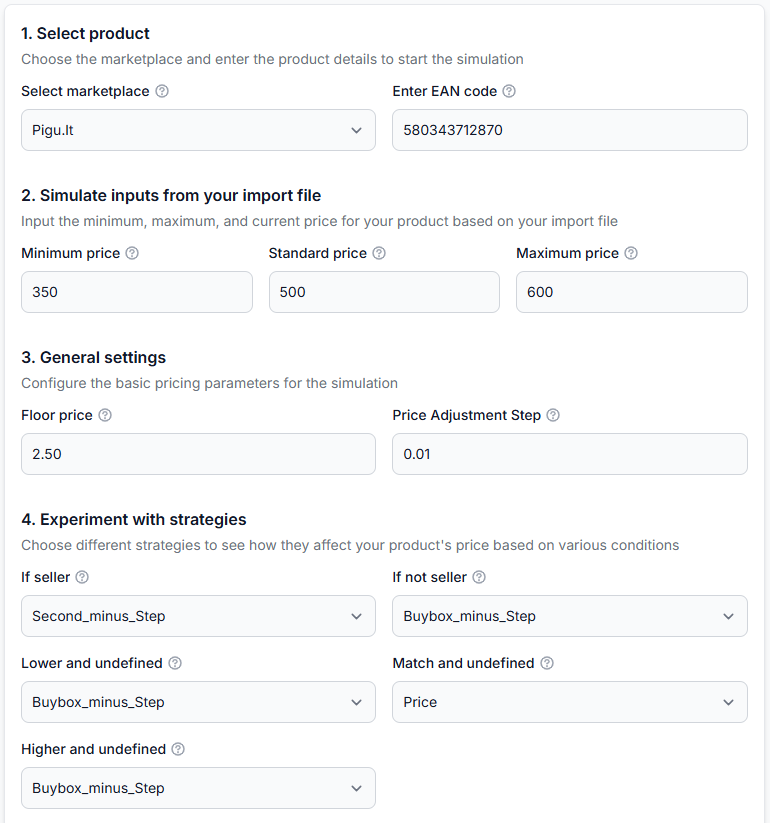
Main fields and controls
1. Select product
| Field | What it means | How it affects the simulation |
|---|---|---|
| Select marketplace | The marketplace where the product is listed, such as 220.lv, Pigu.lt, Kaup24.ee, or HobbyHall.fi. | B2BLIX looks for the product and its available competition data on the selected marketplace. |
| Enter EAN code | The European Article Number used to identify the product. | The EAN is used to find the correct marketplace product. Enter it carefully and without extra characters. |
2. Simulate inputs from your import file
These fields represent the product values that would normally come from your imported product data.
| Field | What it means | How to use it |
|---|---|---|
| Minimum price | The lowest price permitted for this product. | Enter a value that protects your required margin. The simulated result should not go below the applicable lower limit. |
| Standard price | The product’s current or base selling price. | Use the same value that you would normally provide in your import file. |
| Maximum price | The highest price permitted for this product. | Enter the upper limit you want the simulation to consider. Marketplace information may sometimes apply a stricter upper constraint. |
Use logically consistent values. The minimum price should not be higher than the standard price or maximum price.
3. General settings
| Field | What it means | How to use it |
|---|---|---|
| Floor price | A general lower pricing boundary used by the calculation. | Normally keep the recommended value unless you are deliberately testing another setup. Your product-specific minimum price may be higher than this floor. |
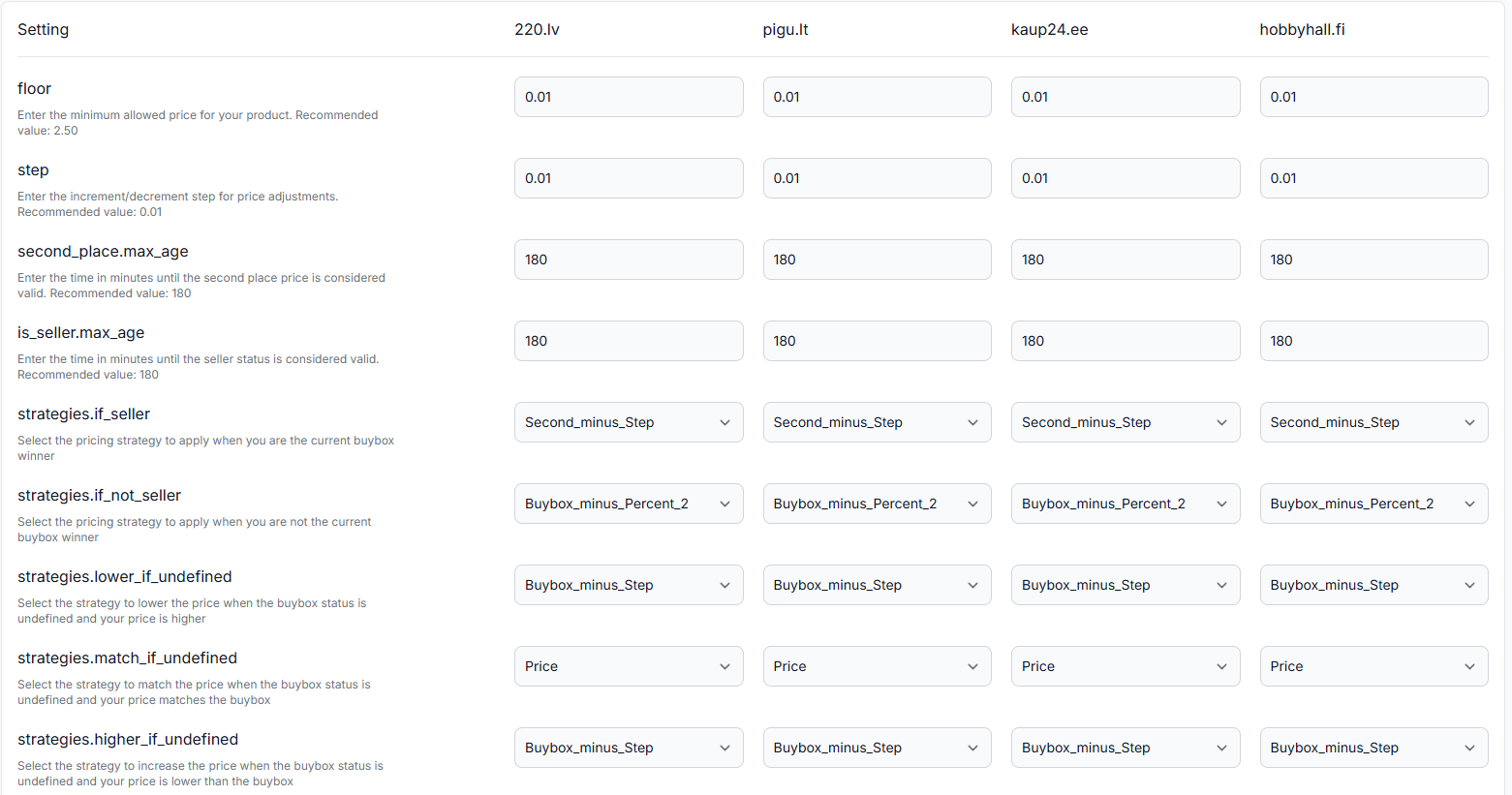
| Price adjustment step | The amount used when a strategy raises or lowers a price by one step. | For example, a step of 0.01 means that a “BuyBox minus step” strategy attempts to calculate one cent below the observed BuyBox price. |
4. Experiment with strategies
Each strategy field represents a different marketplace situation. The simulator chooses the relevant field after reviewing the available product and seller-status data.
| Strategy field | When it is used | What to consider |
|---|---|---|
| If seller | Used when the available data indicates that your offer currently holds the BuyBox. | You can test whether to keep the price or look for an opportunity to raise it while remaining competitive. |
| If not seller | Used when another seller currently holds the BuyBox. | Strategies in this group may maintain, match, or lower the price according to the selected option. |
| Lower and undefined | Used when seller status is undefined and your price is higher than the observed BuyBox price. | A lowering strategy can be tested because your current price is above the competing price. |
| Match and undefined | Used when seller status is undefined and your price matches the observed BuyBox price. | A conservative strategy may keep the price while waiting for clearer seller-status information. |
| Higher and undefined | Used when seller status is undefined and your price is lower than the observed BuyBox price. | You can test whether the price should remain unchanged or move closer to the observed BuyBox price. |
Strategy names may contain underscores, such as Buybox_minus_step or Second_minus_step. These names describe the reference price and the adjustment applied. Use the BuyBox schema when you need the full functional meaning of each available strategy.
5. Advanced overwrite system data
The advanced section is optional. It lets you test how the calculation behaves with specific historical or seller-status conditions instead of relying entirely on the retrieved values.
| Field | What it means |
|---|---|
| Last published price | The last price previously calculated and published in a normal workflow. When you do not have this value, the current price can be used for the simulation. |
| Second place price max age | Defines how old the second-place price information may be before it is no longer treated as current for the test. |
| Is seller max age | Defines how old the seller-status information may be before the simulation treats it as uncertain. |
| Seller status | Select Defined to use the available seller-status data. Select Not defined to ignore that status and test one of the undefined-status strategy branches. |
These controls are intended for deliberate testing. For a first simulation, it is usually easier to leave the advanced values at their displayed defaults.
Execute price simulation
Select Execute price simulation after completing the required fields. The system retrieves available product information, performs the calculation, and displays the result on the same page. The form fields and tooltips define the inputs used by the simulator.
Understanding the simulation results
The results section explains both the outcome and the main decisions that produced it.
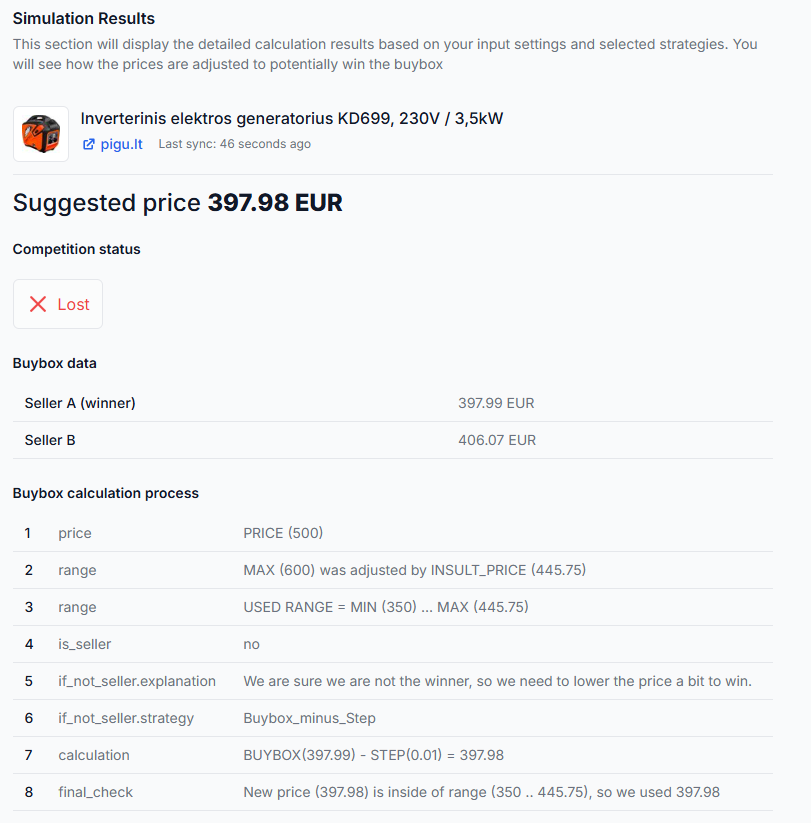
Product information
The top of the results shows the identified product, its marketplace, and the age of the retrieved information. Check that the product title and marketplace match the EAN you intended to test.
Suggested price
The suggested price is the final output of the simulation. It is the price that the selected settings would recommend for the tested situation.
A suggested price is not a live price and does not guarantee the BuyBox. The marketplace decides which seller receives the BuyBox, and price may not be the only factor considered.
Competition status
- Won means the available information indicates that your seller offer currently holds the BuyBox.
- Lost means another seller is shown as the current BuyBox winner.
This status determines whether the simulator uses the If seller, If not seller, or an undefined-status strategy.
BuyBox data
The BuyBox data table lists the observed sellers and their prices. The current winner is identified in the table when that information is available.
Use this section to confirm which competitive price the simulation is reacting to. The listed prices are observed marketplace data, while the suggested price is a separate B2BLIX calculation.
BuyBox calculation process
The calculation process presents the decision in steps. Depending on the product situation, the rows may include:
- Price: The standard price entered in the simulator.
- Range: The initial minimum and maximum price limits, including any stricter marketplace constraint.
- Used range: The final price range permitted for this calculation.
- Seller status: Whether your offer is identified as the current BuyBox seller.
- Explanation: Why a particular strategy group was selected.
- Strategy: The exact strategy selected for the current situation.
- Calculation: The reference price and adjustment used to produce the new price.
- Final check: Confirmation that the result remains inside the permitted price range.
The results may show an INSULT_PRICE adjustment. This is a marketplace-related upper price constraint used in the calculation. When it is lower than the maximum price you entered, the simulator uses the stricter value as the effective maximum.
In the illustrated example, the competing BuyBox price is EUR 397.99 and the selected strategy is Buybox_minus_step. With a price adjustment step of EUR 0.01, the simulator calculates EUR 397.98 and then confirms that this result is inside the permitted range.
How to use the page safely
- Select the correct marketplace before entering the EAN.
- Confirm that the EAN belongs to the product you want to test.
- Enter realistic minimum, standard, and maximum prices from your product data.
- Start with the same general settings you plan to use in BuyBox settings.
- Change one strategy at a time so that you can clearly see its effect.
- Execute the simulation and verify the product title before reviewing the result.
- Check the effective price range, selected strategy, and final range check.
- Repeat the test with other relevant strategies before deciding which approach suits your business rules.
- Configure the selected strategy separately in BuyBox settings when you are ready to use it in the regular calculation workflow.
Although simulator changes cannot affect live prices, you should still use realistic price limits. Unrealistic values can produce a result that is not useful when configuring your actual repricing rules.
Common mistakes
- Entering the wrong EAN: The system may find a different product or may not find a product at all.
- Selecting the wrong marketplace: The same EAN may have different offers and competition on each local marketplace.
- Using inconsistent price limits: Check that the minimum, standard, and maximum prices form a sensible range.
- Assuming the suggested price will be published: The simulator is view-only and does not update your marketplace offer.
- Assuming a lower price guarantees a win: B2BLIX can calculate a more competitive price, but the marketplace controls the final BuyBox decision.
- Changing several strategies at once: This makes it harder to understand which setting caused the result.
- Stopping after a temporary product-data error: When the EAN and marketplace are correct, try executing the simulation again. Product information may occasionally be unavailable on the first attempt.
Example use case
A seller wants to understand how the service would react when another offer currently holds the BuyBox.
The seller selects the correct marketplace, enters the product EAN, and provides a minimum price of EUR 350.00, a standard price of EUR 500.00, and a maximum price of EUR 600.00. The price adjustment step is EUR 0.01, and the If not seller strategy is set to Buybox_minus_step.
The retrieved data shows that another seller holds the BuyBox at EUR 397.99. The calculation also shows that a marketplace-related constraint reduces the effective maximum price below the seller-entered EUR 600.00 limit.
The simulator selects the If not seller branch, subtracts the EUR 0.01 step from the observed BuyBox price, and suggests EUR 397.98. It then checks that this price is within the permitted range.
The seller can now test another strategy and compare the results. When satisfied, the seller can configure the preferred behavior in BuyBox settings for use in the regular synchronization and pricing workflow.