Sync tester and google sheets file structure
The Sync Tester checks whether a Google Sheets product file has the correct structure and shows how B2BLIX would process a small set of products. It generates a test XML result without directly publishing prices to a marketplace.
What the sync tester is used for
The Sync Tester is a preparation tool for sellers who want to check their product file before setting up regular synchronization.
You can create a small Google Sheets document containing real or representative products, submit its URL, and run the BuyBox calculation process once. B2BLIX reads the submitted product data, uses the available discovered marketplace information and your configured BuyBox rules, and prepares an XML file with the calculated results.
This page is especially useful when you need to:
- Confirm the correct column names and file structure.
- Understand what each supported product field means.
- Test general and marketplace-specific prices.
- Check minimum and maximum price limits.
- Test exclusion rules or unusual product situations.
- Review an XML result before configuring regular synchronization.
The Sync Tester is normally used before the final product source is added in Synchronization settings. Once regular synchronization is configured and working, the tester should only be used with particular care.
Important: Running the test does not directly send prices to Pigu, 220.lv, Kaup24.ee, or HobbyHall.fi. However, the test can update the generated public XML at the same fixed URL. Do not run a test while that XML URL is connected to a live marketplace or another system, because the connected system may receive the temporary testing data.
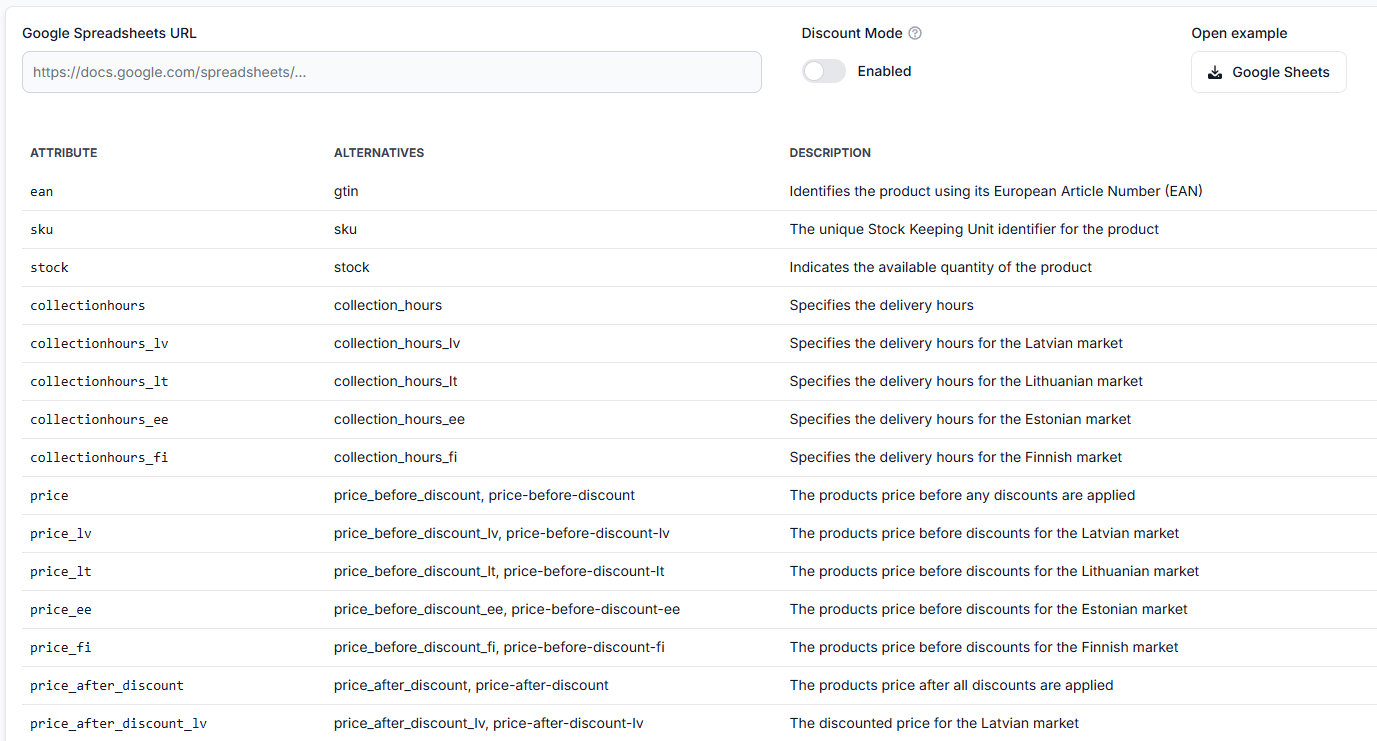
What you can do on this page
- Open a reference Google Sheets document with the expected structure.
- Enter the URL of your own Google Sheets product file.
- Choose how original and calculated prices should appear in the XML output.
- Review accepted field names and alternative column names.
- Run a one-time synchronization test.
- Generate an XML file containing the processed products and calculated prices.
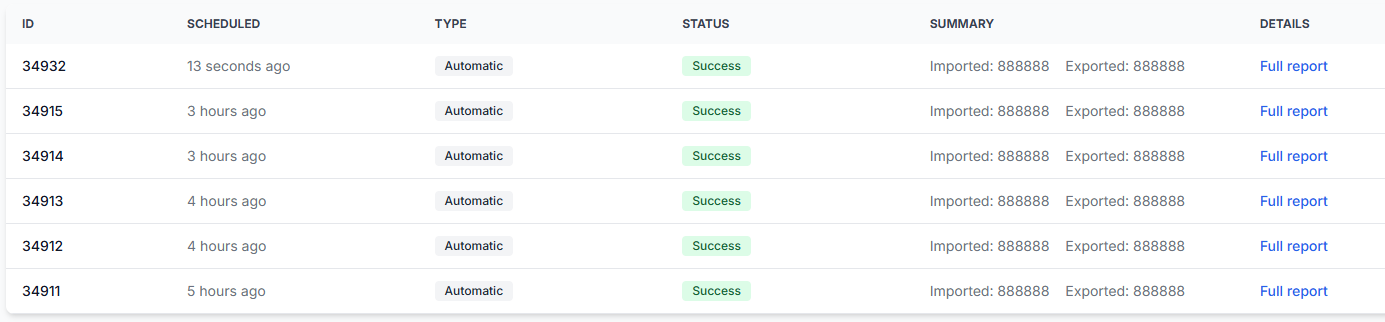
- Review the generated result in the synchronization reporting workflow.
The test performs a real calculation procedure, but a calculated or exported price is not automatically a live marketplace price. A price becomes live only if an external integration uses the generated output and the marketplace accepts and applies it.
Main fields and controls
| Field or control | What it means | When to use it |
|---|---|---|
| Google Sheets URL | The address of the Google Sheets document containing the products you want to test. | Paste the URL after preparing the sheet with supported column names. Make sure B2BLIX can access the document through the supplied URL. |
| Discount Mode | Controls how the submitted price and the calculated price are represented in the XML output. | Enable it when you want the XML to keep the submitted price as the original price and show the calculated price as the discounted price. |
| Open example: Google Sheets | Opens a reference spreadsheet with the expected structure. | Use it before creating your own document or when checking the spelling and order of columns. |
| Attribute table | Lists the main accepted field name, supported alternatives, and a short description. | Use it when naming columns in your Google Sheets document. |
| Run test | Reads the submitted sheet, processes its products, applies the available BuyBox settings, and generates a test result. | Use it after checking the source URL, product identifiers, prices, limits, and regional values. |
How to prepare the Google Sheets document
Use one row for each product. The first row should contain the supported attribute names.
The tester accepts the main attribute names shown on the page and, for some fields, alternative names. Use the spelling exactly as shown. Avoid adding spaces or changing underscores and hyphens unless that exact alternative is listed.
The page does not mark every possible column as required. In practice, the EAN or GTIN is the main product-matching value. Add the other fields needed for the situation you want to test.
A product identifier should refer to a product that exists in the seller’s marketplace listings and has been discovered by B2BLIX. An unknown or incorrect EAN may prevent the product from being matched to available marketplace information.
Marketplace suffixes
Several field families support both a general value and a value for one specific marketplace. The marketplace is identified by a suffix at the end of the column name.
| Suffix | Marketplace | Example field |
|---|---|---|
| _lv | 220.lv in Latvia | price_lv |
| _lt | Pigu.lt in Lithuania | price_lt |
| _ee | Kaup24.ee in Estonia | price_ee |
| _fi | HobbyHall.fi in Finland | price_fi |
How general and marketplace-specific values work
A field without a marketplace suffix acts as the general value for all supported marketplaces. A marketplace-specific field overrides that general value only for its own marketplace.
For example, suppose a product row contains:
| Column | Value |
|---|---|
price |
100 |
price_lv |
90 |
The effective submitted prices are:
- Latvia: 90, because
price_lvoverrides the general value. - Lithuania: 100, from
price. - Estonia: 100, from
price. - Finland: 100, from
price.
The same principle applies to:
- Collection or delivery hours.
- Prices before discount.
- Prices after discount.
- Minimum allowed prices.
- Maximum allowed prices.
You do not need to repeat the same value in all four marketplace columns. Enter a general value and add only the regional exceptions that are different.
Product identification fields
| Attribute | Accepted alternative | Meaning and use |
|---|---|---|
ean |
gtin |
The main product identifier used to match the submitted row with a marketplace product. The EAN should belong to a product available in the seller’s Pigu Group listings and known to B2BLIX. |
sku |
sku |
The seller’s Stock Keeping Unit identifier. It can provide an additional reference or validation value for the product. It does not replace the EAN when EAN-based product matching is required. |
Stock field
| Attribute | Accepted alternative | Meaning and use |
|---|---|---|
stock |
stock |
The available product quantity. Enter it as a whole number, such as |
A value of 0 indicates that no units are currently available. Check stock values carefully when testing an output that could be read by another system.
Collection and delivery-hour fields
These fields describe the product’s delivery or collection time for the supported marketplaces.
| Attribute | Accepted alternative | Applies to |
|---|---|---|
collectionhours |
collection_hours |
General value for all marketplaces unless overridden. |
collectionhours_lv |
collection_hours_lv |
Latvia only. |
collectionhours_lt |
collection_hours_lt |
Lithuania only. |
collectionhours_ee |
collection_hours_ee |
Estonia only. |
collectionhours_fi |
collection_hours_fi |
Finland only. |
Use the general field when the delivery time is the same in every market. Add a marketplace-specific field when one country has a different delivery time.
Price-before-discount fields
These fields contain the submitted product price before discounts are applied. The general value is used for every marketplace unless a regional value is provided.
| Attribute | Accepted alternatives | Applies to |
|---|---|---|
price |
price_before_discount, price-before-discount |
General price for all marketplaces unless overridden. |
price_lv |
price_before_discount_lv, price-before-discount-lv |
Latvia only. |
price_lt |
price_before_discount_lt, price-before-discount-lt |
Lithuania only. |
price_ee |
price_before_discount_ee, price-before-discount-ee |
Estonia only. |
price_fi |
price_before_discount_fi, price-before-discount-fi |
Finland only. |
This submitted price is input data. It is not necessarily the final suggested price, because B2BLIX may apply the configured pricing strategy and safety limits during the test.
Price-after-discount fields
These fields represent the submitted discounted price for the product. They also determine how price information is interpreted when Discount Mode is used.
| Attribute | Accepted alternatives | Applies to |
|---|---|---|
price_after_discount |
price_after_discount, price-after-discount |
General discounted price unless overridden. |
price_after_discount_lv |
price_after_discount_lv, price-after-discount-lv |
Latvia only. |
price_after_discount_lt |
price_after_discount_lt, price-after-discount-lt |
Lithuania only. |
price_after_discount_ee |
price_after_discount_ee, price-after-discount-ee |
Estonia only. |
price_after_discount_fi |
price_after_discount_fi, price-after-discount-fi |
Finland only. |
Minimum-price fields
A minimum price is the lowest permitted price for the product. It protects the seller from a calculated price falling below the selected limit.
| Attribute | Meaning |
|---|---|
min |
General minimum price for all marketplaces unless overridden. |
min_lv |
Minimum allowed price for Latvia. |
min_lt |
Minimum allowed price for Lithuania. |
min_ee |
Minimum allowed price for Estonia. |
min_fi |
Minimum allowed price for Finland. |
Price safety: Review every minimum price before running the test. Product-level minimum values are important safety limits and can affect the calculated result for each marketplace.
Maximum-price fields
A maximum price is the highest permitted price for the product. It limits how far the calculated price may be raised.
| Attribute | Meaning |
|---|---|
max |
General maximum price for all marketplaces unless overridden. |
max_lv |
Maximum allowed price for Latvia. |
max_lt |
Maximum allowed price for Lithuania. |
max_ee |
Maximum allowed price for Estonia. |
max_fi |
Maximum allowed price for Finland. |
Check that the minimum and maximum values form a sensible permitted range. The tester uses these limits together with the configured BuyBox rules when preparing calculated prices.
How discount mode changes the XML output
Discount Mode does not enable or disable the BuyBox calculation itself. It changes how the original submitted price and the calculated price are placed into the XML price fields.
| Discount mode | Price before discount | Price after discount |
|---|---|---|
| Enabled | The original price submitted in the source file. | The price calculated by B2BLIX. |
| Disabled | The price calculated by B2BLIX. | The price calculated by B2BLIX. |
Enable Discount Mode when the receiving system should see both an original price and a lower or otherwise adjusted calculated price. Leave it disabled when both XML price fields should contain the calculated value.
What happens after you click run test
The tester performs a one-time synchronization procedure:
- B2BLIX opens the submitted Google Sheets document.
- The product rows and supported fields are read.
- Products are matched using the available identifiers, primarily EAN or GTIN.
- Available discovered marketplace information is used for the calculation.
- Your configured BuyBox rules, exclusions, and price limits are applied where relevant.
- An XML result is generated with the processed product data and calculated prices.
- The result can be reviewed through the synchronization reporting workflow.
The marketplace still decides which seller receives the BuyBox. A test result shows the B2BLIX calculation; it does not guarantee a BuyBox position, order, revenue, or profit.
How to interpret the generated XML
The XML groups the submitted rows as individual products. Each product may contain its identifier, SKU, stock, and separate price fields for Latvia, Lithuania, Estonia, and Finland.
For example, the result can contain separate elements for:
- The product GTIN.
- The seller SKU.
- The submitted stock quantity.
- The price before discount for each marketplace.
- The calculated price after discount for each marketplace.
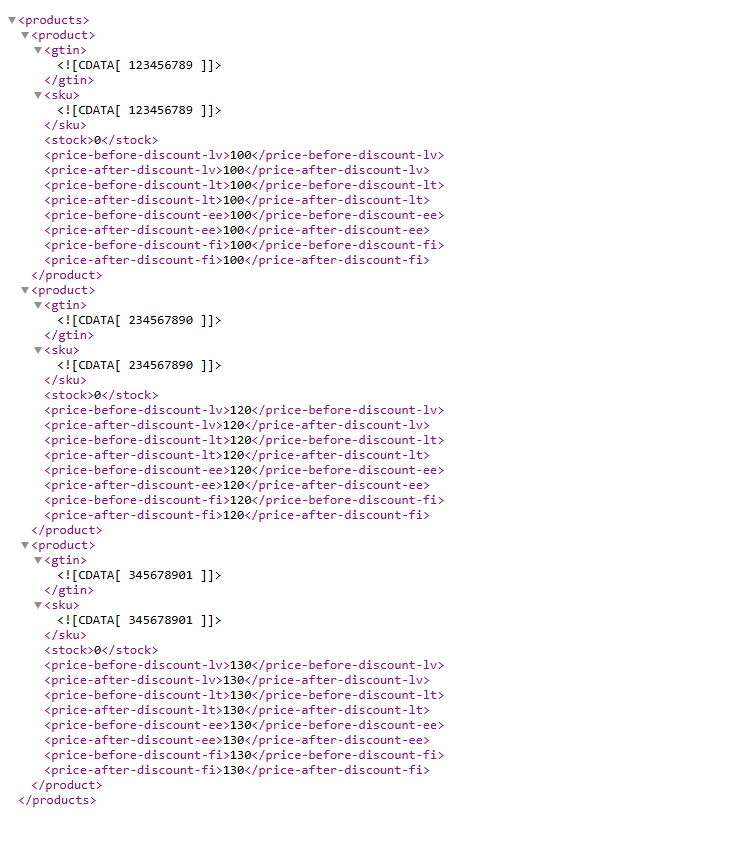
The XML is an output document. It should be reviewed before its public URL is connected to a marketplace or another production system.
Recommended safe workflow
- Open the example Google Sheets document.
- Create a separate test sheet rather than using the full production source.
- Add a small number of products with known EANs.
- Confirm that the products already exist in your marketplace listings and have been discovered by B2BLIX.
- Add the current price, stock, and any required delivery information.
- Add carefully checked minimum and maximum prices.
- Use general values for all markets and add regional columns only for exceptions.
- Choose the appropriate Discount Mode.
- Make sure the public XML test URL is not connected to a live destination.
- Run the test and inspect the generated XML.
- Compare the output with the source values and your configured BuyBox rules.
- After successful testing, configure the real source and output in Synchronization settings.
Common mistakes
- Running the tester while the generated XML is used by a live integration. The temporary test products and prices may replace the content read by that integration.
- Using an EAN that is not listed or discovered. B2BLIX may not be able to connect the row with the expected marketplace product information.
- Changing the spelling of a column. Use the main attribute name or one of the listed alternatives exactly.
- Expecting a general value to override a regional value. A field such as
price_lvtakes priority overpricefor Latvia. - Entering stock as text or as a decimal value. Stock should be supplied as a whole-number quantity.
- Using unverified minimum and maximum prices. Incorrect limits can produce results that do not match the seller’s intended pricing range.
- Misunderstanding Discount Mode. It changes the representation of original and calculated prices in the XML; it does not publish a discount by itself.
- Assuming the generated XML is already live. The output is not published to a marketplace unless another configured system reads and applies it.
- Testing the full catalog immediately. Start with a few representative products so the source data and calculated results are easier to verify.
Example use case
A seller wants to test one product that is offered in all four marketplaces. The normal submitted price is 100, but the Latvian price should be 90. The permitted price range is 80 to 120.
| Column | Example value | Purpose |
|---|---|---|
ean |
123456789 | Matches the row with the product known to B2BLIX. |
sku |
TEST-001 | Provides the seller’s internal product reference. |
stock |
5 | Sets the available quantity in the test output. |
price |
100 | Sets the general submitted price. |
price_lv |
90 | Overrides the general price for Latvia. |
min |
80 | Sets the general minimum allowed price. |
max |
120 | Sets the general maximum allowed price. |
During the test, Latvia starts from the submitted regional value of 90. Lithuania, Estonia, and Finland use the general value of 100. B2BLIX then evaluates the product using the configured BuyBox rules and keeps each calculated result within the available minimum and maximum limits.
The seller can review the resulting XML, confirm that the Latvian override was applied correctly, and verify that the suggested prices remain inside the intended range before moving the product source into regular synchronization.