Product checker: review product data, price calculations, and exports
This guide explains how to search by EAN, select the correct marketplace, interpret the collected product data, follow the calculation process, and verify an exported XML result.
What the product checker is used for
The Product Checker is a read-only page that provides a detailed report for one product EAN. It brings together the latest known product information, the data used during a calculation, the selected pricing strategy, the final calculated price, and, when applicable, part of the XML export sent to Pigu.
Open this page when you have a question about a specific product, for example:
- The product information appears to be missing or outdated.
- You want to understand why a price was increased, reduced, or kept unchanged.
- You believe a minimum or maximum price was applied unexpectedly.
- You want to check which pricing strategy was selected.
- The price visible on the marketplace differs from the price you expected.
- You want to verify what B2BLIX included in an XML export.
The Product Checker explains a specific product case. It does not change product settings, start monitoring, or publish a new price.
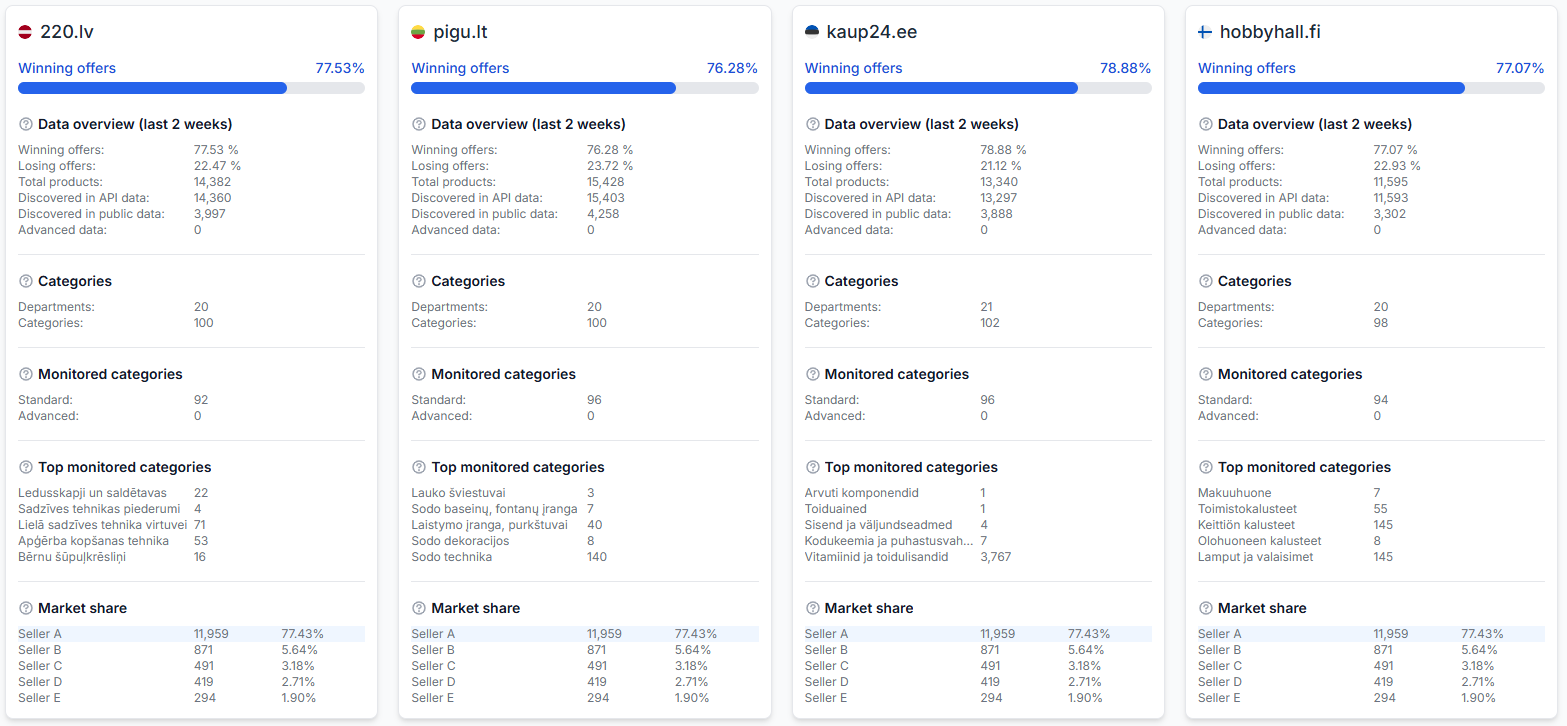
Important: Product calculations are handled separately for each marketplace. Always select the correct country and marketplace before interpreting the result. Competition, observations, categories, monitoring settings, and pricing rules may differ between 220.lv, Pigu.lt, Kaup24.ee, and HobbyHall.fi.
B2BLIX helps sellers monitor and react to marketplace pricing, but the marketplace determines the BuyBox winner and decides when an exported price is accepted and displayed. A calculated or exported price is not necessarily live until it has been applied by the marketplace.
How to open a product report
- Open the Product Checker.
- Enter the product’s EAN code.
- Select Find.
- Review the marketplace cards returned for that EAN.
- Open the card for the marketplace you want to investigate.
If you do not know the EAN, find the product in All Products by using its SKU or other available filters. Copy the EAN from the product record and use it in the Product Checker.
One EAN may have information for several supported marketplaces. Do not use the Latvian result to explain a Lithuanian, Estonian, or Finnish pricing situation.
What you can review on this page
- Open the public marketplace product page.
- Check when the product was last received through the marketplace connection.
- Check when the product was last observed publicly.
- Review prices, marketplace flags, stock, delivery time, EANs, and SKUs.
- See the current known BuyBox seller and product category.
- Review the category’s monitoring and coefficient settings.
- Follow the calculation process step by step.
- Check the synchronization process associated with the result.
- Review the product segment included in an XML export, when XML output is used.
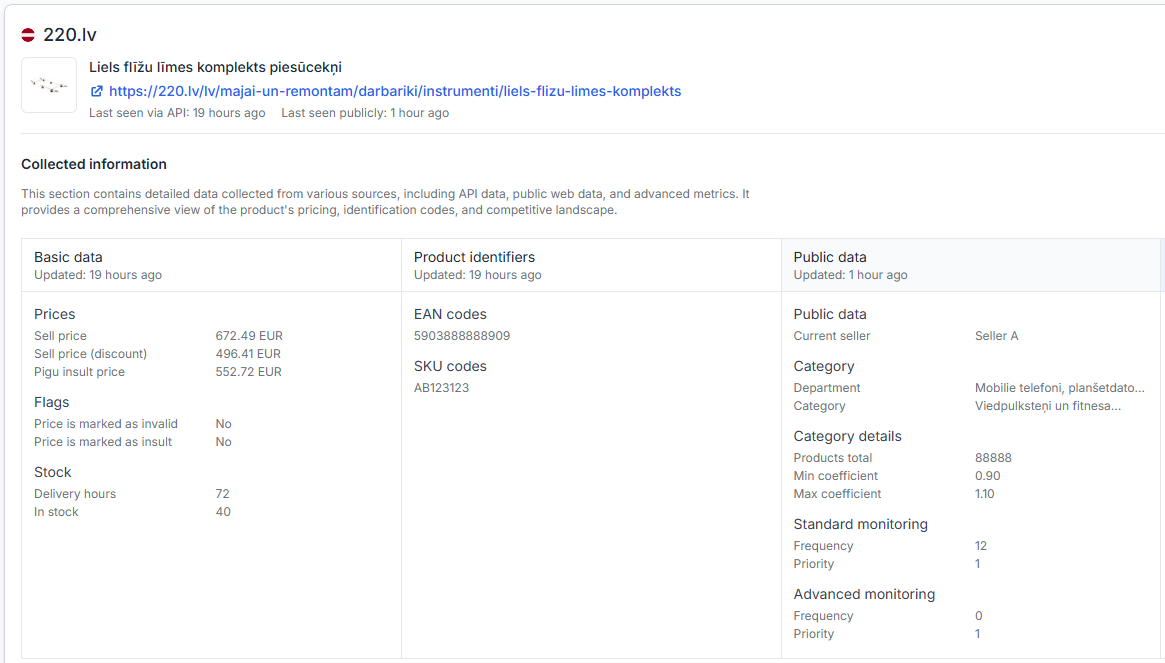
Product header and collection times
The top of the marketplace card identifies the product and shows when B2BLIX last received or observed information about it.
| Field | What it means | How to use it |
|---|---|---|
| Product image | The known marketplace image for the product. | Use it as a quick visual check that you opened the intended product. |
| Product title | The known public title of the product. | Confirm that the EAN is connected to the expected listing. |
| Marketplace URL | A link to the product’s public marketplace page. | Open it to compare the currently visible marketplace information with the recorded data. |
| Last seen via API | When B2BLIX last received the relevant product information through the connected marketplace data source. | Check this before deciding whether the report represents a recent situation. |
| Last seen publicly | When the product was last observed on its public marketplace page. | Compare this time with the calculation and synchronization times. |
Why the timestamps matter
The public marketplace situation may have changed after a calculation was completed. For example, a calculation performed one hour ago was based on the observations available at that time. The current public product page may now show another seller, price, or stock situation.
When checking a result, compare these times:
- The time the source information was collected.
- The time the synchronization or calculation was executed.
- The current time at which you are checking the public product page.
If the collected information is older than expected, review the product’s category in Category Management. Its monitoring frequency and priority can affect how often new observations are collected.
Collected information
The Collected information section shows the product data known to B2BLIX for the selected marketplace. It is divided into basic data, product identifiers, and public data.
Basic data
| Field | Meaning | What to check |
|---|---|---|
| Sell price | The current regular selling price received for your offer. | Compare it with your imported product source and the current marketplace offer. |
| Sell price (discount) | The known selling price after a discount is applied. | Check that the regular and discounted prices are not being confused. |
| Pigu insult price | A marketplace-provided price threshold that may restrict the effective maximum used by the calculation. | Check whether the calculation overview adjusted your maximum price because of this value. |
| Price is marked as invalid | Shows whether Pigu has marked the product price as invalid. | Investigate the price and product data when this flag is present. |
| Price is marked as insult | Shows whether Pigu has applied its insult-price flag to the offer. | Review the price limits and the marketplace-provided threshold. |
| Delivery hours | The delivery time supplied for the offer. | Confirm that it matches the intended delivery conditions. |
| In stock | The stock quantity supplied for the product. | Check whether the quantity is current and greater than zero when the offer should be available. |
Products with marketplace price flags should be reviewed regularly. The All Products page can be used to filter products with these flags and inspect them as a group.
Product identifiers
| Field | Meaning |
|---|---|
| EAN codes | The product identifiers connected to the marketplace listing. More than one EAN may appear when the marketplace treats several identifiers as the same product. |
| SKU codes | Your own product identifiers supplied in the imported product data. |
Use the EAN and SKU information to confirm that the report belongs to the correct item. A mismatch can explain why the report does not correspond to the product you expected.
Public data and category settings
| Field | Meaning | Effect |
|---|---|---|
| Current seller | The seller observed as the current BuyBox winner at the recorded observation time. | This may influence which pricing branch is selected. |
| Department | The broad marketplace department containing the product. | Informational. |
| Category | The specific discovered category assigned to the product. | Connects the product to its category-level monitoring and pricing settings. |
| Products total | The known number of your products associated with this category. | Informational. |
| Min coefficient | The category value used to derive a minimum price when an explicit product-level minimum is not supplied. | May affect the permitted calculation range. |
| Max coefficient | The category value used to derive a maximum price when an explicit product-level maximum is not supplied. | May affect the permitted calculation range. |
| Standard monitoring frequency | How often standard marketplace information is scheduled to be collected for the category. | Affects the expected age of standard observations and usage. |
| Standard monitoring priority | The configured priority for standard monitoring. | Affects monitoring scheduling according to the account configuration. |
| Advanced monitoring frequency | How often additional competitive information is scheduled to be collected, when enabled. | May provide data required by strategies that depend on more detailed competitor information. |
| Advanced monitoring priority | The configured priority for advanced monitoring. | Affects advanced monitoring scheduling and usage. |
Explicit minimum and maximum prices supplied for an individual product take precedence over category-derived limits. Category coefficients are used when the required product-level limits are not available.
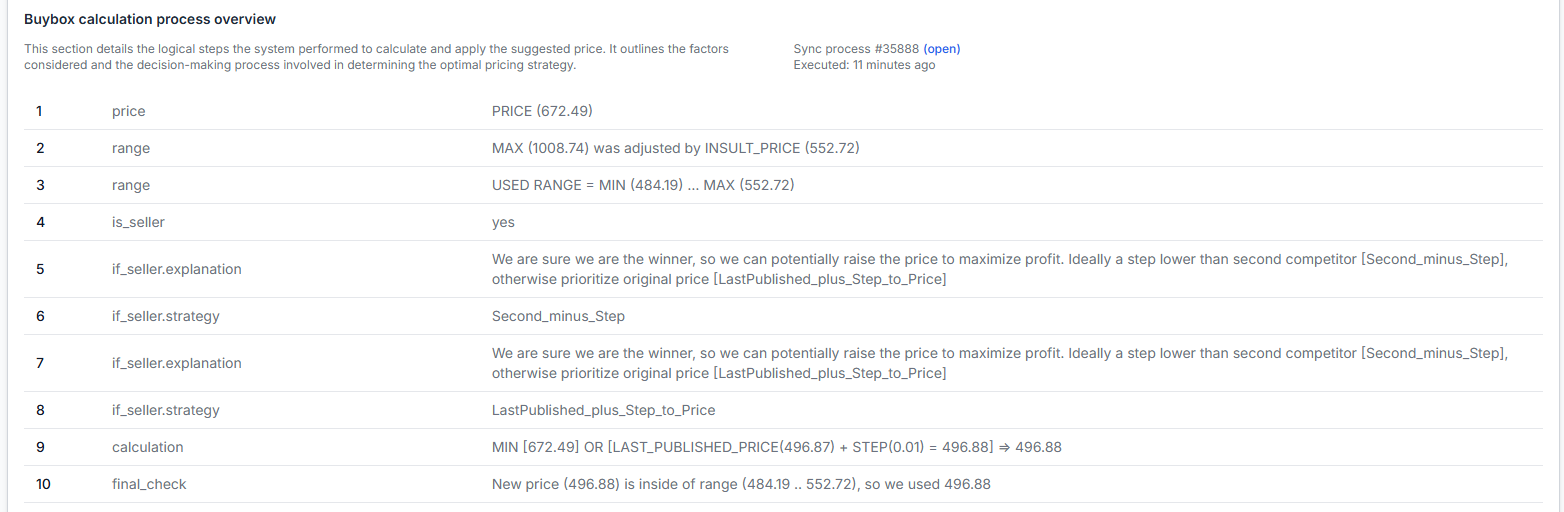
BuyBox calculation process overview
The BuyBox calculation process overview explains how B2BLIX reached the displayed result. It lists the decision steps in the order in which they were applied for that product and synchronization run.
The synchronization reference and execution time identify the process that produced the result. Where an Open action is available, it can be used to inspect the associated synchronization record.
How to read the calculation rows
| Row type | What it explains |
|---|---|
| price | The product price received from the seller’s configured import source. |
| range | The minimum and maximum limits available to the calculation. The overview also shows when an effective limit was adjusted by marketplace information. |
| is_seller | Whether the recorded data identified your account as the current BuyBox seller. |
| explanation | A plain-language description of why the system selected that calculation path. |
| strategy | The configured pricing strategy selected for the recorded situation. |
| calculation | The values used to produce the proposed new price. |
| final_check | The final validation against the permitted minimum and maximum range. |
A strategy may require information that is not available from the current monitoring level. When this happens, the overview shows the calculation path actually used for that synchronization. Review the monitoring configuration when a strategy depends on additional competitor information.
Price safety reminder: The calculation is constrained by the effective minimum and maximum limits shown in the report. If a target price falls below the minimum, the minimum may be used. If it exceeds the maximum, the maximum may be used. Always verify that your imported limits and category coefficients protect the margin you require.
When the seller is recorded as the winner
When is_seller is shown as yes, the selected strategy may attempt to maintain the position or increase the price while remaining within the permitted range. The exact action depends on your BuyBox settings and the marketplace information available for that calculation.
For example, the system may try to position the price relative to another known offer. If the required competitor detail is not available, the calculation overview may show another configured approach, such as adjusting the last published price by a pricing step.
When the seller is not recorded as the winner
When is_seller is shown as no, the selected strategy may aim to make the offer more competitive. The calculation overview shows the observed BuyBox value, the configured adjustment, and the final safety check.
If the calculated target is below your minimum price, B2BLIX does not continue below that limit. The final result is restricted to the nearest permitted value, normally the minimum shown in the effective range.
Exported XML data segment
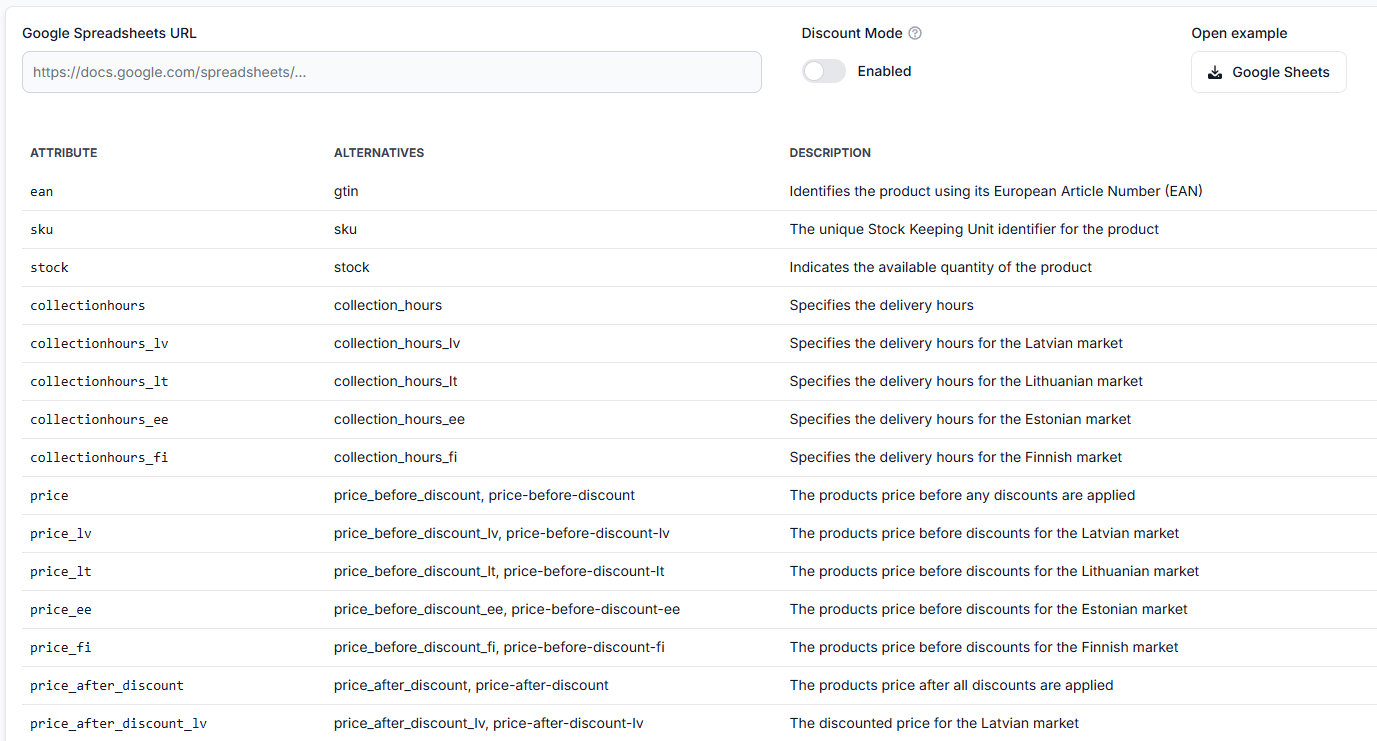
If your synchronization output uses XML, the Product Checker can show the product segment included in the generated export file. XML is the structured file format used to send product information to Pigu.
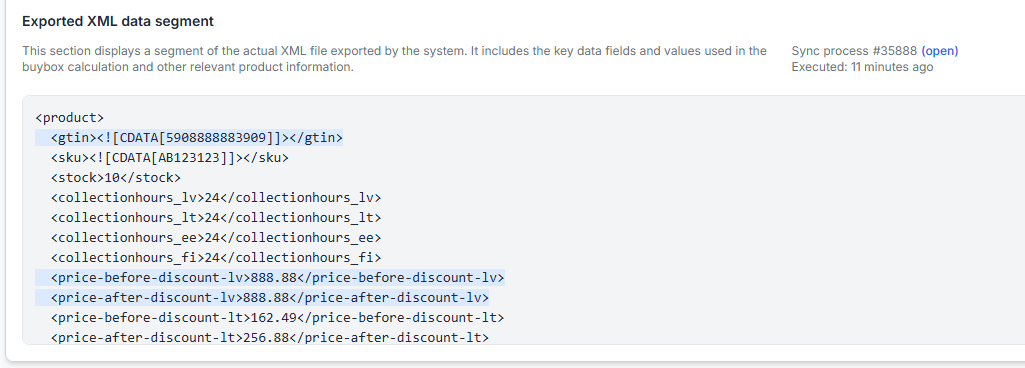
The XML segment may include fields such as:
| XML field | Meaning |
|---|---|
| GTIN | The product’s EAN or other global trade identifier. |
| SKU | Your product SKU. |
| Stock | The quantity exported for the product. |
| Collection hours | The exported handling or collection time for each marketplace. |
| Price before discount | The regular price included in the export. |
| Price after discount | The discounted selling price included in the export. |
Use this section to verify what B2BLIX generated for the product. It helps separate three different questions:
- Did B2BLIX calculate the expected result?
- Did B2BLIX include that result in the generated XML?
- Did Pigu download, accept, and apply the exported information?
Important: Seeing a price in the XML segment confirms what was included in the generated export. It does not by itself confirm that Pigu has already accepted and displayed that price. Marketplace processing can happen later than the B2BLIX synchronization.
How to use the product checker safely
- Confirm the EAN. Check the product title, image, SKU, and marketplace link.
- Select the correct marketplace. Treat every country as a separate product situation.
- Compare the timestamps. Do not compare an older calculation directly with a newer public marketplace situation without considering the time difference.
- Review the collected source data. Check the known seller, price, flags, stock, delivery time, category, and monitoring information.
- Review the effective price range. Confirm which minimum and maximum values were actually used.
- Follow the calculation in order. Read the explanation, selected strategy, calculation, and final check.
- Check the export. When XML output is enabled, verify that the expected product values appear in the exported segment.
- Investigate the correct workflow. Correct source data in Synchronization Settings, monitoring in Category Management, pricing rules in BuyBox Settings, or marketplace application issues with the marketplace.
Because the Product Checker is read-only, corrections must be made in the page that controls the relevant information. After changing settings or source data, wait for or run the appropriate monitoring and synchronization process, then return to the Product Checker to review the new result.
Common mistakes
- Checking the wrong marketplace. The same EAN can have a different result in each country.
- Ignoring the collection time. A calculation may be correct for the recorded situation even when the public marketplace now looks different.
- Confusing imported and observed prices. The seller’s imported price, the observed BuyBox price, the calculated price, and the exported price are separate values.
- Assuming an exported price is already live. Pigu must still retrieve, accept, and apply the export.
- Overlooking an adjusted maximum. A marketplace-provided threshold may reduce the maximum available to the calculation.
- Overlooking the final safety check. The requested strategy result may be changed when it falls outside the permitted range.
- Expecting unavailable competitor details. Some strategies depend on data collected through advanced monitoring.
- Trying to edit the report. Product Checker values are informational and cannot be changed on this page.
- Using an incorrect EAN. Confirm the EAN in All Products when no expected result is returned.
Example use case
A seller notices that a product is no longer winning the BuyBox and believes the price should have been reduced further.
- The seller finds the product’s EAN in All Products.
- They enter the EAN in the Product Checker.
- They select the correct marketplace card.
- The recorded data shows that another seller was winning when the calculation was performed.
- The selected strategy produced a target below the permitted minimum price.
- The final_check row shows that B2BLIX used the minimum price instead.
- The XML segment confirms that this protected minimum was included in the export.
In this case, the result is explained by the configured minimum price rather than a calculation error. The seller can then decide whether the minimum is correct or should be reviewed in the product source or category configuration.
About the screenshots in this guide
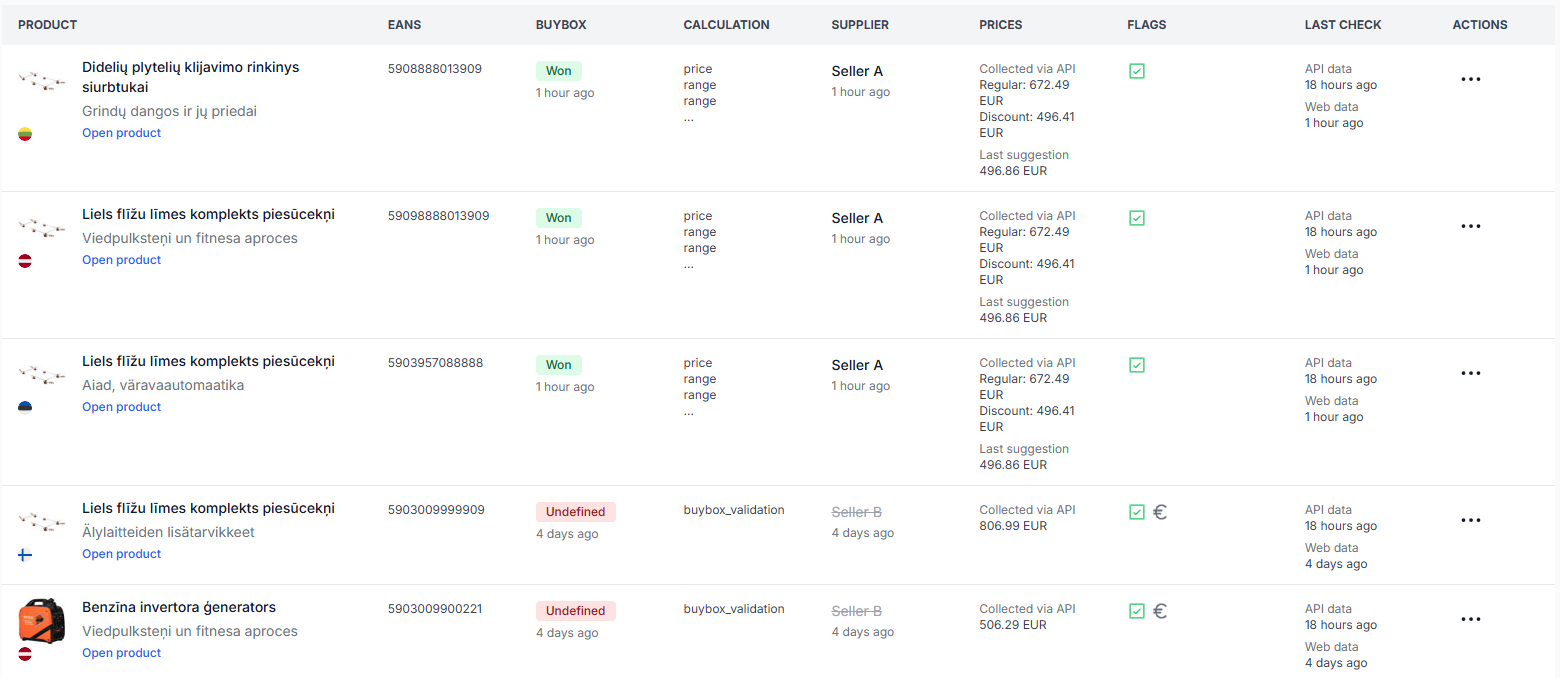
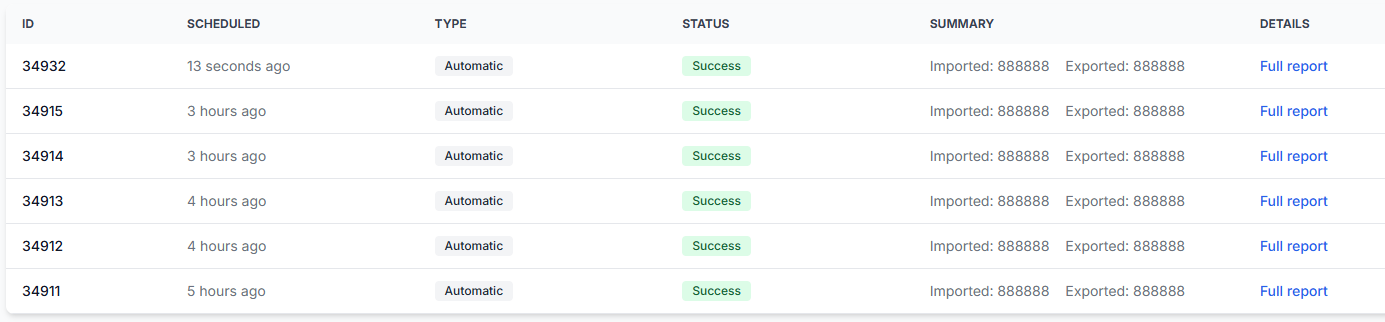
All screenshots in this article contain modified dummy data. Product names, identifiers, sellers, prices, stock values, process numbers, timestamps, and XML values are provided only to demonstrate the layout and should not be treated as real marketplace or customer information.