Why products are not found and how discovery works
This guide explains product discovery delays, public marketplace availability, category monitoring, and differences between Product Checker, All Products, and BuyBox Simulator results.
When this guide is relevant
This guide is for situations where a product cannot be found in B2BLIX, does not appear in Product Checker, or produces a Product not found message in BuyBox Simulator.
This commonly happens after adding a new product to Pigu, 220.lv, Pigu.lt, Kaup24.ee, or HobbyHall.fi. It can also happen when a product is visible in one B2BLIX section but is not yet available for a particular calculation or marketplace.
Short answer
B2BLIX can normally discover and monitor only products that are published, active, and available for purchase on the public marketplace for the selected country.
A newly published product may not appear immediately. The expected timing depends on whether the product belongs to an already discovered and monitored category, whether a new category must first be discovered, and whether the required marketplace connection data is already available.
Start by confirming that the product can be purchased publicly. Then check the product by EAN and review the monitoring frequency of its category.
Product discovery, marketplace monitoring, synchronization, calculation, and export are separate processes. A product appearing in one B2BLIX section does not always mean that it is already ready for every calculation or export workflow.
How product discovery works
The product must be publicly available
B2BLIX processes marketplace products that are active and available to an end customer. A product may not be discovered when:
- It has not yet been published by the marketplace.
- It is inactive or unavailable for purchase.
- It is sold out and no public offer is displayed.
- The public marketplace page cannot be found by EAN.
- The product page exists, but the seller’s shop offer is not publicly listed.
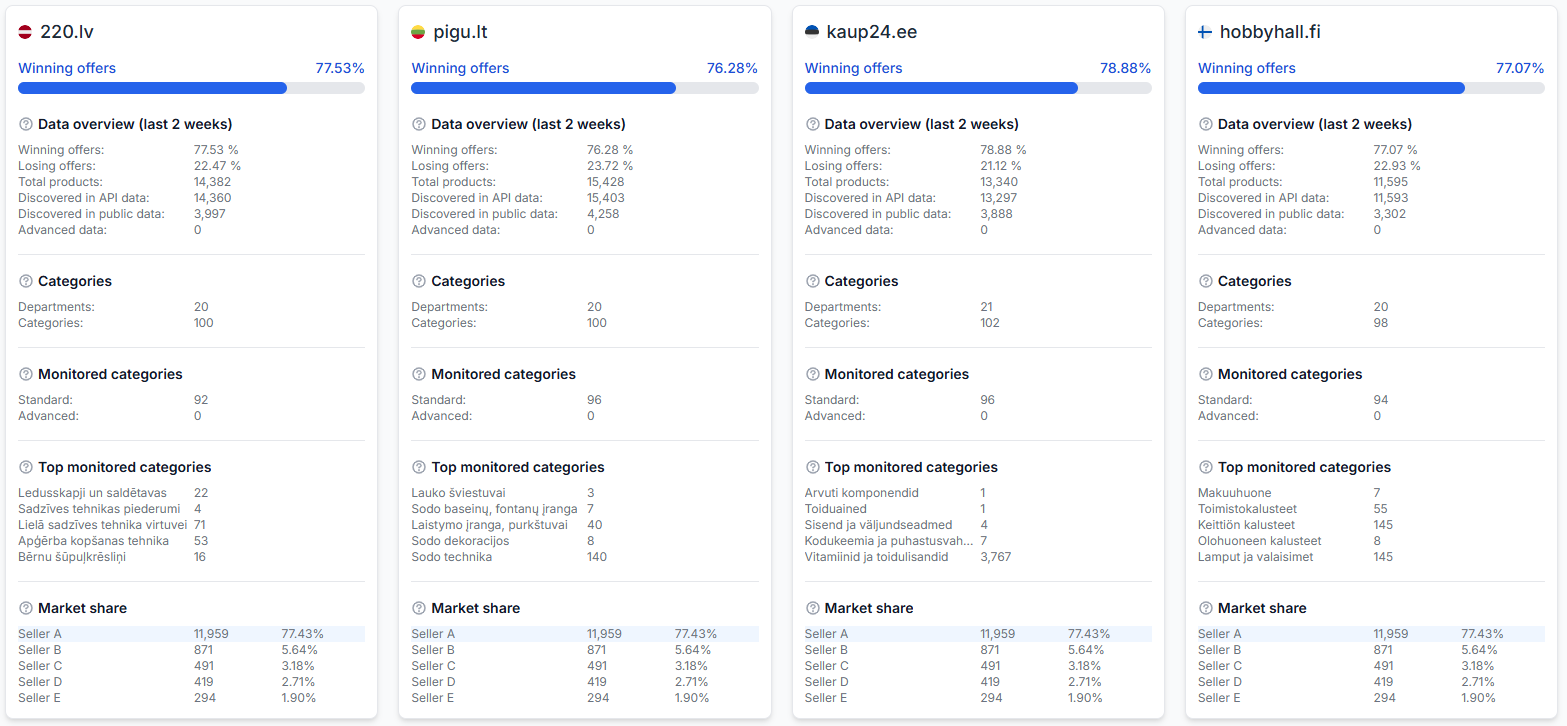
Always check the correct marketplace locality. A product can be active on Pigu.lt but unavailable on 220.lv, Kaup24.ee, or HobbyHall.fi.
Products in an existing category
If a new product is added to a category that B2BLIX already knows and monitors, it should normally be collected during one of that category’s next scheduled monitoring cycles.
For example, if the category has a standard monitoring frequency of once every three hours, the product may appear after the next collection cycle. The timing is approximate and depends on when the product became publicly available relative to the schedule.
Products that create a new category
If you begin selling a completely new type of product, Pigu may create a new category for your shop. B2BLIX must discover that category before you can configure regular monitoring for it.
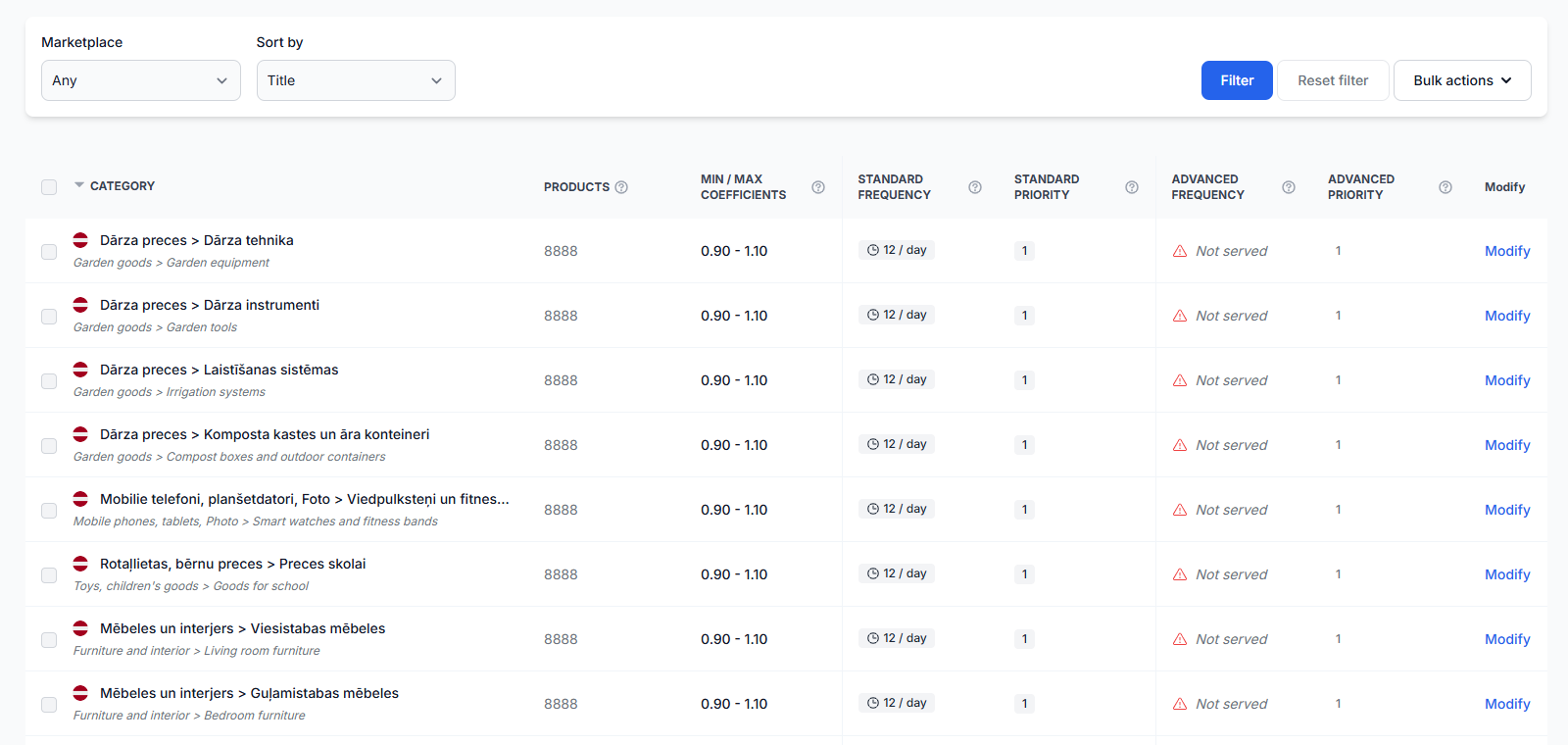
Category discovery may take several hours. After the category appears in Category Management, set its standard monitoring frequency to a value above 0. Products from that category can then be collected during the following scheduled cycles.
To review this setting, open Category Management when you are logged in. To understand the monitoring fields and category controls, read Category management: monitoring frequencies and price coefficients.
Some discovery paths can take longer
A new product may sometimes require approximately 24–36 hours to become available throughout the relevant discovery and processing workflow. Marketplace connection data used for certain calculations can take longer to appear.
In some cases, the data required by BuyBox Simulator may take up to about a week to become available unless monitoring for the related category is active. These timeframes are approximate and should not be treated as guaranteed processing times.
What to check in your account
-
Open the public marketplace product page.
Confirm that the product is published in the correct country marketplace, has an active offer, and can be added to the shopping cart.
-
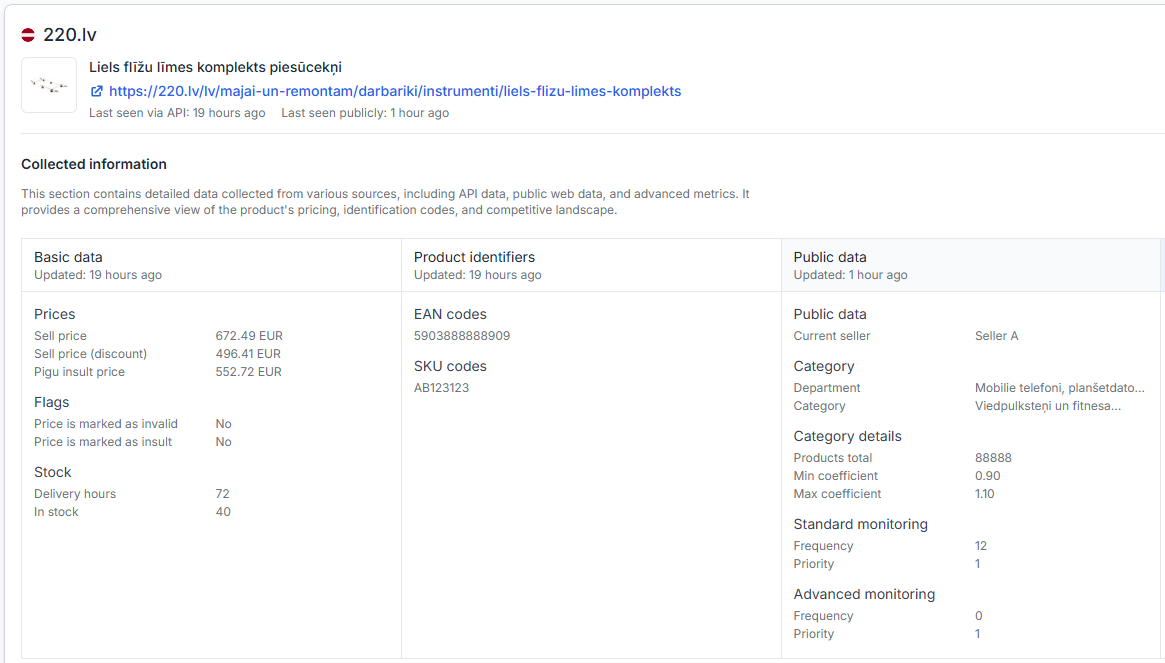
Check the product by EAN.
Open Product Checker and search for the product’s EAN. For an explanation of the data and calculation sections, read Product Checker: review product data, price calculations, and exports.
Check each marketplace separately. A product may be discovered for one marketplace but not another.
-
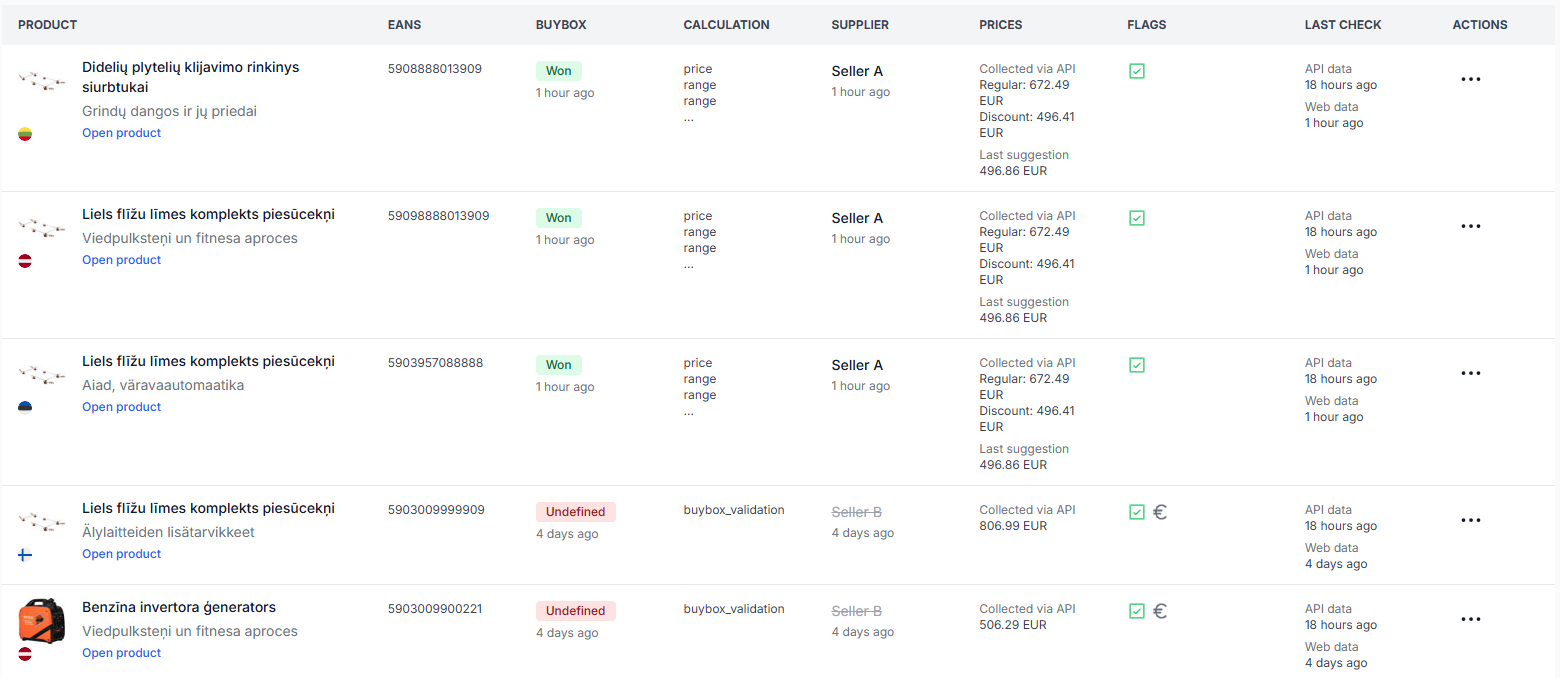
Check whether the product appears in All Products.
Open All Products. The All Products page guide explains the displayed product details and timestamps.
If the product appears here, B2BLIX has some known information about it. This does not necessarily mean that all data required by BuyBox Simulator is already available.
-
Check the category monitoring frequency.
In Category Management, find the product’s marketplace category and confirm that the standard frequency is set above 0.
A frequency of 0 means that regular web monitoring is not scheduled for that category. Setting a positive frequency queues the category for collection during the following processing cycles.
-
Consider when the product was added.
If the product was published recently, allow time for marketplace publication, category discovery, and product collection. Do not expect a new product to appear instantly.
-
Use a direct product link when the EAN cannot be found.
If the product has been publicly available for longer than the expected discovery period but is still missing, provide the direct marketplace product link for manual checking. This is especially useful when the marketplace’s own search does not return the product by EAN.
Why BuyBox Simulator can show “Product not found”
BuyBox Simulator may show Product not found even when the same EAN appears in All Products.
This can happen because the simulator requires additional marketplace connection data before it can perform the calculation. This includes data used for marketplace-specific price-limit handling, such as Insult Price.
The product must therefore be discovered through the required connection data source before the simulator can use it. All Products and BuyBox Simulator do not have identical data requirements.
To test an EAN, open BuyBox Simulator. For instructions on its fields and results, read Using the BuyBox Simulator.
Do not change minimum prices, maximum prices, or live synchronization settings only to make a missing product appear in the simulator. First confirm public availability, discovery status, category monitoring, and the age of the product.
What happens during export when a product is not found
If B2BLIX cannot find an active marketplace product, it may be unable to calculate a marketplace-based price adjustment for that item.
Depending on the configured workflow, the product may pass to export as is. This means the imported price can be exported without a calculated BuyBox adjustment.
This can affect live marketplace prices. Before enabling or continuing automatic publication, verify the product result in Product Checker and review recent synchronization reports. A calculated or exported price is not necessarily live until it has been accepted and applied by the marketplace.
To review processing and export results, open Synchronization Reports. For help reading a report, see Synchronization reports: review import, BuyBox calculation, and export results.
Common causes
- The product is not publicly active. B2BLIX cannot collect a product that customers cannot currently purchase.
- The product was added recently. Marketplace publication and B2BLIX discovery are not instantaneous.
- The category is not monitored. A category with a standard frequency of 0 is not scheduled for regular collection.
- The category itself is new. The category must first appear in Category Management before its monitoring frequency can be configured.
- The product exists only in another marketplace locality. Availability on Pigu.lt does not mean the same product is active on 220.lv, Kaup24.ee, or HobbyHall.fi.
- The seller’s offer is not publicly listed. The product may exist, but B2BLIX may be unable to identify the seller’s current offer or BuyBox position.
- The simulator is waiting for additional data. A product can appear in All Products before the data required for simulator calculations has been discovered.
Example
A seller publishes a new phone case on 220.lv. The product belongs to an existing category that is monitored once every three hours.
The product should not be expected to appear immediately. After the marketplace publishes it publicly, B2BLIX can collect it during one of the next category monitoring cycles.
If phone cases are a completely new product group for the seller, the category may first need to be discovered. After it appears in Category Management, the seller sets its standard monitoring frequency to once per hour. B2BLIX can then begin collecting products from that category during the following cycles.
What to do next
- Confirm that the product is publicly available for purchase in the correct marketplace.
- Search for the EAN in Product Checker and All Products.
- Check that the related category has been discovered and has a standard frequency above 0.
- Allow additional time if the product or category was added recently.
- If only BuyBox Simulator cannot find the product, wait for the additional marketplace connection data required for simulation.
- If the product remains missing, provide its EAN, marketplace locality, and direct public product link for manual checking.