How to start using the Pigu BuyBox algorithm
This guide explains how to prepare a new B2BLIX Pigu BuyBox account safely, test the workflow, and verify calculated prices before enabling marketplace updates for a wider catalog.
What this guide helps you do
After creating a B2BLIX account, several parts of the service must be prepared before the BuyBox algorithm can process your products correctly.
The usual setup includes activating the Pigu BuyBox service, connecting the required Pigu access information, identifying your marketplace shops, importing product data, configuring monitoring, and checking the first calculations.
You do not need to move your complete product-management workflow into B2BLIX. The service can operate as a separate pricing layer alongside your existing workflow. Your current system remains the source of product information, while B2BLIX monitors marketplace conditions and calculates prices within the limits you provide.
Short answer
Use the following setup order:
- Create your B2BLIX account and activate the Pigu BuyBox service.
- Add the required company and Pigu connection information.
- Enter your marketplace shop profile names where required.
- Prepare and test a product-data source containing products identified by EAN.
- Configure synchronization and choose how calculated prices will be reviewed or exported.
- Enable monitoring for selected categories or individual products.
- Review the first products and calculations before allowing wider price publication.
Important: Begin with a limited product group, monitoring-only operation, or an output that you can review manually. A calculated or exported price is not necessarily live on Pigu. It becomes a marketplace price only after it has been submitted, accepted, and applied through the selected publication workflow.
How the stand-alone workflow works
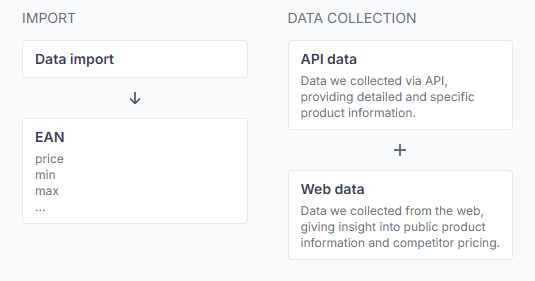
B2BLIX can work as a parallel service between your product-data source and the supported Pigu marketplaces.
The workflow is generally divided into separate stages:
- Your source data provides product identifiers, prices, availability, and available price limits.
- Monitoring collects updated marketplace information according to your configured schedules.
- Calculation applies your selected strategy to sufficiently recent observations and keeps the result inside the permitted minimum and maximum range.
- Export or publication prepares the calculated price for manual review, an XML feed, or a supported API workflow.
When your product range, base prices, or limits change, update the connected source file or feed. The next configured synchronization can import the revised information and calculate new results.
B2BLIX may reduce, maintain, match, or increase a price depending on the latest known product situation and the strategy you selected. It does not automatically make every product cheaper.
Step 1: Activate the service and connect your Pigu account
Complete the account and service activation steps shown after registration. The connection information is required so B2BLIX can use the supported integration for your seller account.
To add or verify the connection, open Access Credentials when you are logged in. To understand the fields on that page, read Access credentials for the Pigu connection.
Keep your credentials private. Do not place Pigu passwords, tokens, private feed addresses, or customer information in public messages or screenshots.
Step 2: Add your marketplace shop profiles
B2BLIX may need your marketplace-specific shop profile names or identifiers to associate discovered offers with the correct seller account on 220.lv, Pigu.lt, Kaup24.ee, and HobbyHall.fi.
Open Marketplace Profiles to check the configured shop names. For field-level instructions, read Marketplace slugs: add or update your shop profile names.
Enter the shop name exactly as required for each marketplace you use. An incorrect or missing profile value can make it harder to identify whether an observed offer belongs to your account.
Step 3: Prepare your product data
Products are generally matched using their EAN. Your source should also provide the product price and the information required to establish a permitted pricing range.
Before enabling regular synchronization, check that:
- Each product has a valid EAN.
- The current or base price is available.
- Minimum and maximum prices are supplied directly or can be derived from configured category coefficients.
- The minimum price is not higher than the maximum price.
- The source is accessible to B2BLIX.
- The product fields can be interpreted correctly.
If you already use a compatible XML source in your Pigu workflow, the same source address may be usable with B2BLIX acting as an additional pricing layer.
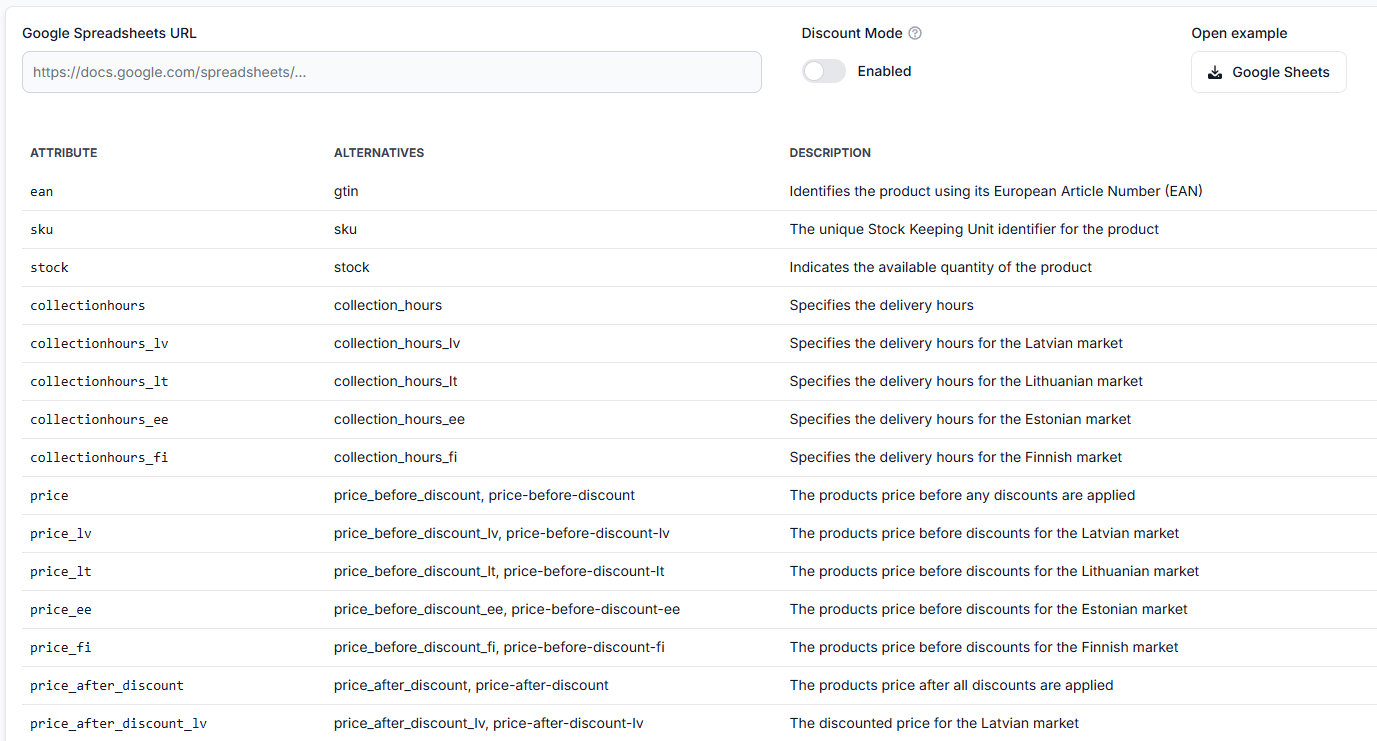
If you maintain products manually, you can prepare a Google Sheet using the example structure available in the synchronization tester. Other supported sources may include XML, CSV, URL-based feeds, or integrations, depending on the available account configuration.
Open the Synchronization Tester to test the source before enabling a schedule. Read Sync Tester and Google Sheets file structure for the supported fields and example structure.
Step 4: Configure synchronization
Synchronization imports your latest source data, evaluates eligible products using the configured rules and sufficiently recent marketplace observations, and prepares the selected output.
To configure the import source, synchronization frequency, and output method, open Synchronization Settings. For an explanation of the available controls, read Sync settings: configure product import and price export.

During the first setup, decide how you want to use the calculated results:
- Review calculations without automatically publishing them.
- Generate a Pigu-compatible XML output for review or further processing.
- Use a supported API update workflow after testing is complete.
Price-update warning: Before enabling an automatic export or API update, verify your source prices, minimum and maximum limits, marketplace selection, synchronization frequency, and pricing strategies. Incorrect settings can affect many product prices in one synchronization.
Step 5: Configure category monitoring
Monitoring and synchronization are different processes. Monitoring collects marketplace observations. Synchronization uses your imported product data and the available observations to prepare calculations and outputs.
Categories are discovered separately for each supported marketplace. In Category Management, enable monitoring only for the categories you want B2BLIX to check and select an appropriate frequency.
Open Category Management to configure category schedules. For an explanation of frequencies and category-level price coefficients, read Category Management: monitoring frequencies and price coefficients.
When choosing a schedule:
- Use more frequent monitoring for important or highly competitive categories.
- Use less frequent monitoring for slower categories to control usage costs.
- Confirm category-level minimum and maximum coefficients before relying on them.
- Remember that explicit product-level minimum and maximum values take precedence over category-derived values.
New products or categories may not appear immediately. They must first appear on the marketplace and then be discovered by B2BLIX. A newly discovered category normally requires a monitoring frequency before regular collection begins.
Usage warning: Monitoring frequency affects data-collection activity and may affect usage-based costs. Start with selected categories and increase the frequency only where fresher observations are useful.
Step 6: Use individual monitoring only where needed
A selected product can use its own monitoring schedule instead of the broader category schedule. This is useful for important EANs that need more frequent checks without increasing the frequency for every product in the category.
Open Individual Products to configure product-specific monitoring. Read Individual products: set product-specific monitoring frequencies for detailed instructions.
Priority monitoring can be configured at shorter intervals where supported, but monitoring should not be treated as universally instantaneous.
Step 7: Review your pricing settings
Pricing settings define how B2BLIX should react to the latest known product situation. Depending on the selected strategy, the result may match an observed BuyBox price, move slightly below it, keep the current price, or increase a winning price while remaining within the permitted range.
Before processing a wider catalog, open BuyBox Settings. For details about the available controls, read the BuyBox Settings page guide.
Verify the following before changing anything:
- The intended strategy is selected for each relevant marketplace situation.
- The pricing step or adjustment has the expected direction and size.
- Minimum and maximum price protection is configured correctly.
- The handling of old or uncertain observations matches your preferred level of caution.
- The settings are appropriate for every marketplace where they will be used.
You can test representative situations without relying on a live publication workflow by using the BuyBox Simulator. Instructions are available in Using the BuyBox Simulator.
Step 8: Run a small test and inspect the results
For the first synchronization, use a small product group with known prices and carefully checked limits. Do not begin with the complete catalog unless the configuration has already been tested.
After the first monitoring and synchronization activity:
- Choose one or more test EANs.
- Check whether the product and marketplace data were found.
- Compare the imported price with the minimum and maximum limits.
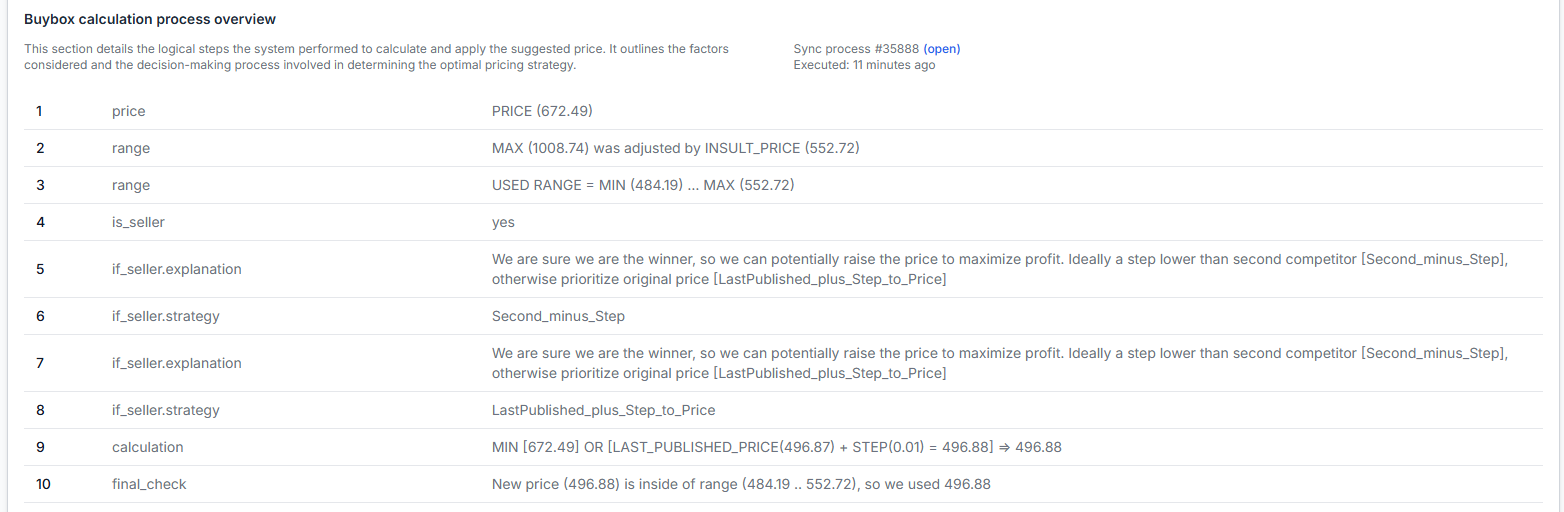
- Review the latest known BuyBox position and observation time.
- Confirm which strategy was applied.
- Check the calculated price and export status.
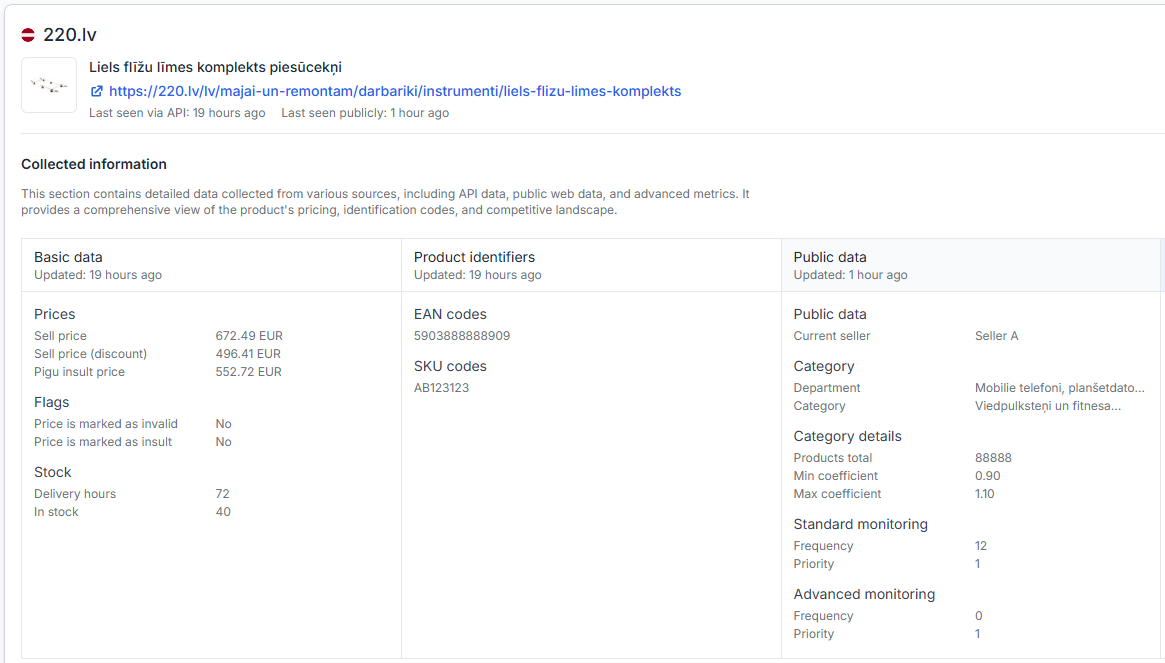
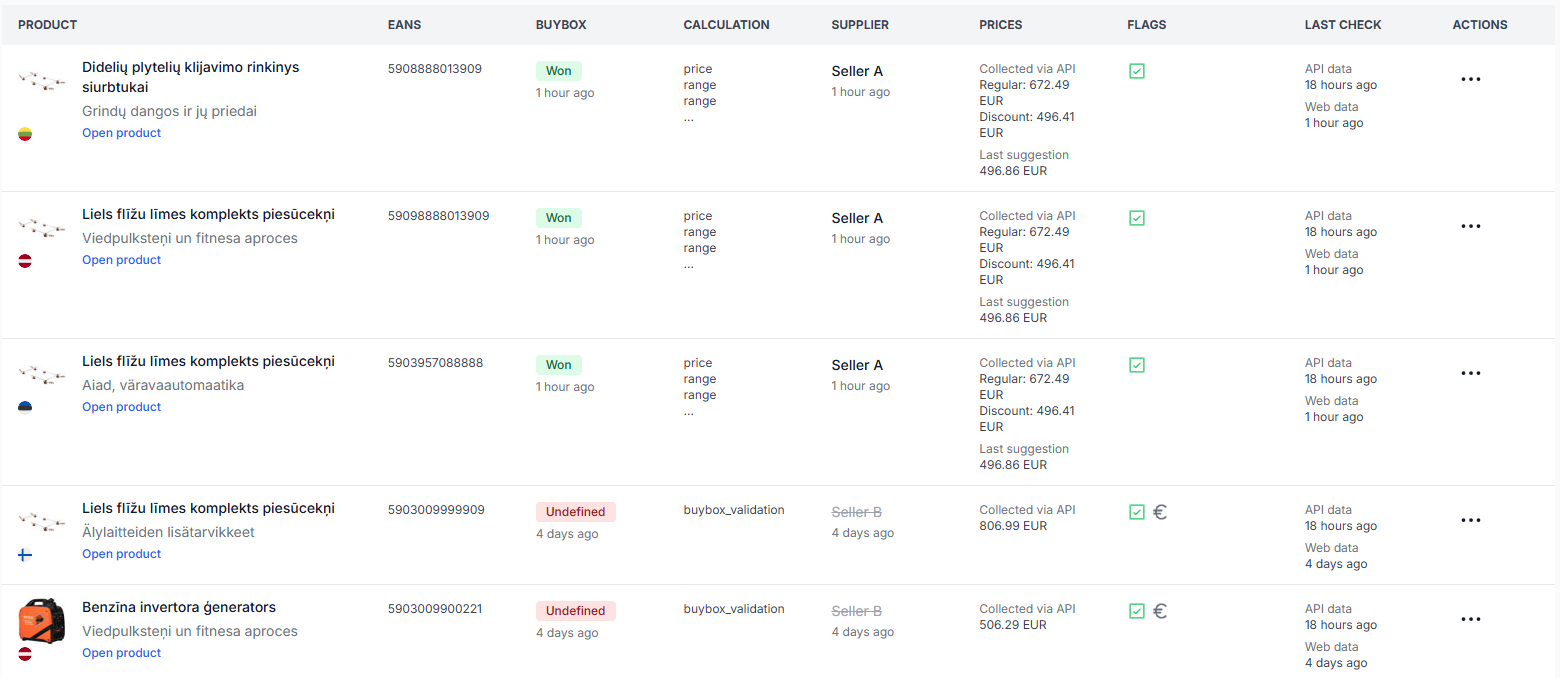
Open Product Checker to investigate an individual EAN. For an explanation of its product data, calculation, and export sections, read Product Checker: review product data, price calculations, and exports.
Common setup problems
The product is not found
Check whether:
- The product has a valid EAN in your source.
- The source was successfully imported.
- The product exists on the relevant marketplace.
- The product or its category has already been discovered by B2BLIX.
- The EAN is excluded from automatic processing.
No recent BuyBox information is available
Check whether:
- The product’s category has monitoring enabled.
- The category has a configured monitoring frequency.
- The product has an individual schedule that overrides the category schedule.
- Enough time has passed for the configured monitoring process to run.
The calculated price does not match your expectation
Review:
- The imported base or current price.
- The product-level minimum and maximum values.
- Any category-level coefficients used to derive limits.
- The latest known marketplace observation and its time.
- The strategy selected for the product’s current situation.
- Any exclusion rule that may prevent normal processing.
A calculation exists, but the marketplace price has not changed
A B2BLIX calculation, an exported price, and a live Pigu price are separate stages. Check the selected output method and the latest synchronization result. The calculated value may still be waiting for export, may be available only in an XML output, or may not yet have been accepted and applied by the marketplace.
Open Synchronization Reports to review previous processing and export results. Read Synchronization reports: review import, BuyBox calculation, and export results for details.
Example of a safe first test
Suppose a test product has a base price of EUR 20.50, a minimum price of EUR 19.00, and a maximum price of EUR 21.00. The latest known BuyBox price is EUR 20.00, and the selected strategy is to calculate one cent below that observed price.
B2BLIX may calculate EUR 19.99 because the result remains inside the permitted range.
Review this result in Product Checker or the generated output before enabling automatic updates. The marketplace still decides which offer receives the BuyBox, and a price of EUR 19.99 does not guarantee a winning position or an order.
Recommended rollout
- Import a small, representative product group.
- Verify all minimum and maximum prices.
- Enable monitoring for only the required categories or EANs.
- Run calculations without automatic publication.
- Review products in Product Checker and inspect the generated XML or synchronization report.
- Correct the source data, strategies, or monitoring configuration where necessary.
- Enable export or API updates for the tested group.
- Expand gradually to additional categories or products.
What to do next
After completing the initial setup, monitor the first synchronization reports and check several representative EANs in Product Checker. Include products where you are winning, products where another seller is winning, and products close to their minimum or maximum limit.
If a product still cannot be explained, collect the EAN, marketplace, approximate synchronization time, and the relevant report reference before contacting support. Do not send passwords, tokens, private feed credentials, or confidential customer data.
B2BLIX improves pricing responsiveness but does not control Pigu’s BuyBox selection. Marketplace rules and offer conditions may vary, so the service cannot guarantee the BuyBox, orders, revenue, or profit.