How B2blix synchronization works and when updates run
A practical guide to the complete B2BLIX synchronization workflow, including product imports, monitoring schedules, calculation frequency, manual synchronization, exports, and marketplace updates.
What this guide explains
This guide answers the most common questions about synchronization in B2BLIX:
- How does B2BLIX receive product information?
- When are marketplace prices and BuyBox positions checked?
- How often are new prices calculated?
- How long does the first synchronization take?
- Can synchronization be started manually?
- Why has a changed price not appeared on the marketplace yet?
- Where should prices be corrected when an import file controls the account?
Synchronization is not one single action. It is a workflow made up of several separate stages: importing your product data, monitoring marketplace information, calculating prices, preparing an export, and applying the result on the marketplace.
Understanding these stages is important because they can run at different times. For example, starting a calculation manually does not necessarily collect new marketplace information at the same moment, and an exported price is not necessarily already live on Pigu.
Important: Synchronization can affect exported or live marketplace prices. Before enabling automatic publication, verify your product data, minimum and maximum prices, pricing strategies, monitoring settings, and export method.
Short answer
B2BLIX downloads your latest product source according to the frequency configured in Synchronization Settings. It then matches products, uses the latest available marketplace observations, applies your BuyBox rules and price limits, and prepares the selected output.
Marketplace information is collected according to separate monitoring schedules configured for categories or individual products. This means that the following frequencies are not the same:
- Monitoring frequency controls how often marketplace information is collected.
- Synchronization frequency controls how often your source is imported and calculations are processed.
- Marketplace update timing depends on how the calculated result is exported and when the marketplace accepts or processes it.
There is no single universal update time for every account. The complete timing depends on your monitoring schedule, synchronization schedule, source accessibility, product discovery status, output method, and marketplace processing.
The complete synchronization workflow
The synchronization process can be understood as five connected stages.
| Stage | What happens | What controls the timing |
|---|---|---|
| 1. Product import | B2BLIX downloads your latest product source and reads product identifiers, prices, stock, limits, and other supported fields. | The frequency selected in Synchronization Settings. |
| 2. Marketplace monitoring | B2BLIX collects available marketplace information, including the latest known BuyBox position and competing offers. | Category or individual-product monitoring frequencies. |
| 3. Price calculation | Your imported data, latest available marketplace observations, price limits, exclusions, and BuyBox settings are evaluated. | The synchronization schedule or a manual synchronization run. |
| 4. Export preparation | B2BLIX prepares the result using the selected output method, such as an XML feed or a supported integration. | Your export configuration and the completion of the synchronization run. |
| 5. Marketplace application | The calculated or exported price is received and processed by the marketplace. | The selected connection workflow and marketplace-side processing. |
A calculated price, an exported price, and a live marketplace price are three different states. A price shown in a B2BLIX calculation or XML export is not necessarily live until it has been accepted and applied by the marketplace.
Stage 1: Importing your product data
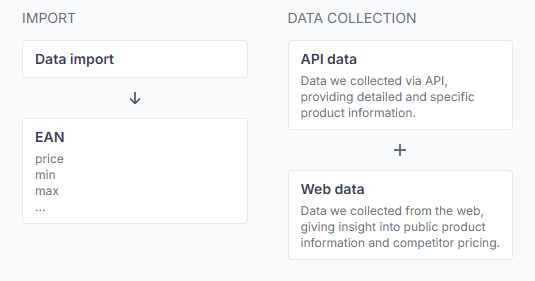
B2BLIX needs a product source that contains the products and pricing information you want it to process. Supported sources may include Google Sheets, XML, CSV, URL-based feeds, and supported integrations.
Depending on your setup, the source normally contains fields such as:
- EAN, used to match the product with marketplace information
- SKU or another internal product identifier
- Current or base price
- Stock or availability
- Marketplace information, where required by the selected format
- Minimum price and maximum price, when these are provided per product
- Other supported delivery or pricing attributes required by the selected workflow
When a URL-based source is used, B2BLIX must be able to access it. For example, a Google Spreadsheet used as a data source must be available through the URL in the required format.
Before enabling regular synchronization, test the source in the Sync Tester. To understand the supported structure and tester controls, read Sync Tester and Google Sheets file structure.
The tester helps you check whether the source can be accessed and whether its product information can be interpreted before it becomes part of the regular synchronization workflow.
Setting up the import source
To configure the regular import, open Synchronization Settings. To understand the fields on that page, read Sync Settings: configure product import and price export.
For a Google Spreadsheet workflow, the setup normally includes:
- Paste the spreadsheet address into Data source URL.
- Select Google spreadsheet as the data format.
- Select how often B2BLIX should reread the source.
- Select the required export type.
- Save the settings.

How a live Google Spreadsheet connection works
After the Google Spreadsheet connection has been configured, you can continue editing the same spreadsheet. B2BLIX rereads it according to the synchronization frequency selected in your account.
For example, if the synchronization frequency is once per hour, a spreadsheet change is not necessarily processed immediately after you type it. It will normally be read during a following synchronization cycle, unless you start a manual run.
You can use the spreadsheet to update information such as:
- Base or current prices
- Minimum and maximum price limits
- Stock or availability
- The products included in the import
- Other supported attributes used by your configuration
If your workflow uses a file that must be uploaded again, such as an Excel-based catalog, upload the updated file whenever you change your assortment or source prices.
Your import source may control the next price update
When synchronization is configured to import prices from a spreadsheet or file, that source should normally be treated as the source of truth for the imported values.
For example, suppose a product has a price of EUR 25.00 in your spreadsheet. You manually change the offer to EUR 27.00 inside Pigu, but the spreadsheet still contains EUR 25.00. During a later synchronization, B2BLIX may process the value from the spreadsheet again and overwrite the manual marketplace correction through the configured export workflow.
When the import source controls the price, make the correction in the source file or spreadsheet rather than only changing the offer on the marketplace.
Before making a manual marketplace correction: Check whether the value is also controlled by your B2BLIX import source. A marketplace-only correction may be replaced during the next synchronization.
Stage 2: Marketplace monitoring
Importing your own product source does not automatically mean that B2BLIX has collected a new marketplace observation at the same moment.
Monitoring is the separate process that collects available marketplace information used for BuyBox analysis. Depending on the product and marketplace, this may include the latest known BuyBox position, observed prices, competing sellers, and the time when the information was collected.
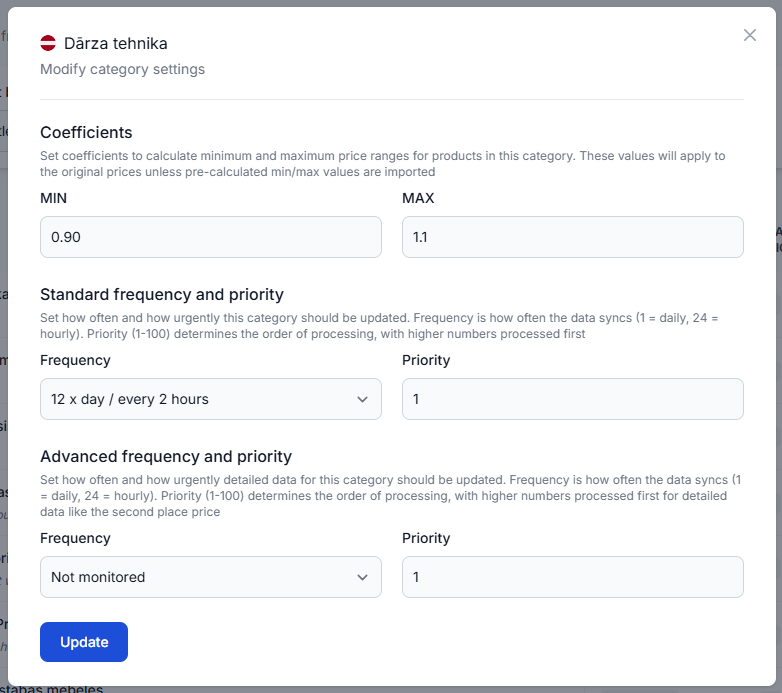
Category monitoring is configured in Category Management. To understand monitoring frequencies, category controls, and price coefficients, read Category Management: monitoring frequencies and price coefficients.
For example, a category may be configured to collect data approximately every three hours. More competitive categories can be checked more frequently, while slower categories can use a longer interval.
Selected products can use a separate monitoring schedule. To configure this, open Individual Products. For details, read Individual Products: set product-specific monitoring frequencies.
An individual-product schedule can override the broader category schedule for selected EANs.
Why monitoring frequency matters
A synchronization calculation uses the available marketplace observations. If monitoring runs every three hours but synchronization runs every hour, several synchronization cycles may use the same latest known marketplace observation.
This does not mean that synchronization failed. It means that your source was reread and the calculation workflow ran before a newer marketplace observation was collected.
Monitoring frequency can also affect usage costs. Configure faster monitoring for products or categories where more frequent observations are useful, rather than assuming that every product must use the shortest possible interval.
Stage 3: Price calculation
During synchronization, B2BLIX combines several types of information:
- Your latest imported product data
- The latest sufficiently recent marketplace information available to the calculation
- Your selected BuyBox strategies
- Product-level or category-derived price limits
- Relevant exclusion rules
- The selected output configuration
The service then decides whether the product price should be reduced, maintained, matched to another observed price, or increased, depending on the product situation and your settings.
The result remains limited by the available minimum and maximum price rules. When explicit minimum and maximum prices are imported for a product, those product-level values take precedence over category-derived limits.
B2BLIX does not guarantee that a calculated price will win the BuyBox. The marketplace determines the BuyBox winner and may consider factors beyond price.
What happens when a product is not found in collected data?
When an imported product can be matched with collected marketplace information, B2BLIX can evaluate it using the available BuyBox data and your pricing rules.
If the product is not found in the collected marketplace data, it can be exported using the original imported price instead of a newly calculated competitive price.
This protects the continuity of the product export, but it also means that the product has not received the same BuyBox-based calculation as a successfully matched product.
Products are generally matched using their EAN codes. Incorrect, missing, or inconsistent EAN values can therefore prevent the expected match.
Stage 4: Exporting the result
After calculation, B2BLIX prepares the result using the export type selected in Synchronization Settings.
Depending on the configured workflow, results may be:
- Reviewed without automatic publication
- Prepared as a Pigu-compatible XML feed
- Submitted through a supported integration
An XML export contains the values prepared by B2BLIX. The marketplace must still retrieve, accept, and process that information before the new price becomes live.
If the B2BLIX XML already contains the expected price but the marketplace still displays the previous value, the calculation and export may already be correct. In that situation, also check whether the Pigu-side import or synchronization process has run for the relevant feed.
Do not assume that a correct XML value is already live. First confirm the exported value, and then allow for the marketplace-side import and processing stage.
When synchronization runs
The regular synchronization schedule is configured separately from marketplace monitoring.
For example, an account may use:
- Marketplace monitoring approximately every three hours
- Product-source synchronization every two hours
- A marketplace feed import that runs on its own schedule
In this example, changing the spreadsheet does not mean that a new live marketplace price will appear within exactly two hours. The full update depends on when each required stage runs.
A simplified timing example
- At 09:00, B2BLIX collects a marketplace observation.
- At 09:20, you update a product in Google Sheets.
- At 10:00, synchronization rereads the spreadsheet and calculates a result using the latest available observation.
- B2BLIX prepares the configured export.
- The marketplace retrieves and processes the exported information according to the marketplace-side workflow.
- At approximately 12:00, the next configured marketplace monitoring cycle may collect a newer observation.
The exact times will depend on your own settings. The example shows why data collection, calculation, export, and marketplace application should be checked separately.
How to run synchronization manually
You do not always need to wait for the next scheduled synchronization cycle.
Open Synchronization Settings, scroll to the Frequency section, and use Run manually.
A manual run forces the synchronization and calculation workflow to start without waiting for the next configured synchronization time.
This is useful after:
- Changing prices or limits in your source file
- Adding or removing products
- Correcting an EAN or another supported attribute
- Changing BuyBox settings
- Changing the export configuration
- Testing whether a source correction has resolved an import problem
Manual synchronization does not necessarily perform every other stage immediately. It can start a new import and calculation, but it does not guarantee that a new marketplace observation will be collected at that moment or that Pigu will apply the exported price immediately.
What happens during the first synchronization
The first synchronization can take longer than later runs because the account may not yet have all the information required for regular calculation.
During the initial setup, B2BLIX may need time to:
- Access and download your product source
- Interpret the imported product structure
- Create or update products internally
- Connect imported EANs with discovered marketplace products
- Download or discover relevant marketplace categories
- Collect available public marketplace information
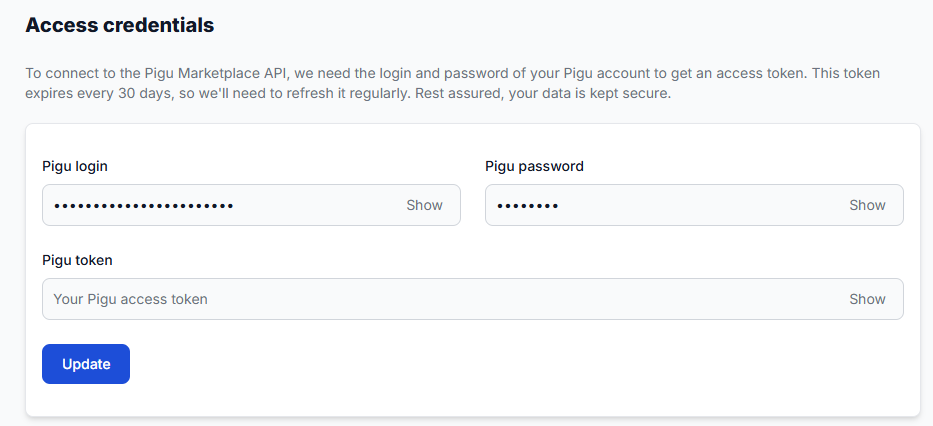
- Collect information available through the configured connection
- Prepare enough information for the first useful calculation
The first complete run may take several hours. The exact time depends on the size of the product source, marketplace coverage, discovery status, monitoring configuration, and the availability of the required data.
New products and categories may also require time to appear. A product must first exist on the marketplace and then be discovered by B2BLIX. A newly discovered category may need a monitoring frequency before regular collection begins.
A safe first-run sequence
- Start with a limited group of products.
- Test the import source in Sync Tester.
- Configure the source and frequency in Synchronization Settings.
- Verify minimum and maximum prices before enabling publication.
- Configure monitoring for the relevant categories or products.
- Allow time for initial discovery and data collection.
- Run a synchronization and review the result.
- Check calculations in Product Checker.
- Review the XML or other selected output.
- Only then enable or expand automatic price publication.
This gradual approach reduces the risk of publishing unexpected prices across a large catalog.
How the stand-alone or parallel workflow works
B2BLIX can operate as a separate pricing system alongside your existing product-management workflow.
In this setup:
- You continue managing your product catalog and base data through your existing workflow.
- You provide the relevant product data to B2BLIX through a supported import source.
- B2BLIX monitors configured products and categories.
- The service applies exclusions, pricing limits, coefficients, and BuyBox strategies.
- B2BLIX calculates a price inside the permitted range.
- The result is exported to Pigu using the configured method.
When you need to change the product range, base prices, stock, or limits, update the connected spreadsheet or upload the revised file again. B2BLIX will process the revised source during a following synchronization.
What to check when an update is delayed or unexpected
1. Check whether the source contains the expected value
Open your spreadsheet, XML, CSV, or other import source and verify:
- The product is present.
- The EAN is correct.
- The current or base price is correct.
- The minimum and maximum prices are correct.
- The stock or availability value is correct.
- The source is available at the configured URL.
Test the source in Sync Tester if you suspect an accessibility or file-structure problem.
2. Check the synchronization frequency
Open Synchronization Settings and verify:
- The correct source URL is saved.
- The selected data format matches the actual source.
- The synchronization interval is appropriate.
- The expected output type is selected.
- The settings have been saved.
Use Run manually when you need to process a source correction without waiting for the next scheduled cycle.
3. Check marketplace monitoring
Open Category Management and confirm that monitoring is configured for the relevant marketplace category.
If the product has an individual schedule, also check Individual Products.
A recent synchronization can still use an older marketplace observation when no newer monitoring cycle has completed.
4. Review the synchronization report
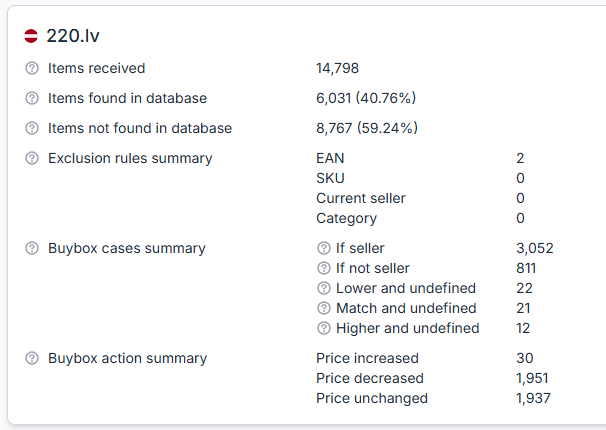
Open Synchronization Reports. To understand the report statuses, processing summaries, and full report links, read Synchronization Reports: review import, BuyBox calculation, and export results.
Check whether:
- The expected synchronization run appears.
- The run has completed.
- Products were received from the source.
- Products were matched successfully.
- Products were excluded from calculation.
- BuyBox cases were processed.
- Prices were changed, kept, or exported as expected.
- The report contains errors or warnings that explain the result.
5. Check the individual product calculation
Open Product Checker. To understand its product data, calculation, and export sections, read Product Checker: review product data, price calculations, and exports.
Search for the product EAN and review:
- Whether the product was found for the expected marketplace
- The imported product information
- The latest known marketplace observation and its time
- The minimum and maximum price used
- The selected strategy
- The important calculation decisions
- The calculated price
- The exported value and export status
Product Checker is the most useful page for understanding why one specific product received a particular result.
6. Check exclusions and price limits
A product may be imported successfully but intentionally excluded from automatic repricing.
Check whether the EAN is present in:
- A product exclusion list
- An EAN-based exclusion rule
- A seller-based exclusion rule
- Another relevant repricing exclusion configured in the account
Also verify the effective minimum and maximum prices. A strategy may request a lower or higher price, but the calculated result cannot move outside the permitted range.
7. Check whether the export is correct
If Product Checker or the generated XML shows the expected value, the B2BLIX calculation may already be complete.
In that situation, check the next stage:
- Has the marketplace retrieved the latest feed?
- Has the marketplace processed the update?
- Is the correct feed connected on the marketplace side?
- Does the marketplace show any import or validation issue?
A delay at this stage should not automatically be treated as a calculation problem.
Common causes of synchronization problems
- The source URL is not accessible. B2BLIX cannot download the latest product data from a restricted, invalid, or unavailable address.
- The selected format does not match the source. For example, a spreadsheet source is configured using a different data format.
- Required product fields are missing or incorrect. An invalid or missing EAN can prevent product matching.
- The synchronization cycle has not run yet. The spreadsheet or file has been updated, but the next scheduled import has not started.
- The latest marketplace monitoring cycle has not run yet. A synchronization may calculate using the latest observation already available.
- The first synchronization is still preparing product data. Initial discovery, matching, category collection, and marketplace data collection can take longer.
- The category has no active monitoring schedule. A newly discovered category may require monitoring configuration.
- The product is excluded from repricing. The product can still appear in the import while automatic BuyBox calculation is skipped.
- A price limit prevents the expected movement. The requested strategy cannot move the price below the minimum or above the maximum.
- The product was not found in collected marketplace data. The product may be exported using its original imported price rather than a BuyBox-based calculated price.
- A manual marketplace correction was overwritten. The connected import source still contained the previous value and supplied it again during synchronization.
- The exported result has not been applied by the marketplace. The B2BLIX calculation may be correct while the marketplace-side import is still pending.
Example: changing a price range in Google Sheets
Suppose a product is imported with these values:
- Base price: EUR 22.00
- Minimum price: EUR 21.00
- Maximum price: EUR 24.00
- Synchronization frequency: once per hour
- Category monitoring frequency: approximately every three hours
You change the minimum price in Google Sheets from EUR 21.00 to EUR 21.50.
During the next synchronization, B2BLIX rereads the spreadsheet and uses the new EUR 21.50 minimum. If you use Run manually, the new source value can be processed without waiting for the next hourly synchronization.
However, the calculation may still use the most recent marketplace observation already collected. Running synchronization manually does not necessarily trigger a new category-monitoring cycle.
If the selected strategy would normally calculate EUR 21.30, the result must remain within the updated range, so it cannot be lower than EUR 21.50.
After the result is exported, the marketplace must still retrieve and process it before the live offer changes.
Recommended setup for a new account
- Prepare a small test source with valid EANs, prices, stock, and price limits.
- Confirm that the source does not contain confidential data that is not required for synchronization.
- Test the source in Sync Tester.
- Configure the source, format, frequency, and output in Synchronization Settings.
- Verify the required marketplace connection information in your account.
- Configure monitoring for the relevant categories.
- Add individual monitoring only for products that need a different schedule.
- Allow time for the first product discovery and marketplace data collection.
- Run synchronization without immediately publishing a large catalog.
- Review Synchronization Reports and Product Checker.
- Verify the XML or other output.
- Enable or expand marketplace updates only after the results are correct.
What to do next
If you are configuring synchronization for the first time, start with these three pages:
- Sync Tester to verify that the source is accessible and correctly structured.
- Synchronization Settings to configure the import frequency and output method.
- Synchronization Reports to confirm what happened during each run.
For a specific product, use Product Checker to compare its imported information, latest marketplace observation, calculation, and exported value.
Contact support when the source is accessible, the synchronization has completed, and you still cannot explain the result from Synchronization Reports or Product Checker. Include the affected marketplace, product EAN, approximate synchronization time, and the relevant report information.
Do not send account passwords, access tokens, private feed credentials, or other sensitive connection information in a general support message.