Why products may be missing from export
Learn how to diagnose products that are missing from a B2BLIX export by checking the imported standard price, minimum and maximum limits, synchronization reports, and product-level export information.
Why a product can disappear from the export
This article is relevant when your synchronization completes, but the generated export contains fewer products than expected or contains no products at all.
A product can successfully pass an earlier validation step and may even receive a BuyBox price calculation, but this does not automatically mean that it can be included in the export. Import, calculation, and export are separate processing stages.
Short answer
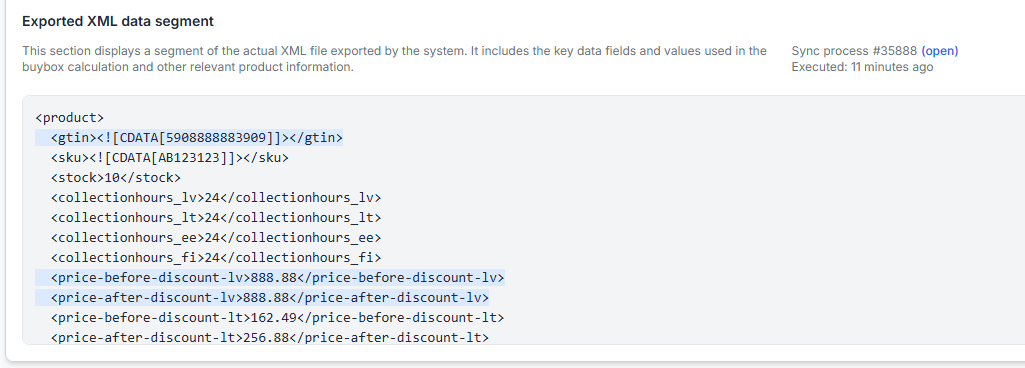
Check whether every product intended for export has a standard price in the imported data. In XML product data, this is the <price> attribute.
If the standard price is missing, B2BLIX may be unable to include the product in the export even when the product was imported and a calculation was performed.
When minimum and maximum prices are provided, also verify that the standard price is within that range:
- The standard price should not be lower than the minimum price.
- The standard price should not be higher than the maximum price.
Important: Changes to imported prices can affect future calculated and exported prices. If automatic marketplace updates are enabled, review the corrected values and price limits before running another synchronization.
How the processing stages differ
B2BLIX handles product data in several stages:
- Import: B2BLIX reads the product data from your configured source.
- Validation: The service checks whether the available data can be interpreted and processed.
- Calculation: The configured BuyBox strategy and price limits are used to calculate a possible price.
- Export: Products that have the required export data are added to the selected output.
A successful import or calculation therefore does not confirm that the product was exported. The export stage may still skip a product when its standard price is missing.
What to check in your account
1. Review the latest synchronization report
Start by checking the most recent synchronization run. Look at the product totals and export results to determine whether products were received but not included in the output.
To check this in your account, open Synchronization Reports. To understand the report stages and summaries, read Synchronization Reports: Review import, BuyBox calculation, and export results.
2. Inspect an affected product
Use the product's EAN to check its imported data, price limits, calculation information, and export status. This helps confirm whether the problem affects one product or the entire imported catalog.
To check this in your account, open Product Checker. To understand the information shown for each product, read Product Checker: Review product data, price calculations, and exports.
3. Check the standard price in your source data
Open the product source used by B2BLIX and find one of the missing products. Verify that it contains a standard price value.
- For XML data, check for the <price> attribute.
- Make sure the standard price is included for each product that should appear in the export.
- Do not check only the minimum, maximum, or calculated price. The standard price is a separate required value for this export step.
4. Compare the standard price with the permitted range
If the product has minimum and maximum prices, compare all three values.
| Value | Example | Check |
|---|---|---|
| Minimum price | €19.00 | The standard price should not be below this value. |
| Standard price | €22.00 | This value must be present and should sit within the permitted range. |
| Maximum price | €25.00 | The standard price should not be above this value. |
Product-level minimum and maximum prices may come from the imported product data. Where category-derived limits are used, confirm that the resulting range is appropriate before changing the standard price.
5. Test the corrected source
After correcting the product data, use the synchronization tester to confirm that the source is accessible and that B2BLIX can interpret its structure.
To test the source in your account, open Synchronization Tester. For information about the supported structure and fields, read Sync Tester and Google Sheets file structure.
6. Verify the configured import source
If you edited a file but the next synchronization still uses the old data, confirm that your account is connected to the intended product source.
To verify the import configuration, open Synchronization Settings. To understand the import and export options on that page, read Sync Settings: Configure product import and price export.
Common scenarios
- The export is completely empty: The imported products may all be missing the standard price field.
- Only some products are missing: The standard price may be present for some product records but omitted from others.
- The product has minimum and maximum prices but no standard price: Price limits do not replace the required standard price.
- The product was calculated but not exported: Calculation confirms that pricing logic was evaluated, not that all required export data was available.
- The source was corrected but the result did not change: The account may still be using a different source, or a new synchronization may be required before the corrected data is processed.
Example
A product has the following imported information:
- EAN: 1234567890123
- Minimum price: €19.00
- Maximum price: €25.00
- Standard price: Missing
B2BLIX may recognize the product and evaluate its BuyBox situation, but the product can be skipped during export because the standard price is missing.
After adding a standard price of €22.00, the price is present and falls between the minimum and maximum limits. This removes the missing-standard-price problem, although other product settings or data may still affect the final export result.
What to do next
- Open the latest synchronization report and confirm where products were skipped.
- Check one affected EAN in Product Checker.
- Add the missing standard price to the imported product data.
- Confirm that the standard price is between the configured minimum and maximum prices.
- Test the corrected source before regular synchronization.
- Run another synchronization and review the new export result before relying on automatic marketplace updates.
A calculated or exported price is not necessarily live on the marketplace. It becomes live only after it has been submitted through the configured workflow and accepted and applied by the marketplace.