How to use b2blix with an existing pigu xml feed
Learn how to place B2BLIX between your existing product feed and Pigu, what to verify before enabling price exports, and how to check that products and calculated prices are being processed correctly.
When this setup is useful
This setup is relevant when you already send product information to Pigu through an XML feed but want B2BLIX to calculate and export optimized prices.
You do not need to stop using your original feed as the source of product information. Instead, the original feed becomes the import source for B2BLIX, and the XML generated by B2BLIX becomes the feed connected to Pigu.
Short answer
Use your existing Pigu XML feed as the import source in B2BLIX. B2BLIX imports the available product identifiers, original prices, price limits, and other supported data needed for processing.
After applying your configured BuyBox strategies and safety limits, B2BLIX generates a public Pigu-compatible pricing XML file. Connect this generated XML URL to Pigu as the new data source.
The resulting data flow is:
- Your existing XML feed provides product and pricing data to B2BLIX.
- B2BLIX imports and processes the products.
- B2BLIX calculates prices according to your settings.
- B2BLIX generates a public pricing XML file.
- Pigu imports the generated B2BLIX XML file.
Important: Connecting the B2BLIX XML output to Pigu can affect live marketplace prices. Verify imported prices, minimum and maximum limits, calculation results, and the generated XML before replacing your current Pigu feed.
How the integration works
B2BLIX acts as a bridge between your original XML feed and Pigu.
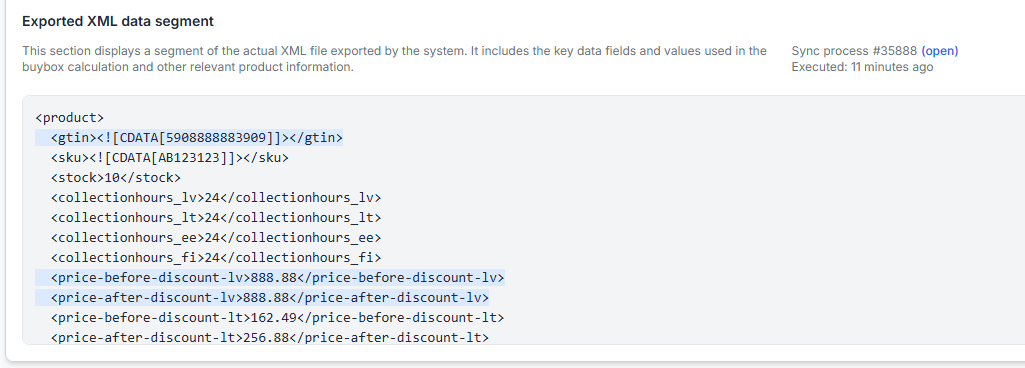
Your original feed remains responsible for supplying the source product data. Depending on your feed structure, this may include information such as:
- EAN or another supported product identifier
- SKU
- Current or base price
- Stock or availability information
- Marketplace-specific price fields
- Optional minimum and maximum prices
B2BLIX uses the imported information together with the latest available marketplace observations and your selected pricing strategy. A calculated price must remain within the available minimum and maximum price limits.
The calculated result is then placed in the generated XML output. An exported price is not necessarily live immediately. Pigu must first retrieve, accept, and apply the updated information.
B2BLIX helps automate price calculations, but Pigu determines which seller receives the BuyBox. Using the service does not guarantee a BuyBox position, an order, or a particular financial result.
What to check before configuring the connection
1. Check that the original XML feed is available
B2BLIX must be able to access the original feed whenever synchronization runs. Confirm that:
- The feed URL is active.
- The feed is updated as expected.
- The feed is not temporarily blocked or restricted.
- The products you want B2BLIX to process are included.
Keep the original feed available after the B2BLIX output is connected to Pigu. B2BLIX still needs the original feed as its import source.
2. Check product identifiers
Products are generally matched using EAN codes. Confirm that the products in your source feed contain the correct identifiers and that the same identifiers are used for the corresponding marketplace products.
An incorrect or missing identifier may prevent B2BLIX from matching the imported item with the marketplace product.
3. Check original prices and safety limits
Before enabling export, verify the source prices and any imported minimum and maximum prices.
The minimum price protects the product from being calculated below the permitted amount. The maximum price prevents the calculated result from exceeding the permitted upper limit.
If product-level limits are included in your source data, review them carefully. Explicit product-level minimum and maximum values take precedence over limits derived from category settings.
4. Check your synchronization configuration
To configure the import source and XML output, open Sync settings in your account. To understand the available fields and controls, read Sync settings: configure product import and price export.
Verify that the synchronization settings point to your original XML source and that the selected output method matches the XML workflow you intend to use.

5. Review calculation settings before publishing
Your XML source provides product data, but B2BLIX pricing settings determine how the system reacts to the latest known marketplace situation.
To verify the active pricing strategies and price-limit behavior, open BuyBox settings in your account. For an explanation of the settings on that page, read BuyBox settings page.
Check the settings before changing them. Depending on the selected strategy, B2BLIX may reduce a price, keep it unchanged, match another offer, or increase it while remaining within the permitted price range.
Recommended setup process
- Use a small group of products for the first test.
- Add your existing XML feed as the import source in Sync settings.
- Run a synchronization without immediately replacing the live Pigu feed.
- Check that the expected products were imported.
- Verify the original price and minimum and maximum limits for several products.
- Review the calculated prices and the generated XML output.
- Connect the B2BLIX public XML URL to Pigu only after the test results are correct.
- Monitor the next synchronization runs and confirm that Pigu applies the expected data.
Start with a limited catalog or monitoring-only workflow whenever possible. Expanding the connection gradually reduces the risk of publishing incorrect prices across a large product catalog.
How to verify that the integration is working
Check synchronization results
To review completed import, calculation, and export runs, open Sync reports in your account. For help reading the report information, see Synchronization reports: review import, BuyBox calculation, and export results.
Check whether the synchronization completed successfully and whether products were imported, processed, excluded, or exported as expected.
Check an individual product
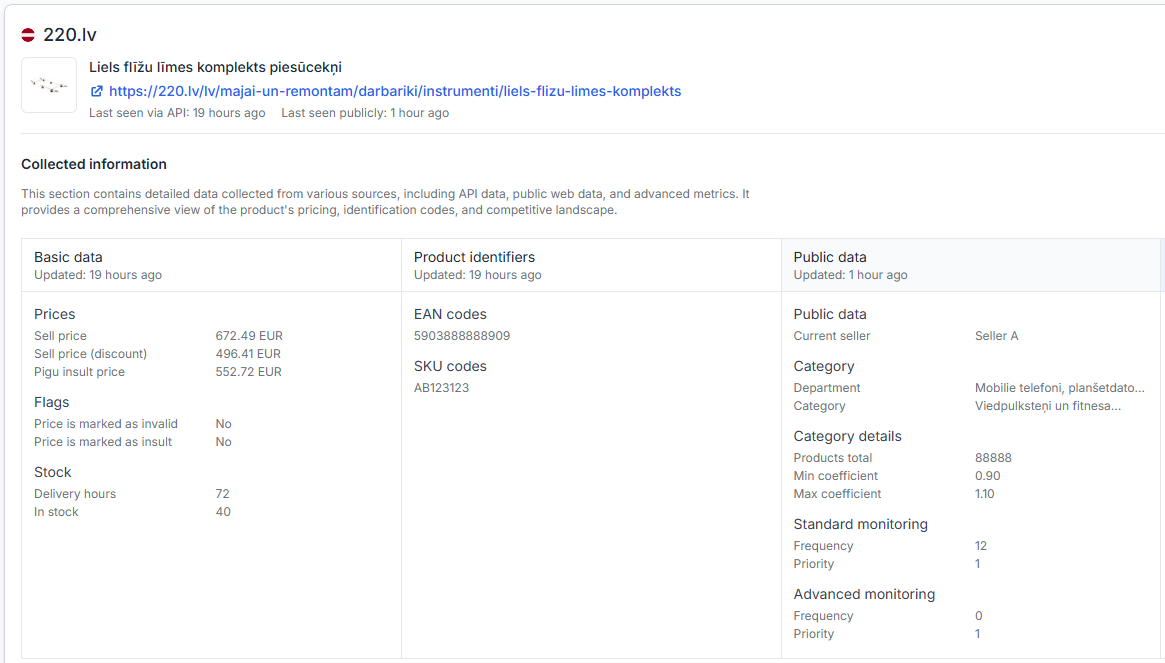
To investigate one product in detail, open Product checker in your account. For an explanation of the displayed product data, calculations, and export information, read Product checker: review product data, price calculations, and exports.
Use the Product Checker to compare:
- The product data imported from your XML feed
- The latest available marketplace information
- The applicable minimum and maximum prices
- The selected pricing strategy
- The calculated price
- The value prepared for export
Common problems to check
The products are not being imported
- Confirm that the source XML URL is correct and accessible.
- Check that the products are present in the current feed.
- Confirm that product identifiers such as EANs are included and correct.
- Review the latest synchronization report for import errors or skipped items.
A product has no calculated price
- Check whether the product was matched successfully.
- Verify that valid source pricing information was imported.
- Check the minimum and maximum price limits.
- Confirm that the product is not excluded from automatic repricing.
- Check whether sufficiently recent marketplace information is available for the configured strategy.
The generated XML contains an unexpected price
- Compare the original imported price with the value shown in Product Checker.
- Verify the imported minimum and maximum limits.
- Review the active BuyBox strategy and pricing step.
- Check whether a product-level limit overrides a category-derived limit.
- Review the calculation explanation before changing any setting.
The calculated price is correct, but Pigu still shows another price
- Confirm that Pigu is connected to the B2BLIX-generated XML URL.
- Check that the latest B2BLIX synchronization completed successfully.
- Review whether the expected value was included in the exported XML.
- Allow for the marketplace to retrieve and apply the updated feed.
- Remember that a calculated or exported price is not live until Pigu accepts and applies it.
Example
A seller already has an XML feed containing a product with an EAN, a current price of EUR 20.50, a minimum price of EUR 19.00, and a maximum price of EUR 22.00.
The seller adds this XML feed as the B2BLIX import source. Based on the latest available marketplace information and the selected strategy, B2BLIX calculates a price of EUR 19.99.
B2BLIX places EUR 19.99 in its generated pricing XML. After the seller connects that XML URL to Pigu, the marketplace can retrieve and apply the new price. The result remains within the permitted EUR 19.00–22.00 range.
What to do next
Begin by connecting your existing feed in Sync settings and testing a small product group. Review the imported data, price boundaries, calculation results, and generated XML before using the B2BLIX output as the live Pigu data source.
After the connection is enabled, check Sync reports regularly and use Product Checker when a product is missing, calculated unexpectedly, or not updated on the marketplace.