What to check if prices are updated in b2blix but not visible on pigu
Check Product Checker, the generated XML or API export, synchronization reports, and Pigu import timing when a calculated price is not yet visible on the marketplace.
When this guide is relevant
This guide applies when B2BLIX shows a new calculated price, but the public price on 220.lv, Pigu.lt, Kaup24.ee, or HobbyHall.fi has not changed.
A price passes through several separate stages:
- B2BLIX imports your product data.
- B2BLIX calculates a price using your settings and price limits.
- The calculated price is added to the selected XML or API output.
- Pigu receives and processes the update.
- The marketplace applies the price to the offer.
A correct calculation in B2BLIX confirms only the calculation stage. It does not always mean that the marketplace has already received and applied the price.
Important: Calculated, exported, and live prices are different states. Before changing synchronization settings, verify where the price update stopped. Changing an active XML or API setup can affect live marketplace prices.
Short answer
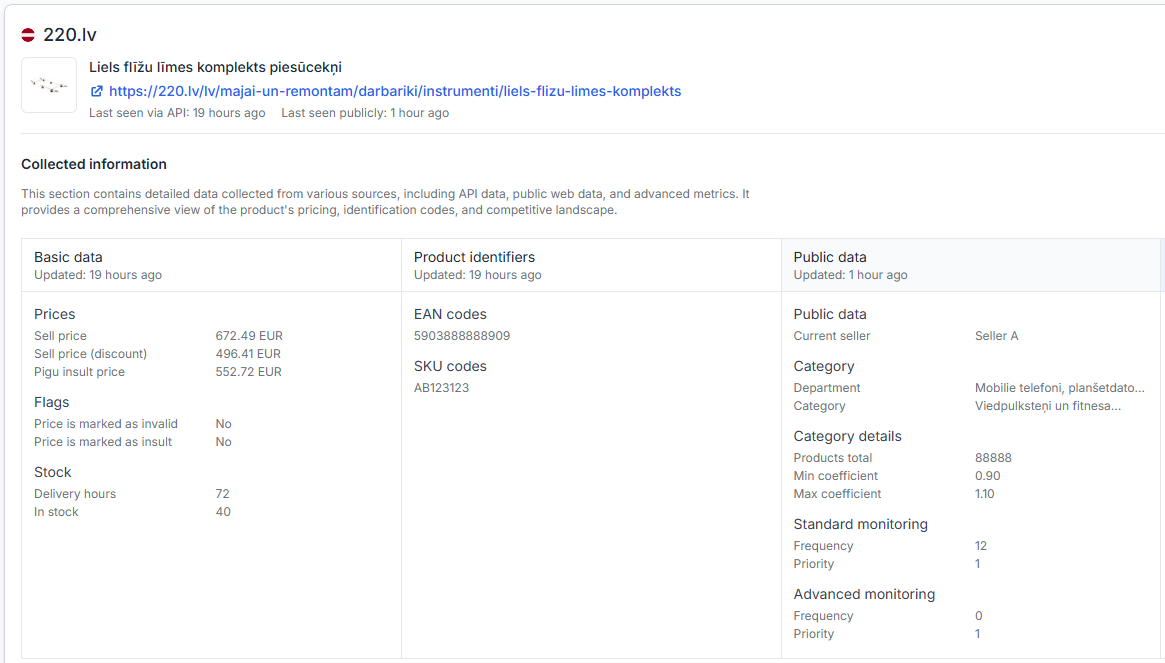
Start by checking the product in Product Checker. Confirm that B2BLIX calculated the expected price and included it in the export.
If the calculated price is correct but the exported price is missing or different, review the B2BLIX synchronization configuration and recent synchronization reports.
If both the calculation and export are correct, check whether the B2BLIX XML is connected and correctly mapped in your Pigu seller account, or whether API publishing is enabled and permitted for that account. The marketplace may also process XML imports according to its own schedule, so a correct exported price may not become visible immediately.
How price publication works
B2BLIX monitors marketplace information and calculates prices according to your selected strategy, minimum price, maximum price, and other account settings.
The result is then prepared for publication through the export method selected in Sync Settings:
- XML export: B2BLIX generates a product feed. The feed must be connected as a product source in the seller’s Pigu account, with the required fields mapped correctly.
- API export: B2BLIX submits supported updates through the configured Pigu connection, when API publishing is available for the account.
Pigu controls when received information is imported, processed, and displayed. For example, if the marketplace reads an XML feed at 19:00, a price exported earlier may only become visible after that import has been processed.
B2BLIX can prepare and publish the selected output, but it does not control Pigu’s import schedule or marketplace processing.
What to check in your account
1. Confirm the calculated price in Product Checker
When you are logged in, open Product Checker. To understand the information shown for each product, read Product Checker: Review product data, price calculations, and exports.
Search for the affected product by EAN and verify:
- The correct marketplace is shown.
- The product has been found and processed.
- The latest calculated price is the price you expected.
- The minimum and maximum price limits are correct.
- The calculation uses the intended strategy.
- The exported price is present for the affected marketplace.
- The calculation and export information is recent enough for the synchronization run you are checking.
If the calculated price is already wrong in Product Checker, the problem is not marketplace visibility. Review the product data, price limits, strategy, and calculation details before checking the export connection.
2. Confirm that the latest synchronization completed
When you are logged in, open Sync Reports. For an explanation of report types and processing results, read Synchronization Reports: Review import, BuyBox calculation, and export results.
Find the synchronization run that should have published the new price. Check whether:
- The synchronization finished successfully.
- The affected product was received and matched.
- The product reached the calculation stage.
- An export action was prepared for the product.
- The report contains an error, exclusion, or skipped action that explains why the price was not exported.
A previous successful report does not confirm that the latest price was exported. Check the report that corresponds to the most recent product update.
3. Verify the selected export method
When you are logged in, open Sync Settings. To understand the import and export controls, read Sync Settings: Configure product import and price export.
Check the current Export mode before changing anything.
If the export mode is XML:
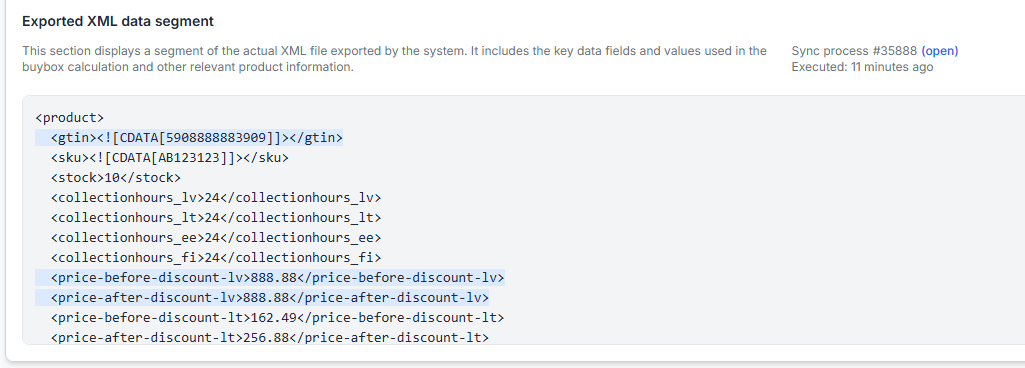
- Confirm that the B2BLIX XML output is being generated.
- Confirm that the correct B2BLIX XML URL has been added as a product source in the seller’s Pigu account.
- Confirm that the relevant price fields are mapped correctly in Pigu.
- Confirm that Pigu is still reading that source.
- Check whether another product source is also updating the same offer.
If the export mode is API:
- Confirm that API publishing is allowed for the seller’s Pigu account.
- Confirm that the required Pigu connection information is configured.
- Review the latest synchronization report for rejected, skipped, or unsuccessful publication actions.
To verify the connection details when API export is used, open Access Credentials. For an explanation of the connection fields, read Access credentials for the Pigu connection.
Do not switch from XML to API only to test a delayed price. First confirm that API publishing is available for the account and that changing the export method will not conflict with another product source. Pigu may not allow every account to combine multiple publication sources.
4. Check the connection inside the Pigu seller account
If B2BLIX shows the correct price in both Product Checker and the generated XML, check the product-source configuration in the seller’s Pigu account.
Verify that:
- The B2BLIX XML is added as an active product source.
- The source URL matches the current URL shown in B2BLIX.
- The marketplace price fields are mapped to the correct Pigu fields.
- The affected marketplace is included in the source configuration.
- The import has not been disabled or replaced by another source.
If the B2BLIX XML is not connected in Pigu, B2BLIX can calculate and generate prices, but Pigu will not receive them through that feed.
5. Allow time for Pigu to process the update
After confirming that the correct price is present in the exported XML or has been submitted through API, check when Pigu is expected to process the source.
XML feeds may be read according to a marketplace-controlled schedule. The price may therefore remain unchanged until the next import has completed.
After the expected import time:
- Check the offer in the Pigu seller account.
- Check the public marketplace product page.
- Return to Product Checker and confirm that you are comparing the same marketplace, EAN, and synchronization run.
How to interpret what you find
| What you see | What it usually means | What to check next |
|---|---|---|
| The calculated price is incorrect in Product Checker | The issue is before export | Check imported prices, minimum and maximum limits, strategy settings, and calculation details |
| The calculated price is correct, but no exported price is shown | The product may not have reached the export stage | Check Sync Reports and Sync Settings |
| The correct price is present in the XML, but Pigu still shows the old price | Pigu may not be connected to the feed, the mapping may be incorrect, or the import may not have run yet | Check the product source and import status in the Pigu seller account |
| An API export was selected, but the price did not change | The API connection or account permission may need verification | Check Access Credentials and the latest synchronization report |
| The export is correct and Pigu has recently imported it | The marketplace may still be processing the update | Recheck after processing and verify the offer in the Pigu seller account |
Common causes
- The latest calculation was not exported. Product Checker may show a calculation even when a later export action was skipped or unsuccessful.
- The B2BLIX XML is not connected in Pigu. A generated feed does not reach the marketplace unless it is configured as a product source.
- The price fields are mapped incorrectly. Pigu may read the source without applying the intended marketplace price field.
- Pigu has not yet read the XML. XML processing may follow a marketplace-controlled schedule.
- The marketplace is still processing the import. A received price may not become publicly visible immediately.
- Another source is updating the same offer. A separate feed or integration may publish a different price after B2BLIX.
- The selected export mode does not match the account setup. For example, API mode may be selected when API publishing is not available or fully configured.
- The wrong marketplace or product is being compared. Confirm the marketplace, EAN, seller offer, and synchronization time.
Example
A seller’s product is currently listed on Pigu.lt for EUR 24.99. B2BLIX calculates a new price of EUR 24.49.
Product Checker shows EUR 24.49 as the calculated price, and the exported XML section also contains EUR 24.49. The public Pigu.lt page still shows EUR 24.99.
In this case, recalculating the product is unlikely to help. The seller should check that the B2BLIX XML is connected and correctly mapped in the Pigu seller account, then confirm whether Pigu has completed its next scheduled import.
If Product Checker showed EUR 24.49 as the calculation but the XML still contained EUR 24.99, the seller should instead review the latest synchronization report and export configuration.
What to do next
- Use Product Checker to confirm the calculated and exported price.
- Review the latest Sync Report for the affected synchronization run.
- Verify the active Export mode in Sync Settings.
- If using XML, confirm the feed connection and field mapping in the Pigu seller account.
- If using API, confirm that API publication is allowed and that the connection is configured.
- Allow for the marketplace’s next import and processing cycle.
- Change the synchronization method only after confirming the current setup and the effect on live prices.
If the correct price appears in Product Checker, in the export output, and in a successful synchronization report, but remains unchanged after Pigu has processed the source, record the affected marketplace, EAN, expected price, current public price, and synchronization time for further investigation.