How to connect and use the B2BLIX XML feed in Pigu
Copy your permanent B2BLIX XML export URL into Pigu’s stock and price import settings, confirm the field mapping, and verify that Pigu can read the feed.
When this guide is relevant
Use this guide when B2BLIX has generated an XML feed for your products, but you have not yet connected that feed to Pigu, or when you need to verify that the connection is working correctly.
B2BLIX and Pigu are connected through a permanent, account-specific public XML URL. B2BLIX prepares the stock and price information, while Pigu must be configured to read that URL as an import source.
Short answer
Open Synchronization Settings in your B2BLIX account and copy the address shown under Your public URL.
Then log in to your Pigu seller account, open Products, select Stock and prices import, add a new HTTPS link import source, paste the B2BLIX URL, confirm the field mapping if requested, and save the import.
Once this is done, Pigu can periodically read stock and price information from the B2BLIX-generated XML feed.
Important: Connecting the XML feed may affect live stock and prices after Pigu imports and accepts the data. Inspect the XML and verify several products before connecting a large catalog. A price calculated or exported by B2BLIX is not necessarily live until Pigu has processed and applied it.
How the XML connection works
When XML export is enabled, each B2BLIX synchronization follows a general workflow:
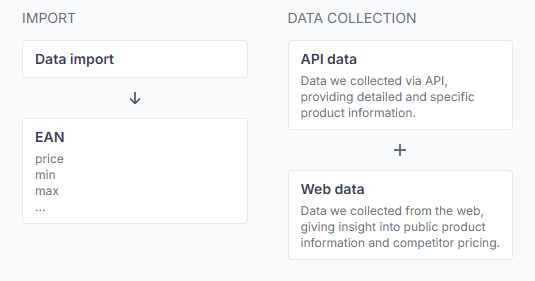
- B2BLIX imports the latest product information from your configured source, such as Google Sheets or another supported feed.
- The service evaluates products using the available marketplace observations, your pricing settings, and any applicable minimum and maximum price limits.
- B2BLIX prepares a Pigu-compatible XML file containing the resulting stock and price data.
- The latest file remains available through your permanent public XML URL.
- Pigu reads the file from that URL according to its import process.
Generating the XML file inside B2BLIX does not automatically inform Pigu that the file exists. You must add the public URL as an import source in your Pigu account.
The B2BLIX XML is intended for stock and price updates. If you already use a separate XML feed for creating or maintaining complete product listings, keep that feed separate.
Check the XML in B2BLIX before connecting it
1. Find your public XML URL
When you are logged in, open Synchronization Settings. To understand the import, export, frequency, and public URL settings on that page, read Sync Settings: Configure product import and price export.
Find Your public URL and copy the complete address. Use this exact URL in Pigu. It is intended to remain constant so Pigu can continue retrieving newly generated versions of the file.

2. Open and inspect the XML
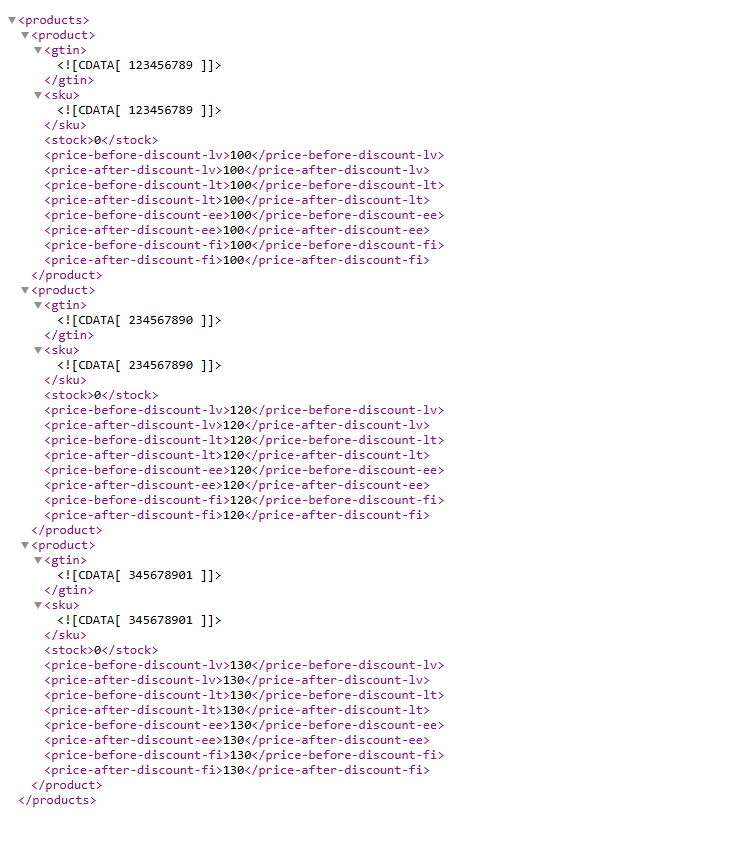
Open the public URL in your browser or download the file. Confirm that it loads successfully and contains product entries.
Review a small selection of products and check that their identifiers, stock values, and prices are reasonable. You do not need to understand the full XML structure, but the file should not be empty or show an access error.
To test how B2BLIX reads your source and prepares its output, open Synchronization Tester. For details about supported fields and source structure, read Sync Tester and Google Sheets file structure.
3. Check several EANs in Product Checker
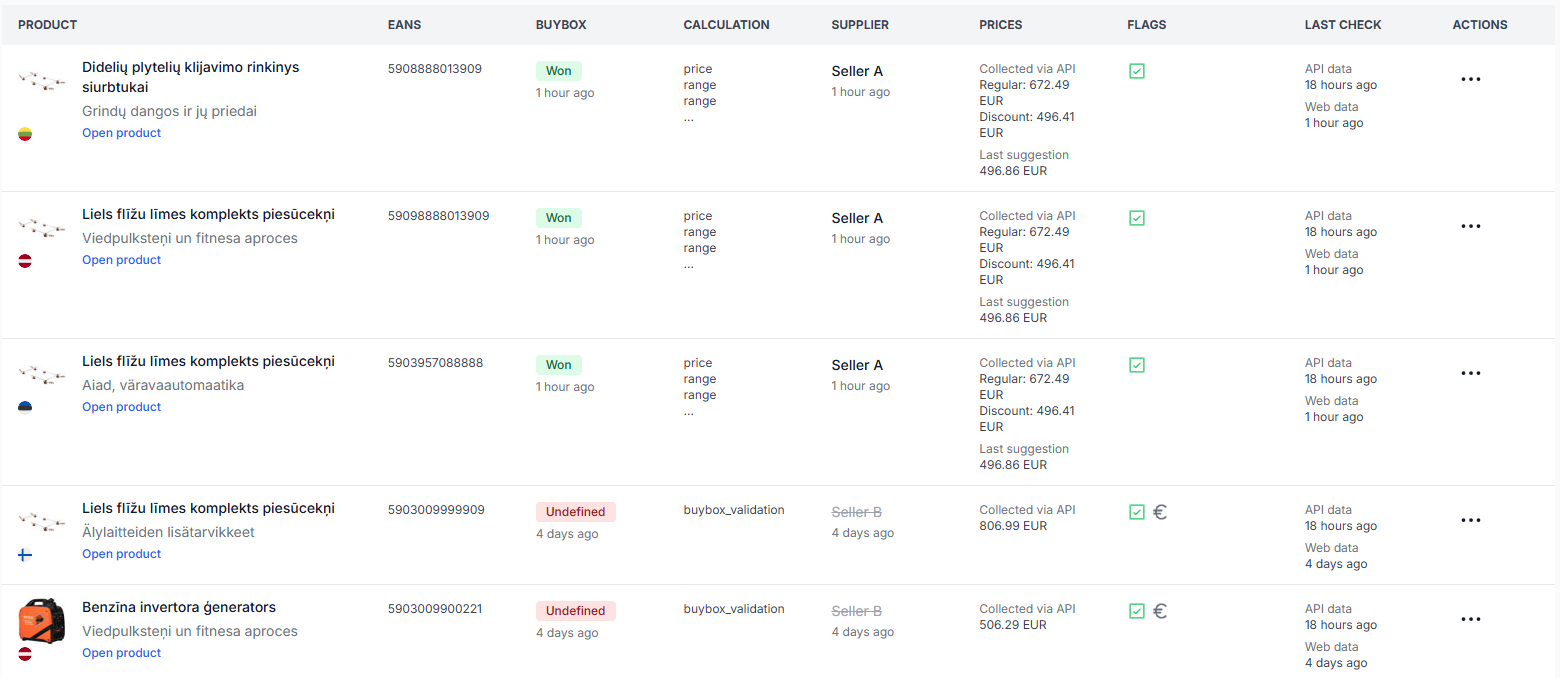
To verify individual products, open Product Checker. To understand the product data, calculation, and export sections, read Product Checker: Review product data, price calculations, and exports.
Check several representative EAN codes, including products with different prices, stock levels, or marketplaces. Review the calculated result and the exported XML data before enabling the Pigu import for your complete catalog.
How to add the B2BLIX XML feed in Pigu
- Log in to your Pigu seller account.
- Open the Products section.
- Open the Import menu near the top-left area of the page.
- Select Stock and prices import.
- Choose Import Source. If this action is not immediately visible, open the three-dot menu and select it there.
- Select HTTPS link as the source type.
- Paste the complete B2BLIX public XML URL.
- Review the XML attribute mapping if Pigu asks you to match the imported fields with Pigu attributes.
- Click Confirm or save the import source.
After confirmation, Pigu knows where to retrieve the stock and price file. Future B2BLIX synchronizations update the contents available at the same URL, so you should not need to replace the URL after every synchronization.
What data is included in the XML
The generated XML is based on the product information imported into B2BLIX. Depending on your source and configuration, it can include information such as:
- EAN or GTIN used to identify the product.
- SKU used as your internal product identifier.
- Stock or availability information.
- Marketplace-specific prices.
- Calculated prices when a B2BLIX pricing calculation is available.
- Additional supported marketplace fields supplied by your import source.
If a product cannot be repriced using the available information, it may remain unchanged in the export rather than receiving a newly calculated price.
Why SKU and EAN may be identical
If your source does not contain a sku column, B2BLIX uses the mandatory ean value as the fallback SKU. In that situation, seeing the same value for SKU and EAN in the XML is expected.
To send a separate SKU, add a sku column to your Google Sheet or other imported product feed. After the next successful synchronization, that value should be reflected in the generated XML.
Why a marketplace-specific field may be missing
The XML can only include supported product information that is available from your source or produced by the configured B2BLIX workflow.
For example, if a required field such as collectionhours_* is missing, add the relevant field to your original Google Sheet or data feed first. Then run or wait for the next synchronization and inspect the newly generated XML.
Common reasons the connection does not work
- The URL was generated but not added in Pigu. B2BLIX cannot make Pigu read the XML until the URL has been configured as a Pigu import source.
- The wrong Pigu import type was selected. Use the stock and price import workflow rather than treating the B2BLIX feed as a complete product catalog feed.
- The XML field mapping was not completed. If Pigu requests attribute mapping, review and confirm it before saving the source.
- The public URL was copied incorrectly. Open the pasted URL separately and confirm that it loads the expected XML.
- A required value is missing from the original product source. Add the field to the Google Sheet or feed used by B2BLIX, not directly to the generated XML.
- SKU and EAN are the same. This normally means that no separate SKU was supplied. Add a sku field if separate values are required.
- A new synchronization has not completed yet. The public file reflects the output produced by synchronization. Review the latest run before expecting changed data.
- Pigu has not yet processed the latest file. The XML may already contain the new value while the marketplace still displays an earlier price.
How to verify a completed update
First, open the XML URL and confirm that the expected product and price are present. Then check the same EAN in Product Checker to review the calculation and export result.
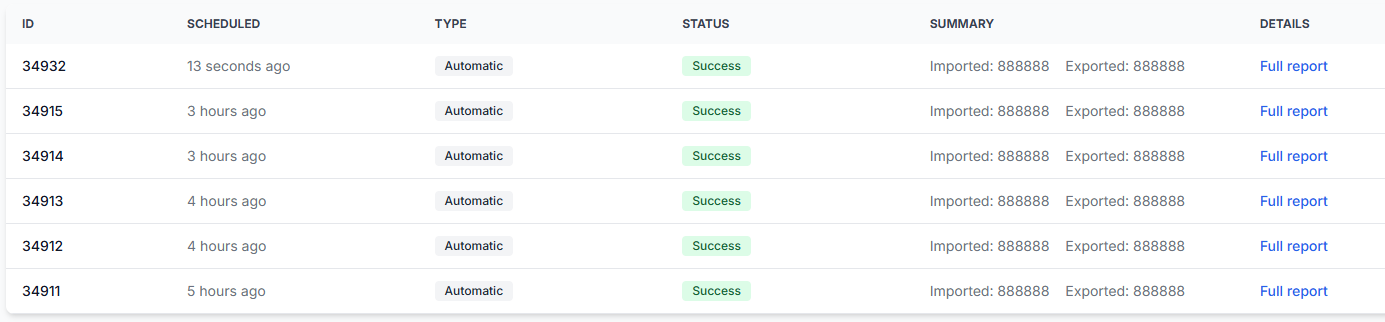
You can also open Synchronization Reports. For an explanation of report statuses and processing details, read Synchronization Reports: Review import, BuyBox calculation, and export results.
These checks help you identify where the workflow stopped:
- If the value is missing from the XML, check the B2BLIX source data and synchronization result.
- If the value is present in the XML but not in Pigu, check the Pigu import source, mapping, and processing status.
- If the value is shown in Product Checker but differs from your expectation, review the product’s imported data, price limits, and selected pricing settings before changing anything.
Example
Your source contains a product with EAN 4770000000001, SKU ABC-101, stock quantity 5, and the required price information.
During synchronization, B2BLIX evaluates the product and prepares a calculated price of EUR 19.99. The generated XML contains the EAN, SKU, stock quantity, and the exported price.
After the B2BLIX XML URL is connected in Pigu, Pigu retrieves the file and can apply the stock and price update. Until Pigu processes the import, the previous marketplace value may still remain visible.
What to do next
- Confirm that XML export is configured in B2BLIX Synchronization Settings.
- Open the public XML URL and inspect a small sample of products.
- Check the same EANs in Product Checker.
- Add the URL to Pigu under Products → Stock and prices import.
- Complete any requested field mapping and confirm the import source.
- Review the first completed synchronization and Pigu import before expanding the workflow to a larger catalog.
Start with a limited product group where possible. Verify minimum and maximum price limits, stock values, exported prices, and marketplace results before relying on the feed for your complete catalog.