How to export product data from B2BLIX
Learn how to create a product export from the All Products page, download the generated CSV file, and use it as a starting point for spreadsheet workflows.
When this guide is useful
Use this guide when you need to download product information currently available in your B2BLIX account. You can export your complete product list or apply filters first to export only a selected group of products.
The generated CSV file can be opened in Excel or another spreadsheet tool. It can also be used as a starting file when preparing data for a Google Sheets workflow.
Short answer
Open All Products, apply any required filters, click Export, and select the CSV format. B2BLIX will create an export based on the products included in your current search and filters.
After the file has been generated, open the Product Exports section and download the CSV file. If clicking the generated CSV link opens it instead of downloading it, right-click the link and select Save link as….
Creating or downloading a CSV export does not publish prices or change live marketplace data. Monitoring, calculation, export, and marketplace publication are separate processes. :contentReference[oaicite:0]{index=0}
How the product export works
The export uses the products included in the current view of the All Products page.
- To export all available products, remove filters that would limit the product list.
- To export a specific selection, apply the required filters before starting the export.
- The CSV contains product data currently available to B2BLIX for the selected products.
- The generated file is placed in the Product Exports section for downloading.
CSV stands for comma-separated values. It is a common file format that can be opened with Excel, Google Sheets, and most other spreadsheet applications.
What to check in your account
- Open the All Products page.
- Check the products currently shown in the list.
- If you need only part of your assortment, apply the appropriate filters before exporting.
- Click Export.
- Select the CSV export format.
- Open the Product Exports section after the file has been generated.
- Download the generated CSV file.
- If the normal click does not download the file, right-click the CSV link and select Save link as….
To create the export when you are logged in, open All Products.
To understand the product information and controls on that page, read All Products page.
Common situations
You need to export the complete assortment
Open All Products and check whether any filters are active. Remove filters that would exclude products, and then create the CSV export.
You need only a selected group of products
Apply the required filters before clicking Export. The export procedure will use the current search and filter selection when preparing the CSV file.
The CSV link opens instead of downloading
Right-click the generated CSV link and select Save link as…. Choose where to save the file on your computer, and then open it in your preferred spreadsheet application.
You need a starting file for Google Sheets
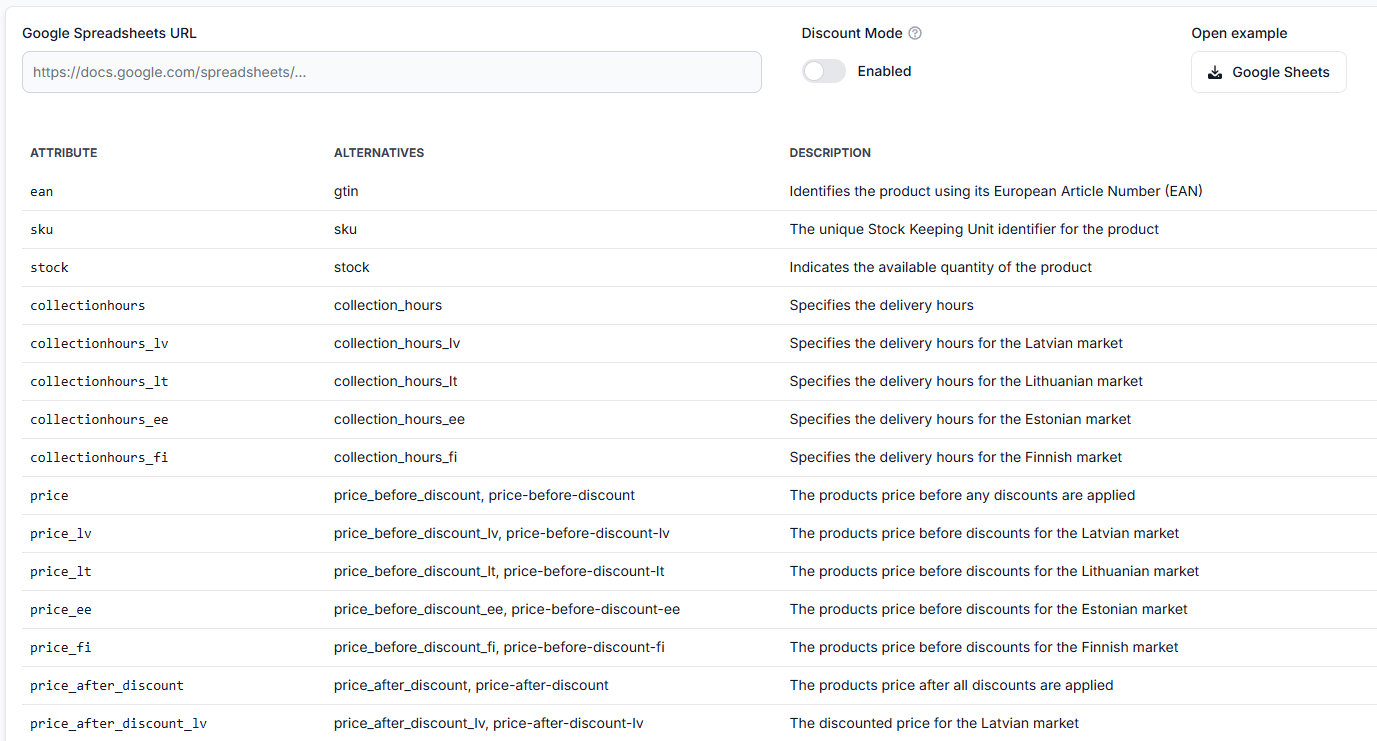
Export the required products as CSV and open the file in Excel, Google Sheets, or another spreadsheet tool. You can then copy the required product information into the Google Spreadsheet input file used by your workflow.
The exported list is smaller than expected
Return to All Products and check the current search and filters. A filter may have limited which products were included when the export was started.
Example
A seller needs a spreadsheet containing only a selected part of the active assortment. The seller opens All Products, applies the required filter, checks that the correct products are displayed, and then selects Export and CSV.
After the file is generated, the seller opens the Product Exports section, saves the CSV file, and opens it in Excel. The required product data can then be copied into the seller’s Google Sheets input file.
What to do next
Open the downloaded file and confirm that it contains the expected products before using it in another spreadsheet or synchronization workflow. If products are missing, return to All Products, review the active filters, and create a new export.
Contact B2BLIX support only if the export cannot be generated or the generated CSV link cannot be accessed after repeating the steps above. Include the approximate time when you created the export and describe any filters that were active.