How to enable marketplaces and use marketplace-specific fields
Learn how to provide separate prices, minimum and maximum limits, and delivery hours for 220.lv, Pigu.lt, Kaup24.ee, and HobbyHall.fi, and what to check when a new marketplace is not appearing.
When this guide is relevant
This guide answers two closely related questions:
- How do I add Finland or another supported marketplace to B2BLIX?
- How do I use different prices, price limits, or delivery hours for each marketplace?
B2BLIX supports sellers working with 220.lv, Pigu.lt, Kaup24.ee, and HobbyHall.fi. You do not need a separate import file for every country. Marketplace-specific values can be included in the same supported import source by using fields with the appropriate country suffix.
Short answer
To enable a marketplace and provide separate values for it:
- Add the marketplace-specific fields to your existing import source.
- Enter your shop profile name for that marketplace in Marketplace slugs.
- Test the import structure and run synchronization.
- Allow approximately 24 hours for products and categories from the new marketplace to be discovered.
- Check Category Management for the newly discovered marketplace categories.
For example, Finland-specific fields can include price_fi, min_fi, max_fi, and collectionhours_fi.
Important: Marketplace-specific prices and limits can affect calculated and exported prices after synchronization. Verify the minimum and maximum values before enabling automatic price publication. A calculated or exported price is not necessarily live until it has been accepted and applied by the marketplace.
How marketplace-specific fields work
Country-specific fields let you provide different commercial conditions for the same product in different marketplaces.
This is useful when:
- A product must have a different selling price in Finland and the Baltic countries.
- Your permitted minimum or maximum price differs by marketplace.
- Delivery or collection hours are different for each country.
- You use different margins or pricing conditions for different local markets.
The country suffix identifies which marketplace should use the value:
| Marketplace | Country suffix | Example fields |
|---|---|---|
| 220.lv | lv | price_lv, min_lv, max_lv, collectionhours_lv |
| Pigu.lt | lt | price_lt, min_lt, max_lt, collectionhours_lt |
| Kaup24.ee | ee | price_ee, min_ee, max_ee, collectionhours_ee |
| HobbyHall.fi | fi | price_fi, min_fi, max_fi, collectionhours_fi |
The fields should be included in the single import file or source used by B2BLIX. The system can then process the relevant value separately for each marketplace.
Minimum and maximum prices protect the permitted price range for a product. Even when a pricing strategy suggests a lower or higher price, the calculated price remains limited by the available minimum and maximum values.
How to enable Finland or another marketplace
1. Add the country-specific fields to your import source
Continue using the same import source that is already connected to B2BLIX. Add the fields required for the new marketplace.
For Finland, these may include:
- price_fi for the Finland-specific product price.
- min_fi for the lowest permitted Finland price.
- max_fi for the highest permitted Finland price.
- collectionhours_fi for Finland-specific delivery or collection hours.
Only include fields that are relevant to your workflow. Make sure field names are written consistently and that their values are in the expected format.
2. Set the marketplace shop profile name
B2BLIX uses the marketplace shop profile name, also called a marketplace slug, to associate discovered offers with your seller account.
When you are logged in, open Marketplace slugs and enter the shop profile name for the marketplace you are adding. For an explanation of the fields, read Marketplace slugs: add or update your shop profile names.
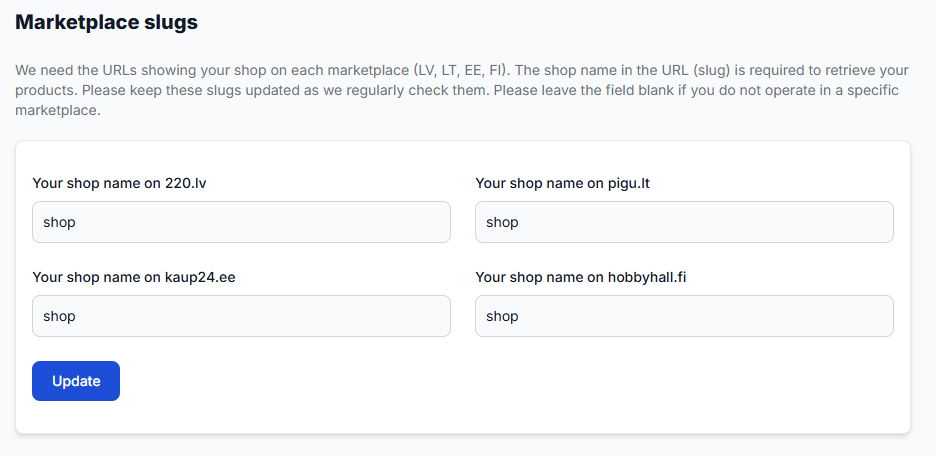
Check the spelling carefully. The marketplace slug must identify the correct shop profile. Adding import fields alone may not be enough for B2BLIX to associate marketplace offers with your seller account.
3. Test the import source
Before regular synchronization, verify that the source is accessible and that the product fields can be interpreted.
Open the Synchronization Tester. For information about supported fields and the expected source structure, read Sync Tester and Google Sheets file structure.
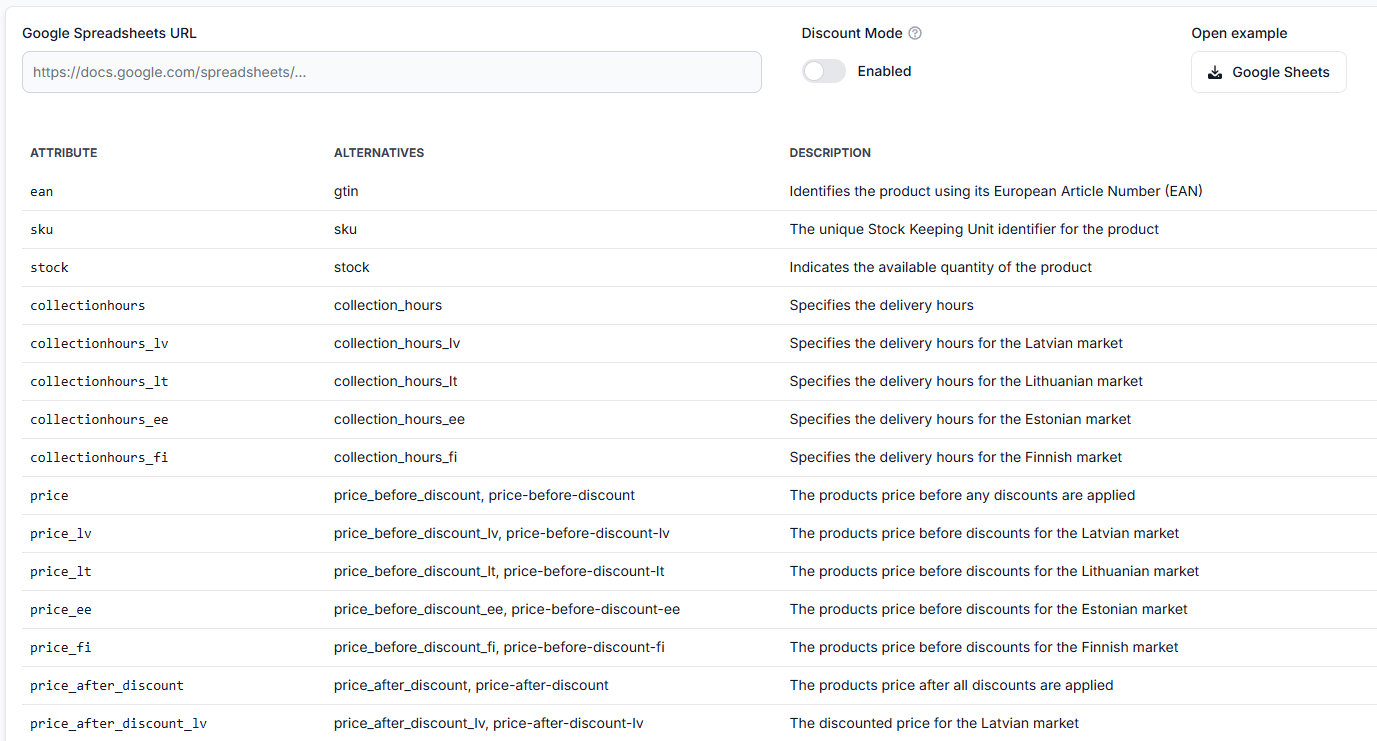
If the test cannot read the source, correct the file structure or field names before continuing. Do not rely on a live export to test unverified price fields.
4. Check synchronization settings and results
To verify the connected source and synchronization configuration, open Sync settings. For details about the available controls, read Sync settings: configure product import and price export.
After synchronization runs, review whether products were received and processed.
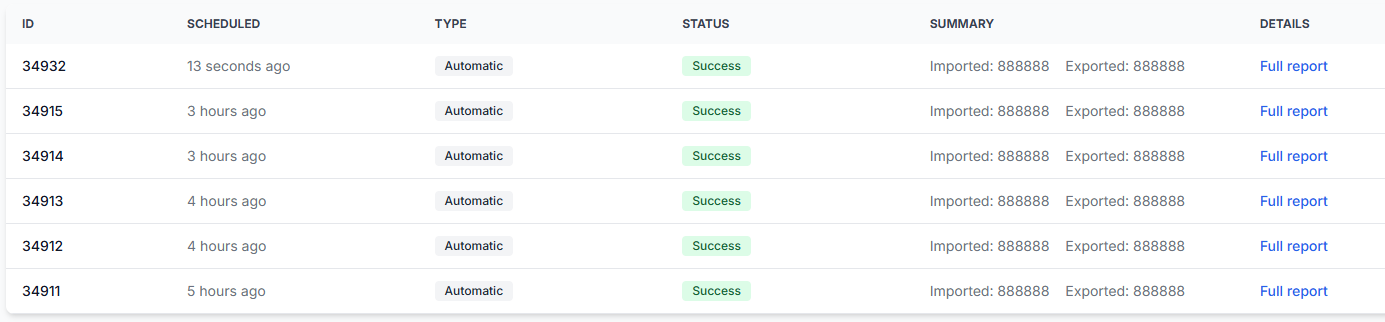
Open Synchronization reports. To understand the report statuses and processing summaries, read Synchronization reports: review import, BuyBox calculation, and export results.
5. Allow time for discovery
After the marketplace-specific fields and marketplace slug are configured, B2BLIX should discover the relevant products within approximately 24 hours.
Products and categories may not appear immediately. They must first be available on the marketplace and then be discovered by B2BLIX.
6. Check Category Management
Categories are discovered separately for each marketplace. After Finland products are discovered, Finland categories should become available in Category Management.
When you are logged in, open Category Management. For details about category monitoring and price coefficients, read Category Management: monitoring frequencies and price coefficients.
A newly discovered category may still require a monitoring frequency to be configured before regular marketplace data collection begins.
What to check if marketplace-specific values are not working
Work through these checks before changing your pricing strategy or export settings:
- Check the country suffix. Make sure the field uses the correct suffix, such as _fi for Finland or _ee for Estonia.
- Check the complete field name. For example, use min_fi and max_fi, not an unconfirmed alternative name.
- Check the field values. Confirm that prices and limits contain valid values and that the minimum price is not higher than the maximum price.
- Check the marketplace slug. Verify that the correct shop profile name is saved for the affected marketplace.
- Test the source structure. Use the Synchronization Tester to confirm that the file is accessible and readable.
- Review the latest synchronization report. Check whether products were received, processed, skipped, or reported with an error.
- Allow enough time for discovery. For a newly added marketplace, wait approximately 24 hours before deciding that discovery has failed.
- Check whether the products exist on that marketplace. B2BLIX can only discover products after they are available on the relevant marketplace.
Common scenarios
Different prices in different countries
Use a separate price field for each marketplace. For example, a product can use price_lt for Pigu.lt and price_fi for HobbyHall.fi.
This lets the imported product data reflect different margins, taxes, delivery conditions, or commercial decisions without creating a separate B2BLIX source for every country.
Different minimum and maximum prices
Use marketplace-specific minimum and maximum fields when the permitted repricing range differs by country.
For example:
- min_ee and max_ee control the permitted range for Kaup24.ee.
- min_fi and max_fi control the permitted range for HobbyHall.fi.
Verify these limits before enabling price export. Product-level minimum and maximum values can directly affect the final calculated price.
Different delivery or collection hours
Use separate fields such as collectionhours_lt, collectionhours_lv, collectionhours_ee, and collectionhours_fi when delivery conditions differ by marketplace.
Check that every field is correctly included in the generated XML or other supported import structure.
Pigu reports a header-reading or XML-reading error
First verify that the generated B2BLIX XML is structurally valid and contains the expected fields.
A temporary read error may rarely occur if the XML is accessed at the same time it is being updated. If the file is valid and the error happens only once, repeat the check. If the error continues, review the synchronization reports and source configuration.
The new marketplace categories do not appear
Confirm all of the following:
- The country-specific product fields are present in the import source.
- The correct marketplace slug has been saved.
- The import test and synchronization complete successfully.
- The products are already available on the relevant marketplace.
- Approximately 24 hours have passed since the configuration was completed.
After discovery, open Category Management and filter or review the categories for the new marketplace.
Example
A seller offers the same product on Pigu.lt and HobbyHall.fi. The Finland price and permitted range must be higher than the Lithuania values.
| Field | Example value |
|---|---|
| price_lt | 20.00 |
| min_lt | 18.50 |
| max_lt | 22.00 |
| price_fi | 24.00 |
| min_fi | 22.50 |
| max_fi | 27.00 |
B2BLIX can process the marketplace-specific values separately. A Finland calculation should remain within the Finland range, while a Lithuania calculation should remain within the Lithuania range.
The marketplace still decides which seller receives the BuyBox. Separate fields help B2BLIX use the correct seller-controlled prices and limits for each market, but they do not guarantee a winning position.
What to do next
Before enabling automatic publication for a newly added marketplace:
- Test the import source.
- Verify the marketplace-specific price, minimum, maximum, and delivery fields.
- Confirm the marketplace slug.
- Review a successful synchronization report.
- Allow the products and categories to be discovered.
- Start with a limited group of products or monitoring-only operation.
- Review calculated and exported values before expanding the setup.
Contact B2BLIX support if the source passes testing and synchronization succeeds, but products or categories still do not appear after approximately 24 hours. Include the affected marketplace, a sample EAN, and the approximate time of the relevant synchronization. Do not send your marketplace password or access token in the message.