How to fix synchronization, import-column, ean, and report validation problems
Troubleshoot failed synchronization reports, unrecognized import columns, faulty EANs, items not found, and temporary source-reading problems.
When this guide is relevant
Use this guide when a synchronization has failed, your imported columns are not recognized, a report lists faulty EANs, or some products appear under Items not found.
The first step is usually to open the detailed report for the affected synchronization. The report can show whether the problem came from source-file access, the imported data structure, an EAN validation issue, or another processing stage.
Short answer
Open the latest affected synchronization in Sync reports and select Full report.
In the full report, check:
- The general failure message near the beginning of the report.
- The Buybox validation summary for faulty EANs, incorrectly marked products, or other validation problems.
- The Items not found count for imported EANs that are not currently listed in the B2BLIX product database.
- Whether later synchronization attempts completed successfully.
If the report says that B2BLIX could not read your Google Sheet or another source document, verify that the source is available, that its sharing permissions allow access, and that its structure has not been changed.
Important: A failed or incomplete synchronization can affect calculated prices, generated exports, or marketplace updates. Review the report and verify your source data before changing synchronization settings or enabling price publication.
How synchronization validation works
During synchronization, B2BLIX reads the seller’s product source, identifies supported fields, matches products using EAN codes, applies the configured BuyBox rules, and prepares the selected output.
Importing data, calculating a price, generating an export, and publishing a price to a marketplace are separate stages. A successful import does not by itself confirm that every EAN was matched or that every calculated price was published.
Each synchronization produces a report. The report records the result of the run and provides more detailed information about import, validation, calculation, and export processing.
What to check in your account
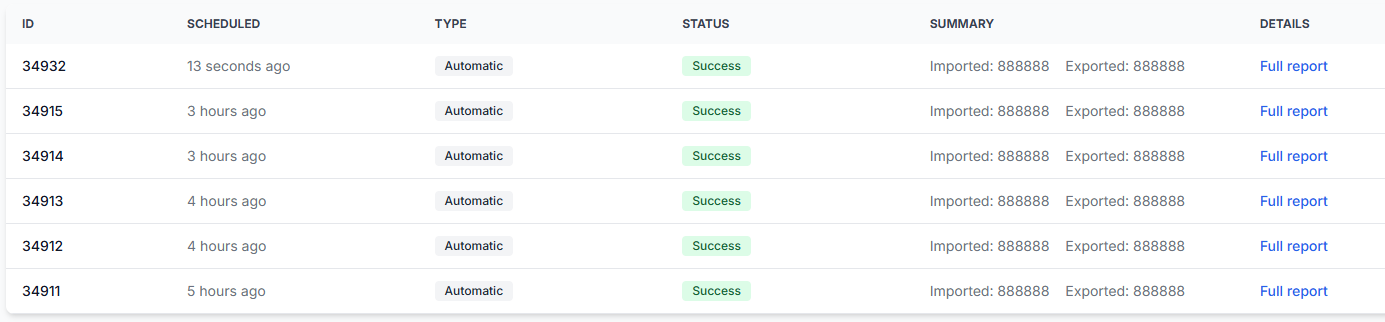
1. Open the full synchronization report
Open Sync reports, find the most recent failed or affected synchronization, and select Full report. To understand the report sections, read Synchronization reports: review import, BuyBox calculation, and export results.
Do not rely only on the status shown in the report list. The full report normally provides the more useful explanation.
2. Check the buybox validation summary
In the full report, scroll to the Buybox validation summary. This section can identify faulty EANs and other validation problems, including products that were incorrectly marked or could not be processed as expected.
For each affected row, check the corresponding product in your source:
- Confirm that the EAN is complete and belongs to the intended product.
- Check for missing digits, additional spaces, formatting changes, or accidental values.
- Confirm that the row contains the fields required by your current import setup.
- Correct the source data before running or waiting for another synchronization.
3. Understand the items not found result
Items not found means that the imported feed contains EANs that are not listed in the B2BLIX database at the time of that synchronization.
The database includes products discovered through the seller’s connected Pigu account and products found publicly on the seller’s localized Pigu shop pages. New products may require time to appear on the marketplace and then be discovered by B2BLIX.
This result should not automatically be treated as a source-file error. First confirm that the imported EAN is correct and that the product is already associated with your seller account or visible on the relevant marketplace.
Note: Items not found is specifically an EAN matching result. A separate investigation may be needed when a product exists in the source but has not yet been discovered on a marketplace.
4. Check which import columns are recognized
To review the current import setup, open Sync settings. To understand the available controls, read Sync settings: configure product import and price export.
Review the import schema shown on the right side of the page. It indicates which columns B2BLIX recognizes from your imported feed, such as sku, stock, and collection-hours fields.
If a column is not recognized:
- Compare its heading with the recognized import schema.
- Check whether the column was renamed, removed, or duplicated.
- Make sure the heading is in the expected header row.
- Check whether blank rows, merged cells, or other structural changes were added above the product data.
Verify the existing structure before renaming several columns at once. Changing multiple fields can make it harder to identify which change solved or caused the problem.
5. Test whether the source can be read
Open Sync tester to check whether the product source is accessible and whether its structure can be interpreted. For page instructions and supported attributes, read Sync tester and Google Sheets file structure.
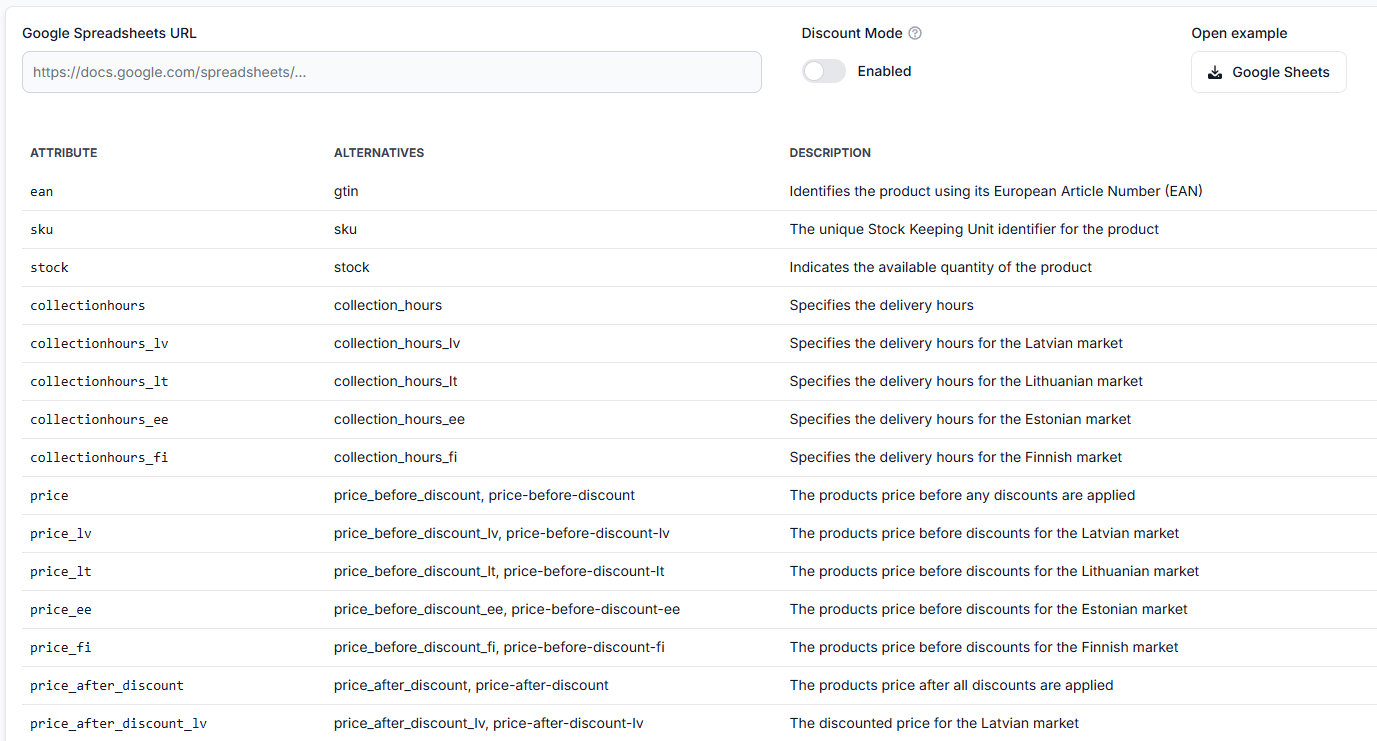
For a Google Sheet, verify that:
- The URL still points to the correct document.
- The document has not been deleted, moved, or replaced.
- The sharing permissions allow the document to be accessed by anyone with the link when this is required by your setup.
- The sheet contains the expected header row and product data.
- The document is not temporarily unavailable while large edits or structural changes are being made.
Common causes
The Google Sheet is not accessible
A synchronization can fail when B2BLIX cannot open the source document. For example, the full report may state that the document must be accessible to anyone with the link. In that situation, update the Google Sheet sharing permissions and test the source again.
The source is temporarily unavailable
A read problem can be temporary, especially when the document is being edited or access is briefly unavailable. If the failed report is followed by a successful synchronization using the same source, the problem may already have cleared.
Review both reports before changing the configuration. A later successful run can help distinguish a temporary read issue from a continuing data problem.
The file structure has changed
Renamed headings, missing columns, additional title rows, merged cells, or other layout changes can prevent fields from being interpreted correctly.
Compare the current source with the recognized schema in Sync settings or with the example structure available through Sync tester.
An ean is invalid or incorrectly formatted
A faulty EAN may contain missing digits, additional characters, spacing, or a value that belongs to another product. Correct the source value and check the next synchronization report.
The ean is valid but not known to b2blix
A correctly formatted EAN can still appear under Items not found when the product has not yet been discovered through the connected seller account or localized marketplace shop pages.
Example
A seller imports 500 products from a Google Sheet. The synchronization is marked as failed, so the seller opens the Full report. The report says that the source document could not be accessed because its sharing permissions were restricted.
The seller changes the document so it is accessible using the required link permissions and checks it in Sync tester. The next synchronization succeeds, but five products appear under Items not found.
The seller then checks those five EANs. Two contain typing mistakes and are corrected in the source. The other three products have not yet been discovered in the B2BLIX database, so they are reviewed separately rather than treated as another file-access failure.
What to do next
- Open the most recent affected synchronization and read its Full report.
- Review the Buybox validation summary and any Items not found results.
- Correct faulty EANs or source-data problems in the original product feed.
- Compare your column headings with the import schema in Sync settings.
- Use Sync tester to verify source access and file structure.
- Check whether a later synchronization succeeded before making wider configuration changes.
- Review the next full report to confirm that the affected item counts have changed as expected.
Contact support when the source passes the Sync Tester, the columns match the recognized schema, and the same unexplained error continues across several synchronization attempts. Include the time of the affected synchronization and the report identifier, but do not send passwords, access tokens, or other account credentials.