How to set up product import into B2blix
Learn how to connect a Google Sheet, XML feed, CSV feed, or PIM-generated data source to B2BLIX and verify the import before enabling regular synchronization or price updates.
When this guide is relevant
This guide explains how to provide product data to B2BLIX for BuyBox calculations and synchronization.
Use it when you are setting up the service for the first time, changing your product feed, connecting a PIM system, or investigating why products are not being imported.
Short answer
Open Sync settings and enter a public URL for your product data source.
The source can be a supported format such as:
- A Google Spreadsheet
- An XML feed
- A CSV feed
- A public XML or CSV feed generated by your PIM system
Your source must contain the fields B2BLIX needs to identify and process each product. These normally include an EAN, a price, stock information, and any required pricing or marketplace-specific values.
To configure the import, open Sync settings. For an explanation of the available import and export controls, read Sync settings: configure product import and price export.
Important: Synchronization can affect calculated prices and, depending on your export configuration, may lead to marketplace price updates. Verify the imported products, minimum and maximum prices, and output settings before enabling automatic publication for a large catalog.
How product import works
B2BLIX does not automatically reprice every product in your marketplace account by default. You control which products should be processed by including them in your product data source.
The imported source provides seller-controlled information such as:
- The products that should be included
- The product identifier, normally an EAN
- The current or base price
- Stock or availability information
- Optional minimum and maximum prices
- Marketplace-specific values when required
B2BLIX combines this imported information with the latest available marketplace observations and your configured BuyBox rules. It can then calculate prices and prepare the selected output, such as a Pigu-compatible pricing XML feed or supported API updates.
Import, calculation, and marketplace publication are separate stages. A price calculated or exported by B2BLIX is not necessarily live on the marketplace until it has been accepted and applied there.
How to prepare your data source
-
Choose the source format.
Use a Google Sheet, XML file, CSV file, or a compatible feed generated by your product information system.
-
Make the source accessible.
The URL entered in B2BLIX must be public so the system can read the file. A link that requires a personal login or access request cannot be used as a public data source.
-
Use the expected field structure.
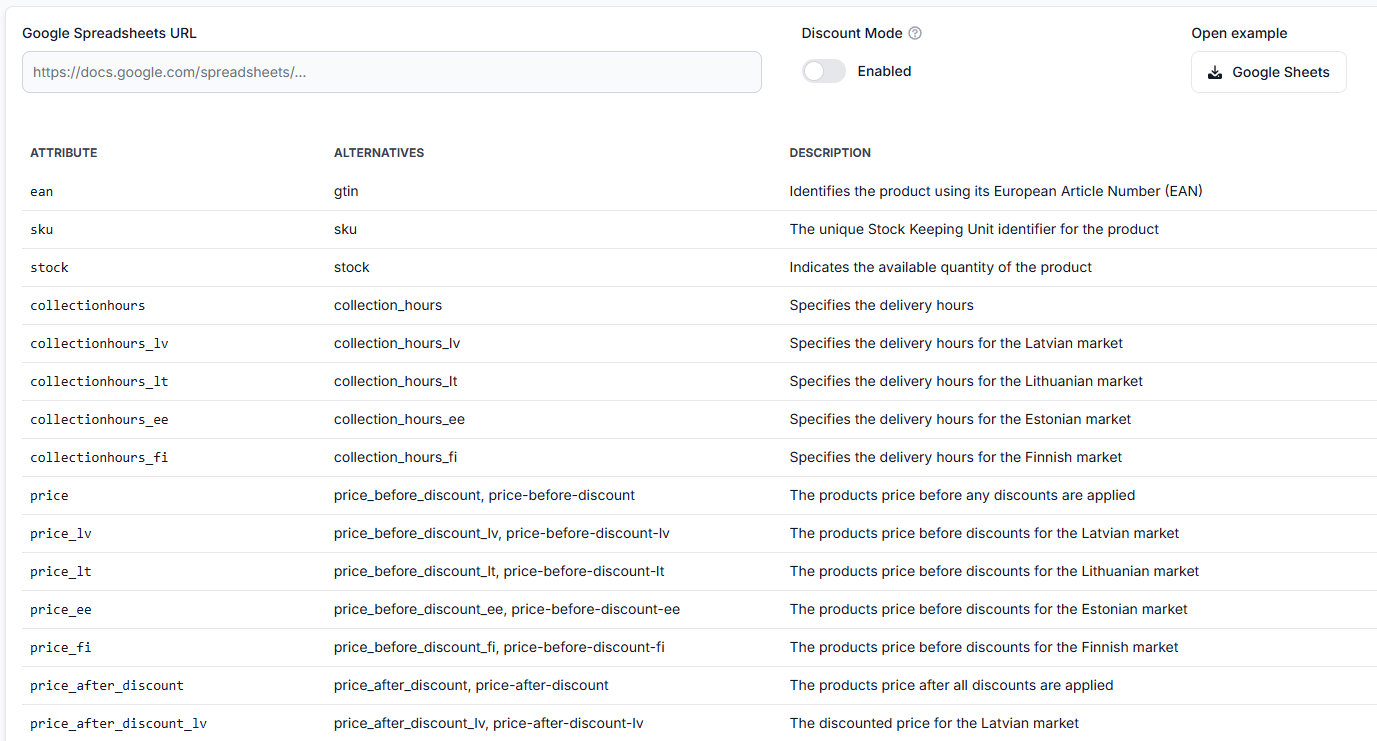
Follow the attribute names and structure shown in the synchronization tools. Do not rename fields without confirming that the new names are supported.
-
Include a valid EAN for each product.
B2BLIX generally uses the EAN to match your imported product with marketplace information. Missing or incorrect EAN values can prevent a product from being matched correctly.
-
Add the necessary price and stock values.
Include the base or current price, stock information, and any required pricing fields for the marketplaces you use.
-
Add safety limits where needed.
Provide product-level minimum and maximum prices when you need explicit limits for BuyBox calculations. Verify these values carefully before enabling price export.
Marketplace-specific fields
Some values can be provided separately for each marketplace. Use the country-specific field names supported by the synchronization structure.
For HobbyHall.fi, for example, the source may use:
- price_fi for the Finnish marketplace price
- min_fi for the minimum permitted price
- max_fi for the maximum permitted price
- collectionhours_fi when the delivery or collection time for Finland differs from the general value
Use marketplace-specific fields only where they are needed and supported. Check the attribute list before adding new columns or XML elements.
How to connect a PIM system
Your PIM system should generate a public XML or CSV feed containing the required product attributes.
- Configure the product export in your PIM.
- Make sure the exported feed includes EANs, prices, stock, and the required pricing fields.
- Copy the public feed URL.
- Open Sync settings.
- Add the PIM feed URL as the B2BLIX data source.
- Test the feed before enabling regular synchronization.
B2BLIX reads the feed supplied by the PIM, evaluates the imported products using the configured BuyBox rules, and prepares the selected pricing output.
What to check in your account
1. Check the data source URL
Confirm that the URL entered in Sync settings opens the intended file and does not require a personal account login.
Also check that the link points to the actual data source rather than to a preview page, editing page, or internal PIM administration screen.

2. Test the file structure
Open Sync tester to check whether the source is accessible and whether its product data can be interpreted. For details about the supported attributes and Google Sheets structure, read Sync tester and Google Sheets file structure.
Check for missing fields, unsupported field names, invalid EANs, and values placed in the wrong columns or XML elements.
3. Review the synchronization result
After running synchronization, open Sync reports. To understand the processing and export information, read Synchronization reports: review import, BuyBox calculation, and export results.
Use the report to check how many products were received, processed, matched, excluded, calculated, or prepared for export.
4. Check an individual product
When one product is missing or has an unexpected result, open Product checker. For an explanation of the product-level information, read Product checker: review product data, price calculations, and exports.
Product Checker can help you distinguish between imported seller data, observed marketplace data, the B2BLIX calculation, and the prepared export result.
Common reasons products are not imported correctly
- The source URL is not public. B2BLIX cannot read a file that requires a personal login, permission request, or private network access.
- The link points to the wrong page. A document editing page or PIM administration page may not provide the actual XML, CSV, or published spreadsheet data.
- Required attributes are missing. The source may not include an EAN, price, stock value, or another required field.
- Field names do not match the expected structure. A custom column name may not be recognized even when the value itself is correct.
- The EAN is missing or incorrect. The product may be imported but cannot be matched reliably with marketplace information.
- Marketplace-specific values are placed in the wrong fields. For example, a Finnish price should be provided in the supported Finnish marketplace field when separate country values are used.
- Price limits are incomplete or unsuitable. Missing or incorrect minimum and maximum values can affect whether a safe BuyBox price can be calculated.
- The synchronization has not run since the source was updated. Changes in your source are processed when synchronization imports the latest available version.
Example
A seller wants B2BLIX to process one product for HobbyHall.fi.
The imported row includes:
- EAN: 4740000000001
- price_fi: EUR 20.00
- min_fi: EUR 18.50
- max_fi: EUR 22.00
- Stock: Available
B2BLIX can use the EAN to associate the imported product with available marketplace information. It then applies the seller’s configured strategy while keeping the calculated result within the permitted range of EUR 18.50 to EUR 22.00.
The calculated price should still be reviewed before automatic export is enabled. The marketplace, not B2BLIX, determines the final BuyBox winner.
What to do next
- Prepare a small test file with a limited number of products.
- Verify every EAN, base price, stock value, minimum price, and maximum price.
- Add the public source URL in Sync settings.
- Check the source in Sync tester.
- Run synchronization and review the result in Sync reports.
- Inspect representative products in Product checker.
- Enable a wider rollout or automatic publication only after the imported data and calculated results have been verified.
Contact support when the source is publicly accessible and follows the documented field structure, but the Sync Tester still cannot read it, or when synchronization reports show an unexplained import or processing error. Do not send marketplace passwords, private feed credentials, or other sensitive access information in a public message.