How to test and validate BuyBox repricing before live updates
Learn how to test B2BLIX BuyBox calculations with a small Google Spreadsheet, identify missing or incorrect price limits, and review results before enabling live synchronization.
Test repricing before updating live marketplace prices
Before connecting live synchronization, you can test B2BLIX with only a few selected products. This allows you to check whether your spreadsheet is accepted, whether the price limits are valid, and what prices the BuyBox algorithm may calculate.
You do not need to submit your complete product catalog for the first test. B2BLIX processes only the products included in the submitted table, and the generated XML or API output contains only those submitted products.
Short answer
Create a small Google Spreadsheet containing several representative products and submit it through the testing area. Review the generated results before configuring automatic synchronization.
For each product, check that:
- The product identifier, such as the EAN, is correct.
- The standard or current price is present.
- The minimum price is not higher than the standard price.
- The maximum price is not lower than the standard price.
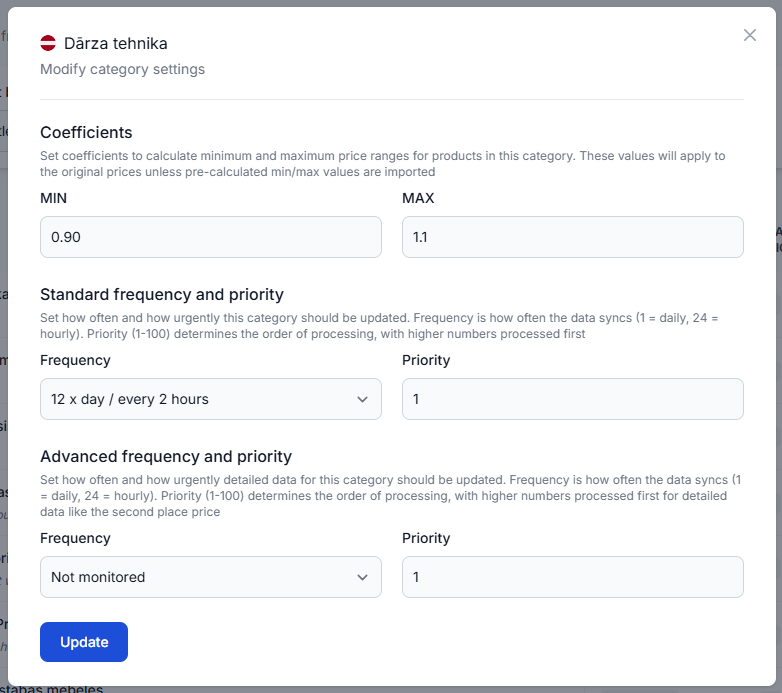
- Required marketplace-specific fields are completed for every marketplace you want to test.
- The calculated price is within the permitted price range.
Do not enable automatic price publication until you have reviewed the test output. A calculated or exported price is not necessarily live on the marketplace. It becomes live only after it is submitted through the selected synchronization method and accepted and applied by the marketplace.
How limited testing works
B2BLIX evaluates only the products included in the spreadsheet you submit. This makes it possible to test a controlled group without processing your full catalog.
For each submitted product:
- If B2BLIX has collected relevant marketplace data, the configured BuyBox strategy can be used to calculate a suggested price.
- If no collected data is available for that product yet, the suggested price remains the standard price supplied in the table.
- If required data for a particular marketplace is missing, the calculation for that marketplace may be ignored.
- The output contains only the products submitted in the test spreadsheet.
Monitoring, calculation, export, and live publication are separate steps. A successful spreadsheet test confirms that the submitted data can be processed, but it does not by itself activate automatic marketplace updates.
How to run a test
-
Choose a few products that represent the main situations in your catalog. For example, include products with different prices, marketplaces, and minimum or maximum limits.
-
Create or update your Google Spreadsheet with the required product information.
-
Before submitting it, validate the price relationship for every product:
minimum price ≤ standard price ≤ maximum price
-
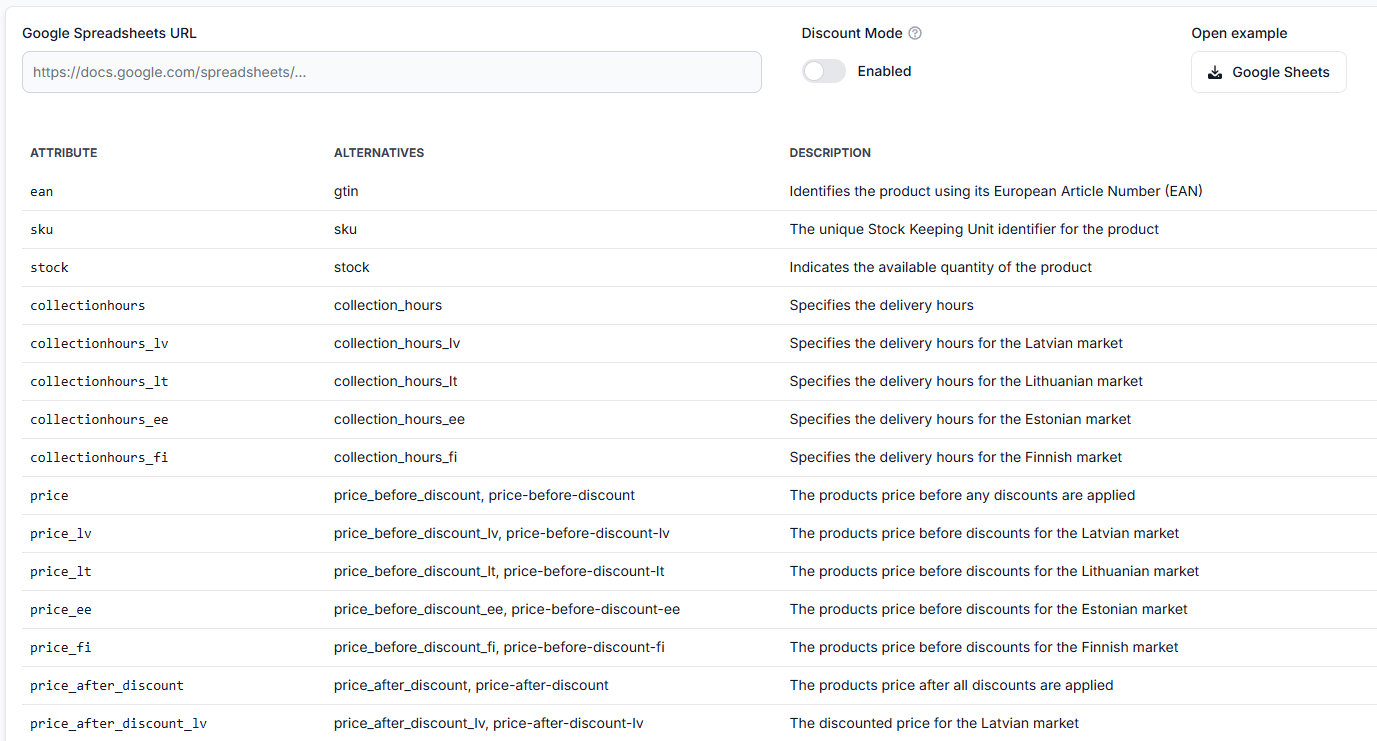
When you are logged in, open Sync Tester and submit the Google Spreadsheet URL. To understand the supported file structure and controls, read Sync Tester and Google Sheets file structure.
-
Generate the test result and review the available output format, such as the generated XML.
-
Check representative products individually to confirm the imported data, price limits, selected strategy, calculated price, and export result.
Validate the spreadsheet before checking calculations
The basic validation rule is:
minimum price ≤ standard price ≤ maximum price
The same rule applies when you provide separate price fields for 220.lv, Pigu.lt, Kaup24.ee, or HobbyHall.fi.
| Check | What to verify | Why it matters |
|---|---|---|
| Minimum price | It is equal to or lower than the standard price. | It protects the lowest permitted calculated price. |
| Maximum price | It is equal to or higher than the standard price. | It limits how high the calculated price may be. |
| Marketplace fields | The required values are present for each marketplace being tested. | Missing values may cause that marketplace calculation to be skipped. |
| EAN | The identifier is complete and belongs to the intended product. | B2BLIX generally uses the EAN to match products and marketplace observations. |
| Standard price | A valid starting price is supplied. | This price may remain unchanged when no collected marketplace data is available. |
Verify your current spreadsheet and account settings before changing any limits. A low minimum price or an incorrect marketplace-specific value can affect the price produced when synchronization is later enabled.
Review an individual product calculation
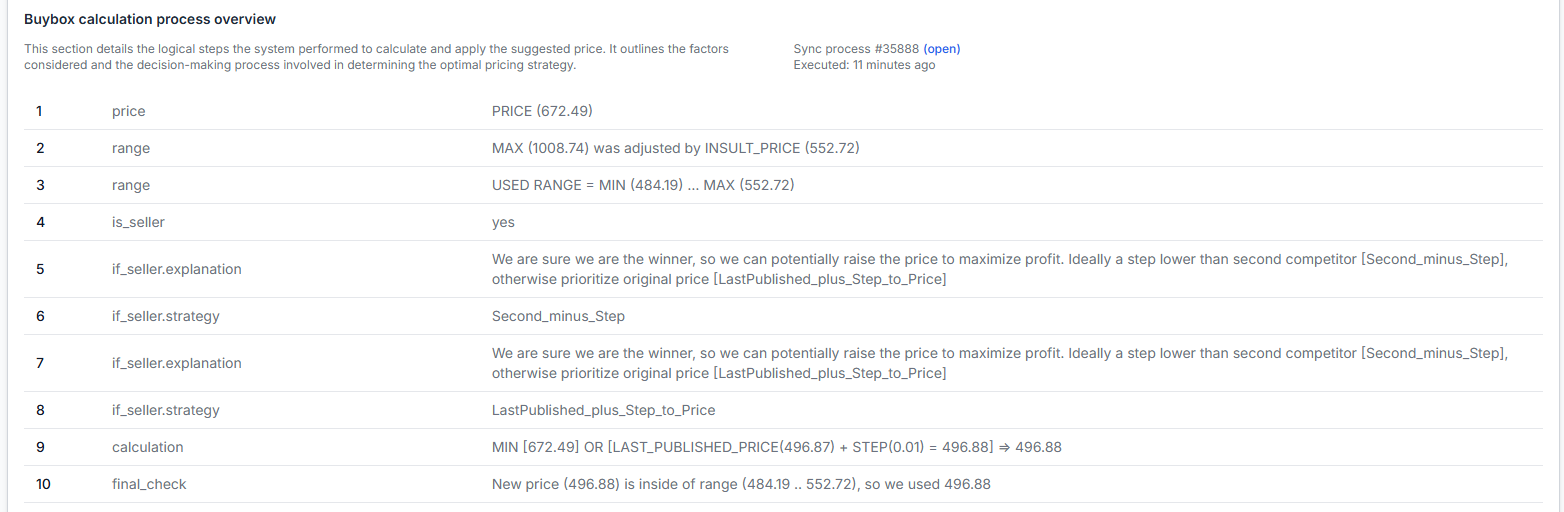
A generated file shows the output, but it may not explain every calculation decision. Use Product Checker when you need to understand why a particular product received a specific result.
When you are logged in, open Product Checker. For an explanation of the product data, calculation, and export sections, read Product Checker: review product data, price calculations, and exports.
For each test EAN, review:
- The imported product information.
- The marketplace where the product was found.
- The latest available marketplace observation.
- The minimum and maximum price used for the calculation.
- The selected pricing strategy.
- The calculated or unchanged price.
- The product’s export status.
Common test results and what they mean
The suggested price is the same as the spreadsheet price
This can happen when B2BLIX does not yet have collected marketplace data for the submitted product. In that situation, the standard price from the table remains the suggested price.
It does not necessarily mean that the spreadsheet failed. Check the product in Product Checker to see what marketplace information is currently available.
A marketplace has no calculated result
Check whether the required marketplace-specific fields are empty. When B2BLIX does not have the data required for a marketplace calculation, that marketplace may be ignored.
The calculated price is unexpected
Confirm the imported standard price, minimum price, maximum price, and selected strategy. Also check that you are reviewing the correct EAN and marketplace.
The algorithm can reduce, maintain, match, or increase a price depending on the available marketplace information and the configured strategy. However, the calculated result must remain within the available price limits.
The generated output contains only a few products
This is expected during a limited test. The output includes only products from the submitted test table. Products that were not included in that table are not added automatically.
Example
A seller submits one product with:
- Standard price: EUR 25.00
- Minimum price: EUR 22.00
- Maximum price: EUR 30.00
If current marketplace information is available and the selected strategy produces a price of EUR 24.99, B2BLIX can show EUR 24.99 as the calculated result because it is within the permitted range.
If no collected marketplace information is available yet, the result may remain at the submitted standard price of EUR 25.00.
Neither result is automatically live simply because it appears in the test output.
Before enabling live synchronization
After the limited test is successful, review your regular import, export, frequency, and update settings before connecting a wider catalog.
When you are logged in, open Sync Settings. To understand the available import and price-export controls, read Sync Settings: configure product import and price export.
Before enabling regular updates, confirm that:
- Your full product source follows the tested structure.
- Minimum and maximum prices are valid for the wider catalog.
- Marketplace-specific fields are complete where required.
- The selected output method is the one you intend to use.
- You understand whether prices will only be exported for review or submitted through a connected integration.
- Several representative products have been checked in Product Checker.
Start with a limited catalog and expand gradually. B2BLIX can improve pricing responsiveness, but it does not control or guarantee the marketplace BuyBox position, orders, revenue, or profit.
What to do next
- Correct any missing spreadsheet fields or invalid price ranges.
- Run the limited test again after making corrections.
- Review both changed and unchanged prices in Product Checker.
- Confirm the generated output contains only the products you intended to test.
- Configure live synchronization only after the test results are understood and approved.
Contact B2BLIX support when the spreadsheet cannot be processed after you have checked its structure, when Product Checker does not explain an unexpected result, or when the generated export differs from the reviewed calculation. Include the affected EAN, marketplace, and the relevant test or synchronization result, but do not send account passwords or access tokens.