Why CSV prices may look wrong or appear as dates in Excel
Prices in an exported CSV file may appear as dates when opened in Excel. This is usually caused by Excel automatically interpreting the values, not by an incorrect B2BLIX export.
Why this happens
When you open a CSV file directly in Excel, Excel tries to identify the type of information in each column. Depending on your computer’s regional and language settings, a numeric price may be interpreted as a date.
For example, Excel may display a price such as 12.05 as a calendar date instead of a decimal price. This changes how the value is displayed in Excel, but it does not necessarily mean that the original CSV export contained an incorrect price.
Short answer
The exported price should first be checked using the original CSV file. Open or import the file while setting the price columns to Text, Decimal Number, or Number instead of allowing Excel to detect the format automatically.
If a correctly converted Excel workbook is available, you can also use that version because its price columns may already be formatted correctly.
Warning: Do not use or upload a CSV file that Excel has re-saved after converting prices into dates until you have verified the affected columns. Saving the file may replace the original price representation with date-formatted values.
How Excel interprets CSV values
A CSV file does not store Excel formatting rules. It contains values separated into rows and columns. When Excel opens the file, it decides whether each value looks like text, a number, a date, or another data type.
This decision may depend on settings such as:
- Your computer’s regional format.
- The decimal separator used in the file.
- The date format expected by Excel.
- Whether the file was opened directly or imported using Excel’s CSV import tool.
Because of this, the same CSV value may appear correctly on one computer and as a date on another.
What to check first
-
Keep the original CSV file unchanged.
If you already saved the file after opening it in Excel, download or generate a fresh copy before continuing.
-
Identify the affected columns.
Check which price columns are displayed as dates. Other columns, such as EAN or SKU, may also need to be treated as text to preserve their exact values.
-
Import the CSV instead of opening it directly.
Use Excel’s CSV or text import function and select Text or Number as the data type for the relevant price columns.
-
Check the decimal separator.
Confirm that Excel is using the correct separator for your regional settings. A period and a comma may be interpreted differently depending on the selected locale.
-
Compare the value with the B2BLIX calculation.
If the value still appears incorrect after importing the file with the correct format, verify the product’s calculated and exported price in B2BLIX.
How to verify the price in B2BLIX
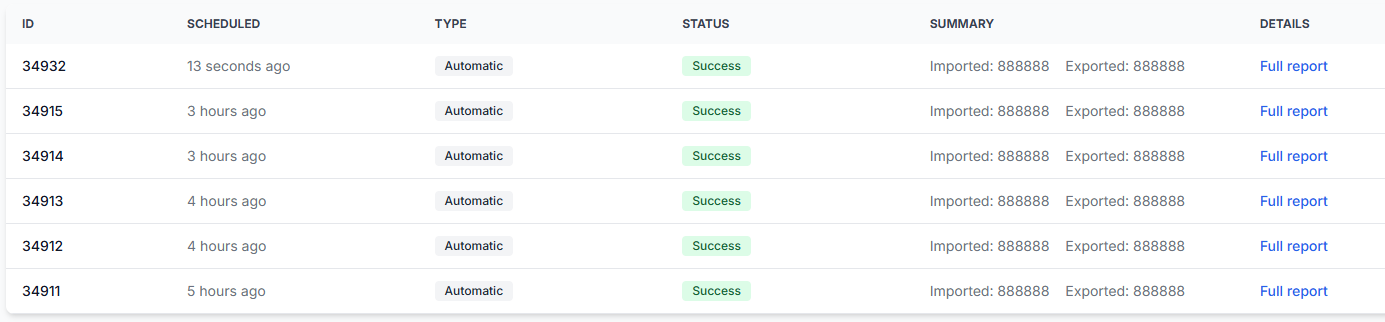
To review the result of an import, calculation, or export run, open Synchronization Reports when you are logged in. To understand the report information, read Synchronization Reports: review import, BuyBox calculation, and export results.
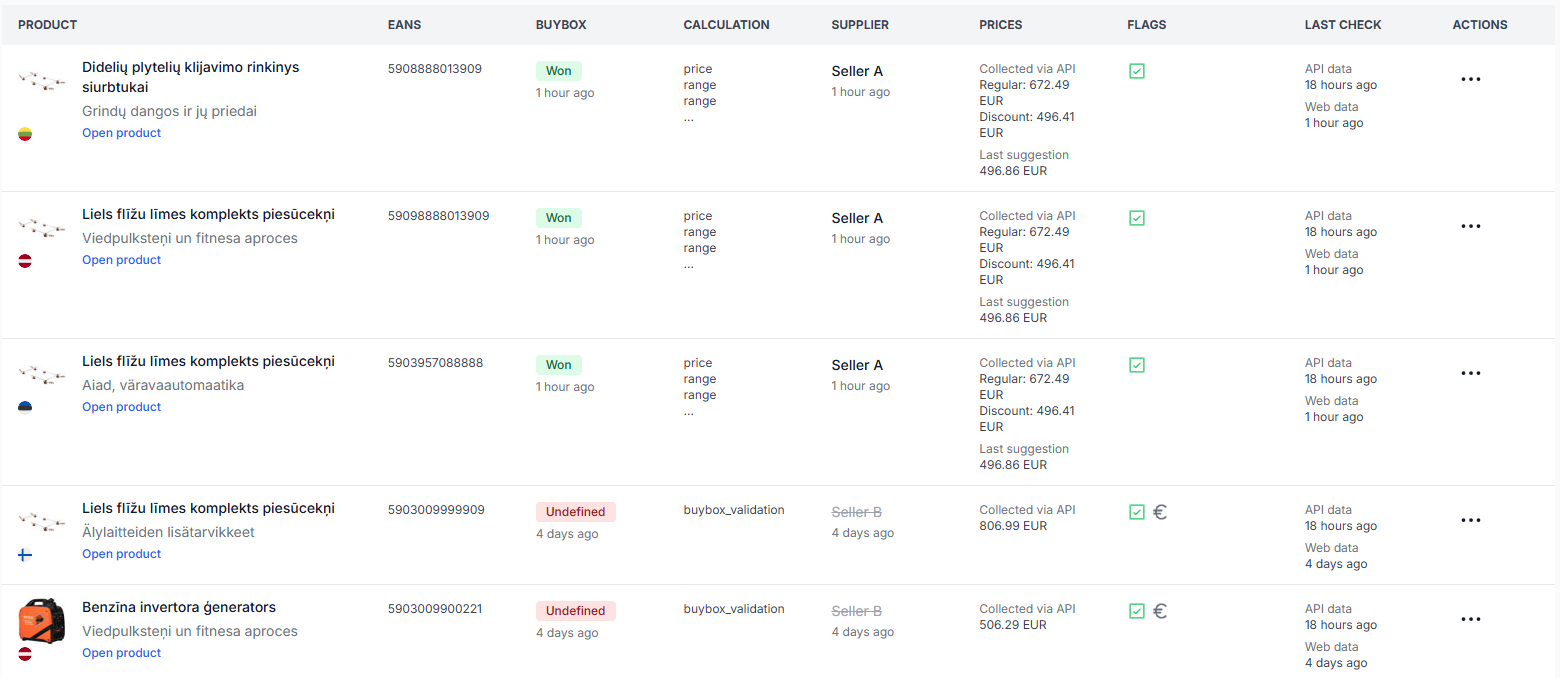
For a detailed check of one product, open Product Checker. To understand the product data, calculation, and export information shown there, read Product Checker: review product data, price calculations, and exports.
Product Checker can help you distinguish between:
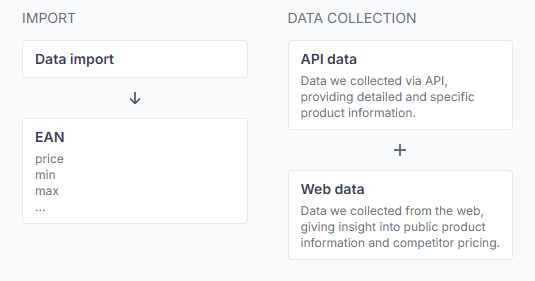
- The price imported from your product source.
- The minimum and maximum price limits available for the product.
- The price calculated by B2BLIX.
- The price prepared for export.
A calculated or exported price is not necessarily the current live marketplace price. It becomes live only after it has been accepted and applied by the marketplace through the configured publication workflow.
Common scenarios
The price appears as a date immediately after opening the file
This is usually Excel’s automatic formatting. Reopen the original CSV using the import function and define the affected columns as text or numbers.
Changing the cell format does not restore the original price
Excel may already have converted the value internally. Close the file without saving and import a fresh copy of the original CSV with the correct column types.
The price uses the wrong decimal separator
Check the locale selected during import. Make sure Excel interprets the file using the regional format that matches the price values.
The value is also incorrect in B2BLIX
If Product Checker or Synchronization Reports shows the same unexpected value, the issue may be related to the imported product data, configured price limits, or calculation result rather than Excel formatting. Review those values before changing or publishing prices.
Example
A product is exported with a calculated price of 12.05 EUR. When the CSV is opened directly, Excel displays the value as a date.
The seller closes the file without saving, imports the original CSV again, and defines the price column as Decimal Number. Excel then displays the expected value of 12.05.
The seller also checks the product in Product Checker and confirms that the calculated and exported price is 12.05 EUR. This confirms that the problem was Excel formatting rather than the B2BLIX calculation.
What to do next
- Reopen a fresh copy of the CSV using Excel’s import function.
- Set price columns to text or number format during import.
- Check that the correct regional and decimal settings are selected.
- Do not save over the original CSV until all price columns have been verified.
- Use Synchronization Reports or Product Checker when you need to confirm the value generated by B2BLIX.
Contact support only when the original CSV value and the value shown in B2BLIX are both incorrect, or when the exported result cannot be explained by the imported product data, price limits, and configured calculation settings.