How to fix pigu xml import, mapping, structure, or rejected-feed problems
Troubleshoot rejected XML feeds, missing attribute mapping, unreadable file structures, and imports that do not update in Pigu. Learn how to verify the B2BLIX export, recreate the Pigu import connection, and review the result.
When this guide is relevant
Use this guide when you have connected the B2BLIX public XML feed to Pigu, but one of the following problems occurs:
- Pigu does not read the XML feed.
- Pigu rejects the feed or reports a structure problem.
- The expected XML fields are not available for mapping.
- The import connection exists, but no products or prices are imported.
- You need to repeat the Pigu attribute mapping.
- The downloaded XML file appears incomplete or corrupted.
Short answer
First, run a manual synchronization in B2BLIX and wait until it finishes. Then review the newly generated XML file.
If the XML file is available but Pigu still cannot read it correctly, delete the existing stock-and-price import connection in Pigu and add the same B2BLIX public XML URL again. Recreating the connection can make Pigu read the file structure again and request new attribute mapping.
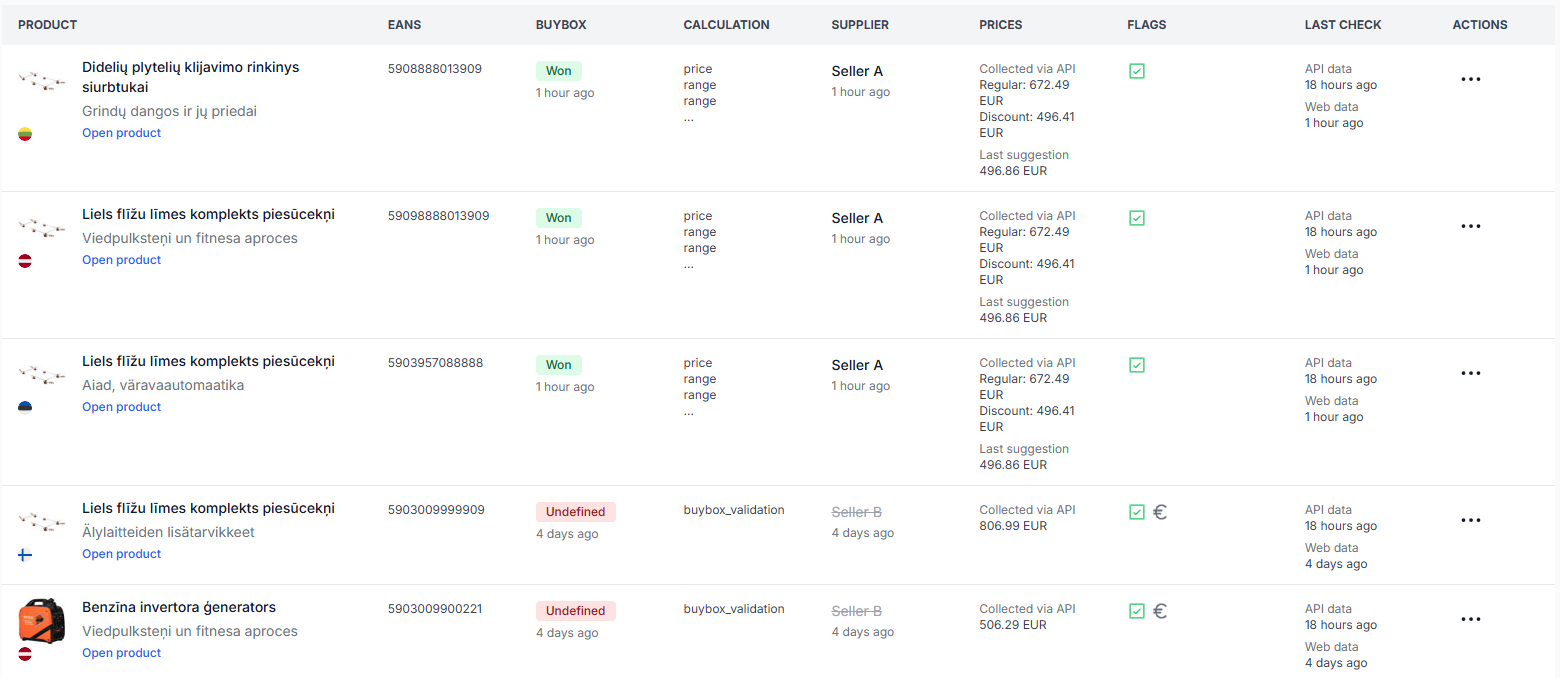
Important: A price shown in a generated B2BLIX XML file is not automatically a live marketplace price. Pigu must successfully download, accept, map, and apply the feed before the change can appear on the marketplace.
How the XML connection works
B2BLIX imports your product source according to the synchronization configuration in your account. During synchronization, the service processes the products, applies the configured BuyBox pricing rules where sufficient information is available, and prepares an output file.
The result is made available through a personalized public XML URL. This URL remains constant and is intended to be used as the import source in your Pigu seller account.
Pigu periodically downloads information from this URL. Pigu must understand the XML structure and know which XML attributes correspond to its product, stock, and price fields.
Monitoring, calculation, XML generation, and marketplace publication are separate steps. A successful B2BLIX calculation does not confirm that Pigu has imported the resulting price.
Step 1: Generate a fresh XML file in B2BLIX
- Open Sync Settings when you are logged in.
- Check that the correct product source and export settings are selected.
- Start a manual synchronization.
- Wait until the synchronization process has finished.
- Open or download the newly generated XML file from your personalized public URL.
To understand the synchronization fields and export options, read Sync settings: configure product import and price export.

Step 2: Check whether B2BLIX generated the export successfully
Before changing the connection in Pigu, verify that the latest synchronization completed and produced an export.
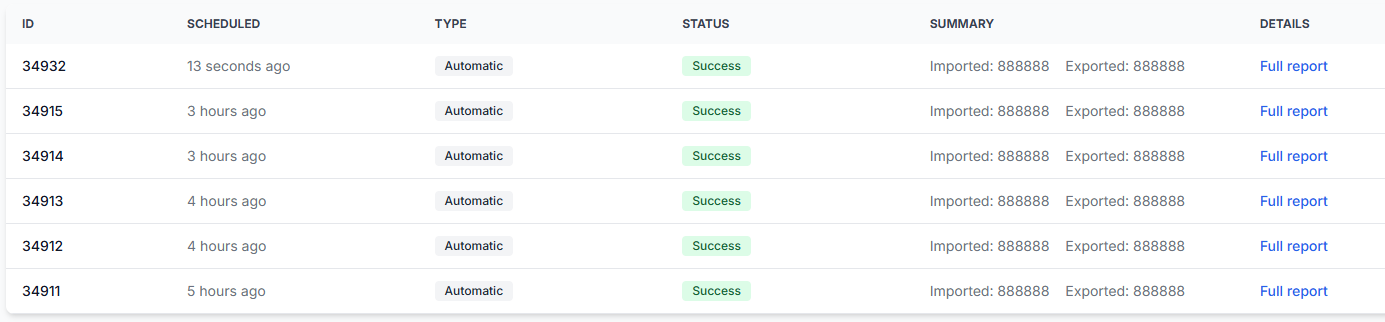
Open Sync Reports and review the latest synchronization. For an explanation of report statuses and processing results, read Synchronization reports: review import, BuyBox calculation, and export results.
Check the following:
- The synchronization has finished rather than remaining in progress.
- Your source products were received.
- An export result was created.
- The generated file opens and contains product records.
- The expected identifiers, stock values, and price fields are present.
If the generated file is missing or empty, the problem may be in the B2BLIX import or synchronization configuration rather than in the Pigu connection. Review the synchronization report before deleting the Pigu import.
Step 3: Remove the existing import connection in Pigu
If the XML file is available and readable, but Pigu still rejects it or does not show the correct fields, remove the current stock-and-price import source from your Pigu account.
This step can be useful even when you plan to add exactly the same URL again. Recreating the connection makes Pigu treat it as a new import source and read the current XML structure again.
Before deleting the connection: Record the current field mapping or take a screenshot of it. You may need to configure the mappings again after reconnecting the feed.
Step 4: Add the B2BLIX public XML URL again
- Log in to your Pigu seller account.
- Open the Products section.
- Open the Import menu in the upper-left area.
- Select Stock and Prices Import.
- Click Import Source.
- If Import Source is not immediately visible, open the three-dot menu and select it there.
- Select HTTPS link as the source type.
- Paste the personalized public URL from B2BLIX Sync Settings.
- Click Confirm.
Do not replace the URL with a downloaded local file address. Use the personalized public HTTPS URL shown in your B2BLIX account.
Step 5: Configure the Pigu attribute mapping
After the source is added, Pigu may ask you to map the XML attributes to the corresponding Pigu fields.
Review the mapping carefully and connect the relevant product identifier, stock, and price attributes. The exact fields available depend on the generated XML and the options presented by Pigu.
After completing the mapping:
- Save the import configuration.
- Click Execute import.
- Wait for Pigu to process the file.
- Review the import result and any rejection messages.
Common causes
Pigu is using an older interpretation of the XML structure
The import source may have been created before the current XML structure was available. Deleting and recreating the source allows Pigu to read the file again and present the current attributes for mapping.
The mapping was not completed or saved
Adding the HTTPS link alone may not complete the setup. Make sure that the required attributes are mapped and that the configuration is saved before executing the import.
The latest B2BLIX synchronization did not finish
Pigu may be downloading an older file while a new synchronization is still running. Wait until the manual synchronization finishes before reviewing or reconnecting the URL.
The generated file does not contain the expected products
This can indicate a problem with the source imported into B2BLIX or with the synchronization configuration. Review the latest synchronization report to see whether products were received and exported.
Pigu accepted the source but rejected individual records
A valid XML file can still contain product records that Pigu does not accept. Review the Pigu import result to identify whether the rejection applies to the whole file or only to particular products or fields.
The import was configured but not executed
After adding the URL and saving the mapping, run Execute import. Creating an import source does not necessarily mean that Pigu has already processed it.
Example
A seller runs a B2BLIX synchronization and confirms that the public XML contains products, stock values, and calculated prices. However, Pigu shows no fields for price mapping and rejects the import.
The seller records the existing mapping, deletes the current Pigu stock-and-price import source, and adds the same B2BLIX public XML URL again as an HTTPS link. Pigu reads the source again, displays the XML attributes, and allows the seller to recreate the mapping. The seller saves it and runs Execute import.
What to do next
- Run a manual synchronization in B2BLIX.
- Confirm in Sync Reports that the process completed and generated an export.
- Open the public XML file and confirm that it contains product records.
- Record your current Pigu mapping before changing the connection.
- Delete and recreate the Pigu stock-and-price import using the same B2BLIX public URL.
- Configure and save the attribute mapping again.
- Run Execute import and review the Pigu result.
If the XML file itself is missing, empty, or cannot be opened, troubleshoot the B2BLIX synchronization before recreating the Pigu connection. If the file is valid but Pigu rejects specific records, use the rejection details from Pigu to identify the affected field or product.