How to troubleshoot api data, stock, and collection-hours synchronization
Learn why the “Exported” value may be empty when using API synchronization and what to check when API data, stock, or collection hours are not updating.
When this guide is relevant
Use this guide when you notice one or more of the following situations:
- The Exported value is empty after changing the output method from XML to API.
- The Statistics page shows API data = 0 or displays an API-related warning.
- Stock or collection hours are not being updated through the API.
- Public marketplace data is available, but API data has not been collected.
- A synchronization run is taking longer than expected.
Short answer
An empty Exported value does not always mean that API synchronization failed. Exported-unit totals are used for XML exports, so this column may remain empty when the account is using API processing.
If the Statistics page shows no API data, first verify the account’s Access credentials. If credentials are correct, check the synchronization interval, review recent synchronization reports, and run a manual synchronization.
Warning: API synchronization can update live stock, prices, or collection hours after the marketplace accepts the submitted data. Verify your source data, credentials, synchronization settings, and selected marketplaces before starting a manual synchronization.
Why the “exported” value may be empty with api synchronization
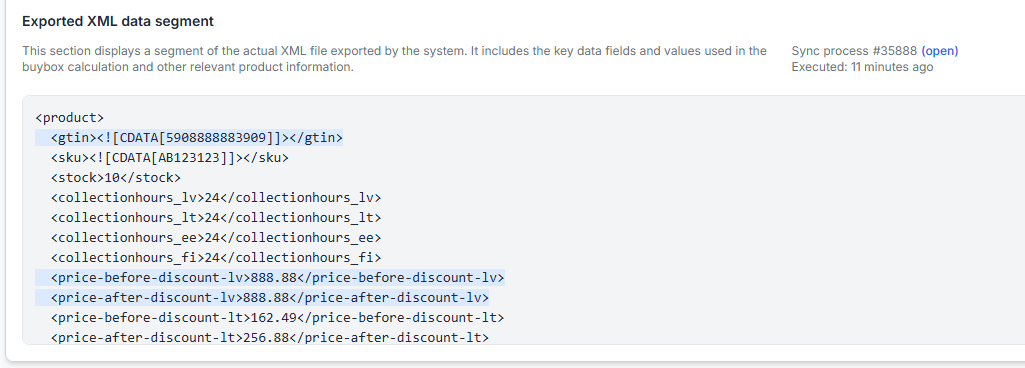
B2BLIX can prepare output in different ways. XML synchronization produces an export file, so reports can show how many units were exported to that file.
API synchronization does not use the same XML export process. Because of this, the Exported column may remain empty even when products were imported and API processing was started.
Do not use the empty Exported column as the only indication of an API problem. Instead, check:
- Whether the synchronization report completed successfully.
- Whether products were received and processed.
- Whether the account is configured to use the API output method.
- Whether valid API access credentials are saved.
- Whether API data appears in Statistics after processing.
To review previous runs, open Synchronization Reports when you are logged in. To understand the report statuses and product totals, read Synchronization reports: review import, buybox calculation, and export results.
What to check in your account
1. Identify whether the problem affects api data or marketplace data
B2BLIX keeps different types of information separate:
- Web data is observed marketplace information.
- API data is information collected through the connected API account.
- Imported data comes from your configured product source.
- Calculated data is the result produced by the BuyBox rules.
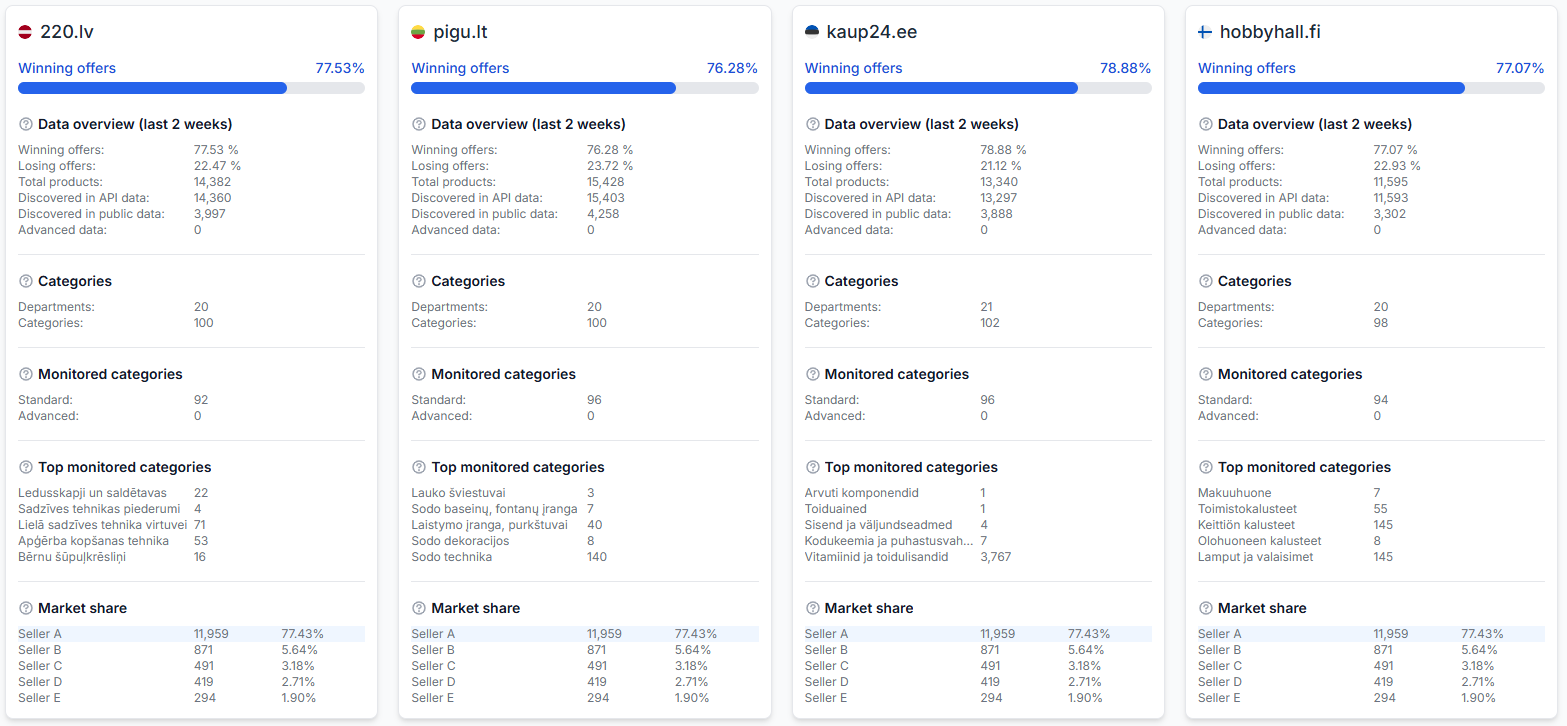
If web data is present but API data is missing, the marketplace monitoring process may be working normally. The problem is more likely related to the API connection, credentials, or API synchronization process.
To compare the available account data, open Statistics. For an explanation of the metrics, read Statistics dashboard: understanding your account metrics.
2. Verify and resave the access credentials
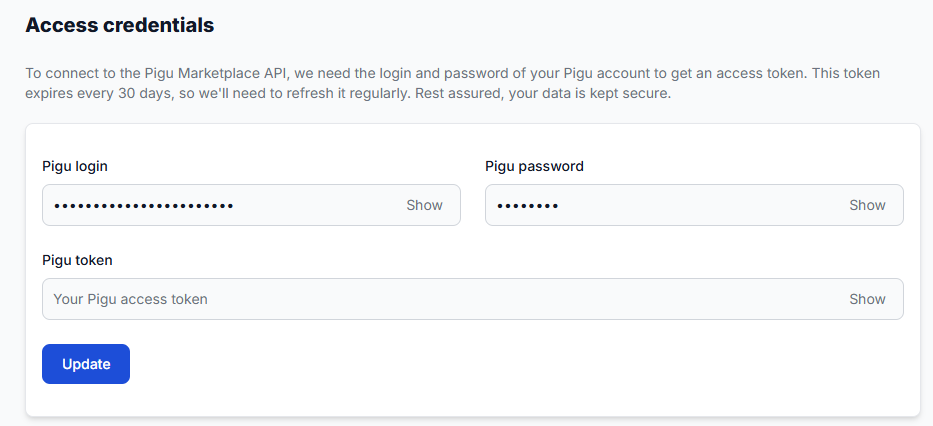
Invalid, expired, or incorrectly saved credentials can prevent B2BLIX from collecting API data. This can result in API data = 0 or an API warning on the Statistics page.
- Open the Access credentials section.
- Check that the required login, password, and token fields contain the correct current values.
- Do not remove or replace a value unless you have verified the correct credential.
- Click Update to save the credentials again.
- Run a new synchronization and review the result.
To verify the connection details, open Access credentials when you are logged in. For details about the required fields, read Access credentials for the pigu connection.
3. Check the synchronization settings
Confirm that synchronization is enabled and configured for the intended output method. Check the following before changing anything:
- The correct product-data source is selected.
- The synchronization interval is active.
- The output method is configured for the required API workflow.
- The settings apply to the marketplaces you intend to update.
- Your source contains the latest stock or collection-hours information.
To review these options, open Synchronization settings when you are logged in. For an explanation of the available controls, read Sync settings: configure product import and price export.
4. Review the latest synchronization report
Open the most recent report and check its status, processing time, and product totals. A report can help you determine whether the problem occurred during import, calculation, or output processing.
Look for these signs:
- No products received: Check the configured product source and its availability.
- Products received but not processed: Review exclusions, required identifiers, and report messages.
- Processing still active: A large update batch may be waiting in a processing queue.
- Completed report with empty Exported value: Confirm whether the account is using API rather than XML output.
- Completed report but API data remains zero: Recheck and resave the access credentials.
5. Run a manual synchronization
After verifying and saving the settings, run a manual synchronization. This helps confirm whether the issue was caused by an inactive interval, previously invalid credentials, or an older processing run.
Large numbers of updates can create a processing queue. In that situation, the synchronization may not complete immediately. Avoid repeatedly starting additional runs while an existing run is still processing, and use Synchronization Reports to follow its status.
6. Check one affected product in detail
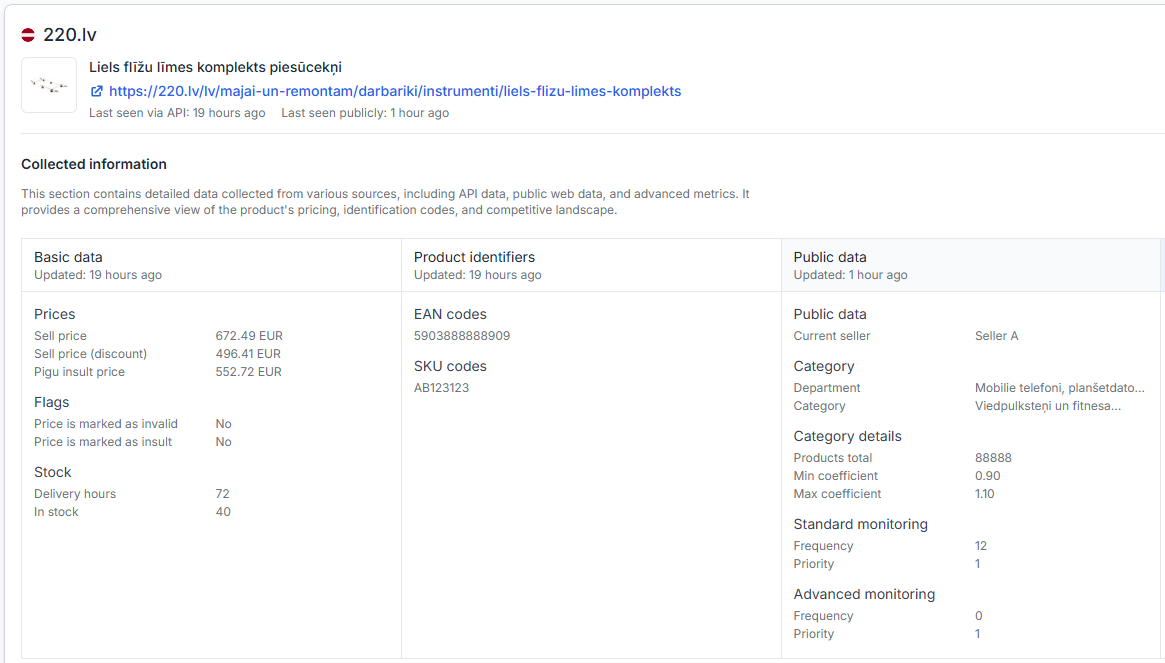
If the issue affects only certain products, inspect an example EAN in Product Checker. This can help you confirm what product data is known, which calculation was applied, and whether an output result was prepared.
To inspect a product, open Product checker. For an explanation of its sections, read Product checker: review product data, price calculations, and exports.
A calculated or submitted value is not necessarily live on the marketplace. The marketplace must accept and apply the update before the new stock, price, or collection hours appear publicly.
Common causes
| Symptom | Possible reason | What to check |
|---|---|---|
| Exported value is empty | The account is using API output rather than XML export | Check the output method and the full synchronization report |
| API data is zero | Credentials are invalid, outdated, or were not saved correctly | Verify the Access credentials and click Update |
| Web data exists, but API data is missing | Marketplace monitoring works, but the API connection has not synchronized | Check credentials, synchronization settings, and reports |
| Stock or collection hours remain unchanged | The source data is old, the interval is inactive, or the update is still processing | Check the source, interval, latest report, and processing status |
| Synchronization remains in progress | A large number of updates has created a queue | Follow the current report instead of starting repeated runs |
| Only some products are affected | The issue may be related to individual product data or identifiers | Inspect an affected EAN in Product Checker |
Example
A seller changes the output method from XML to API. The next report shows that 2,000 products were imported, but the Exported field is empty.
This does not automatically indicate a failed synchronization because the API workflow does not produce the same exported-unit total as an XML file. The seller should check the report status and Statistics page. If Statistics shows API data = 0, the next step is to verify the Access credentials, click Update, and run another synchronization.
What to do next
- Confirm whether the account uses XML or API output.
- Check Statistics to determine whether web data, API data, or both are missing.
- Verify and resave the Access credentials.
- Check that the synchronization interval and API output settings are active.
- Review the latest Synchronization Report before starting another run.
- Run one manual synchronization after saving the corrected settings.
- Use Product Checker if the problem affects specific EANs rather than the whole account.
If processing remains incomplete, record the synchronization time, report status, affected marketplace, and one example EAN. These details make it easier to investigate the exact stage where synchronization stopped.