How stock affects buybox calculation and xml export
Learn how B2BLIX handles products with zero stock, when stock changes can be sent to Pigu, and how to verify stock or delivery-hour values in the exported XML. This guide explains the difference between BuyBox price calculation and stock export. It also provides practical checks for products that remain active, inactive, or out of stock after synchronization.
When this guide is relevant
This guide is useful when:
- A product has reached stock = 0 and you are unsure whether B2BLIX will continue calculating its price.
- You want B2BLIX to send stock quantities to Pigu.
- A product has returned to stock but is not being recalculated.
- The B2BLIX export shows stock, but the product is still inactive or out of stock on the marketplace.
- You need to verify stock or delivery-hour values in your XML export.
Short answer
Stock calculation and stock export are separate processes.
B2BLIX may still calculate a BuyBox price when a product has stock = 0, provided that sufficiently recent collected marketplace data exists for that product. If no collected marketplace data is available, the product price may remain as provided in the imported source instead of receiving a new BuyBox calculation.
To send stock changes to Pigu, you must use Export type = XML and include a valid stock attribute in your imported product data. API export updates prices only and does not send stock quantities.
Important: Stock, calculated prices, exported values, and live marketplace data are not the same thing. A value shown in the B2BLIX XML is not necessarily live on Pigu until Pigu has successfully imported and applied it.
How zero stock affects buybox calculation
A product with zero inventory is not automatically excluded from every BuyBox calculation.
B2BLIX can calculate a price for a product with stock = 0 when collected Pigu marketplace data is available. This may happen with either XML or API output because calculation takes place before the selected export method is applied.
However, an out-of-stock product may not always be processed or recalculated immediately. This can depend on whether the product has been discovered, whether marketplace observations are available, and whether the product is included in the current synchronization input.
When stock becomes available again, the product may return to processing during a later monitoring or synchronization run. If it does not, review the checks below.
Keep temporarily unavailable products in your import
If a product is temporarily out of stock, do not remove its EAN or make the product disappear from the imported file.
Instead, keep the product row with:
- A valid EAN.
- Valid required product and price data.
- Stock = 0.
This allows the row to pass validation and lets B2BLIX process the stock change.
If the product disappears completely from the import, B2BLIX treats it as absent from the current source. It is ignored rather than updated, so its existing marketplace values may be left untouched.
Do not remove a temporarily unavailable product from the source if you expect B2BLIX to export zero stock. Keep the product in the import and change its stock value to zero.
Xml export and api export handle stock differently
| Output method | Price updates | Stock updates |
|---|---|---|
| XML export | Yes | Yes, when stock is included in the imported data and export structure |
| API export | Yes | No |
Use XML export when B2BLIX needs to send both prices and stock quantities. API mode should be used only when price-only updates match your intended workflow.
What to check in your account
1. Confirm that the product is still present in the imported source
Find the affected EAN in your XML, CSV, Google Sheet, or other configured source. Confirm that the product row has not been removed and that its required fields remain valid.
For a temporarily unavailable product, the row should remain in the source with stock = 0.
2. Check your synchronization and export settings
To check this in your account, open Synchronization Settings. To understand the fields on that page, read Sync Settings: Configure Product Import and Price Export.
Verify the following before changing anything:
- The correct product source is configured.
- The selected Export type is XML when stock must be updated.
- The imported data contains a stock attribute.
- The synchronization is using the expected source and schedule.
- The public XML URL shown in the account is the URL configured for Pigu.

3. Review the latest synchronization result
Open Synchronization Reports to check whether the product was received, processed, calculated, and included in the export. For an explanation of the report stages, read Synchronization Reports: Review Import, BuyBox Calculation, and Export Results.
Look for errors, validation problems, exclusions, or evidence that the affected EAN was not present in the imported data.
4. Check the product by EAN
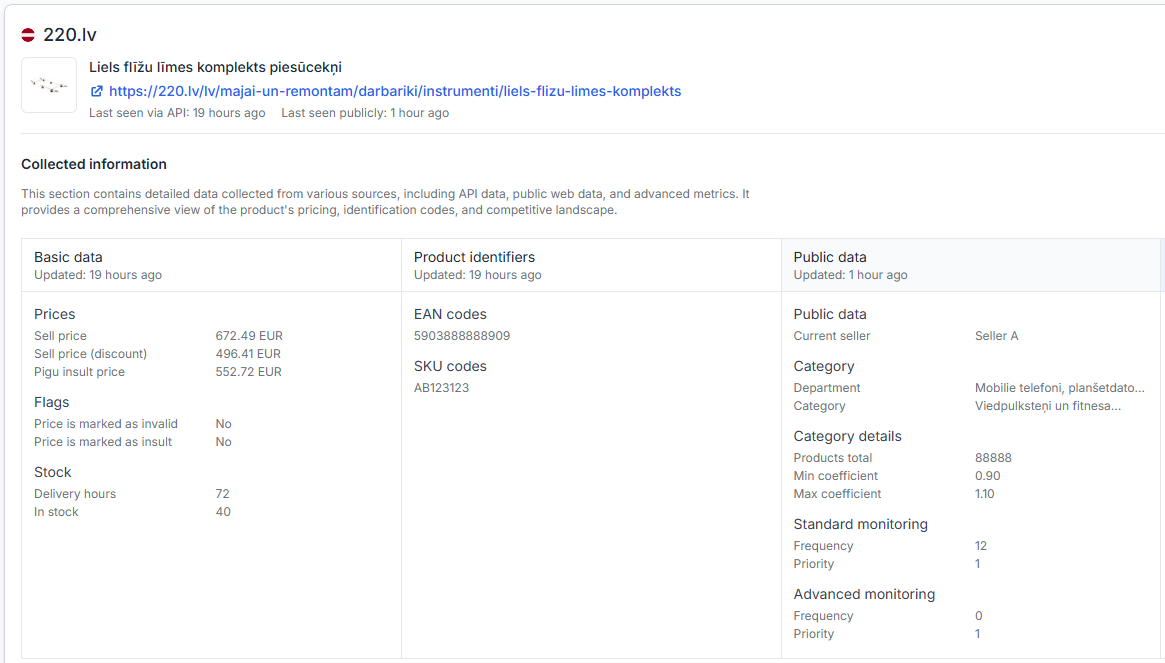
Open Product Checker and search for the affected EAN. For details about the information shown there, read Product Checker: Review Product Data, Price Calculations, and Exports.
Use Product Checker to compare:
- The product data imported from your source.
- The latest known marketplace observations.
- Whether a BuyBox calculation was performed.
- The calculated price, when available.
- The values prepared for XML export.
5. Inspect the public xml export
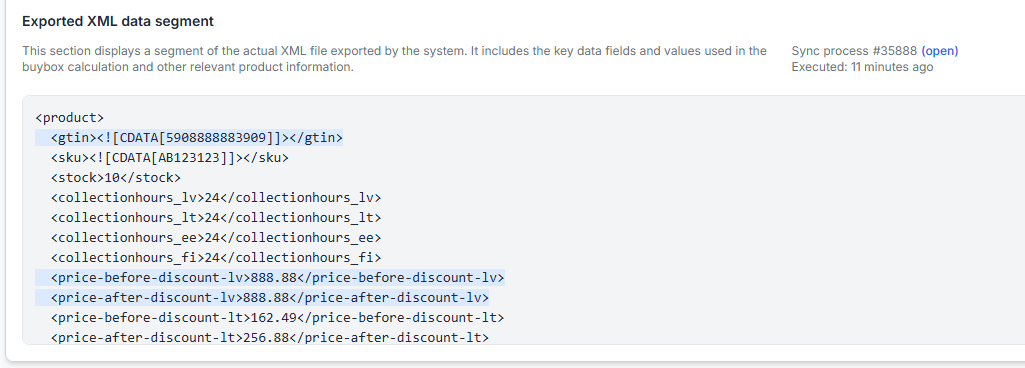
Open the public XML URL shown in Synchronization Settings in a browser. Use the browser’s search function to find the product by its EAN.
Check the product entry for:
- The expected stock quantity.
- The expected price values.
- The expected collection-hours or delivery-related value, when used in your configuration.
This check shows what B2BLIX is currently exporting. It does not confirm that Pigu has already imported or accepted the values.
6. Check the pigu-side xml configuration
If the public B2BLIX XML contains the correct stock and collection-hours values, but Pigu displays different information, check the XML source configuration inside your Pigu account.
Verify that:
- Pigu is using the current B2BLIX public XML URL.
- The stock column or attribute is mapped correctly.
- Any delivery or collection-hours attribute is mapped correctly.
- The latest file import completed successfully on Pigu’s side.
Pigu performs the final import and applies the marketplace update. When B2BLIX exports the correct value but the marketplace does not show it, the remaining issue may need to be investigated on the Pigu side.
Common scenarios
The product has stock = 0, but a calculated price is still shown
This can be expected. B2BLIX may calculate a BuyBox price for a zero-stock product when collected marketplace data exists. The calculation does not mean that the product is currently available for sale.
The product has stock = 0 and no new calculation appears
The product may not have sufficiently recent collected marketplace data, may not have been included in the current synchronization, or may not have been taken into processing while unavailable. In this situation, the imported price may remain unchanged.
The product was removed from the source when stock reached zero
B2BLIX cannot export a zero-stock update for a product that is no longer present in the import. Restore the product row with valid data and set its stock value to zero.
The account uses api export
API export updates prices only. Switch to an appropriate XML workflow when stock quantities also need to be transferred.
The b2blix xml shows positive stock, but pigu still shows the product as inactive
Confirm that Pigu is importing the correct public XML URL and that the stock field is mapped correctly. If the XML value is correct, the issue is likely after the B2BLIX export stage.
The product is back in stock but is not recalculated
Keep the product in the import with its updated positive stock value and wait for the next applicable monitoring and synchronization cycle. If the product is still not taken into processing, check Synchronization Reports and Product Checker, then contact B2BLIX support with the affected EAN and the relevant synchronization details.
Example
A seller imports a product with EAN 4750000000001, price eur 25.00, and stock 4.
The remaining units are sold, so the seller changes the source row to stock = 0. The seller keeps the EAN, price, and other required fields in the source.
During the next XML synchronization, B2BLIX can include zero stock in the exported product entry. If collected marketplace data exists, B2BLIX may also calculate a BuyBox price for that product. The calculated price and the zero-stock value describe different parts of the product data.
Later, the seller changes the same row to stock = 7. B2BLIX includes the new quantity in a later XML export. Pigu must then import and apply that file before the product becomes available on the marketplace.
What to do next
- Keep temporarily unavailable products in your import and set stock = 0.
- Use XML export when stock quantities must be updated.
- Confirm that the stock attribute is included in the imported source.
- Review the latest run in Synchronization Reports.
- Check the affected EAN in Product Checker.
- Open the public XML URL and verify the exported stock and delivery-related values.
- If the XML is correct but Pigu shows different data, review the XML URL, field mapping, and import result in Pigu.